Introduction
Welcome to Field Effect MDR. As an MSP administrator, your first steps focus on completing your organization’s deployment, ensuring devices are protected, and becoming familiar with the tools available to help you monitor and manage your security posture.
This article provides a roadmap for getting started and links to detailed guides that walk you through each stage of the onboarding process.
Before you begin, make sure you have:
- An active Field Effect MDR subscription
- The welcome email containing your login instructions
- Information about the networks, devices, and users you plan to protect.
This article covers the following topics:
Create Your Account and Log In
Your MDR journey begins with signing in and becoming familiar with the platform. As a partner administrator, your email account should already be permitted to create an MDR Portal account and get started.
To access the MDR Portal, visit https://my.fieldeffect.net/.
After you create an account and sign in, take a few moments to tour the MDR Portal.
Familiarize Yourself with the Navigation
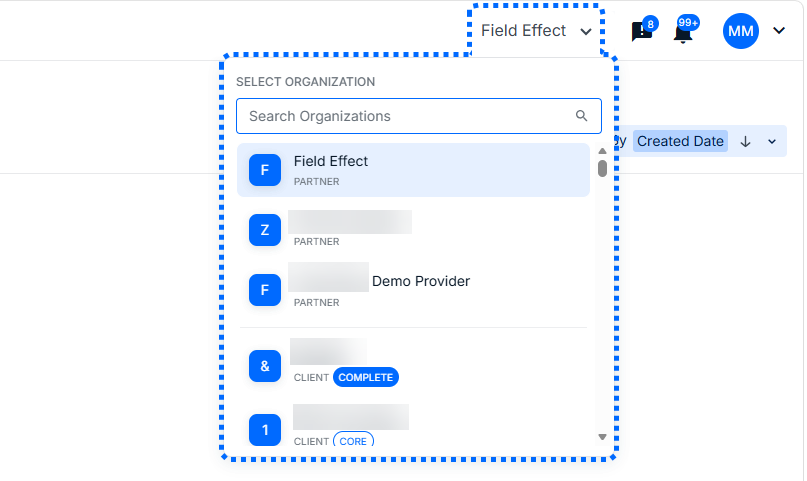
To accommodate all of the end clients you manage within one portal, the organization selector changes the way the MDR Portal displays data and sidebar entries.
Depending on which view you are using, the sidebar and certain pages behave slightly differently and show different metrics:
- Partner View: when selected, the AROs and dashboard metrics for all of your end client organizations are shown across the Portal's dashboards and pages.
- As an administrator, you will set your partner-level configurations, such as your MSP organization profile, co-branding, ITSM/PSA integrations, set default client configs and more.
- Client View: when selected, the AROs and dashboard metrics for a specific end client are shown across dashboards and pages. From here, y0u can manage a specific client organization's MDR configurations.
Invite Team Members
You can invite other users to create an MDR Portal account and access your organization.
As an MSP administrator, you can invite users to your partner organization or a specific client organization. Ensure the organization selector is set to the correct client view when managing users.
Next Steps
Now that you have an MDR Portal account and access to your partner organization, some partner-centric settings you can configure before adding you first client organizations include:
- Client Configuration: define a specific set of configurations that are automatically applied to each client organization you onboard. This will result in much more streamlined deployments.
- ITSM/PSA Integrations: If you have a ITSM or PSA solution (HaloPSA, Autotask, ConnectWise), you can integrate it with Field Effect MDR to streamline your workflow.
- Escalation Contacts: help ensure that Field Effect knows who to contact in the event of a security incident. As a partner, you can assign escalation contacts at either a client or the partner level.
Once you have set up your partner-centric configurations, you can begin to set up your first client.
Was this article helpful?
That’s Great!
Thank you for your feedback
Sorry! We couldn't be helpful
Thank you for your feedback
Feedback sent
We appreciate your effort and will try to fix the article