This article only applies to partners and clients who purchased Beauceron Security from Field Effect. If you are an existing Beauceron Security user and would like to integrate your Beauceron Security service with Field Effect, please instead see Integrating Beauceron Security with Field Effect MDR.
If you purchased Beauceron Security through Field Effect MDR, your new Beauceron Security tenant needs to be set up by the user designated in your Order Form. This article describes the process at a high level - more detailed information can be found in Beauceron Security's Help Center.
As an administrator, you will interact with this platform in several ways:
- You will receive an invitation to join the platform.
- You will configure the platform for your environment.
- You will configure your email systems to inter-operate with the Beauceron Security platform.
- You will set up your users within the platform.
- You will set up Security Awareness Training (SAT) for new users and annual refresher training.
- You will set up Phishing Campaigns.
- You will summarize and report on the results of campaigns.
You may also decide to make use of additional features within the platform such as custom courses, curriculums, phishing templates, reporting, and more.
This article covers the following administrative activities:
Video Overview
Initial Setup
To perform the procedures referenced in this article, you will need to have the Admin role for your organization's Beauceron Security tenant. This includes all MDR Portal Admins by default. If you need another user added to specifically administer your Beauceron Security tenant please contact support@fieldeffect.com
Configure a New Beauceron Security Tenant
The following sections provide a high-level overview of how to set up the essential aspects of your new Beauceron Security tenant purchased through Field Effect. We encourage you to visit Beauceron's Setup Guide for more detailed instructions: https://cybersecurity-awareness.document360.io/v2/docs/en/domainauth.
Log into Beauceron from Field Effect MDR
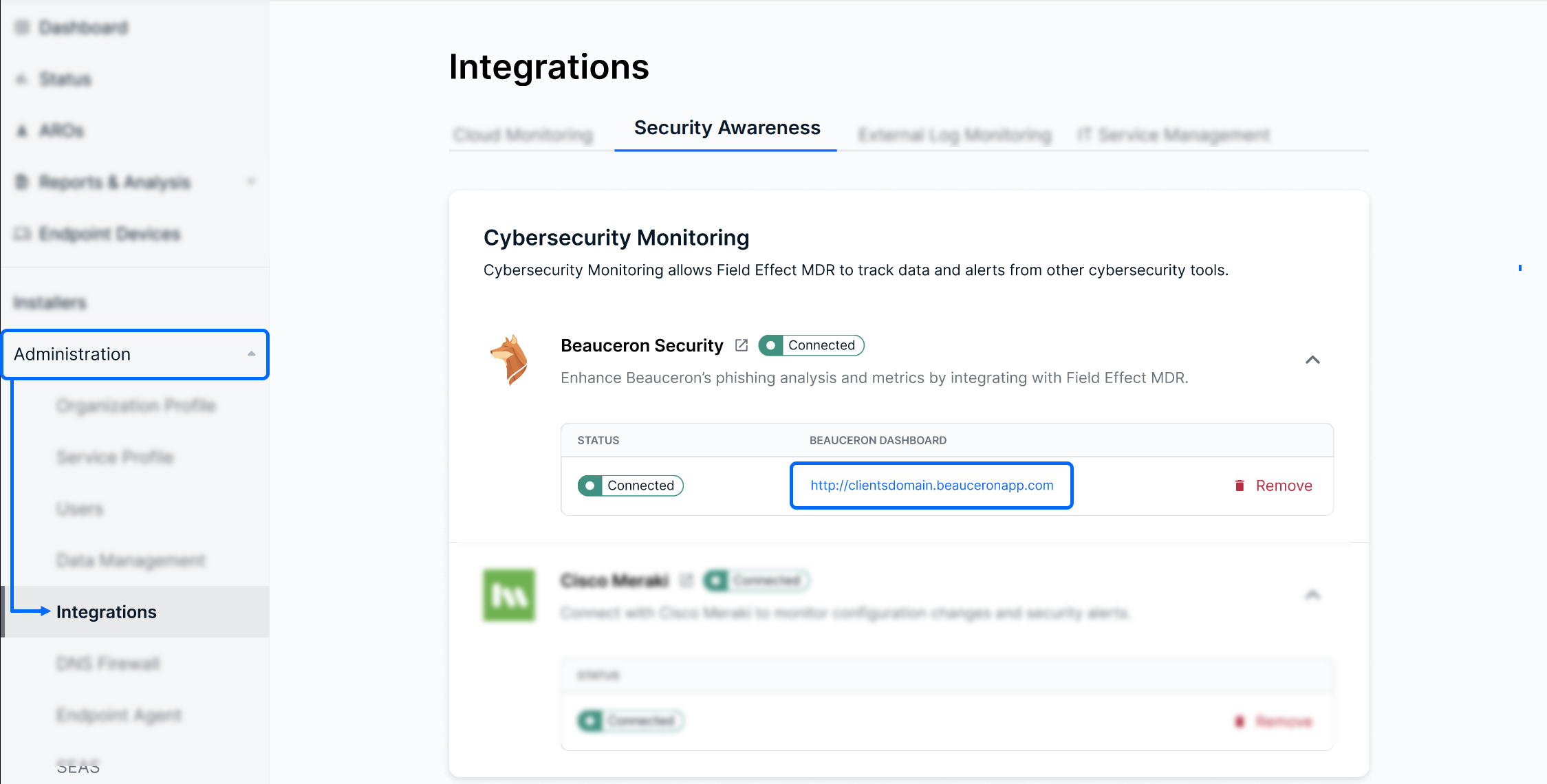
Begin by logging into the Field Effect MDR Portal and navigate to Administration > Integrations > Security Awareness. From here, click on the Beauceron Dashboard link. This will take you to your organization's new Beauceron Security tenant.
Your first login will need an extra step:
- If you are using M365 or Google accounts, you can make use of a partner login feature by adding 'azuresso' or 'googlesso' to the end of these links. This will allow you to log in using these sign-in partners to log directly into the platform.
- If you are not using either of these sign-in partners, then email support@fieldeffect.com and we will provide you with an account creation link.
Consult Beauceron Security Documentation
To access Beauceron's Setup Guide, which this article references, you will need to have the Admin role for your organization's Beauceron tenant.
Once logged into your new tenant, as the admin, you will be taken to the admin dashboard. From here, open the profile menu at the upper right of the page.
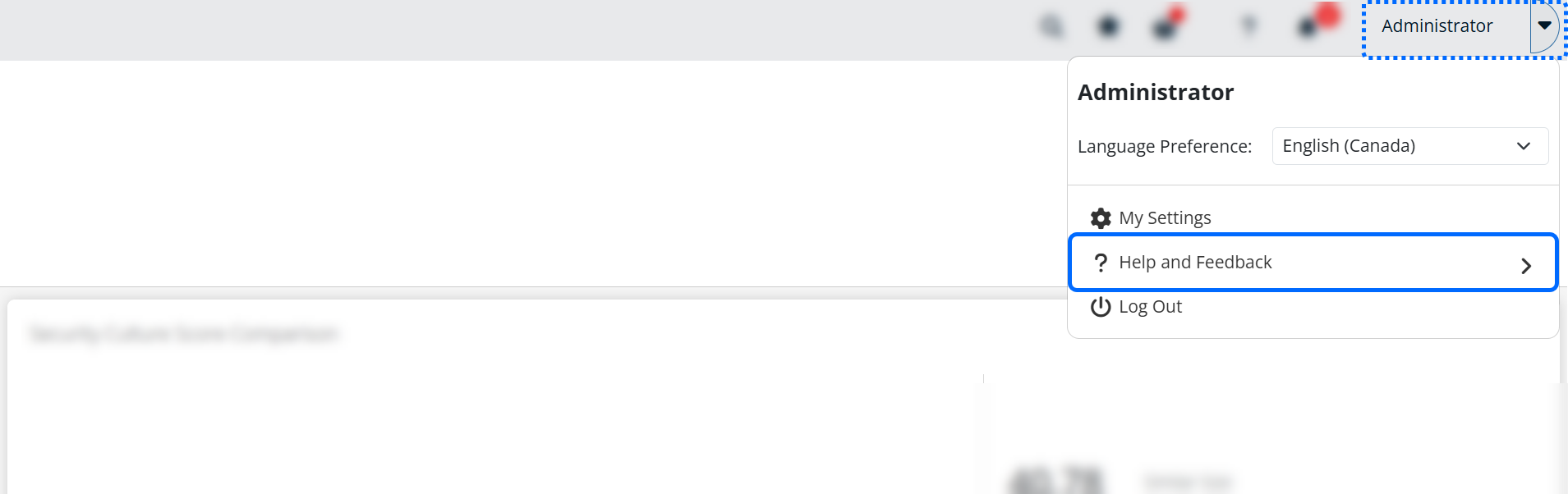
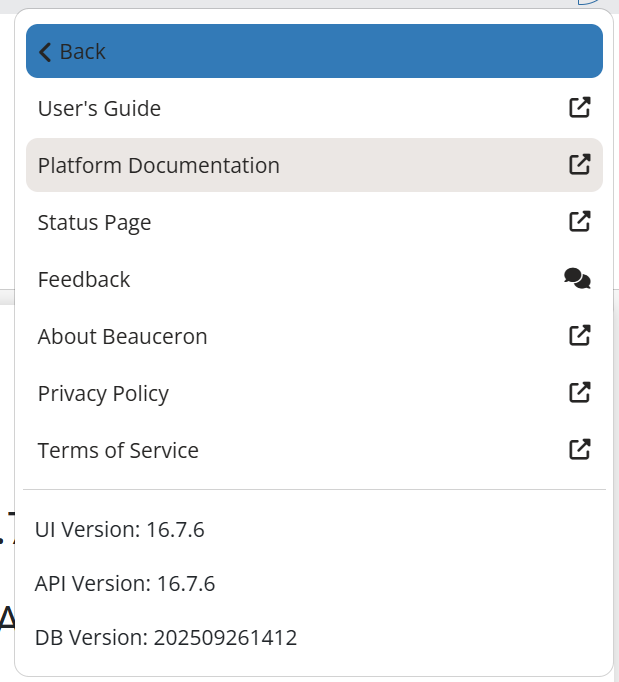
From the Help and Feedback sub menu, select Platform Documentation (or User's Guide) to access the Help Center.
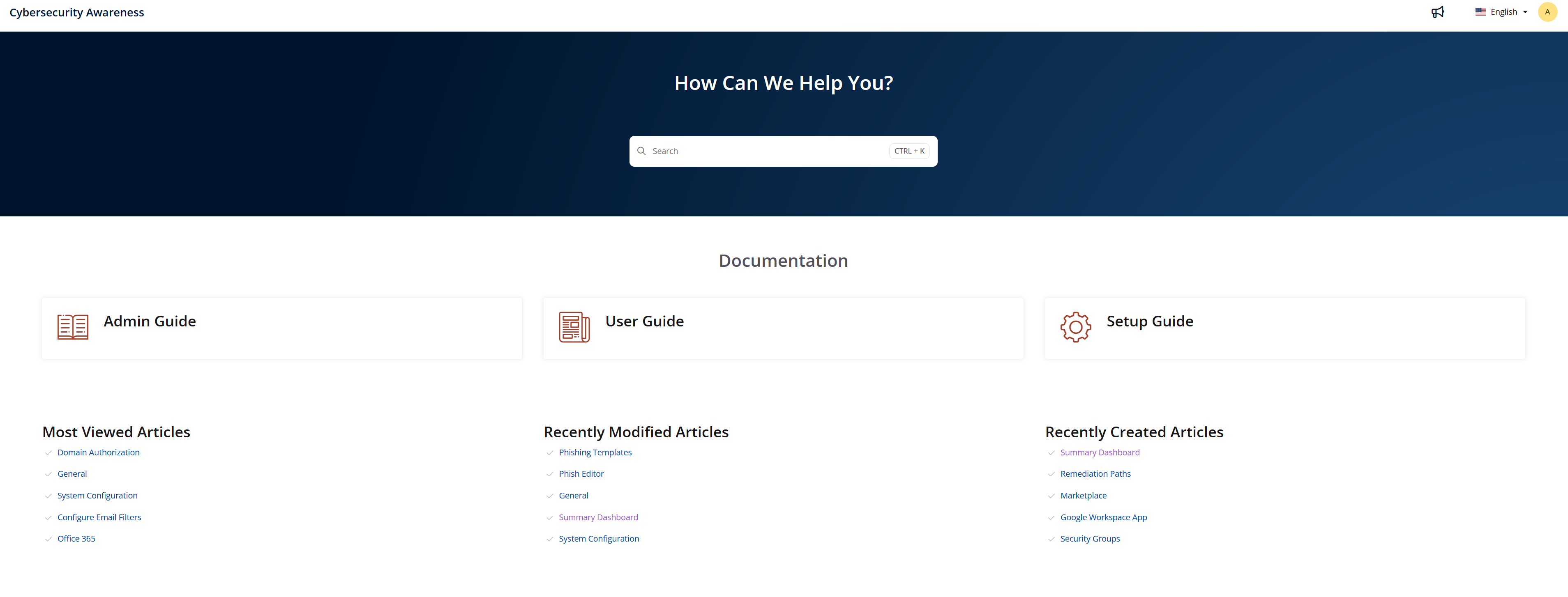
You'll be taken to the Beauceron Security Help Center, where you can find detailed guides about their product.
Follow the Setup Guide
From within the Beauceron Security support site, follow the steps outlined Setup Guide:
- Domain Authorization
- User Authentication
- Configure Email Filters
- (optional) Add the Beauceron app to Teams
- User Sync
You can skip the steps to set up PhishForward as we recommend using the Field Effect SEAS plug-in instead.
The Setup Guide is available at the following link, but requires that you first log in to Beauceron Security as an admin: https://cybersecurity-awareness.document360.io/v2/docs/en/domainauth.
Using the Platform
Administrators have a different dashboard than normal users. They see an overview of the organization rather than of their own cybersecurity.
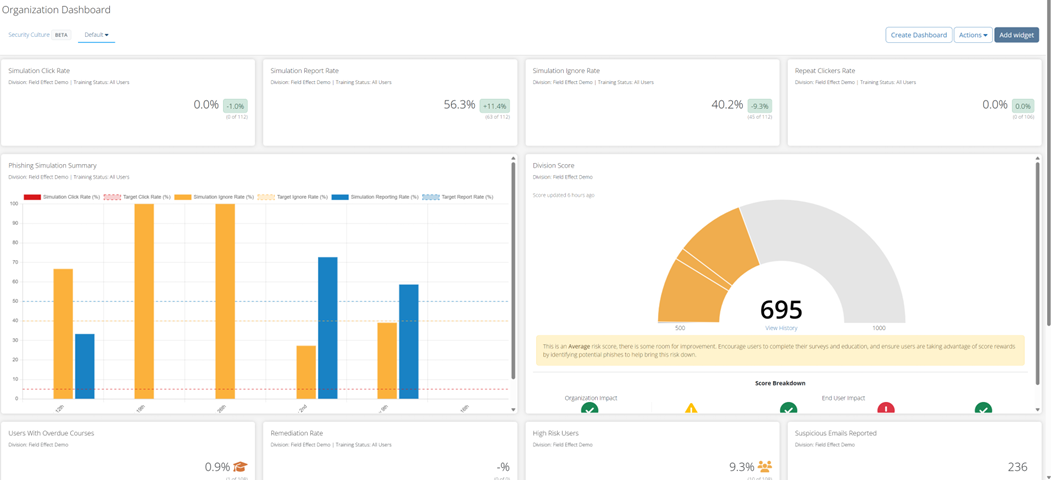
Your end users will have initial cybersecurity awareness training enabled by default as part of their onboarding to the platform, so they will receive regular phishing simulation emails.
Should you also want to configure annual refresher training, navigate to Configuration > Divisions, select the top-level Division for the organization, and change Active Yearly Refresher Training from No to Yes.

Customizing the Platform
You can effectively benefit from Beauceron Security with the default settings but you can also customize phishing campaigns and courses to match what you want for your users.
Starting a New Phishing Campaign
Field Effect recommends using the defaults provided by Beauceron Security during division setup so that the platform will automatically send phishing simulation emails to your users. You can set up additional custom campaigns to meet the needs of your organization.
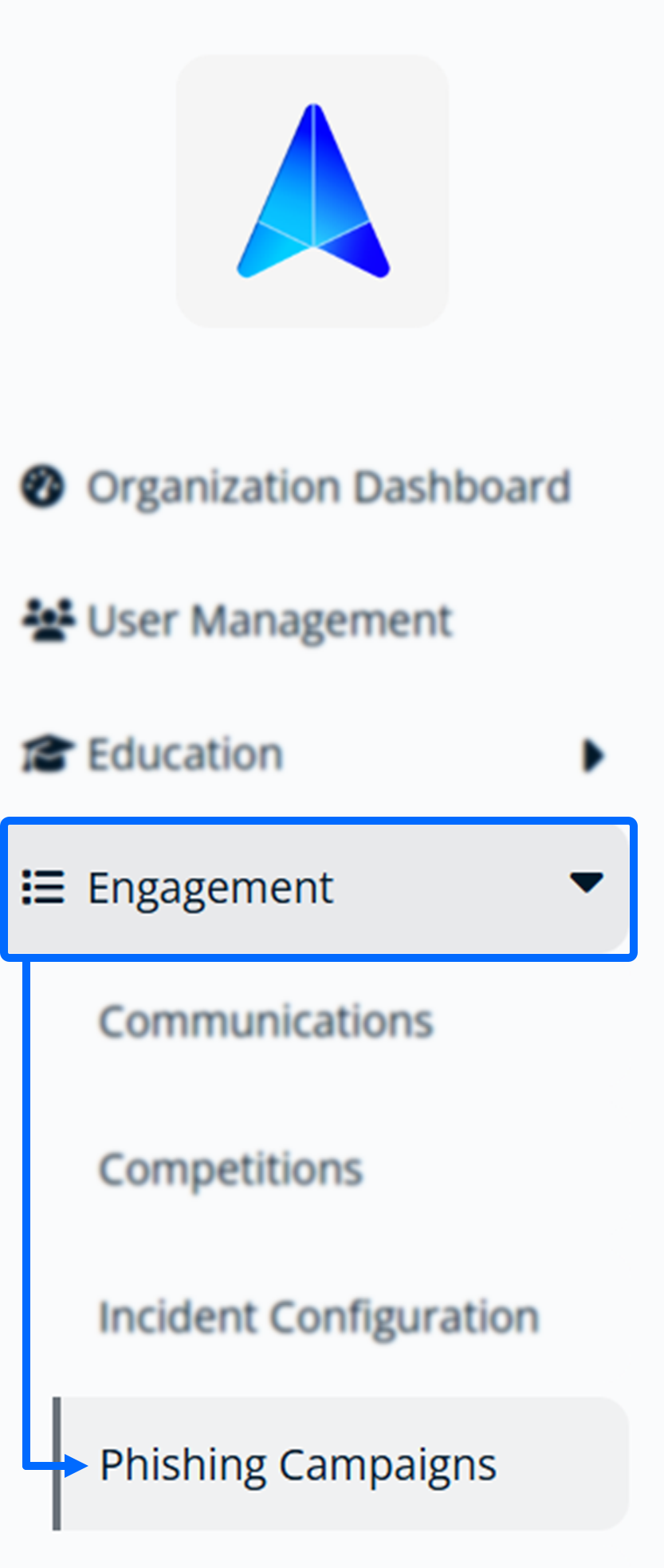
Select Engagement > Phishing Campaigns from the dropdown menu in the top left corner of an administrator user’s Beauceron Security.
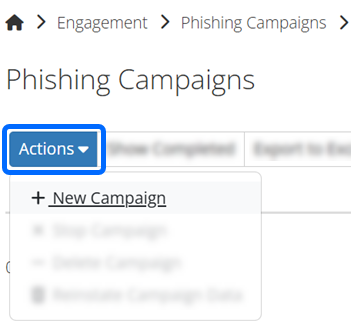
Select Actions > + New Campaign to show the Schedule Phishing Campaign modal.
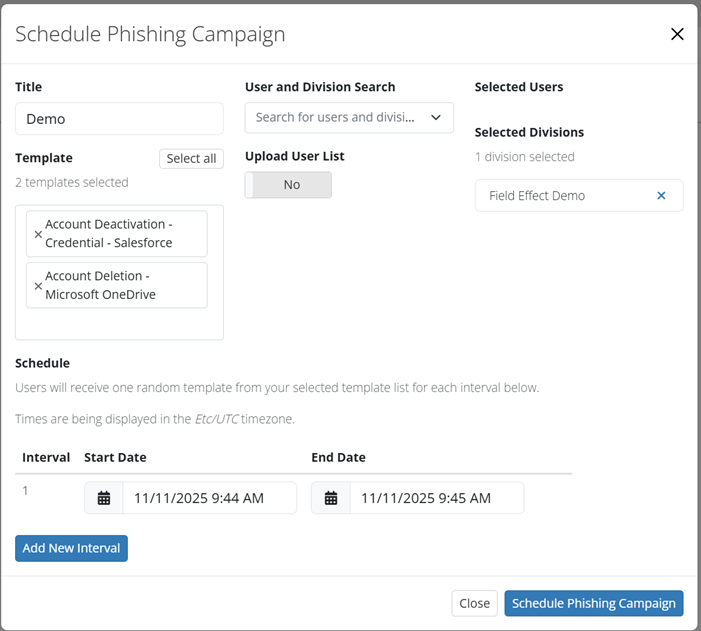
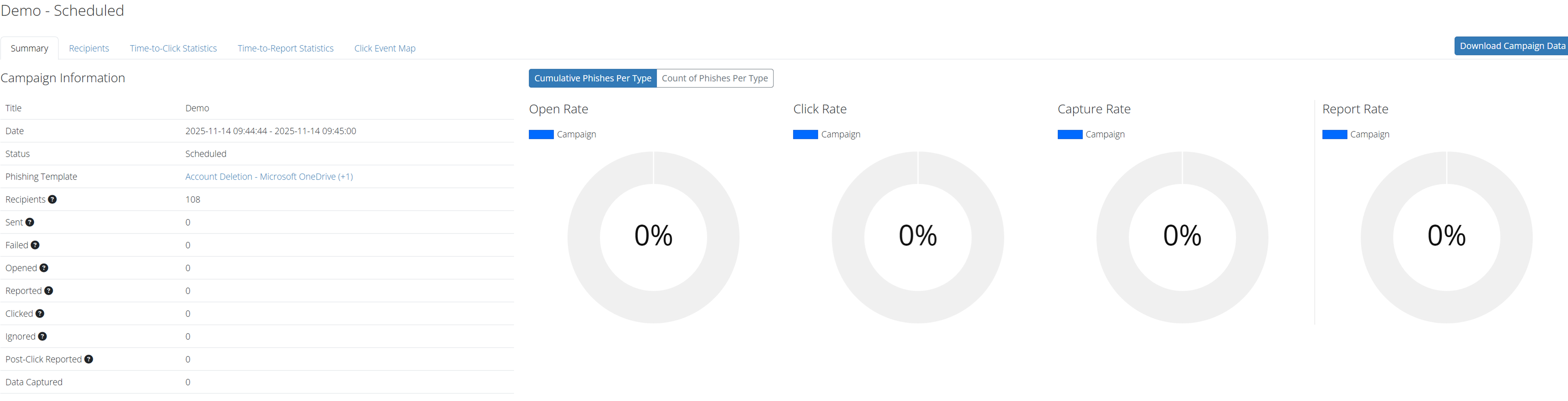
Give your campaign a name (the example below uses ‘Demo’), search for the group of users (‘Field Effect Demo’ division), then select the templates you want to send (‘Account Deletion – Microsoft OneDrive’ and ‘Account Deactivation – Credential – Salesforce’). Select a Start Date and End Date. For a test campaign, pick the start and end dates close together so that it will complete quickly. For a full campaign with multiple templates, you may want to have the campaign run with a larger interval.
When ready, click Schedule Phishing Campaign.
You can now see the campaign in your list of campaigns. Click on it to see more information about it. The tabs across the top of the screen will allow you to drill into the results.
Assigning Courses
Beauceron Security can assign users courses if they fall victim to phishing campaigns. Field Effect recommends using the defaults provided by Beauceron Security during domain setup so that the platform will automatically assign courses to users when they fall for phishing simulations. You can see what these courses are by going to the top left dropdown menu and selecting Engagement > Incident Configuration.
There are a number of default remediations that occur depending on the type of phishing template you used for the campaign, and the number of times a particular user has fallen victim to phishing simulations. You can review these paths by going to the top left dropdown menu and selecting Engagement > Remediation Paths.
Field Effect encourages you to visit the Beauceron Security documentation if you decide to customize the remediation activities via either custom domain setting, remediation paths, or courses.
Setting Up Custom Cybersecurity Awareness Training
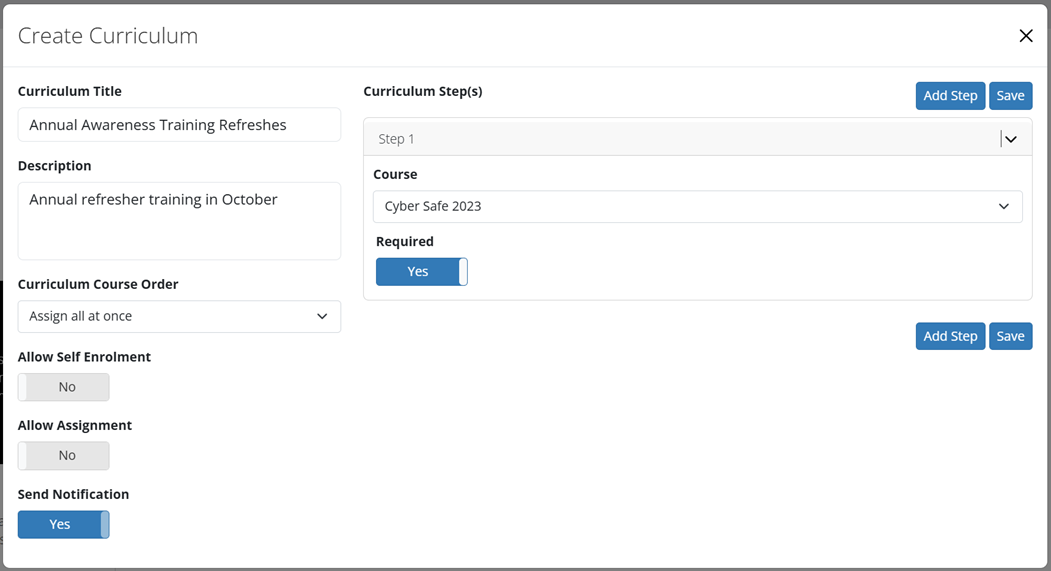
From the top left dropdown menu, select Education > Curriculums.
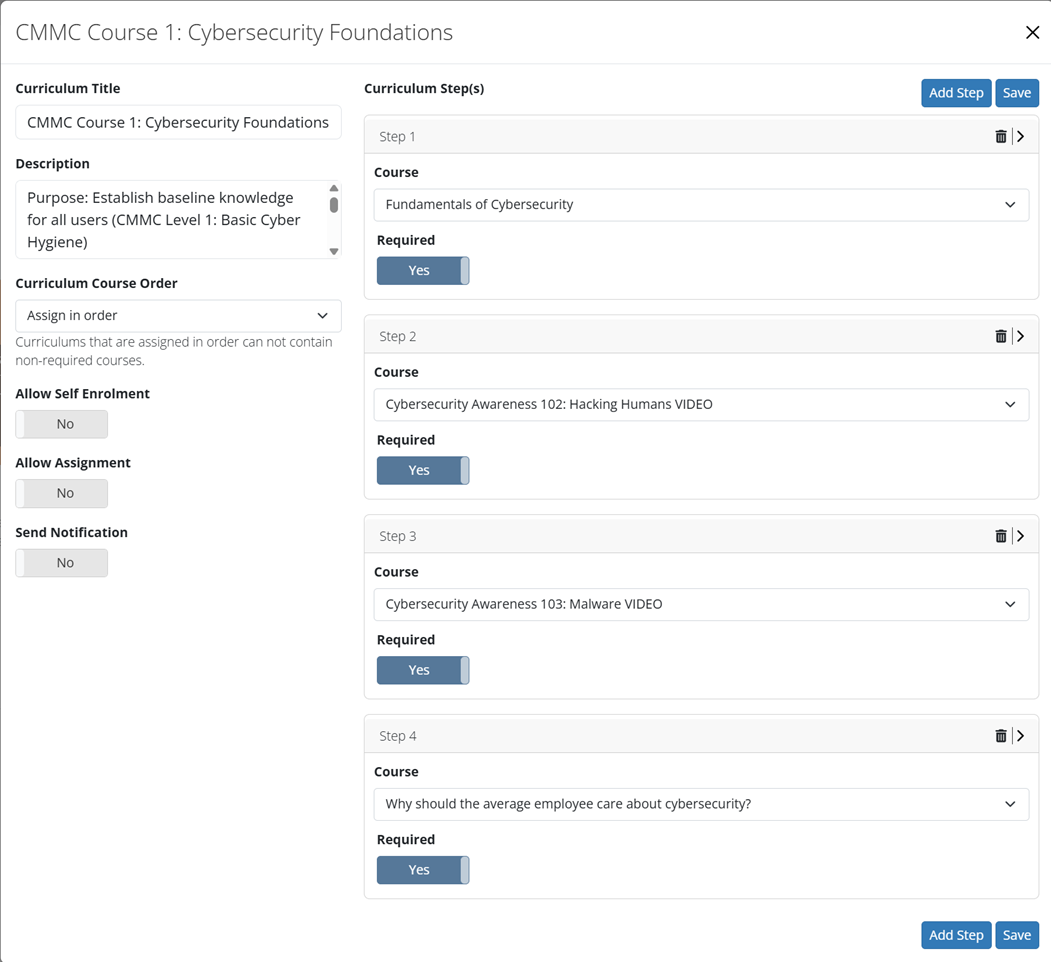
You can use existing Beauceron Security courses or create your own (see Beauceron Security documentation for more details on this option).
More with Beauceron Security
The Beauceron Security platform has a number of useful reporting interfaces. Field Effect encourages clients wanting to make full use of their Beauceron Security licenses to explore the rest of the platform with the assistance of the Beauceron Security documentation.
Was this article helpful?
That’s Great!
Thank you for your feedback
Sorry! We couldn't be helpful
Thank you for your feedback
Feedback sent
We appreciate your effort and will try to fix the article