Introduction
While it's important to analyze your end-clients' risk at the account and device level, there may be instances where you want to analyze the attack surface of your entire fleet of organizations. The Cyber Risk Section's Risks and Vulnerabilities page supports this level of insight by presenting all active risks and vulnerabilities into a single table. From here, you can see how a specific software or account vulnerability is affecting all your end client organizations.
This article introduces the page and provides an overview of its functionality.
Since this is a partner-only view, it's only available when the organization selector is set to the partner view.
This article covers the following:
Video Overview
The Table View
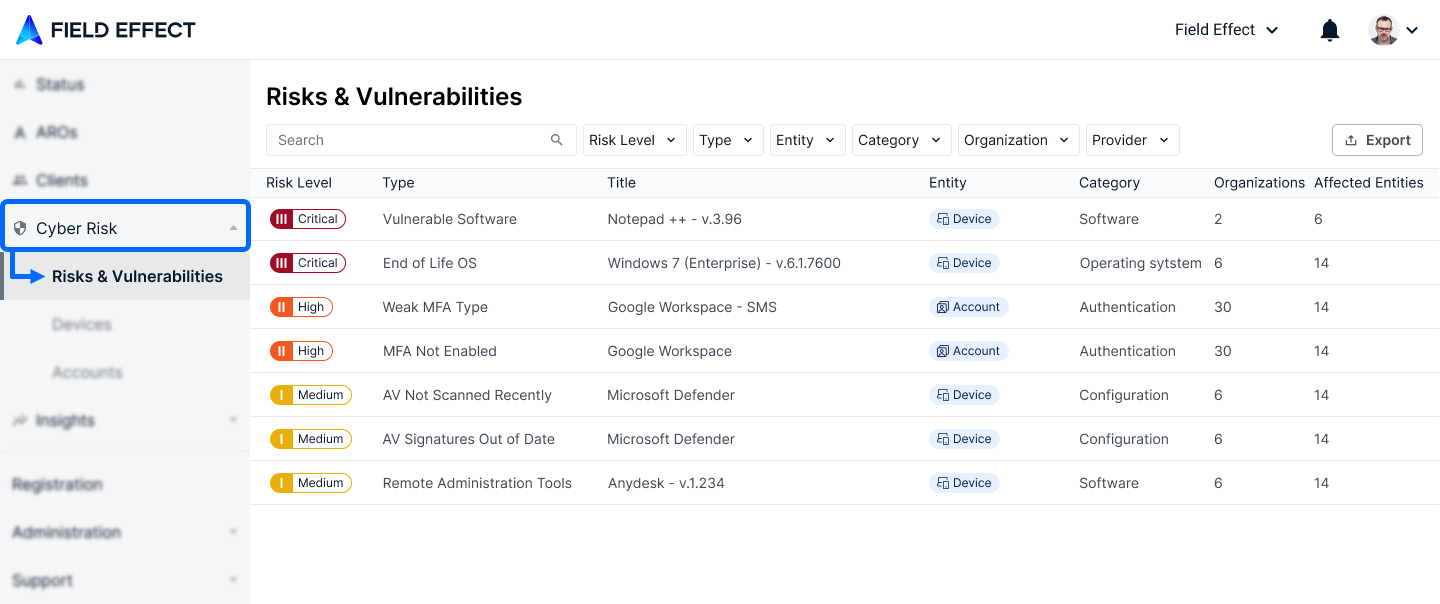
This page consists mainly of a table (shown above) that lists all the risks and vulnerabilities currently present across all end-client organizations. The following columns are available and clicking on a header will sort the results based on that column. Clicking the header again to the sort order (example: ascending/descending).
| Column | Description |
|---|---|
| Risk Level | The risk level Field Effect MDR has placed on the vulnerability. |
| Type | The type of risk associated with the issue: Vulnerable Software, End of Life OS, Weak MFA Type, MFA Not Enabled, AV not scanned recently, AV signatures out of Date, Remote Administrative Tools, |
| Title | Usually the name of the service, software, or other entity affected by the issue. For example, a Vulnerable Software issue will usually include the name of the affected software in the title. |
| Entity | Designates what is being impacted by the issue: account or device. |
| Category | Another identifier to help define and sort vulnerabilities. Examples include Software, Operating System, Authentication, Configuration. |
| Organization | If you are a Field Effect partner managing multiple MDR deployments, this represents the number of end clients currently impacted by the vulnerability. |
| Affected Entities | This lists the number of entities (accounts or devices) that the vulnerability is impacting. If a vulnerability's entity is marked as "devices" and the Affected Entities column is marked at 25, that vulnerability is affecting 25 endpoint devices. |
Searching & Filtering the Table
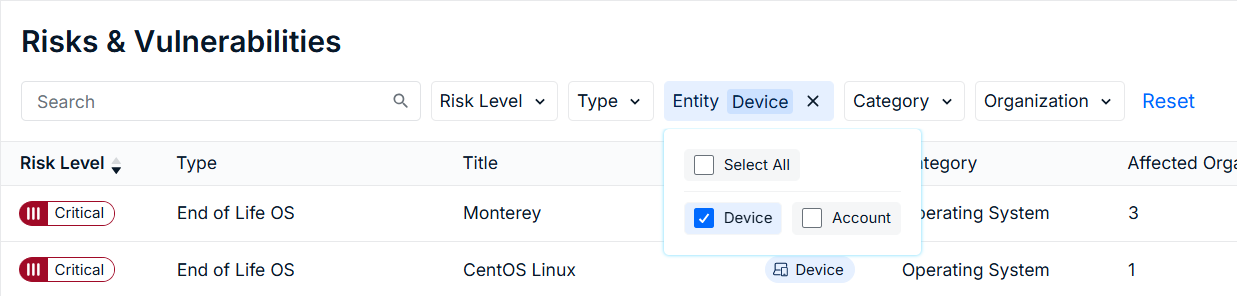
Use the search bar to find issues by keyword and the dropdown menus to filter the results by a certain metric. Filters can be used while performing a keyword search, and you can use multiple filters at once. Check the criteria you would like to filter by, and it will be applied to the results.
The Details Pane
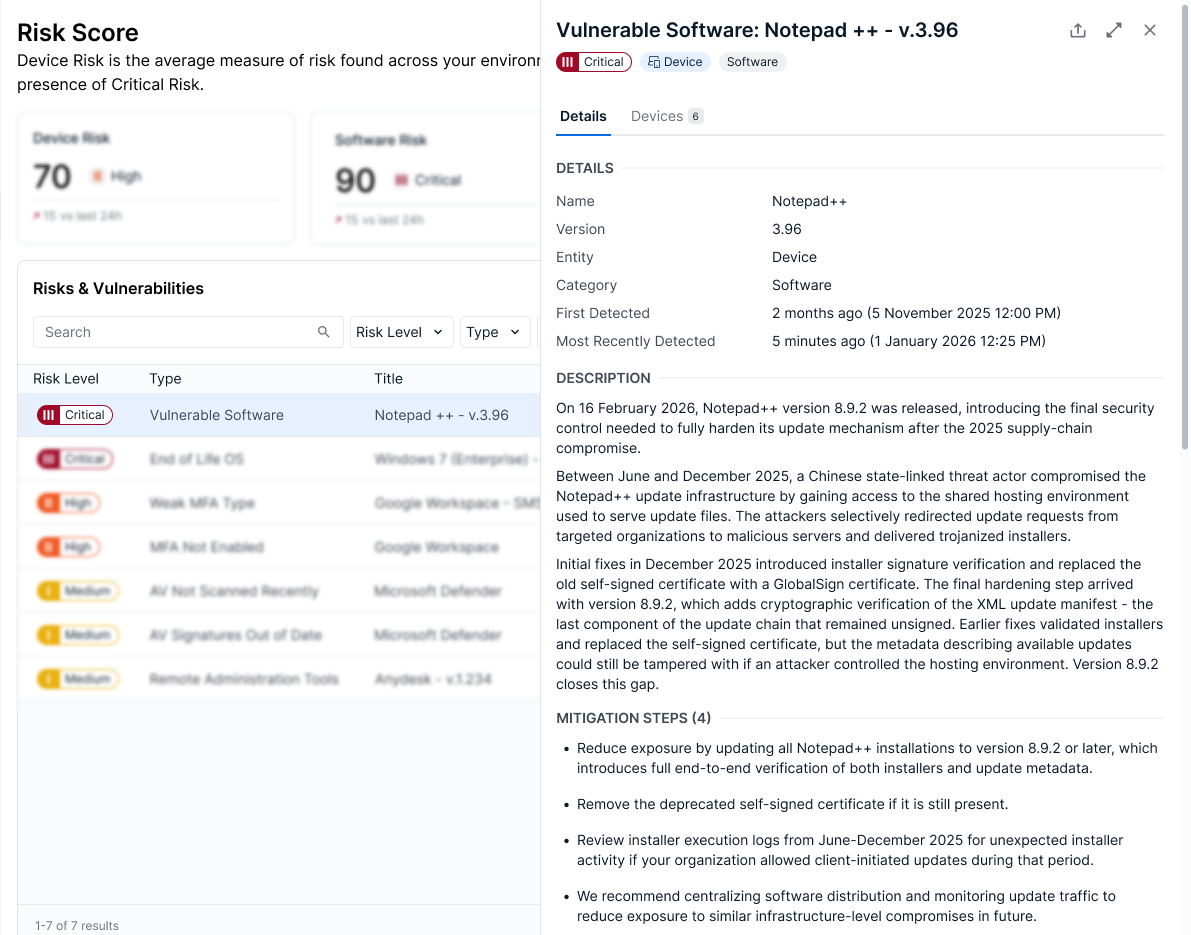
Click on an issue in the table to open the details pane. From here, you can view all of the metrics shown on the table, along with up to three tabs - depending on the issue type:
Details: includes a description, metadata, and more to give the issue context. This tab is visible for all issues.
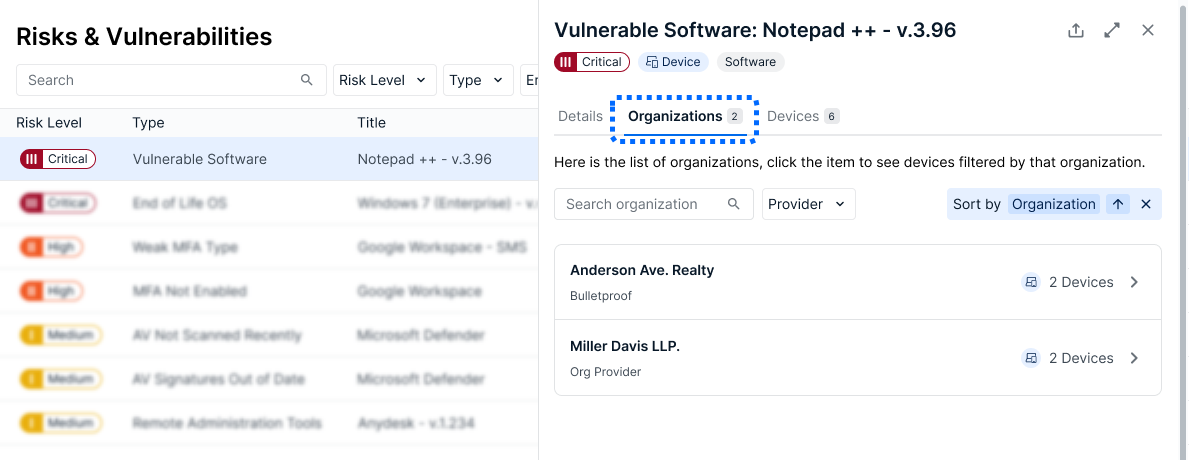
Organizations: Lists the organizations affected by the issue, and groups the accounts/devices by organization. This tab is visible for all issues.
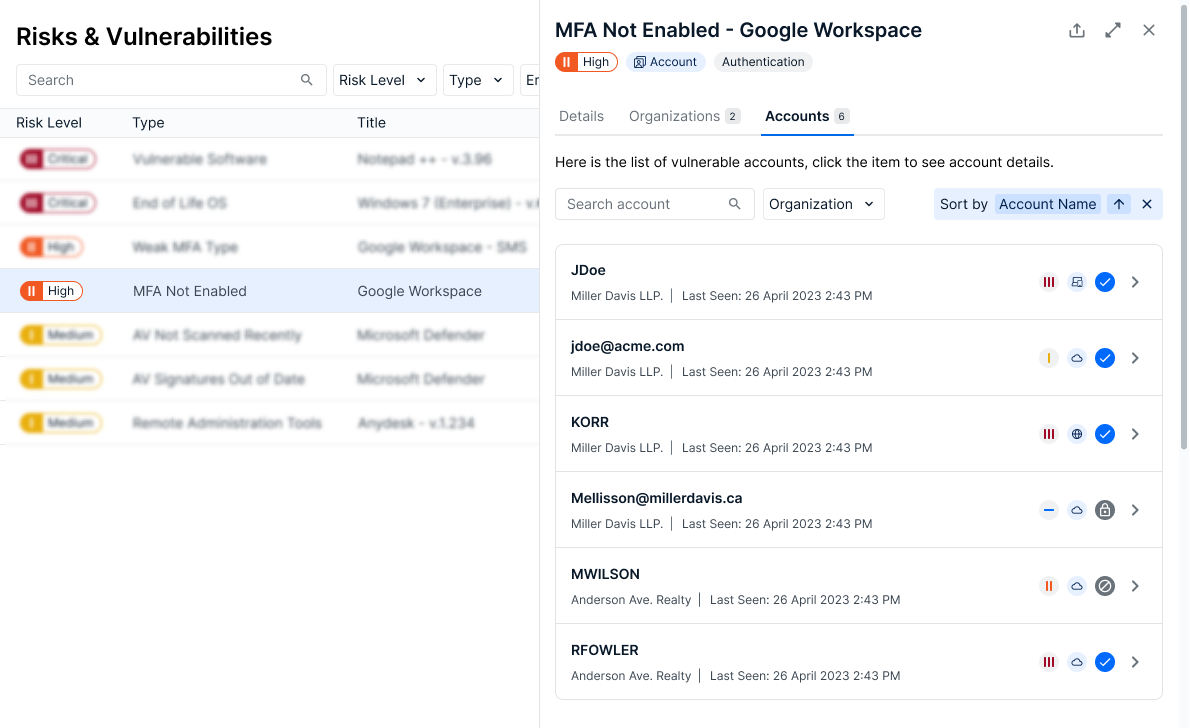
Accounts: lists all of the accounts affected by the issue. This tab is only visible for account type issues.
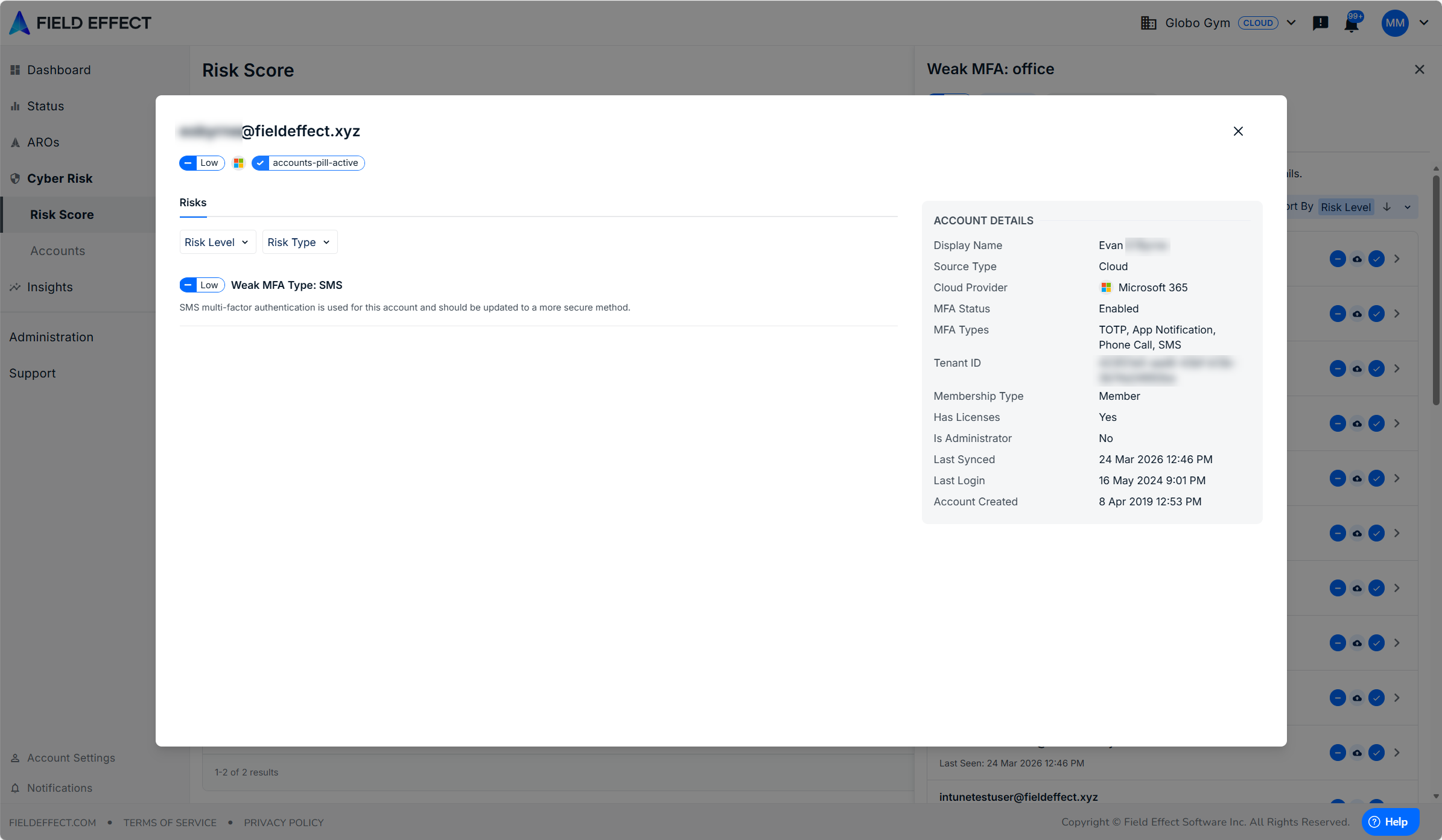
Clicking on an account in this view will drill into further detail for account, referencing data from the Accounts page.
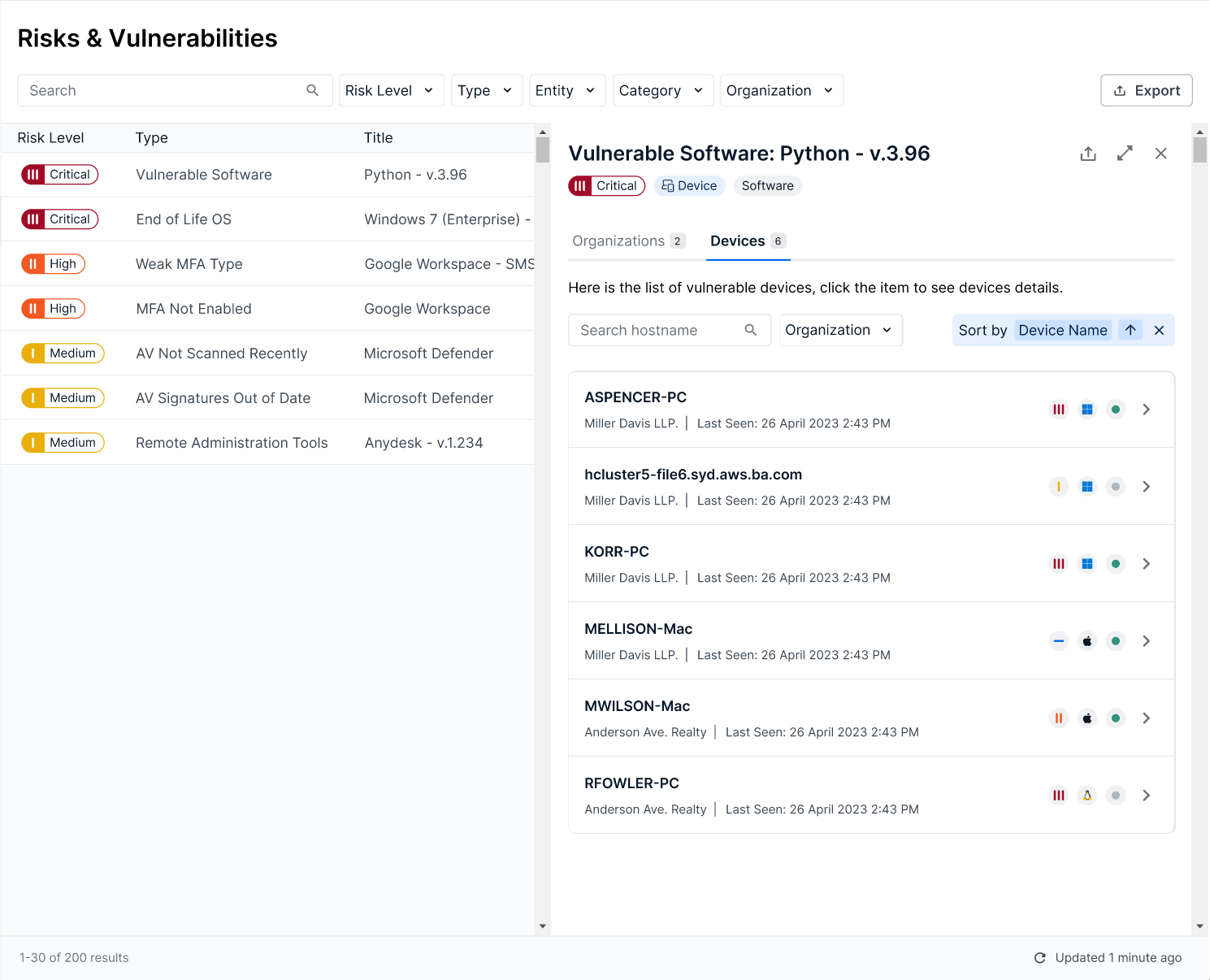
Devices: lists all of the devices affected by the issue. This tab is only visible for device type issues.
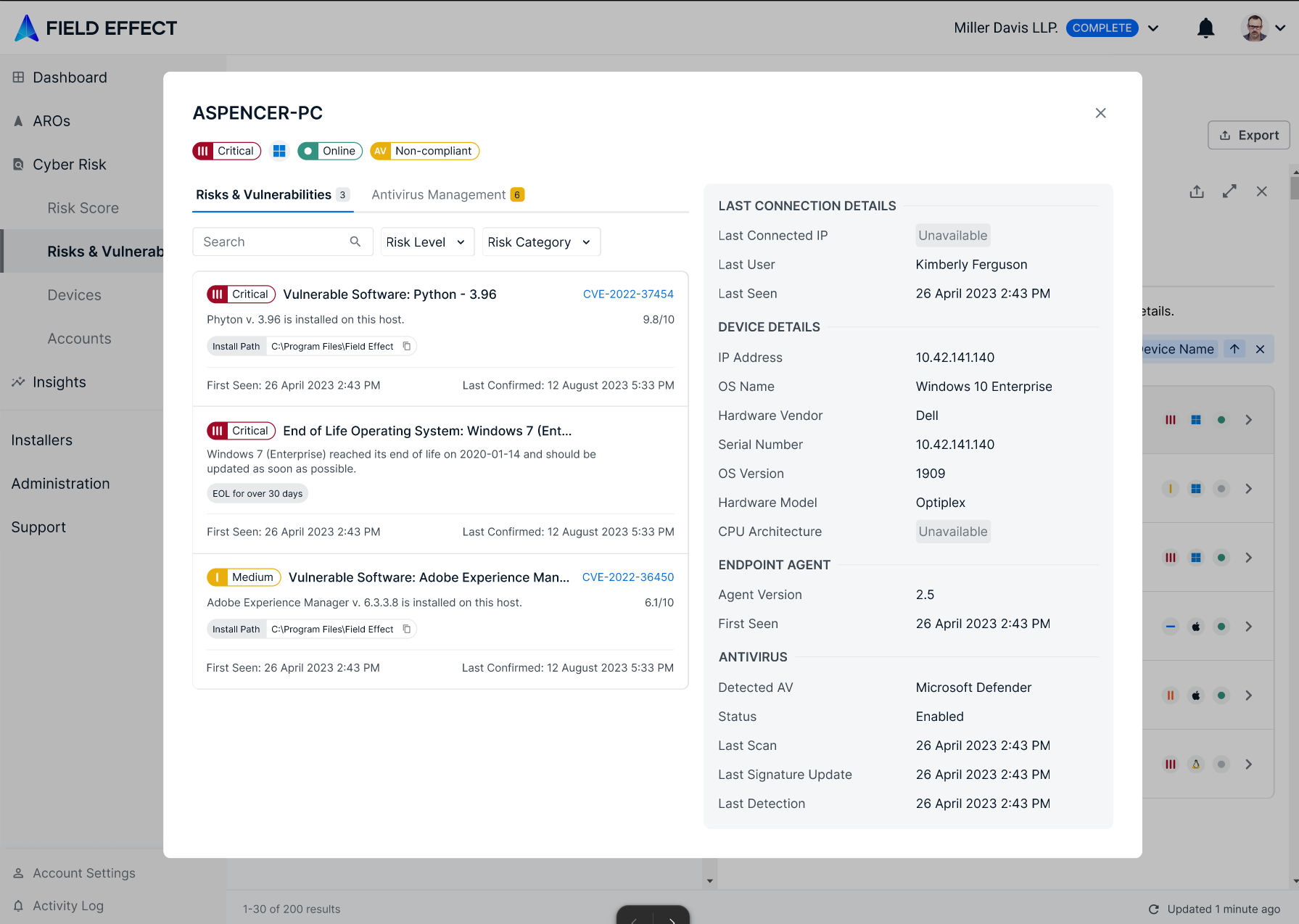
Clicking on an account in this view will drill into further detail for account, referencing data from the Devices page.
Details Tab
In the example below, the user is viewing the Details tab for a software vulnerability.
Organizations Tab
The organizations tab lists every end-client organization affected by the issue, and groups the specific devices/accounts by organization. In the example below, the software vulnerability is affecting 4 devices across two end client organizations.
Click on an organization to go to a filtered view of the either the Devices or Accounts page, only showing the relevant entities.
Accounts Tab
In the example below, the user is viewing the Accounts tab for an MFA risk. This issue is impacting 6 accounts, but in cases where this list is extensive, you can use the search bar and sort dropdown to filter the results.
Click on an impacted account to open a drilled in view showing details from the Accounts page, including any other issues associated with the account. In the example below, the user is drilled into an account that is impacted by an MFA issue.
Devices Tab
In the example below, the user is viewing the Device tab for a software vulnerability impacting 6 devices. In in cases where this list is extensive, you can use the search bar and sort dropdown to filter the results.
Click on an impacted device to open a drilled in view showing details from the Devices page. This view shows other issues associated with the device, antivirus metrics, and connection details. In the example below, the user is drilled into a device that was impacted by a software issue.
Was this article helpful?
That’s Great!
Thank you for your feedback
Sorry! We couldn't be helpful
Thank you for your feedback
Feedback sent
We appreciate your effort and will try to fix the article