Introduction
If your organization uses Single-Sign-On (SSO) to log into MDR accounts, you can enforce our systems (The MDR Portal, Vision, and the mobile app) to only allow SSO logins. This brings several organizational benefits including streamlined login workflows, compliance requirements, reduced password fatigue, centralized policy enforcement, and more.
When enabled, users are can only use SSO when logging into to their MDR account. When configuring the feature, you can exclude specific accounts from this requirement, allowing them to use email and password authentication. Any users that have not linked an SSO account will be prompted to do so once this feature is enabled.
This article describes SSO enforcement, how to enable it, and the impacts to users once the feature is enabled.
Impacts of SSO Enforcement for Partners
If you are a Field Effect Parter, this feature can be set at either the partner level, or the end-client level. When the feature is set for a single client, all client-level users will only be able to log in using SSO, but partners will still have access the client organization.
If SSO enforcement is set at the partner level, all partner users will need to authenticate using SSO. But, any users associated to end-client organizations that do not have SSO enabled will still have access to their client view via email and password.
The following table outlines the differences between each level and how it will impact partner users and end client users.
Partners: use the organization selector to enforce SSO at either the partner level or a specific client level.
| SSO Enforcement Level | Partner User Impacts | End-Client User Impacts |
|---|---|---|
| Client Level | When enabled for an end-client, partner users can still authenticate using email/password (unless SSO is enforced at the partner level). | All end-user accounts associated with the organization will be required to log in using SSO. |
| Partner Level | When enabled at the partner level, all users associated with the partner organization will be required to log in using SSO. Once logged in, SSO is not required to access specific client views. | No Impact |
Enabling SSO Enforcement from the MDR Portal
You must have the Admin permission level and link an SSO account to your MDR Portal account in advance, to perform this procedure.
Partners: ensure that the organization selector is set to the appropriate client or partner view when configuring this feature.
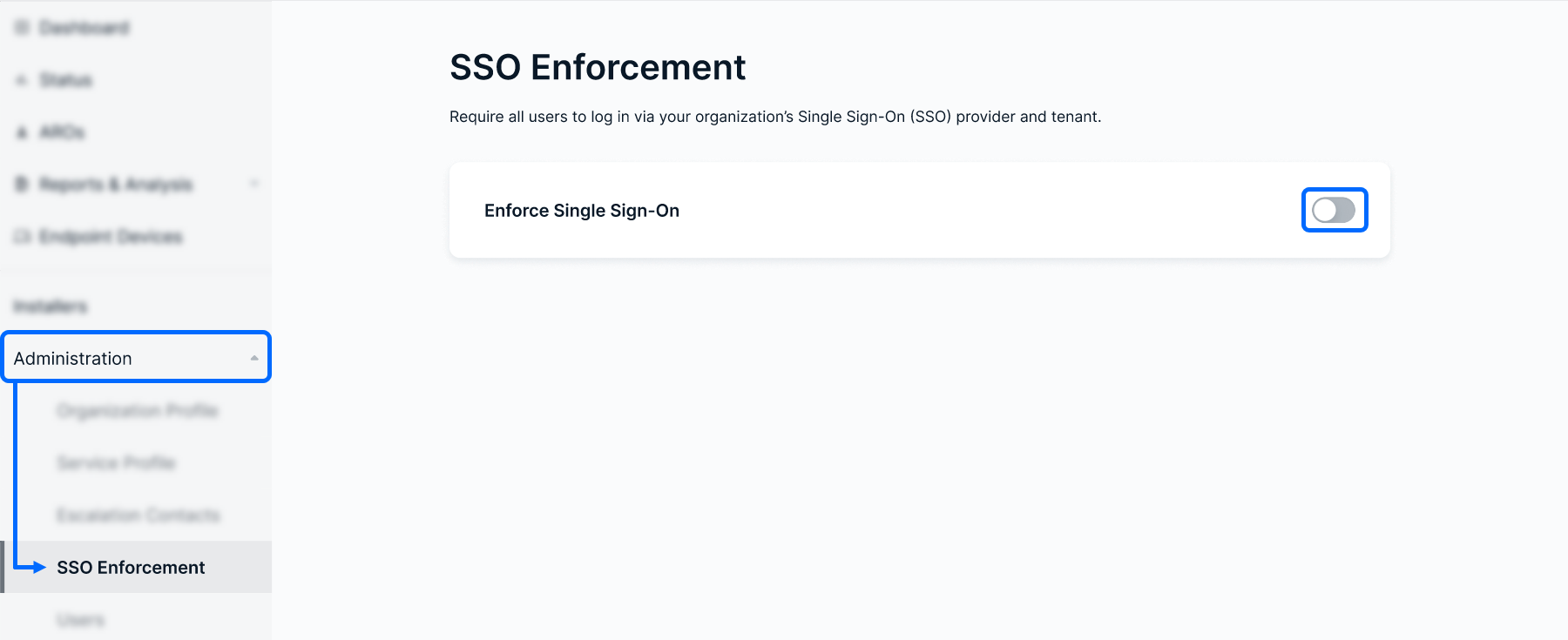
Log into the MDR Portal and navigate to Administration > SSO Enforcement in the sidebar. Click the Enforce Single Sign-On toggle to get started.
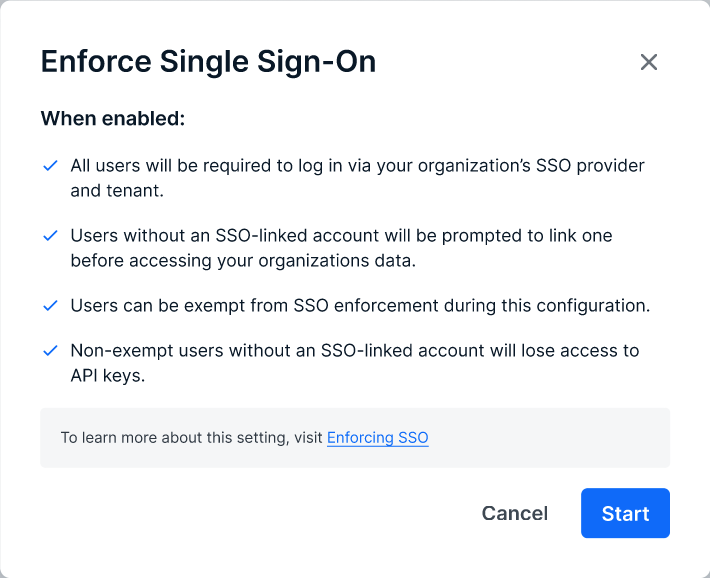
The Enforce Single Sign-On Wizard will open to the getting started page that outlines the feature's capabilities and nuances. Click Start to continue.
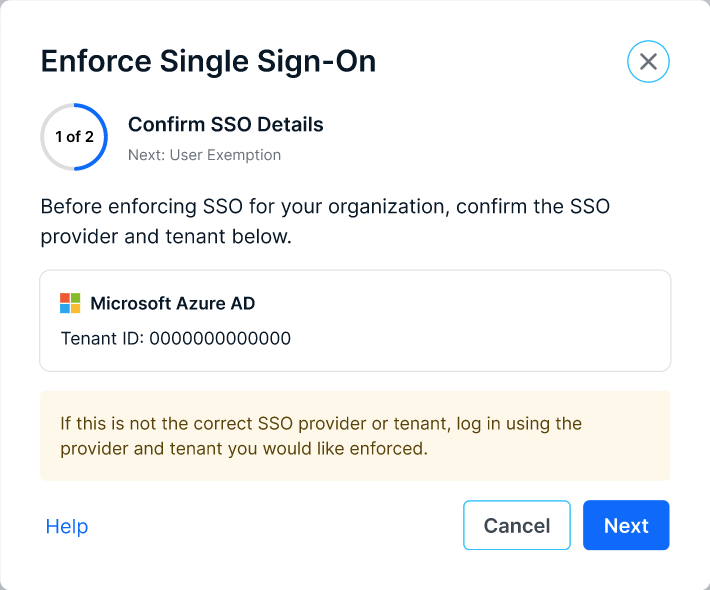
Supported SSO integrations associated with your organization will be listed. Select the SSO account you would like to link for enforcement and click Next.
To confirm your Google account's organization ID, see their help article on finding your organization ID.
To confirm your Microsoft 365 tenant ID, see their Help article on finding your tenant ID.
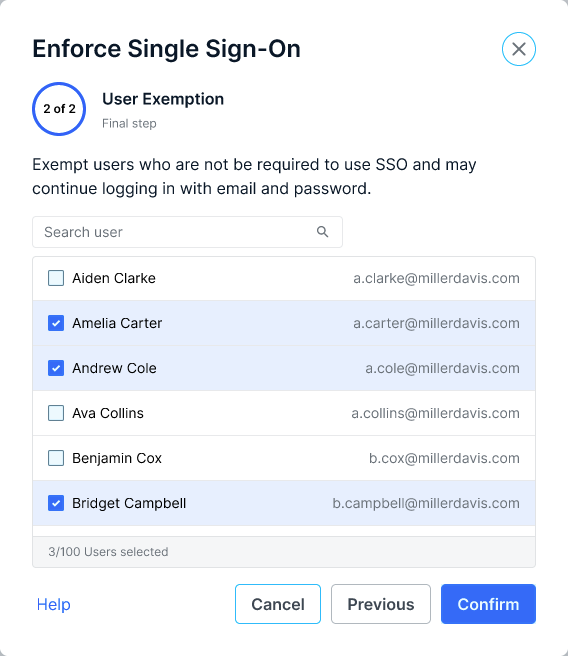
You'll then have the opportunity to exclude users from SSO Enforcement. Any user checked in this list will be able to continue logging in with their email and password.
It's extremely important that you exempt SSO enforcement from accounts using API Keys to retrieve data from the MDR Portal. If these types of users are not exempted, they will lose access to the MDR Portal once SSO is enforced.
When ready, Click Confirm to finish the setup and close the wizard.
You'll be taken back to the main page, and the SSO Enforcement card will be updated to show the SSO Provider being enforced and the number of exempted users.
Clicking Update will allow to you adjust the exemption list.
User Impacts
The following sections outline how users are impacted once this feature is enabled, depending on how they currently log into the MDR Portal.
Users Already Using SSO
End users that have already linked their SSO account and use it to log in will not be impacted.
But, if the user has linked to a different tenant, they would be prompted to link to the SSO account being enforced. An example of this would be a user that linked their organization's Google account for SSO, but Microsoft is being enforced.
Users with no SSO Enabled
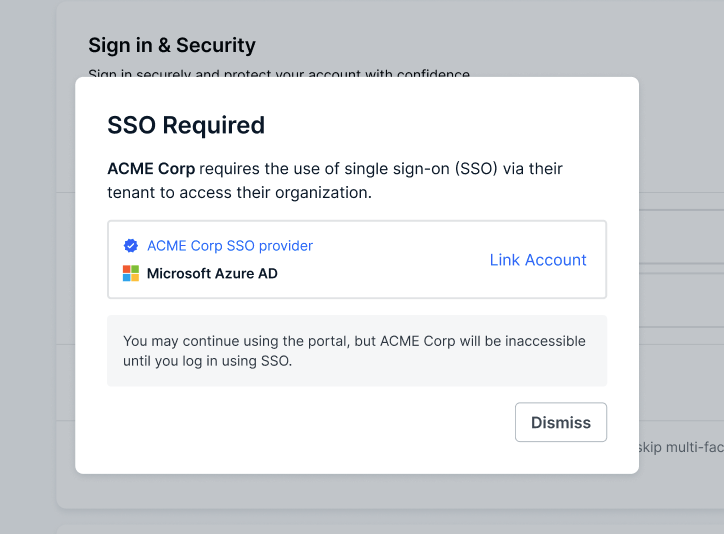
Users that have not linked an SSO account will be prompted to do so when logging in after SSO Enforcement has been enabled.
Clicking Dismiss will close the window, but users will only be able to access the account settings page until the SSO account is linked.
Was this article helpful?
That’s Great!
Thank you for your feedback
Sorry! We couldn't be helpful
Thank you for your feedback
Feedback sent
We appreciate your effort and will try to fix the article