Introduction
This article walks through the process of setting up a virtual appliance within an AWS environment. If your organization was scoped for this virtual appliance type, it will be available on the MDR Portal's Downloads page. See How Field Effect MDR Works and our Virtual Appliances Overview for more on network appliances, the difference between primary and secondary, system requirements, and more.
This article covers the following:
System Requirements
See our Virtual Appliances Overview to see the minimum requirements for virtual primary and secondary appliances.
A virtual appliance is required in every region where you want to mirror traffic. If you have a presence in multiple regions, traffic mirroring can be accomplished using VPC Peering.
If your secondary regions produce a large volume of traffic, inter-regional bandwidth costs may become a concern. If this is the case, a virtual primary appliance can be configured in each region(s).
Primary appliances should use the following specifications:
Amazon Machine Image: the latest 64bit x86 Ubuntu Server 24.04 LTS release
Instance type: t3.xlarge
Storage: 1024 GB, SSD
Secondary appliances should use the following specifications:
Amazon Machine Image: the latest 64bit x86 Ubuntu Server 24.04 LTS release
Instance type: t3.large
Storage: 512 GB
Procedure
The following sections describe the process of setting up a virtual appliance in AWS; from downloading the file to setting it up in your AWS environment.
Download the Installer File
Partners: download files are available at the client level. Ensure that the organization selector is set to the appropriate end-client when downloading files.
Log into the MDR Portal and navigate to the sidebar's Downloads page.
If your organization was scoped with a virtual appliance, it will be available. Download this file, as it is required for future steps.
Set up the Virtual Cloud Appliance (AWS)
Note on sizing: t3.xlarge & 1024GB of storage should be sufficient for servicing up to 400 agents and 1-2 remote network sensors as a primary appliance. For a remote sensor, t3.large and 512GB of storage should be sufficient. If you have requirements outside of these guidelines, please contact support for guidance. The remaining guide will be written assuming a primary appliance is being provisioned.
From your AWS EC2 console, click Launch Instance. Give your new instance and appropriate name and (optional) tags.
In the Application and OS Images section, select an appropriate name and (optional) tags for your instance. Select the latest 64bit x86 Ubuntu Server 24.04 LTS release for the instance's architecture.

Select t3.xlarge as the instance type.

In the Key pair (login) section, select Proceed without a key pair (the provided cloud-init file will configure the needed SSH authentication).

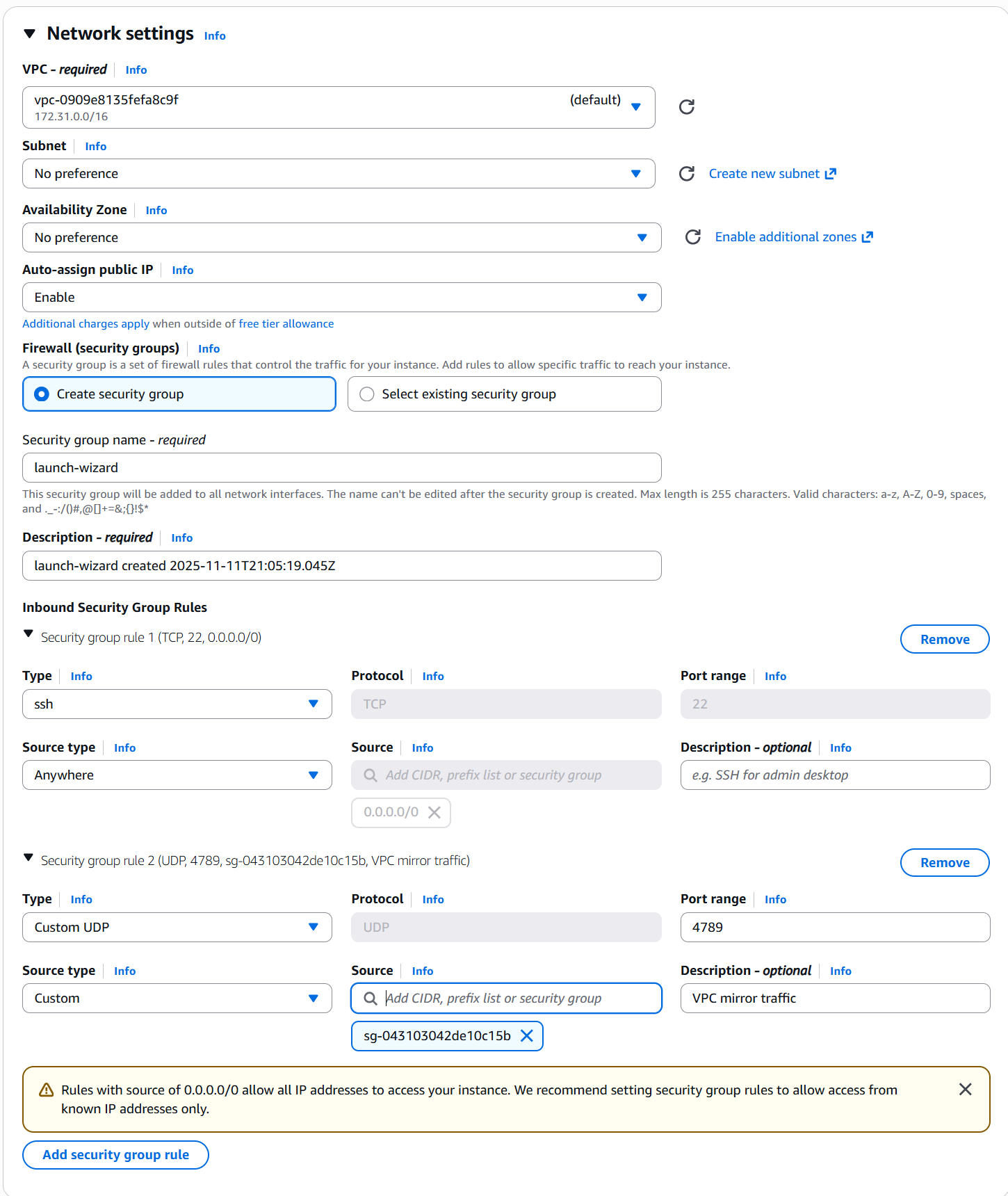
In the Network settings section, select the appropriate Virtual Private Cloud (VPC) and subnet.
Take the following considerations into account when making your selections:
- The virtual appliance doesn’t need to be accessible directly from the internet. But the Security Group (SG) needs to be able to establish a VPN connection out to Field Effect servers, along with normal package update locations.
- If VPC traffic mirroring is planned:
- The virtual appliance either needs to be in the same VPC as the traffic mirror sources, or VPC Peering needs to be configured between the VPCs.
- The SG needs to allow UDP port 4789 incoming from the mirror source(s).
- Any endpoint agent connectivity from outside of the local VPC is enabled using a dedicated Field Effect managed relay.
In the Configure storage section, set the size to 1024GB, and ensure the type is set to gp3.
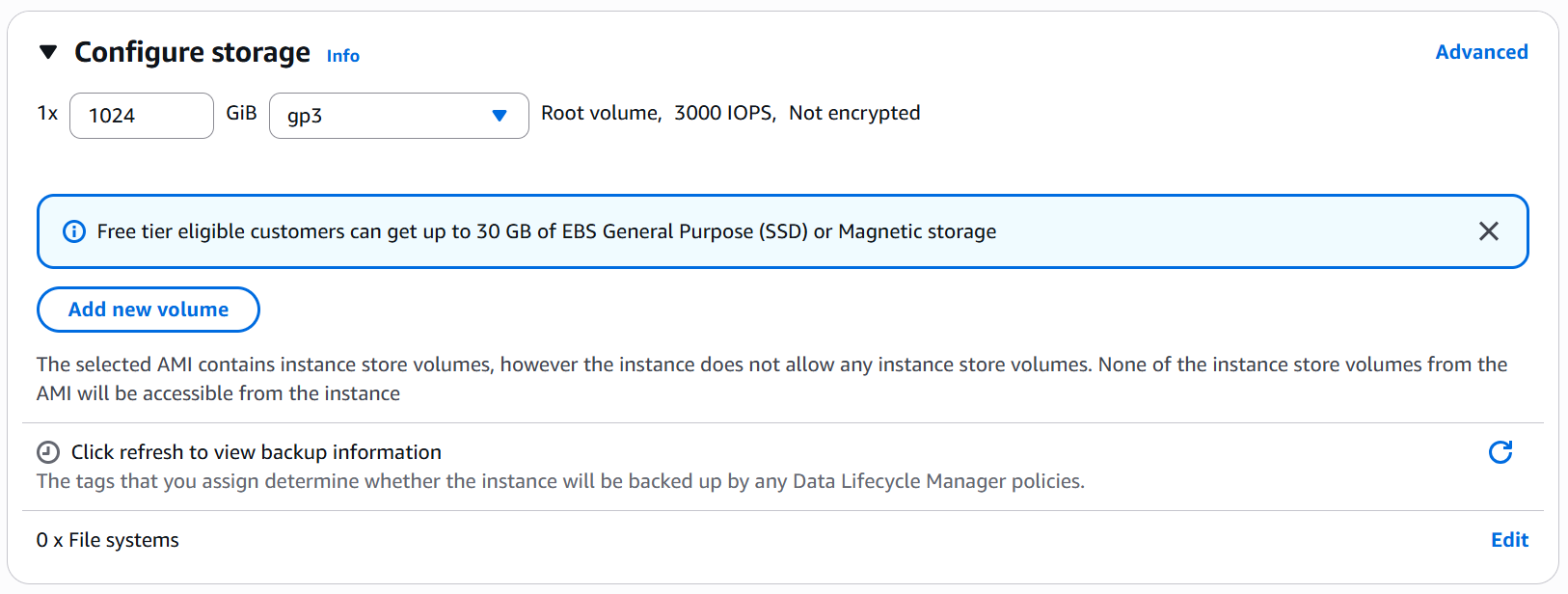
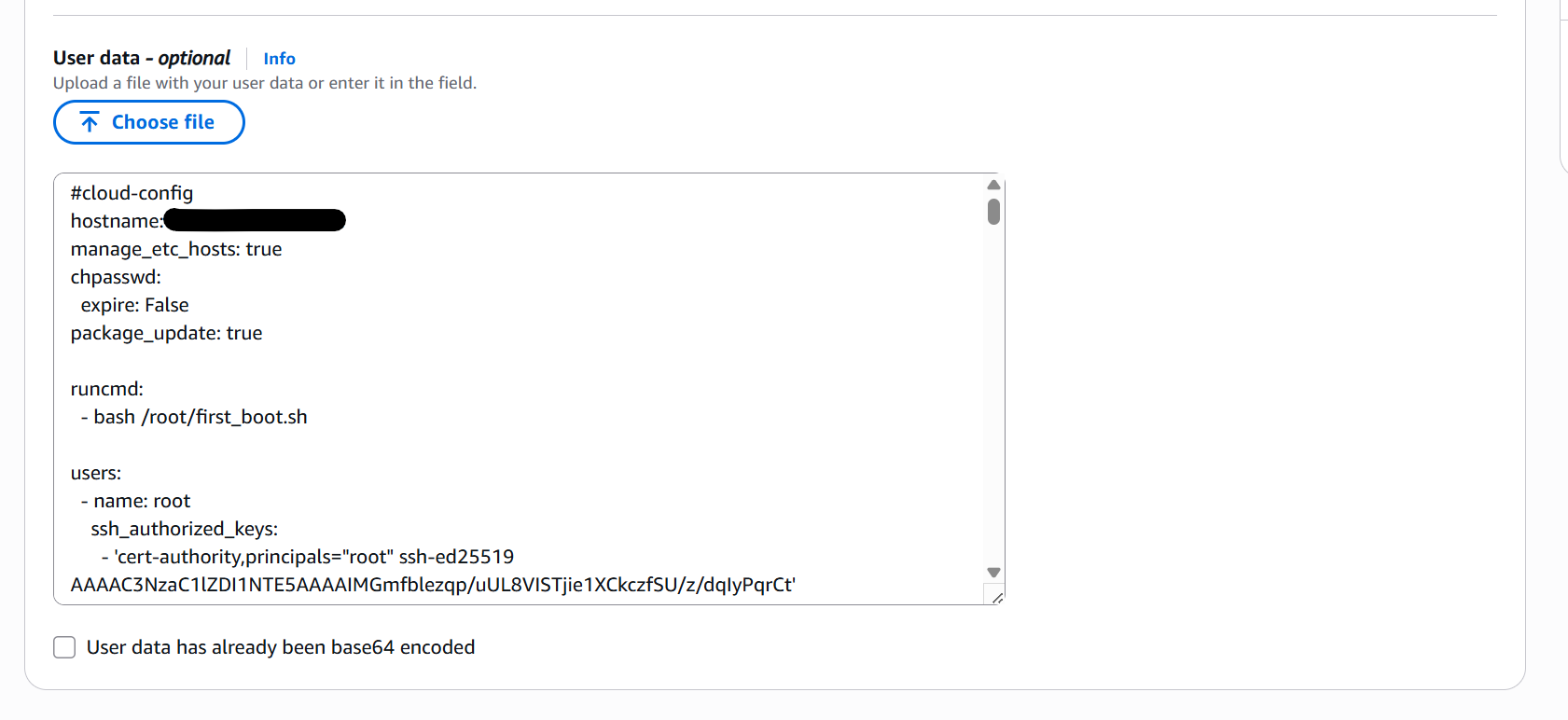
Click Advanced (shown above) to expand the Advanced details section. Leave the defaults in place (unless your environment dictates otherwise), except for the User data portion at the bottom.
Select Choose file and upload the cloud-init file that you retrieved from the Field Effect portal.
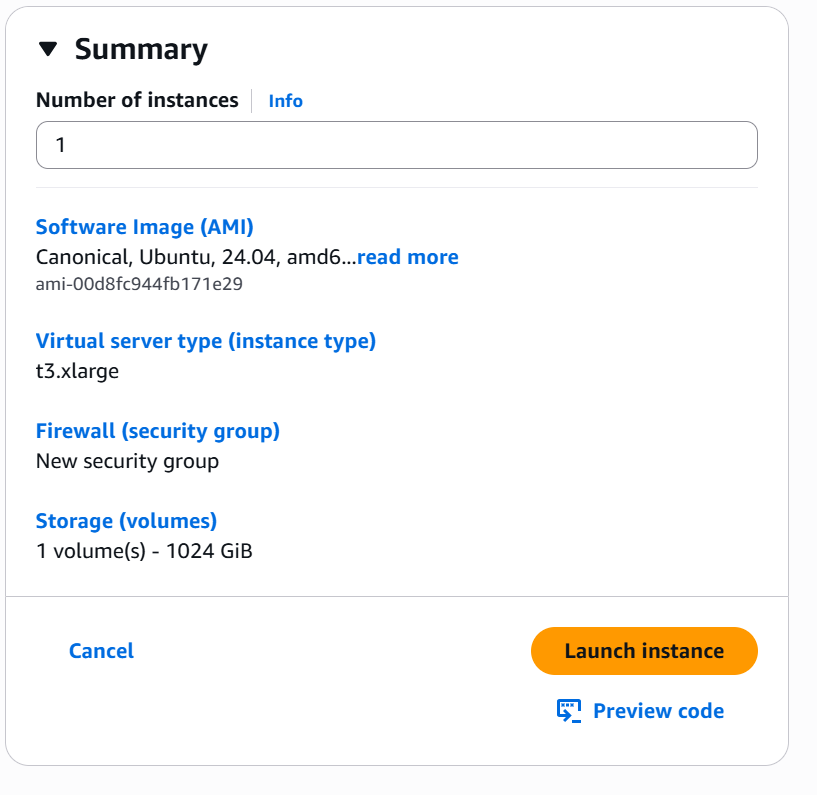
Finally, click Launch Instance. At this point your, the virtual appliance will boot and establish a secure VPN connection to Field Effect operators, who will perform a final configuration.
Setting up VPC Traffic Mirroring in AWS
Since AWS supports VPC Traffic Mirroring, you can leverage this full network packet capture data to provide greater insight into potential threats.
A single virtual appliance can act as the mirror target for many mirror sessions, and this section provides walk through for the setup process. We, however, recommend using automated tooling (here’s an example) to configure VPC traffic mirroring across your environment.
Some important caveats and limitations:
- Despite the name, AWS’s VPC Traffic Mirroring mirrors a single Elastic Network Interface (ENI) at a time, not all VPC traffic.
- Mirror sources must be built on the AWS Nitro system.
The following steps are required to configure traffic mirroring to your virtual appliance.
Create a Traffic Mirror Target
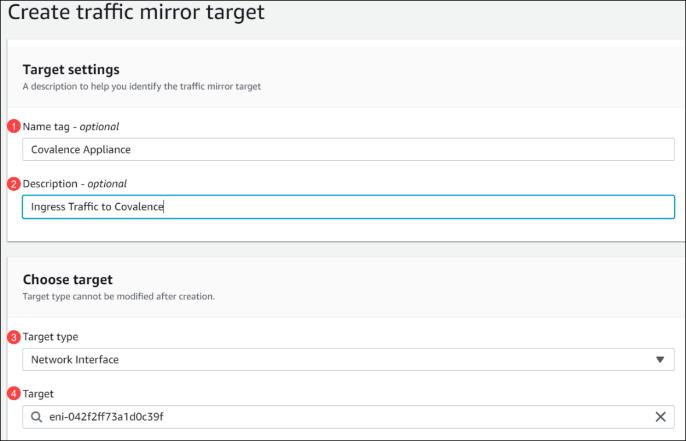
1. From the AWS VPC Dashboard, select Mirror Targets on the left and click Create traffic mirror target.
2. The “Create traffic mirror target” form will appear on your Screen Set the following parameters:
Target settings (optional)
- Name tag – optional: Field Effect Appliance
- Description – optional: Ingress Traffic to Field Effect
Choose Target
- Target type: Network Interface
- Target: set to the Elastic Network Interface of the virtual appliance created earlier. This can be retrieved from the Instance details section’s Networking tab.
Create a Traffic Mirror Filter
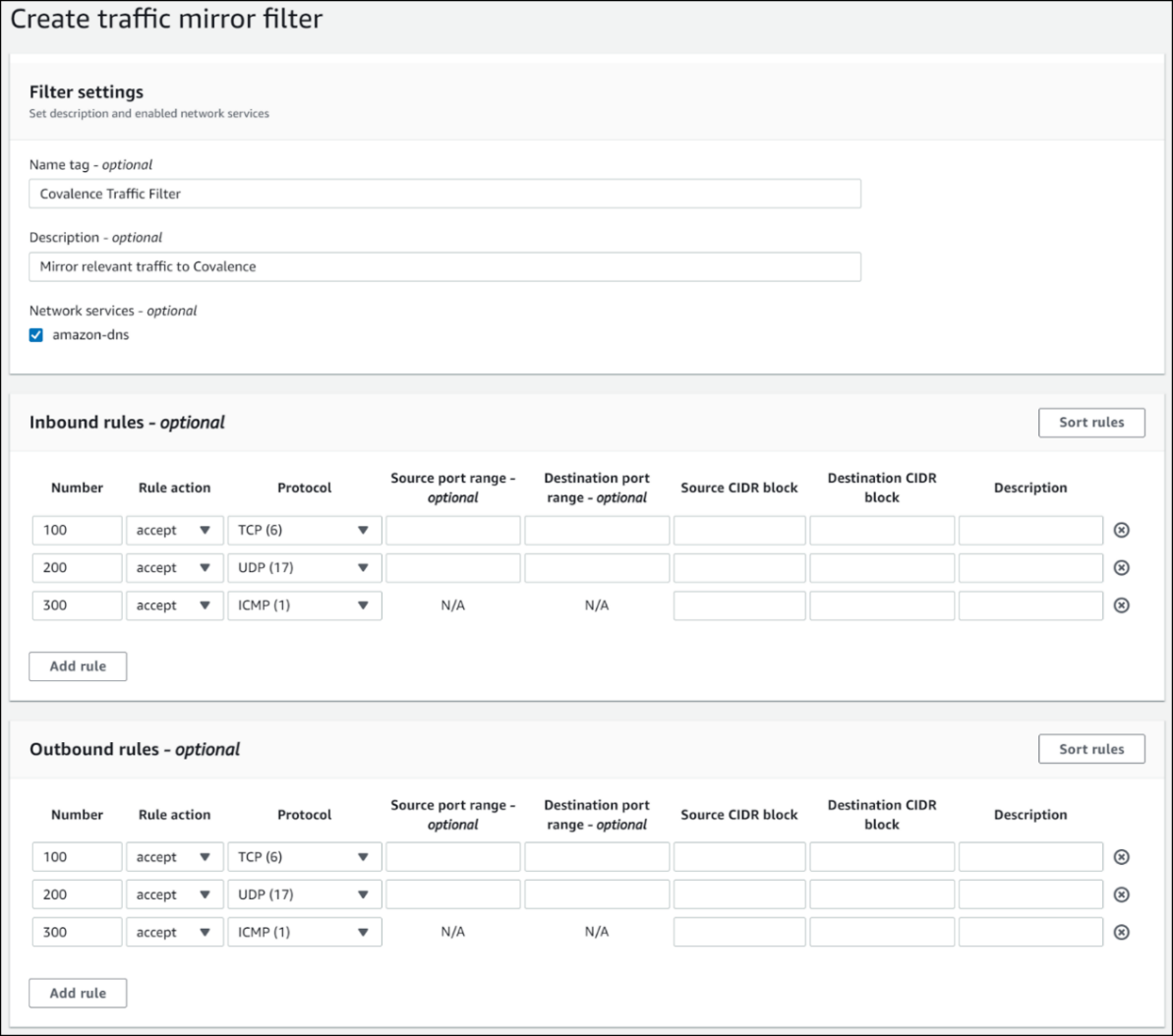
1. From the AWS VPC Dashboard, select Mirror Filters; from the left and click Create traffic mirror filter.
2. The “Create traffic mirror filter” form will appear on your screen. On this form, provide Inbound and Outbound rules for the traffic to be mirrored to the appliance.
3. To mirror all IP traffic, add “0.0.0.0/0” in the CIDR blocks. The highest priority traffic for Field Effect is “north/south” traffic to and from your EC2 instances/VPC and the internet, so ensure this is added.
4. Note: Under network services – optional, ‘amazon-dns’ checkbox should be checked. This ensures that DNS traffic is also mirrored.
5. These rules are custom to your environment, but here is an example of the form:
Create a Traffic Mirror Session
1. From the AWS VPC Dashboard, select “Mirror Sessions” on the left and click Create traffic mirror session. The “Create traffic mirror session” form will appear on your screen.
2. Using the Mirror Target and Mirror Filters created earlier, we can now establish a tagged session to send to the virtual appliance. Here is an example of the form:
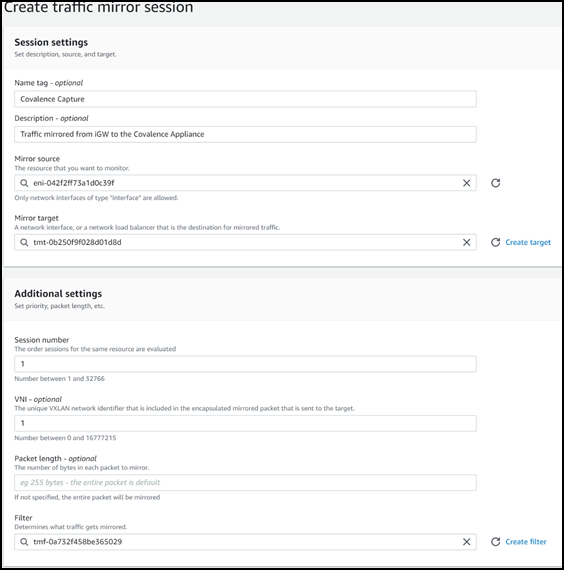
3. Once complete, the virtual appliance should now be configured to receive network traffic and will be configured by Field Effect for your organization.
Notes for traffic mirror sessions:
- Only Elastic Network Interfaces (ENI) associated to Nitro type instances can be used as a mirror source.
- If the virtual appliance has been setup on a different VPC, then a VPC peering relationship must be configured between the two VPCs. See Amazon’s articles What is VPC Peering and Create a VPC Peering Connection for more.
- Please use VNI 1 as the value for the VXLAN network identifier for the session. The appliance will be configured to capture from VXLAN ID 1 by default.
Was this article helpful?
That’s Great!
Thank you for your feedback
Sorry! We couldn't be helpful
Thank you for your feedback
Feedback sent
We appreciate your effort and will try to fix the article