Introduction
This article walks through the process of updating your account password for your Field Effect MDR account using. Updating your password here applies to all other tools that use your Field Effect MDR account; MDR Portal and the MDR SIEM Portal.
Updating your password regularly helps keep your account secure and ensures that only authorized users can access your organization's MDR Portal data
Password Requirements:
- Between 8 and 256 characters
- One digit (1-9)
- At least one lower case character
- At least one upper case character
Change Your Password
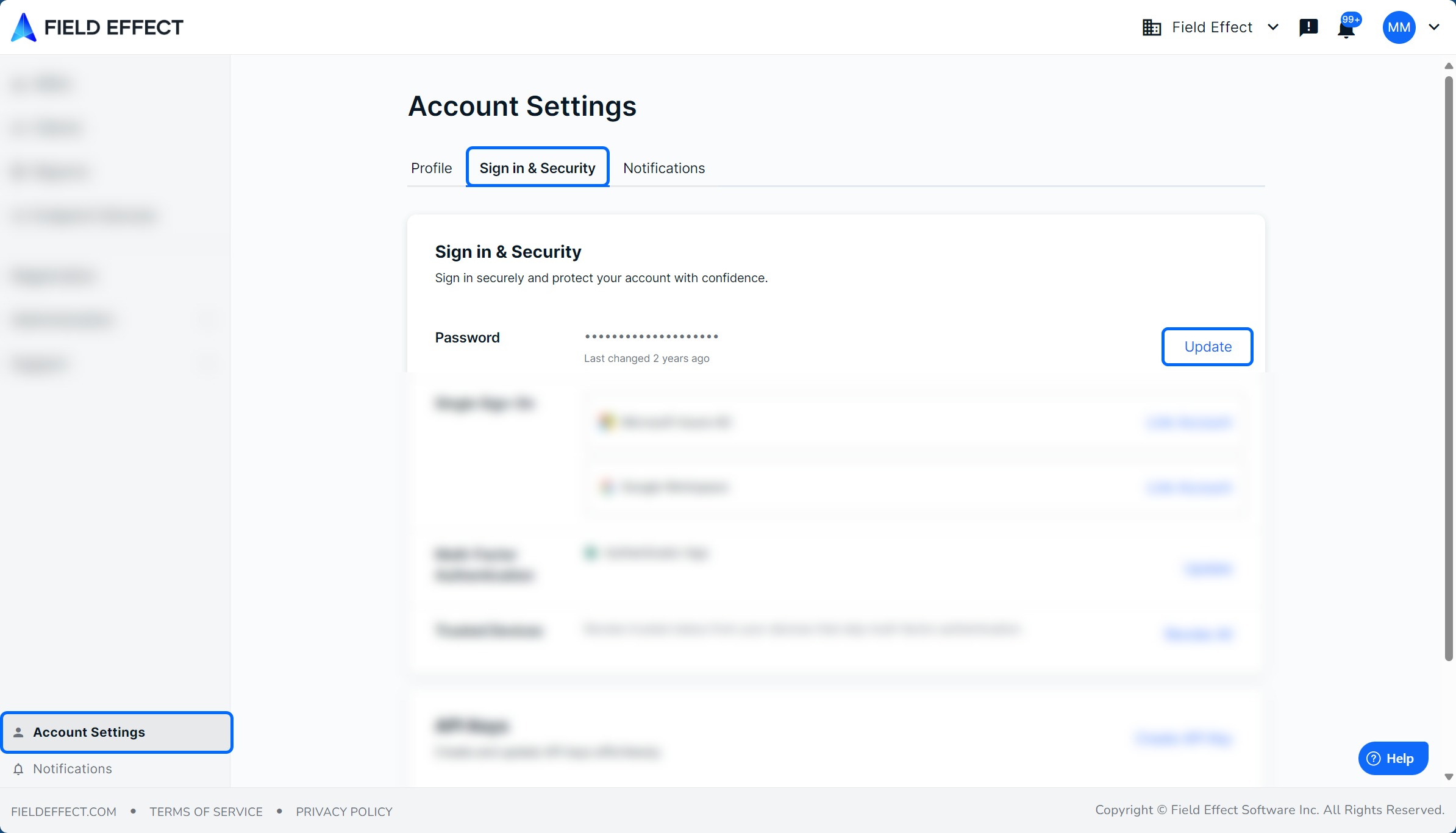
- Sign into Vision and navigate to Account Settings in the sidebar.
- From the page's Sign in & Security tab, click update in the Password section.
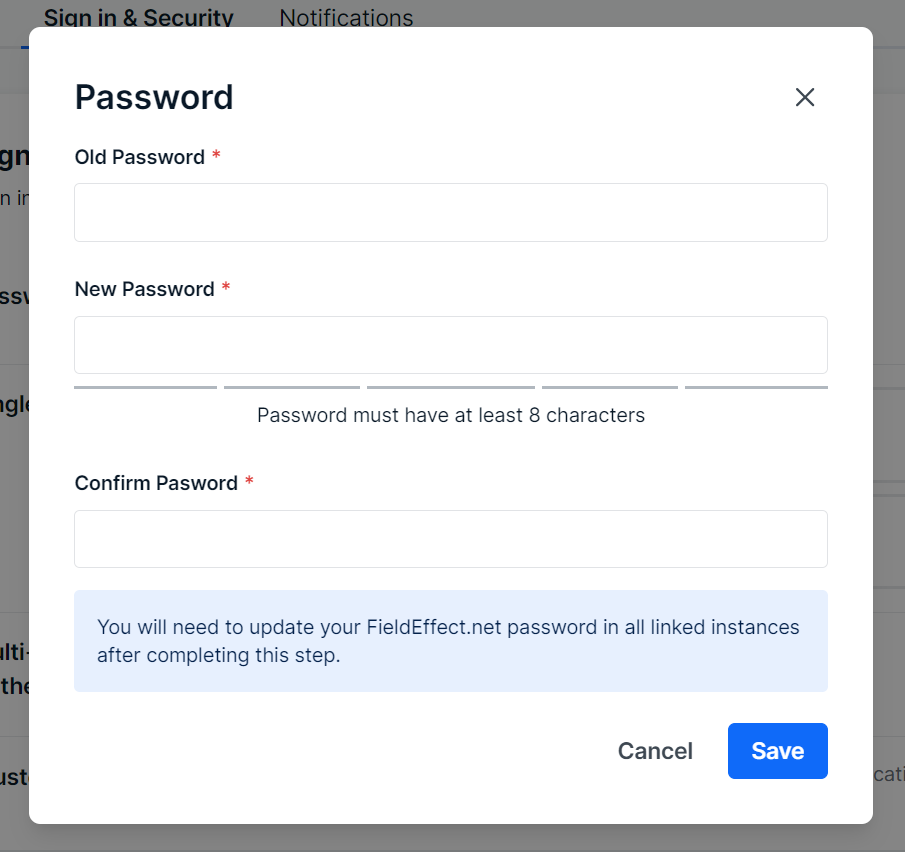
- The update Password window will open. Enter your old password, new password, and confirm the new password.
- Click Save.
After your password has been successfully updated, you will return to the Account Settings page, and a confirmation message will appear.
Was this article helpful?
That’s Great!
Thank you for your feedback
Sorry! We couldn't be helpful
Thank you for your feedback
Feedback sent
We appreciate your effort and will try to fix the article