Introduction
Your Field Effect MDR account is how you log into several Field Effect tools, including the MDR Portal, Vision, and the MDR SIEM Portal.
When creating your MDR Account, you are prompted to set up MFA and choose between using an authenticator app or an SMS code. To learn more about setting up MFA, see Create Your Field Effect MDR Account.
From Vision, you can adjust the MFA settings for your MDR account. Ancy changes you make here will impact the way you log into the other tools that use your MDR account.
This article outlines the MFA setting you can adjust in Vision once your account is set up.
Access MFA Settings in Vision
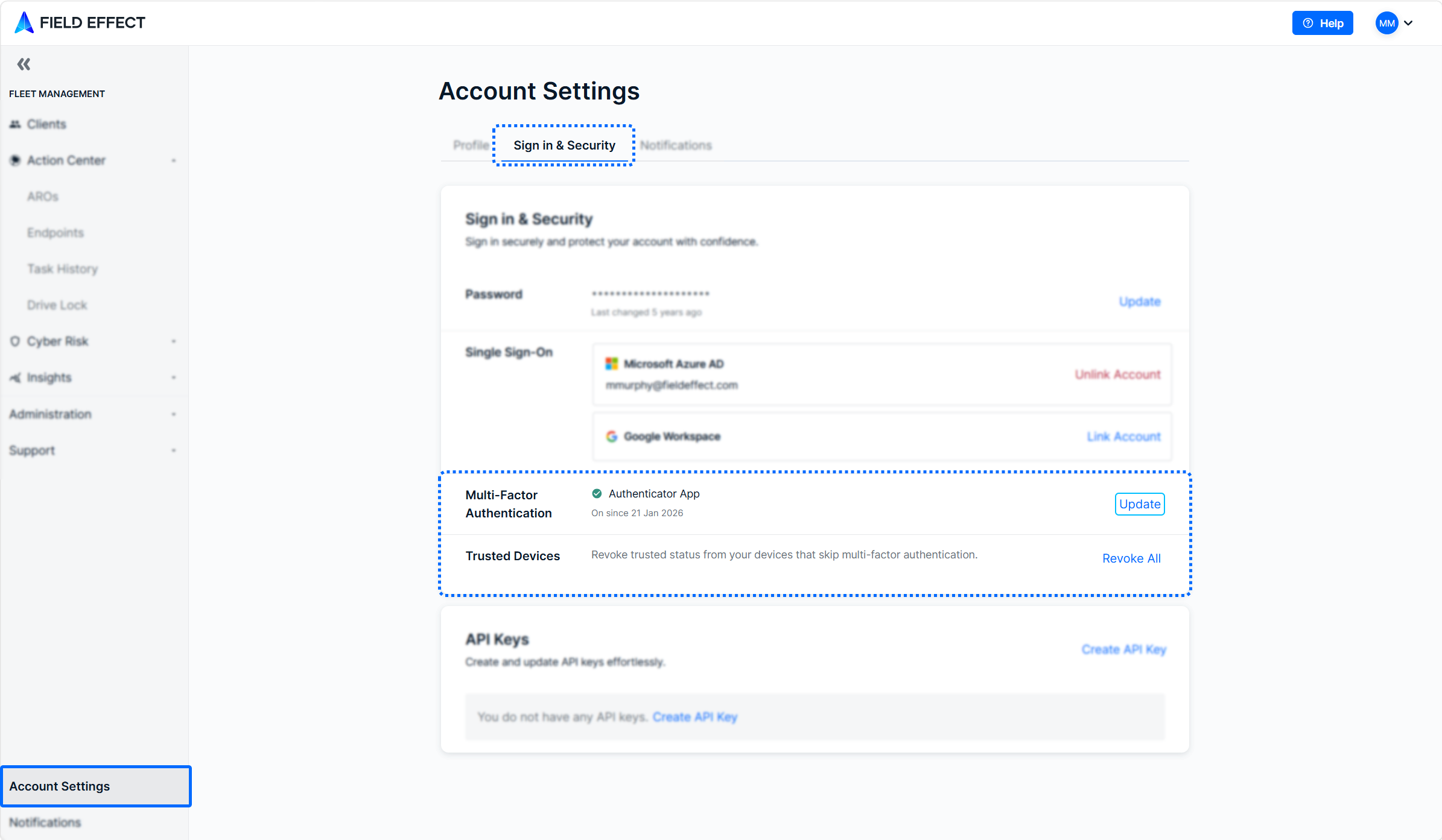
To access your account's MFA settings within Vision:
- Log into Field Effect Vision and navigate to Account Settings in the sidebar.
- Select the Sign In & Security tab.
Update MFA Settings
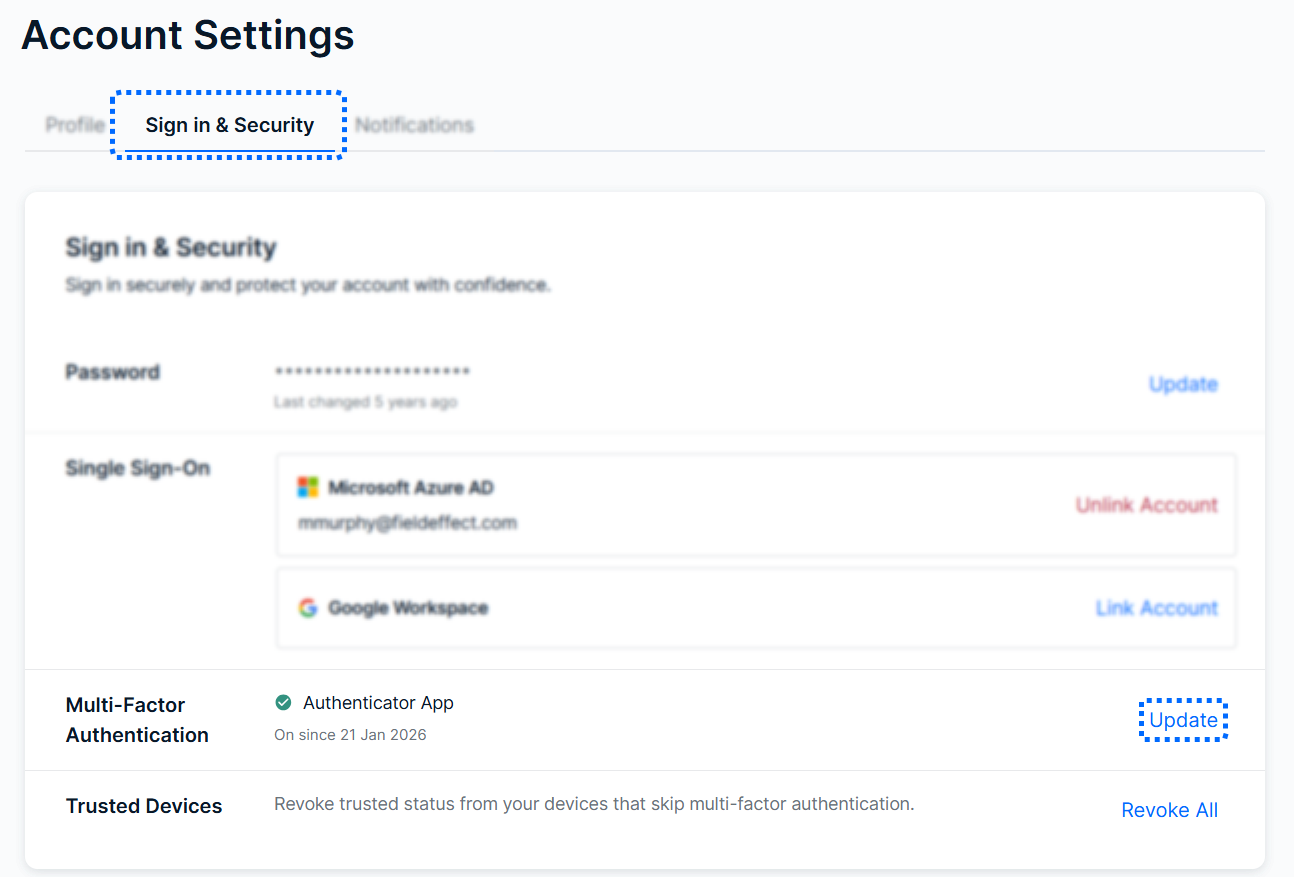
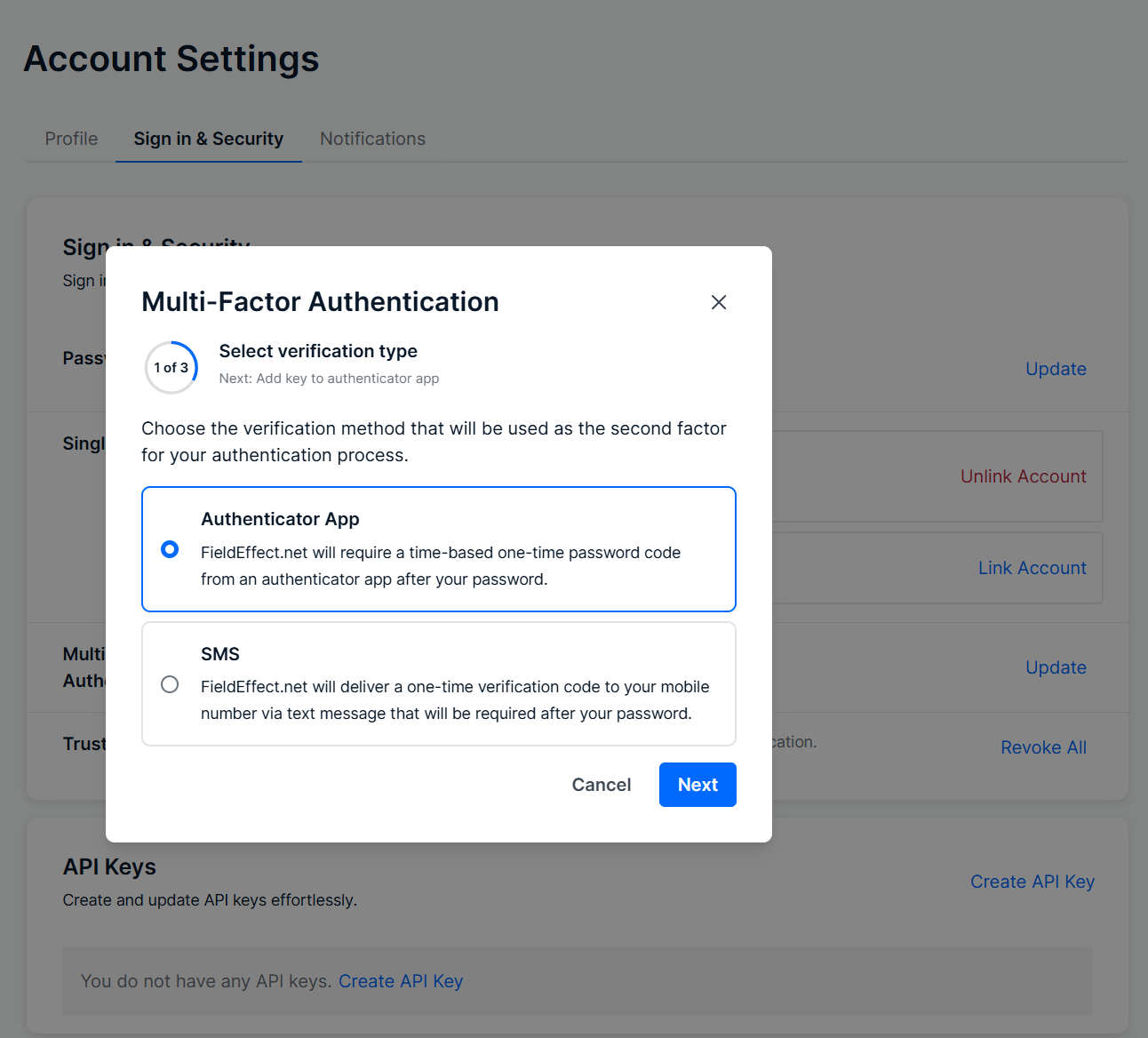
If you want to update your MFA settings or change your authentication method, click Update in the Multi-Factor Authentication section.
This will open the MFA setup window where you can walk through the setup again using your new information. See Create Your Field Effect MDR Account to learn more about this process in detail.
Revoke MFA Access Across Devices
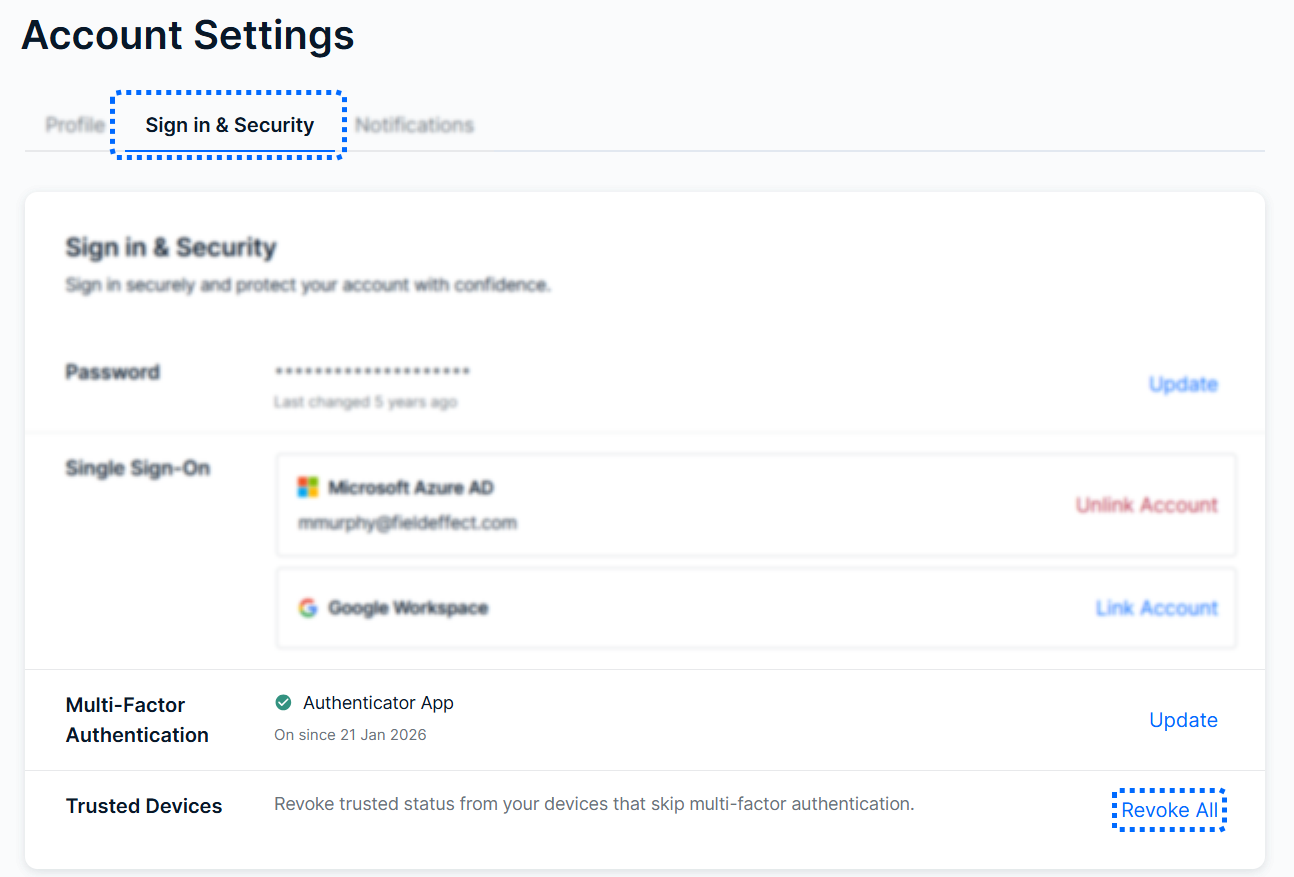
If you have recently changed devices, or have remembered MFA across several devices, you can revoke the “trusted” MFA status on all devices associated with your account.
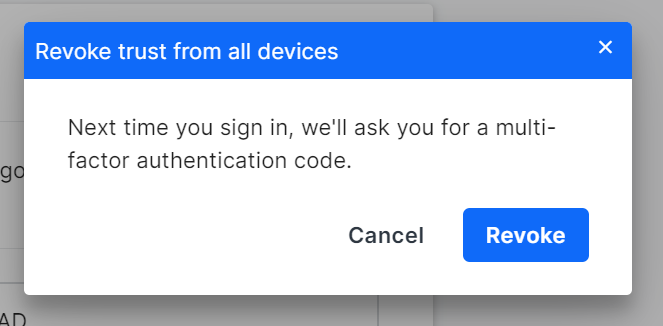
To do so, click Revoke All in the Trusted Devices section.
A confirmation window will appear on your screen. Click Confirm to revoke MFA on all devices. When logging back into the MDR Portal on any device, you’ll be asked to provide an MFA authentication code. You can still choose to remember devices when logging back in.
Was this article helpful?
That’s Great!
Thank you for your feedback
Sorry! We couldn't be helpful
Thank you for your feedback
Feedback sent
We appreciate your effort and will try to fix the article