Introduction
You can link an SSO account to your Field Effect MDR account to streamline your sign in experience for Vision, as well as the Field Effect MDR Portal. See our Single Sign-On (SSO) article to learn more about the feature.
This article walks through the process of linking an SSO to your MDR Portal account from Vision. After successfully linking accounts, you’ll be able to log into the MDR Portal via SSO on the login page.
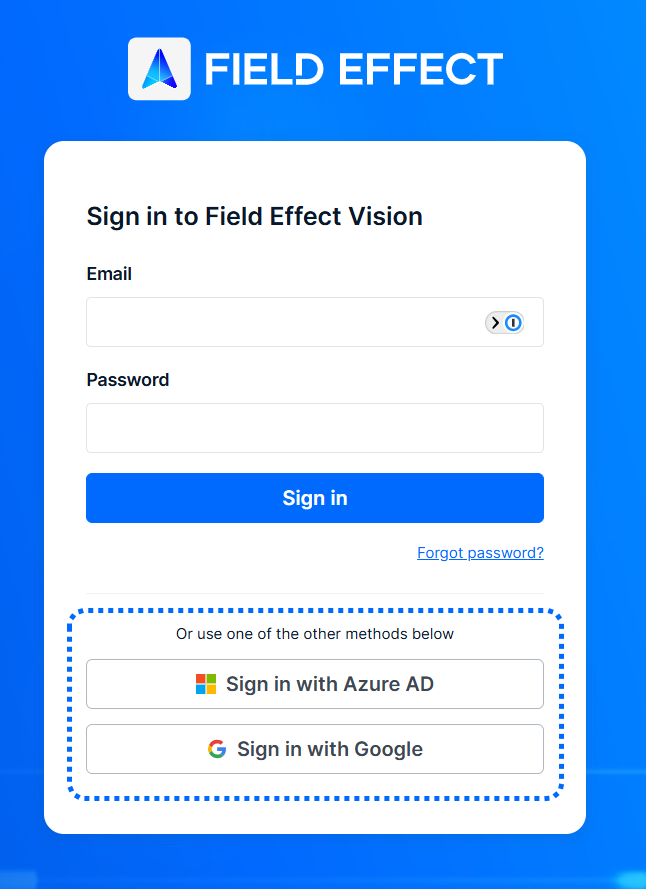
Link an SSO Account with Vision
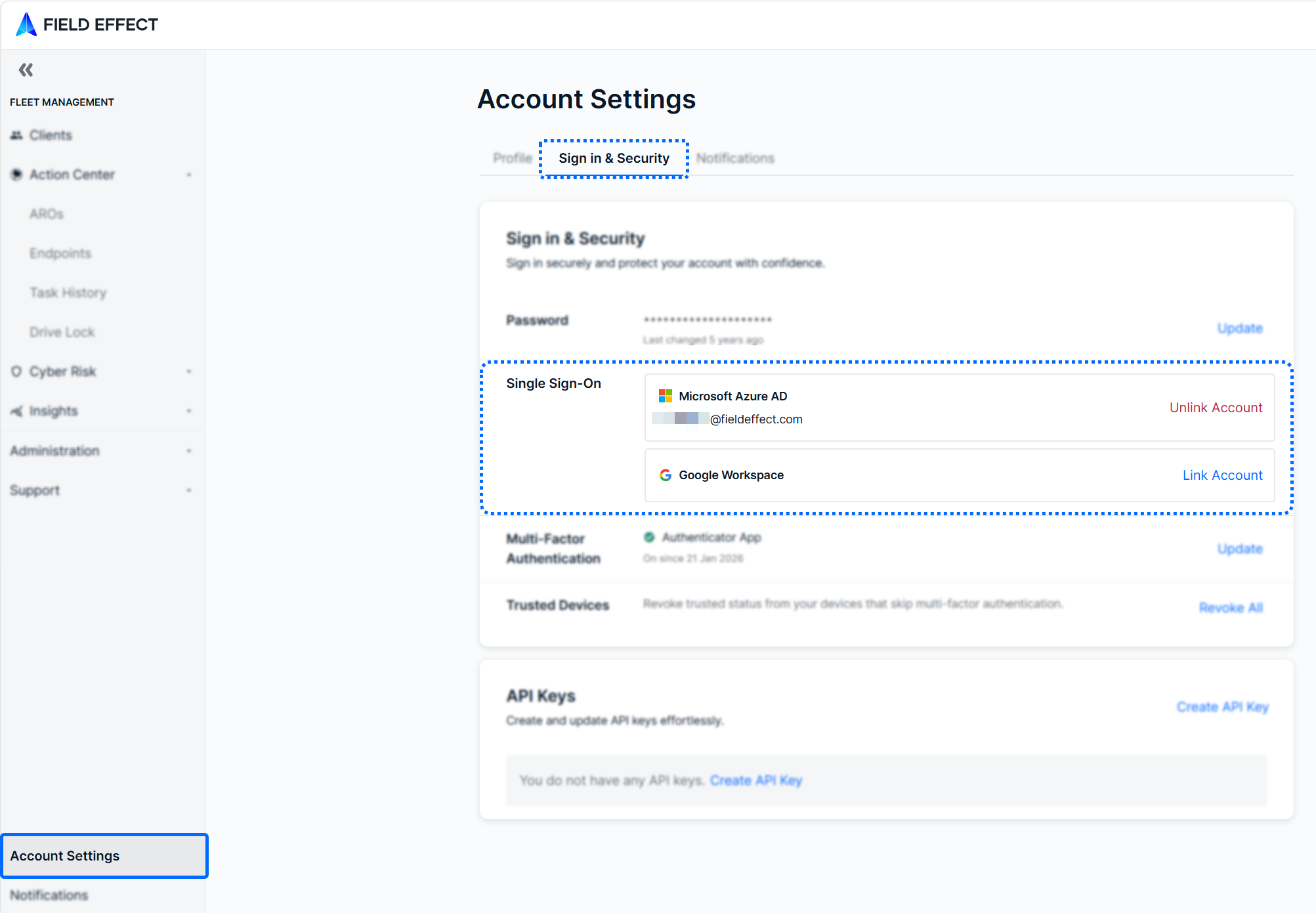
- Log into Vision and navigate to Account Settings in the sidebar.
- From the page's Sign in & Security tab, click Link Account for your desired SSO account.
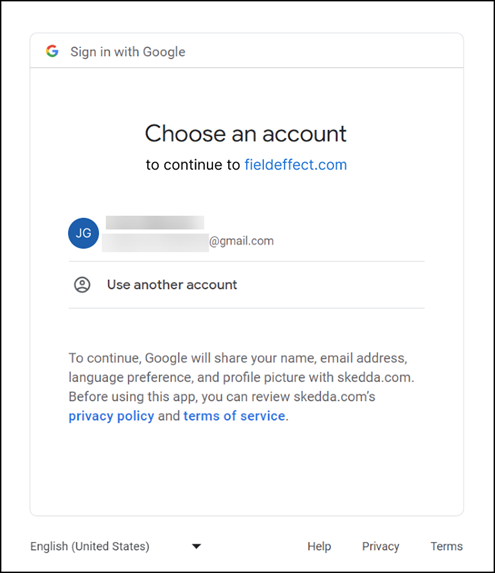
You will be taken to account selection page for that account. The example below shows the account selection page for Google Workspace. From the list of accounts, select the account you want to link to your MDR Portal account for SSO.
Note: if your SSO account has Multi-Factor Authentication (MFA) enabled, you may be asked to provide your MFA code for that account.
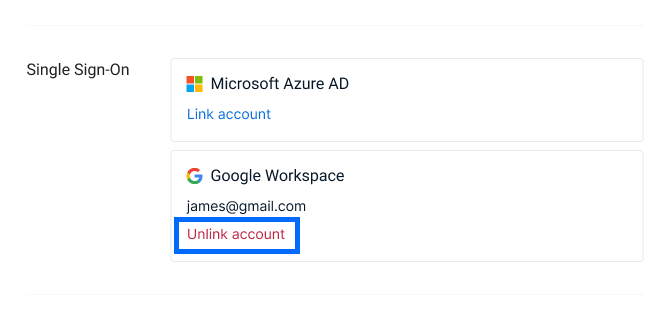
You’ll be taken back to the MDR Portal’s Profile page, and you can unlink your SSO account from this section, should you want to update SSO accounts.
Was this article helpful?
That’s Great!
Thank you for your feedback
Sorry! We couldn't be helpful
Thank you for your feedback
Feedback sent
We appreciate your effort and will try to fix the article