Introduction
Field Effect's Network Sensors (available in a physical or virtual form) provide visibility into the activity occurring on your (or your end client's) network. By analyzing network traffic metadata, sensors help Field Effect MDR identify suspicious behavior, detect threats that may not be visible from endpoints alone, and improve the overall security coverage of a client environment.
The vast majority of our deployments will leverage a virtual primary sensor, and additional secondary sensors if additional networks (branch locations) require monitoring.
This article walks you through deploying your first network sensor and connecting it to Field Effect MDR.
What does a Network Sensor do?
A network sensor:
- Monitors network traffic metadata.
- Identifies potentially malicious communications.
- Detects unauthorized or unusual network activity.
- Provides additional visibility beyond endpoint monitoring.
- Enhances threat detection and investigation capabilities.
Every end client that has network monitoring will require an MDR SIEM senor (physical or virtual) deployed in the network.
Before you Begin
Before deploying a Network Sensor, ensure that:
- You have access to the MDR Portal.
- You have administrative access to the organization's network infrastructure.
- A supported virtualization platform or hardware sensor is available.
- You have identified a network location where the sensor can observe traffic from key network segments.
- Required outbound connectivity to Field Effect services is permitted.
Tip: For best results, deploy the sensor where it can monitor traffic from as many devices as possible without disrupting network operations.
Get the Installer (Virtual)
If you are deploying a physical network sensor, skip this step.
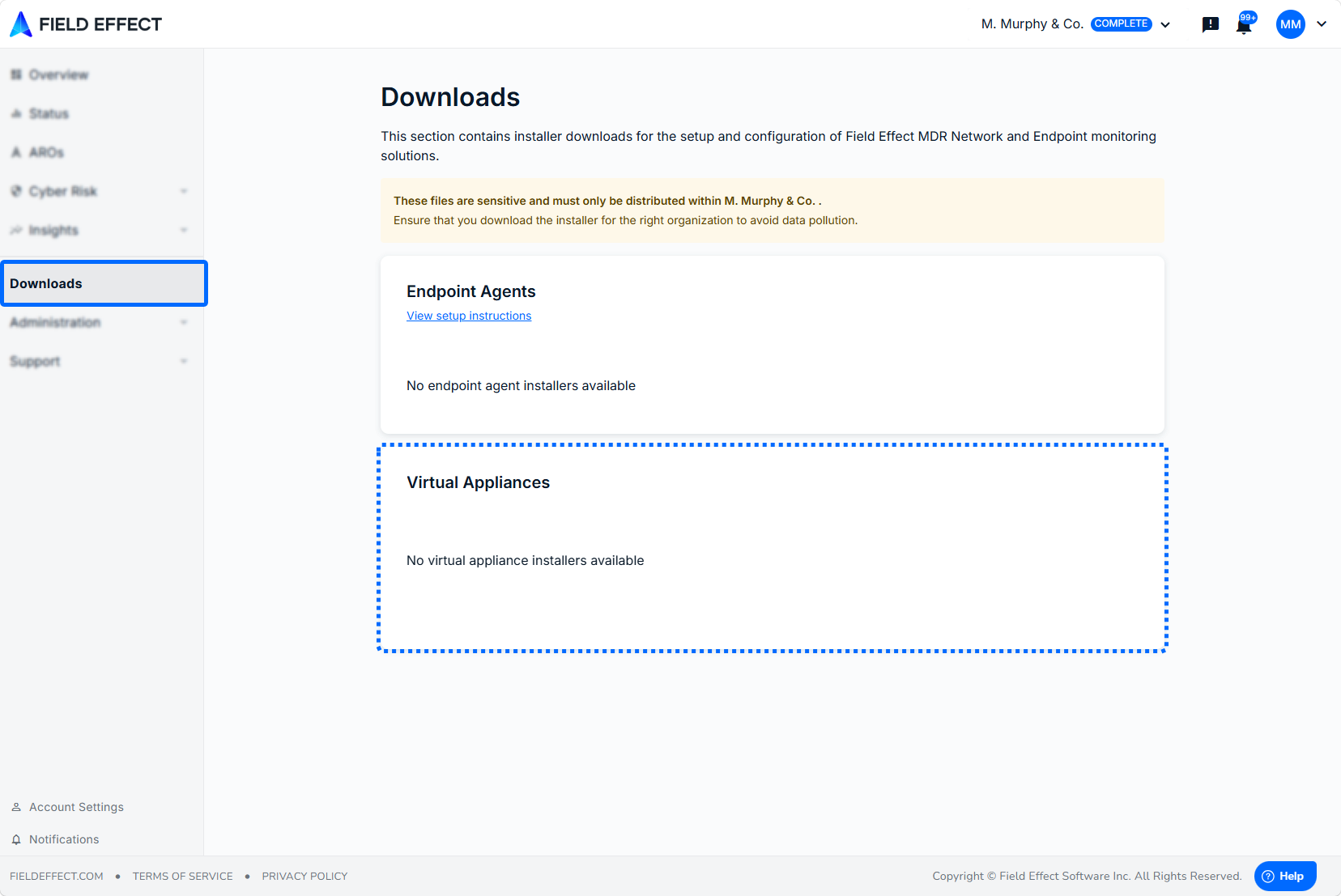
You can access our virtual sensor installers from MDR Portal, and they contain information, unique to the end selected client, that's required for the sensor to securely register with Field Effect MDR.
Ensure the organization selector is set appropriately when downloading installers.
Prepare the Monitoring Connection
The sensor must receive a copy of network traffic from your infrastructure so it can be analyzed for malicious activity and other security-related vulnerabilities.
Common options to achieve this include:
- Switch SPAN or mirror port
- Network TAP
- Virtual switch port mirroring
- Cloud traffic mirroring solutions (where supported)
See our configuration guides to learn more. Also ensure that the proper firewall exceptions are in place so the sensor can properly communicate with Field Effect.
Deploy the Network Sensor
Virtual Sensors
- Import the sensor image into your hypervisor.
- Allocate resources according to the deployment requirements.
- Connect the management interface to a network with internet access.
- Connect the monitoring interface to the mirrored traffic source.
- Power on the virtual machine.
Physical Sensors
- Rack or place the sensor in the appropriate location.
- Connect the management interface.
- Connect the monitoring interface to the mirrored traffic source.
- Apply power to the sensor.
- Allow the Sensor to complete startup.
Verify Connectivity and Traffic Visibility
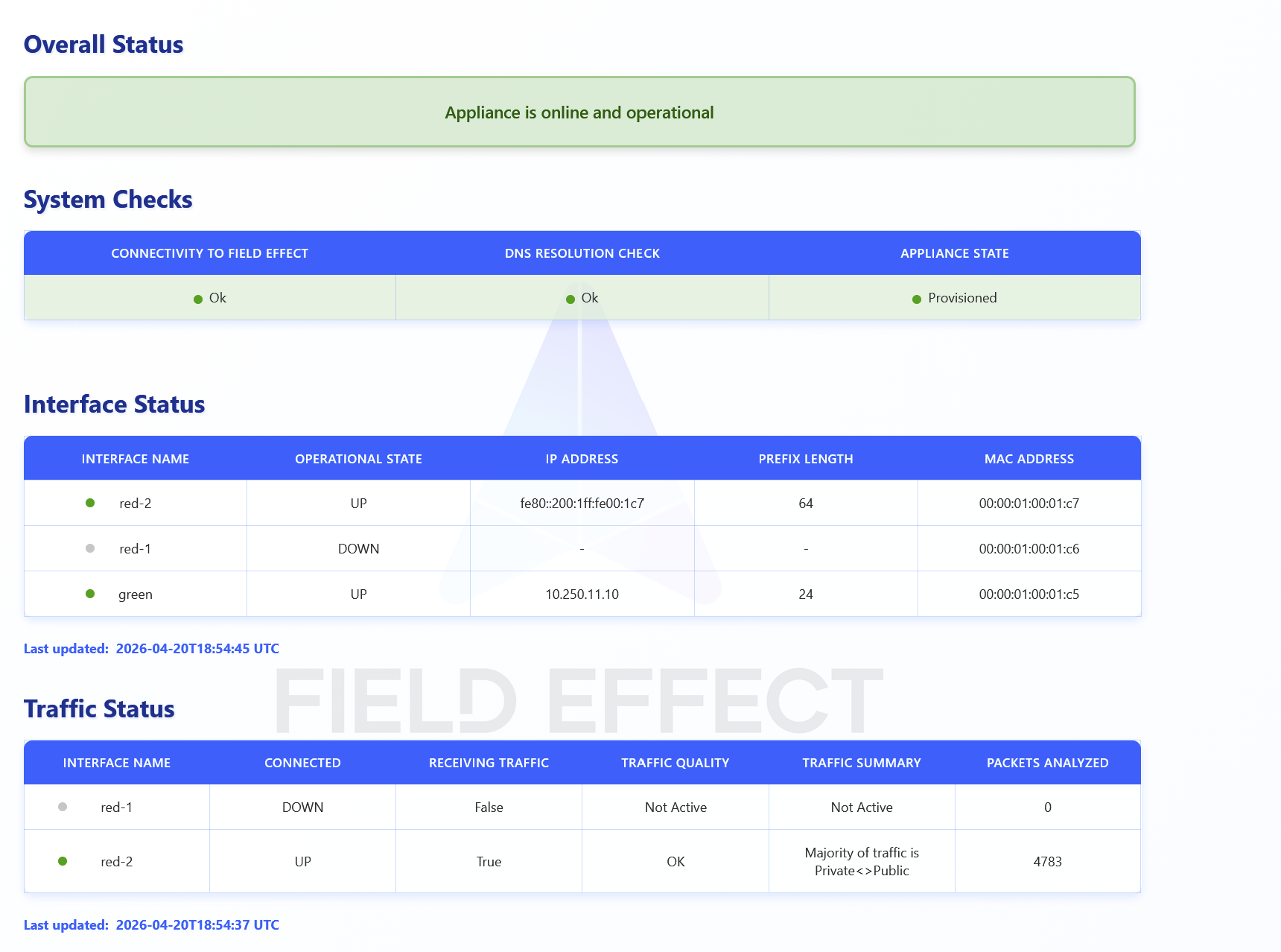
You can check the status of your sensor by navigating to its status page.
To do so, navigate to the following in your browser:
https://<sensor's local_ip_address>/appliance_status/status/
This page is hosted locally on each network sensor, which means it can only be accessed from within the network. When trying to access this page, make sure that your device is connected to the same network as the sensor.
Troubleshooting
Sensor is offline
Verify that:
- The sensor has internet access.
- Required outbound connections are allowed through firewalls.
- DNS resolution is functioning correctly.
- The deployment package was installed correctly.
Sensor shows no traffic
Verify that:
- The SPAN, TAP, or mirror configuration is correct.
- Traffic is being mirrored to the proper interface.
- Network cables are connected correctly.
- The correct VLANs or interfaces are included in the mirror configuration.
Sensor does not appear in the MDR Portal
Verify that:
- Deployment completed successfully.
- The correct client deployment package was used.
- Network connectivity to Field Effect services is available.
Was this article helpful?
That’s Great!
Thank you for your feedback
Sorry! We couldn't be helpful
Thank you for your feedback
Feedback sent
We appreciate your effort and will try to fix the article