Introduction
This article explains how to control end user access to AI tools (such as ChatGPT or Gemini) using the DNS Firewall in the Field Effect MDR Portal.
By completing this procedure, you can:
- Block access to all AI tools across your network
- Allow specific, approved AI tools
- Identify AI domains in use within your organization
Prerequisite: DNS Firewall must be configured. See DNS Firewall: Overview & Setup.
This article walks through the process of setting up our DNS to gate access to AI tools.
Block All AI Activity
To block all AI activity:
- Log in to the Field Effect MDR Portal.
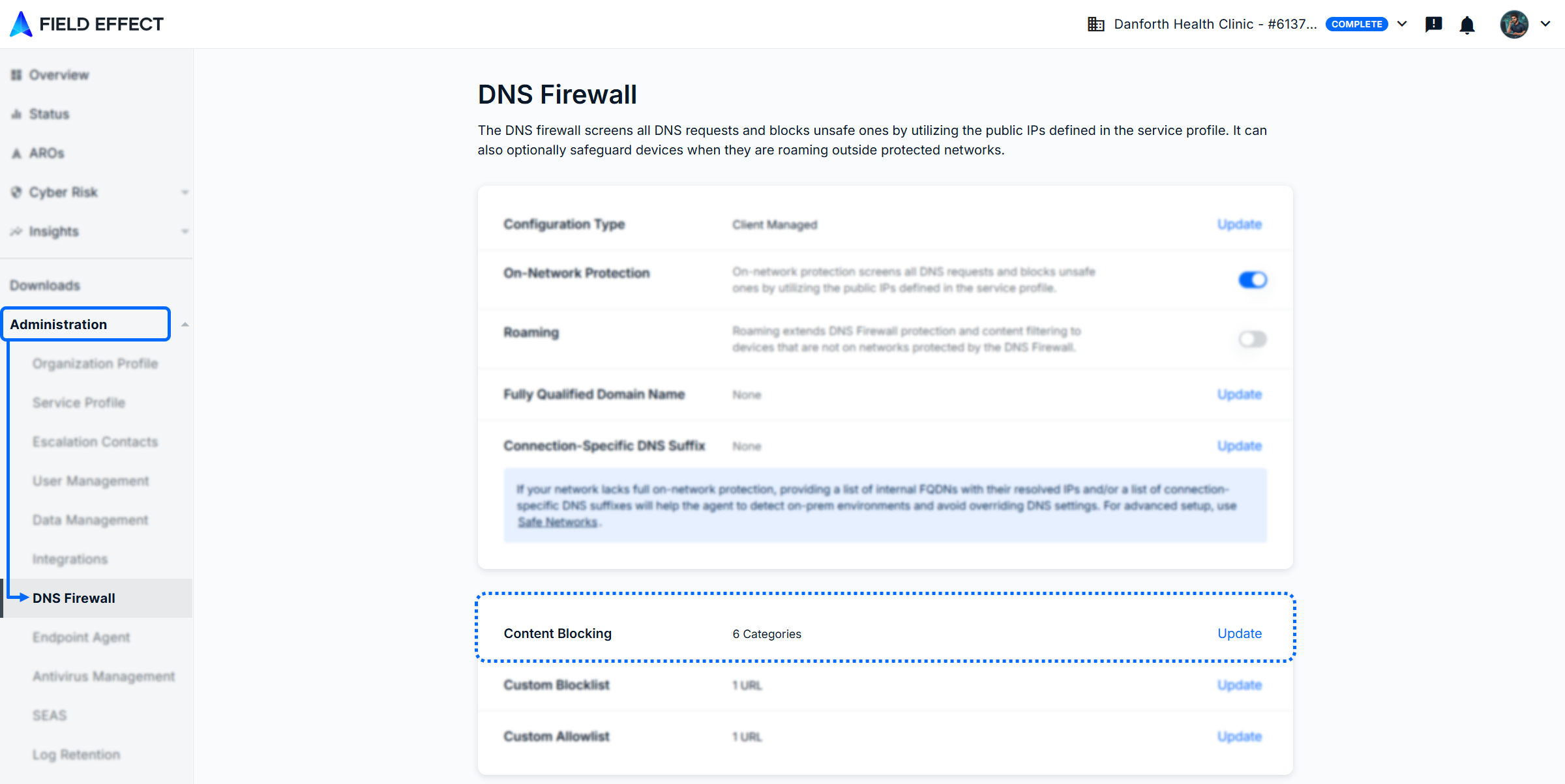
- Navigate to Administration > DNS Firewall.
- In the Content Blocking section, click Update.
- In Additional Categories, select AI.
- Click Update to save your changes.
Allow Your Organization's Preferred AI Tool
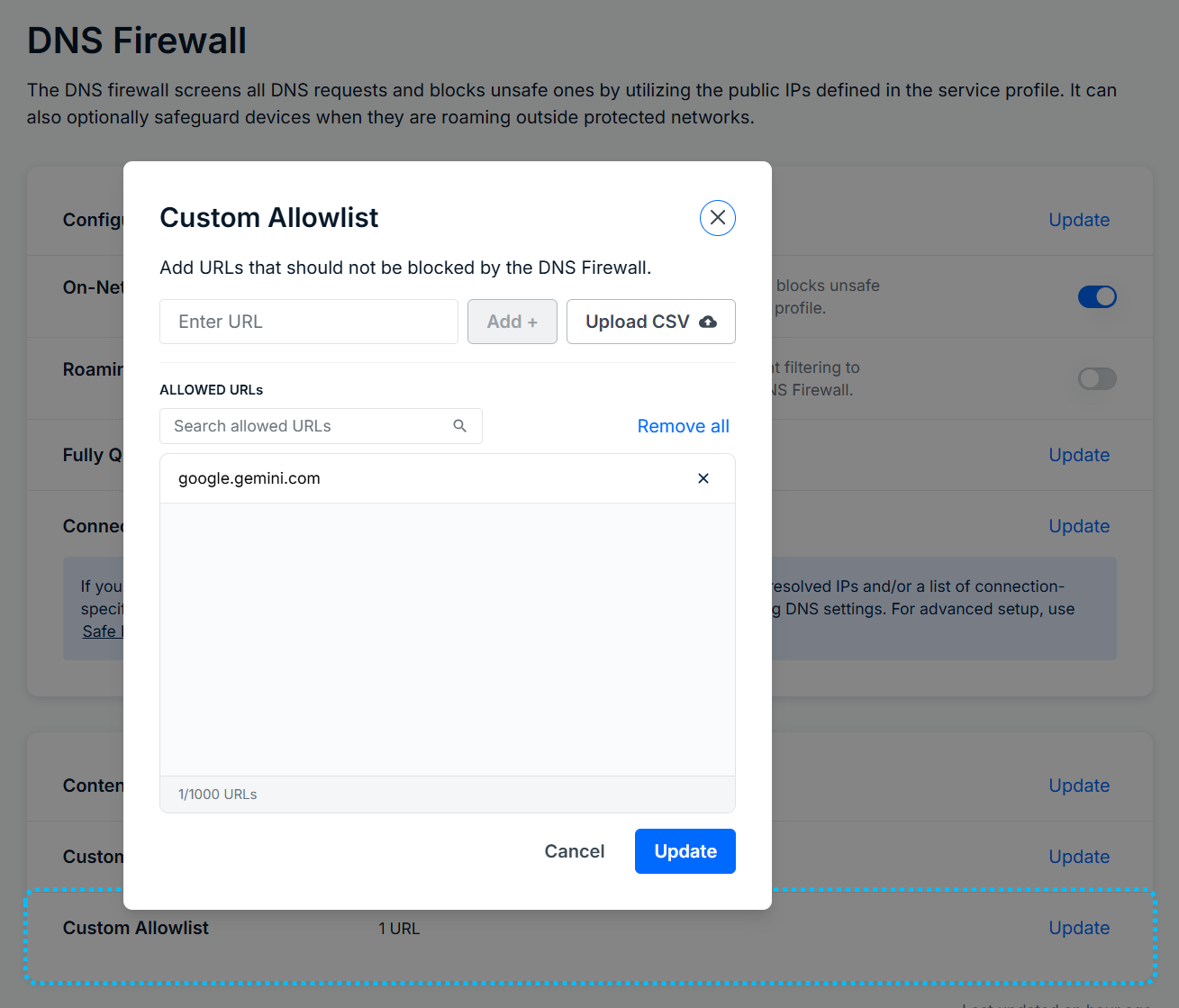
To allow approved AI tools, add their domains to the DNS Firewall allowlist.
- Navigate to Administration > DNS Firewall.
- Locate the Custom Allowlist section.
- Add the domain(s) associated with the AI tool (for example, gemini.google.com).
- Save your changes.
Note: AI tools often use multiple domains. Use the AI Monitoring dashboard to identify all required domains.
Finding AI Domains
Use the AI Monitoring dashboard to identify which AI tools are used in your environment and the domains they require. You can then add these domains to your allowlist.
The AI Monitoring dashboard can be accessed from either the MDR SIEM (Formerly the Appliance Dashboard) or Vision.
To learn more about the AI Monitoring dashboard, see AI Monitoring.
MDR SIEM (Formerly the Appliance Dashboard)
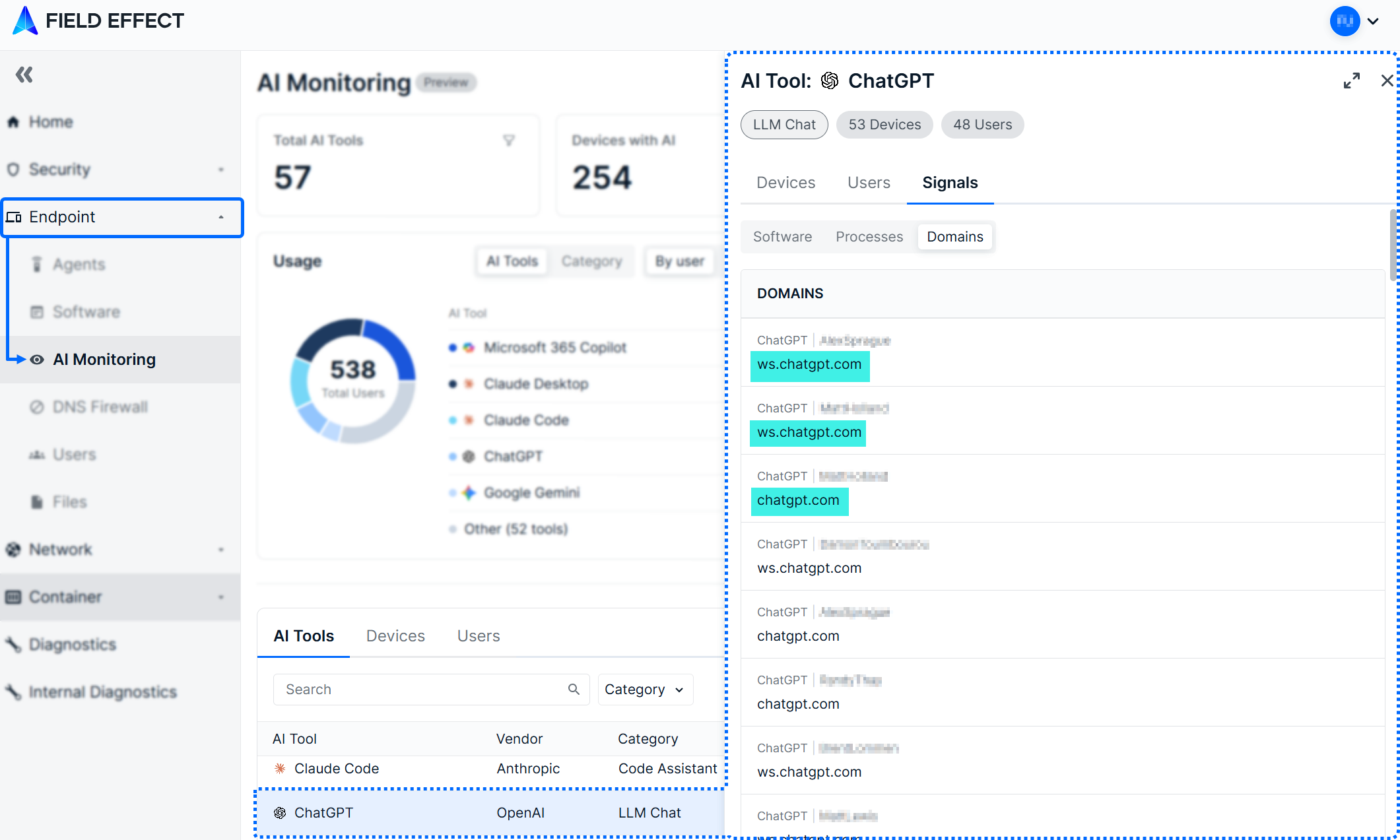
To find AI domains in the MDR SIEM:
- Log in to the MDR SIEM.
- Navigate to Endpoints > AI Monitoring.
- In the AI Tools table, select an AI tool.
- In the details pane, select Signals > Domains.
- Review the list of associated domains.
Add the required domains to your DNS Firewall allowlist.
Field Effect Vision
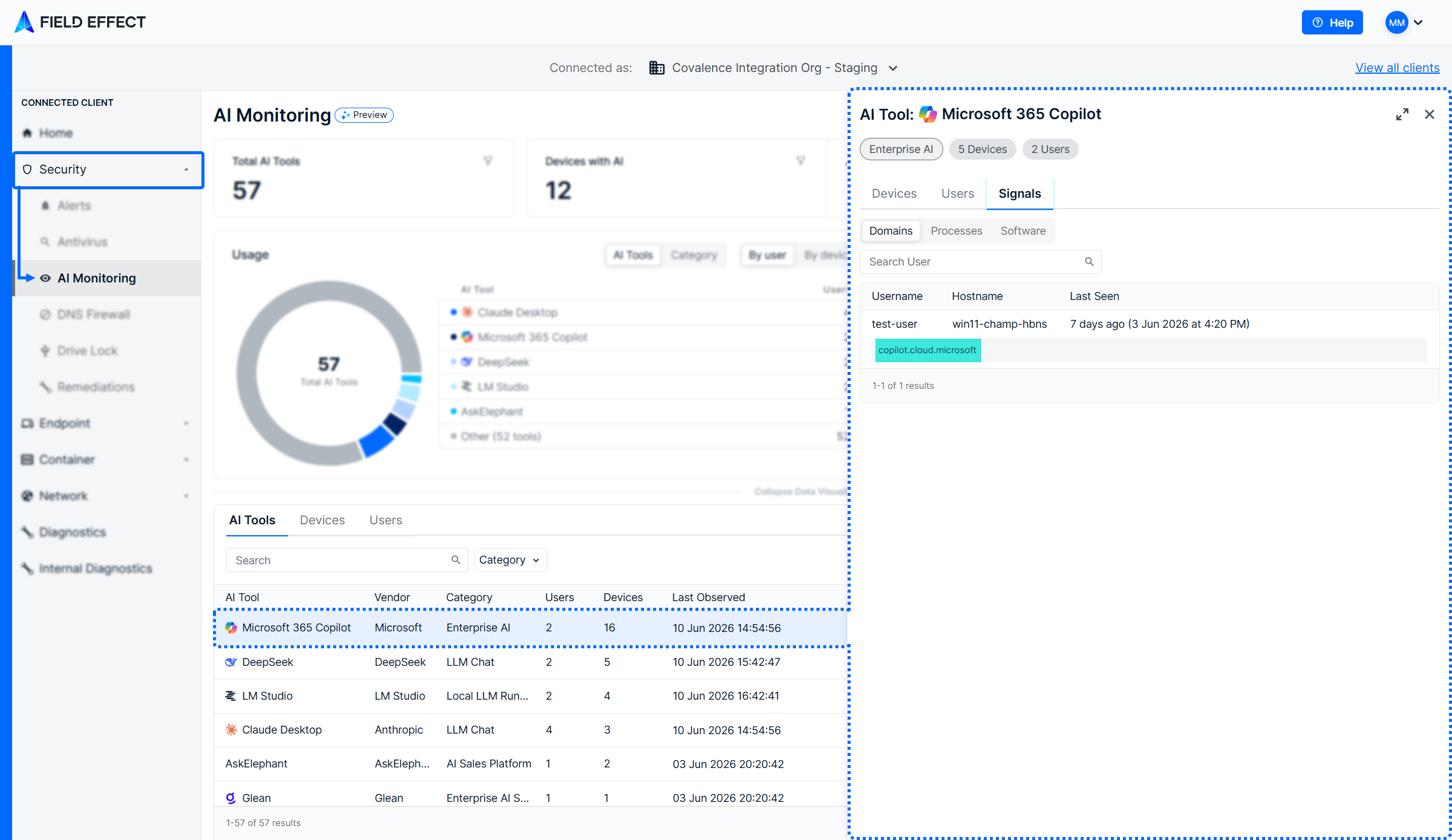
To find AI domains in Field Effect Vision:
- Log in to Field Effect Vision.
- From the Clients page, select a client.
- Navigate to Security > AI Monitoring.
- In the AI Tools table, select a tool.
- View associated domains in the details pane.
Was this article helpful?
That’s Great!
Thank you for your feedback
Sorry! We couldn't be helpful
Thank you for your feedback
Feedback sent
We appreciate your effort and will try to fix the article