Introduction
As a Field Effect partner, you may have a consistent set of baseline configurations that you want to apply to clients by default when the onboard with Field Effect MDR. You can define your own default set of configurations from the Administration Section's Client Configuration page. Any time you onboard a new client to Field Effect MDR, their configurations will conform to the settings defined in this configuration. This page organizes the default client configuration settings into three tabs: Endpoint Agent, DNS Firewall, and Service Overview.
Should you want to further customize a client's configuration (example: allow URLs specific to an organization), you can still do so from that client's specific client view in the MDR Portal. Since this is a partner level page, it's only accessible from your partner view. See our Organization Selector article for more on navigating across client and partner views.
This article outlines the Client Configuration page and the available settings:
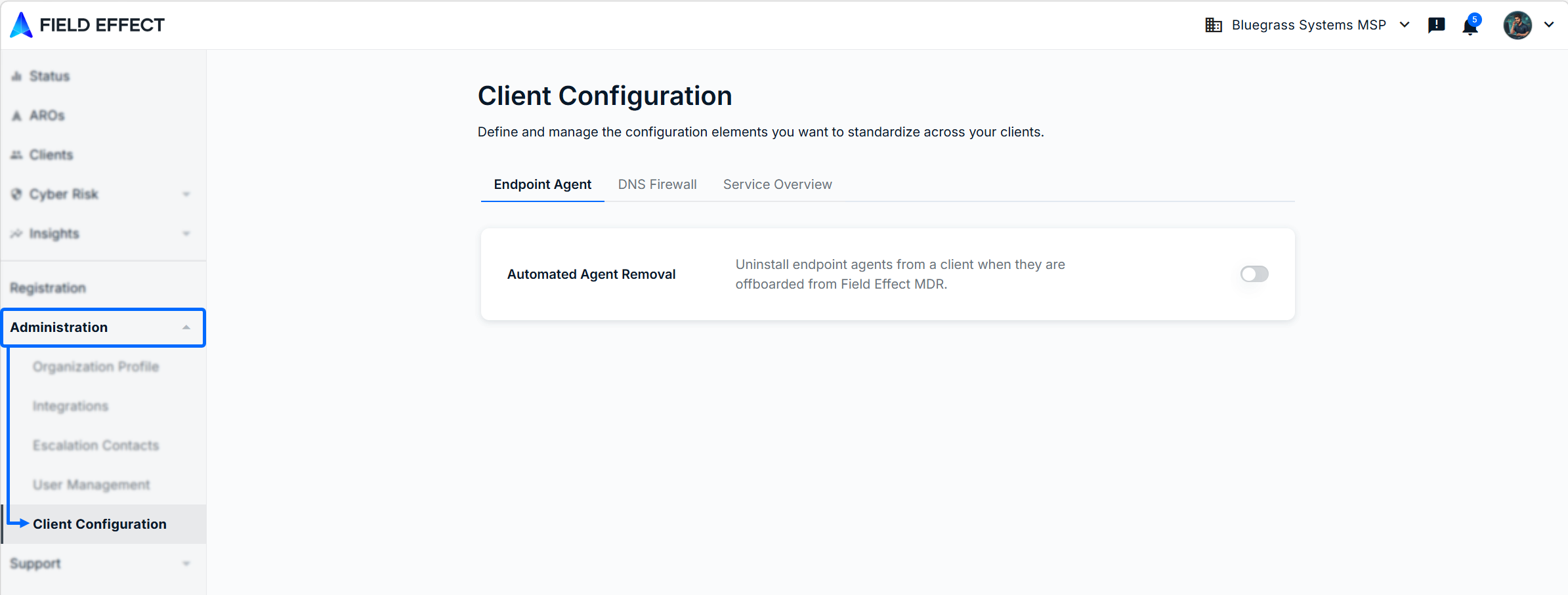
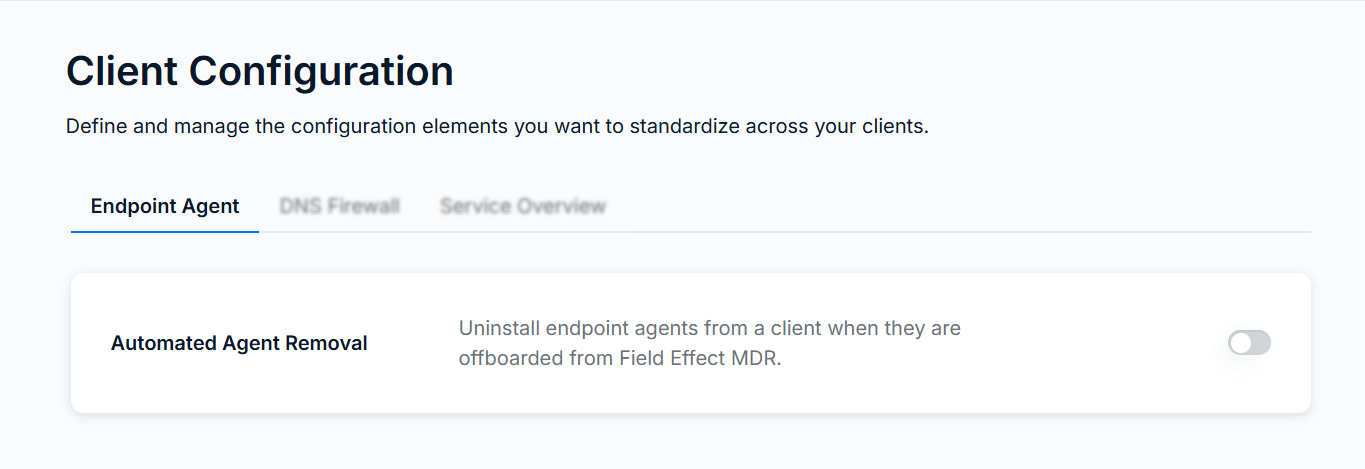
Endpoint Agent
From this tab you can change the default behavior of the endpoint agent when clients are offboarding from the service. When the Automated Agent Removal is toggled on, the endpoint agent will automatically uninstall itself when the client is specified for offboarding.
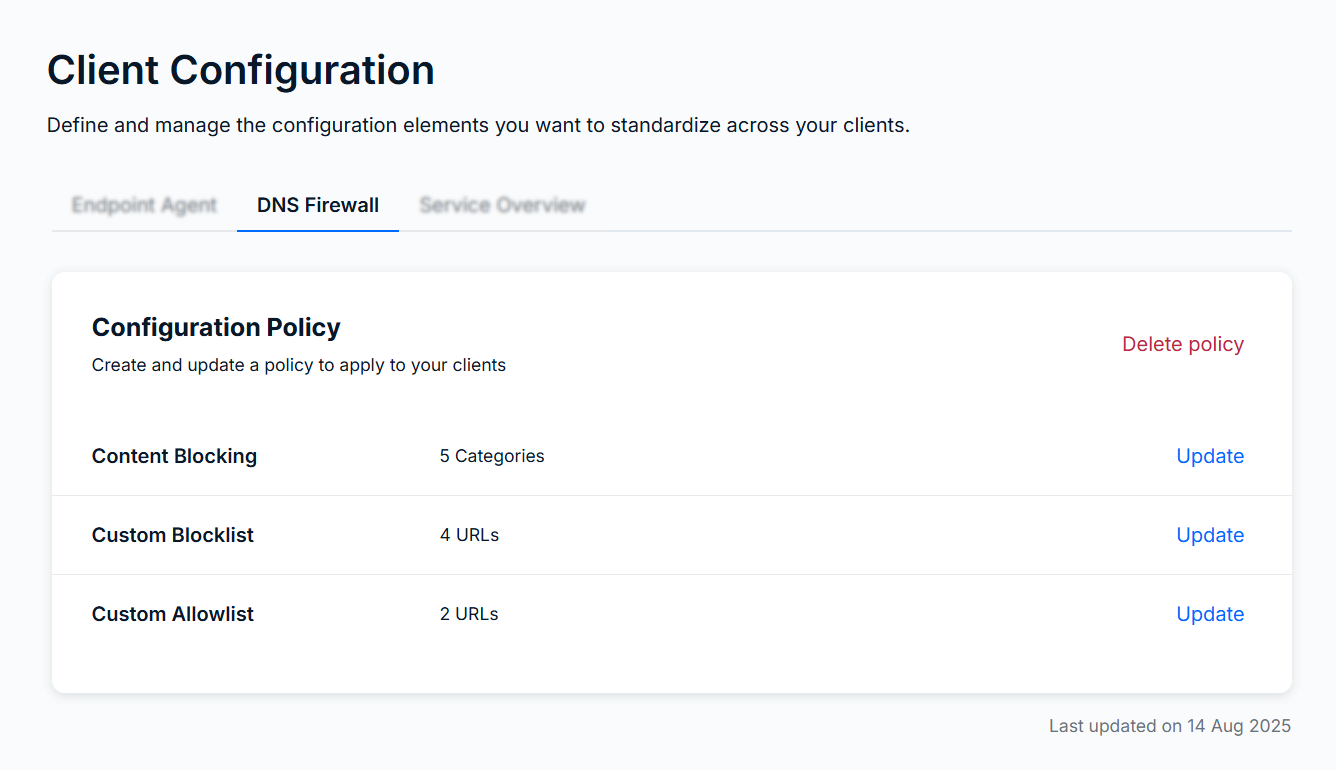
DNS Firewall
From this tab, you can standardize default blocked content categories across clients, as well as define a standardized allow and block list. You can also delete the policy entirely from this tab.
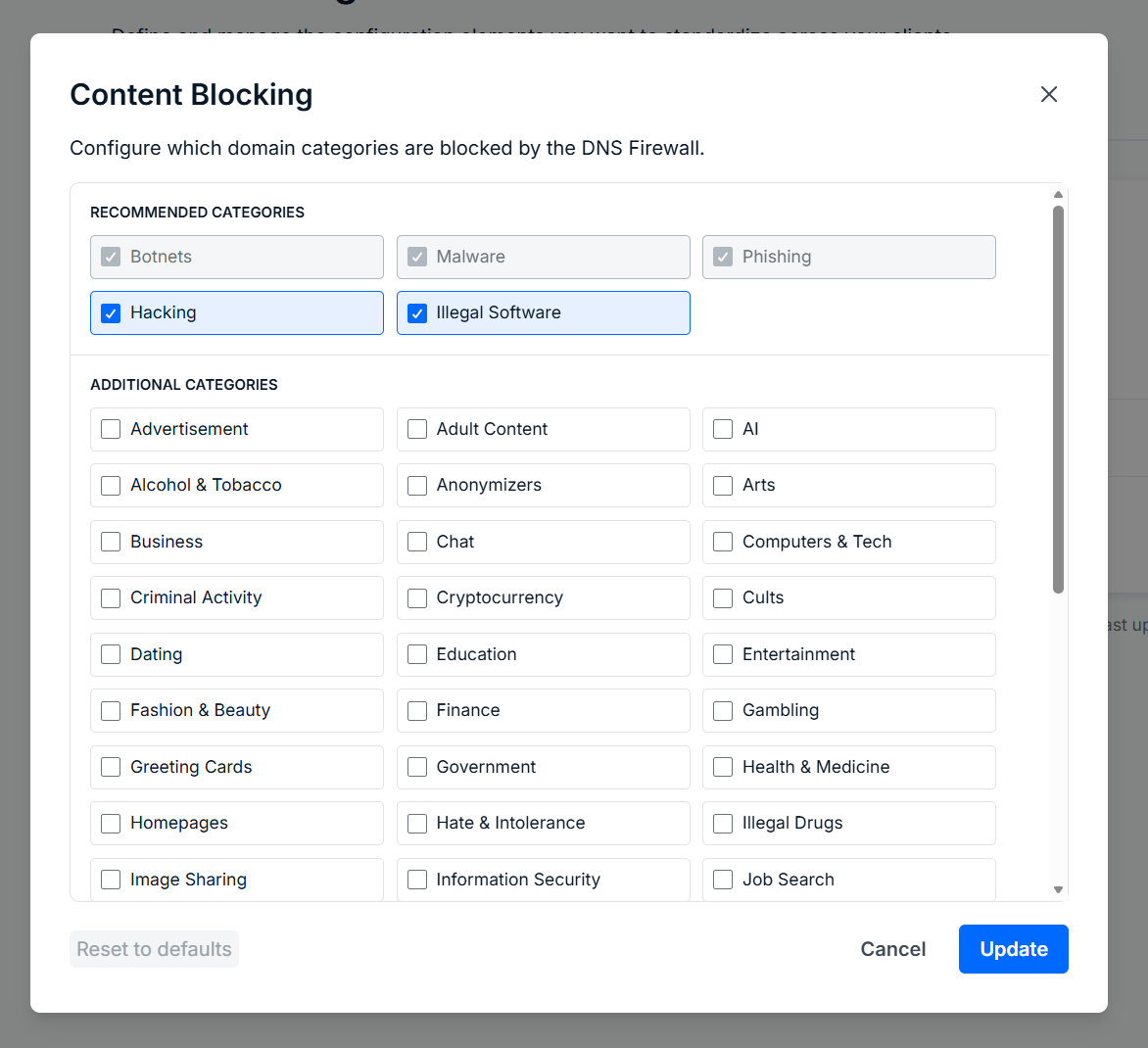
Content Blocking
Click Update in the Content Blocking row to define which content categories should be blocked by default across all clients. A new window will open where you can make you selections. Any checked category will automatically be blocked for all new clients. When finished, click Update to confirm your changes.
Custom Allowlist and Blocklist
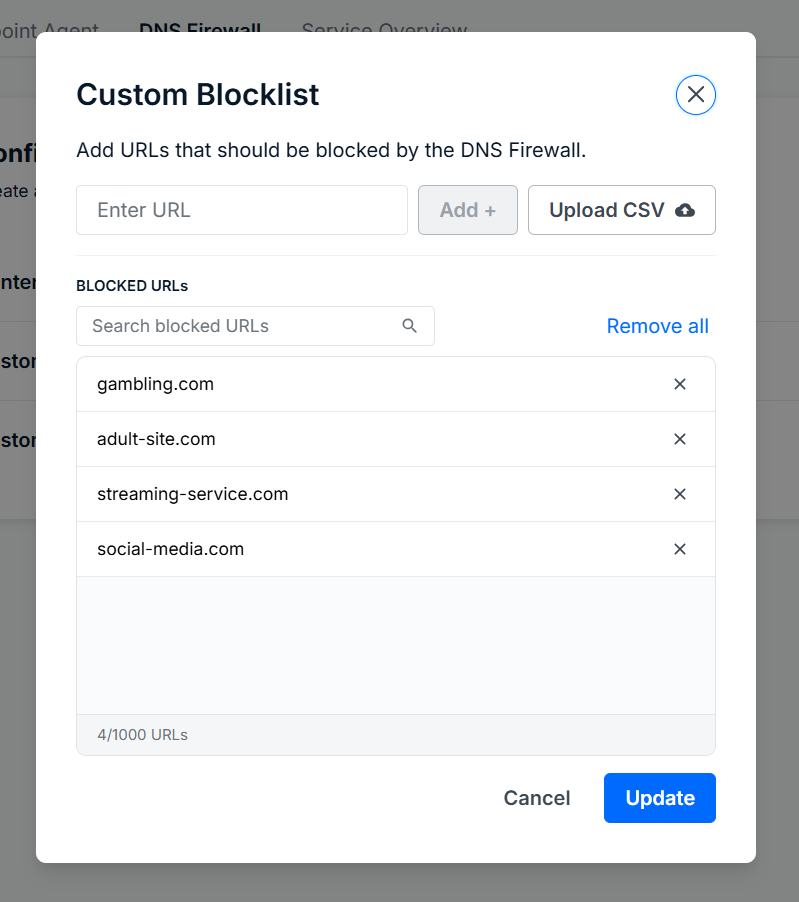
Click Update in either the Allowlist or Blocklist rows to make changes to that list. Anything added to the allowlist will be accessible by end users, and anything added to the blocklist will be inaccessible to end users across all of your clients.
A new window will open where you can add URLs to the selected list. In the example below, the partner user is editing the block list. These lists also support batch uploads. See our Using the Custom Allowlist or Blocklist article for more.
Service Overview
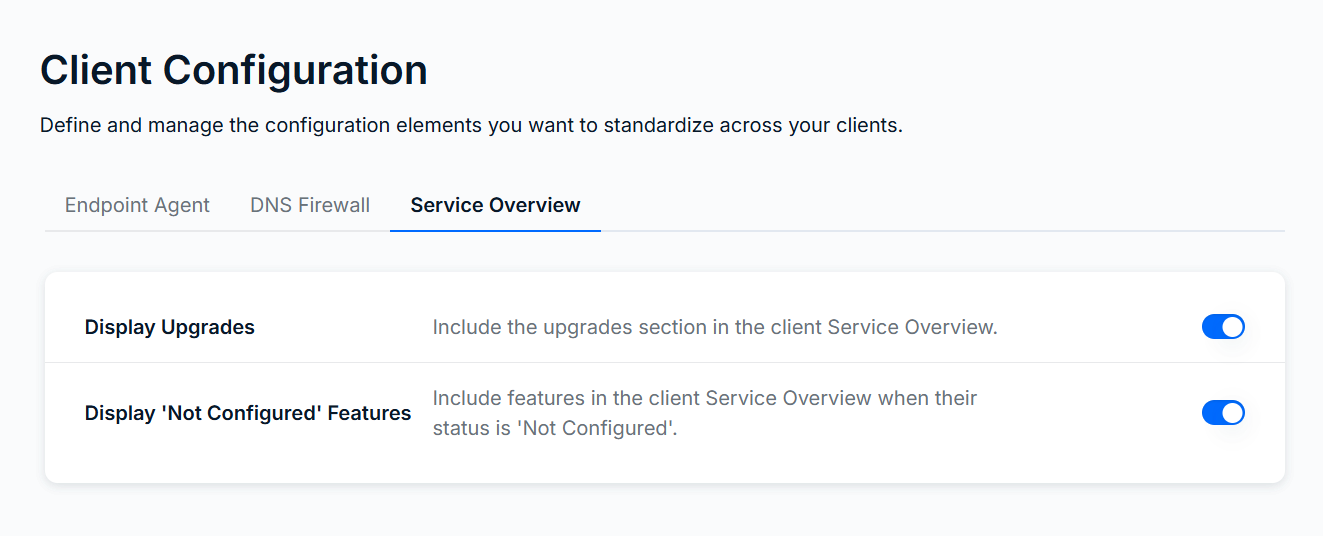
On this tab, you can select whether you want to show or hide certain metrics on the Service Overview page for clients.
Display Upgrades: when enabled, end client users will be able to see the upgrades available to their account or service tier. Examples include extended log retention and dark web monitoring.
Display Not Configured Features: when enabled, features that have not been configured will still be shown, but with a "not configured" status. When disabled, any feature that is not configured for the end client will not be shown on the Overview.
Setting Other Defaults
As you become familiar with Field Effect MDR's features and your preferred configurations for them, you will develop your own set of "baseline configurations" for every new client. You can email support@fieldeffect.com to request that we apply these default configurations for your clients. Once this is set up, we will apply these default settings to your new clients, usually within one business day of the client's creation. Settings available to apply as defaults include the following:
- Staff locations
- Portal language
- Active Response policy
- Agent protection default setting
- Workstation notifications
- ARO settings
- Managed AV settings (required a a template client)
- Default organization profile contacts
- Default client escalation contacts
Was this article helpful?
That’s Great!
Thank you for your feedback
Sorry! We couldn't be helpful
Thank you for your feedback
Feedback sent
We appreciate your effort and will try to fix the article