The Windows Install PowerShell Script for RMM/MDM script can be used with Datto to programmatically install the Field Effect MDR agent.
The script requires two inputs to be passed to your RMM via variables:
- Field Effect MDR Portal API token
- One of:
- client organization name as it appears in the Field Effect MDR Portal; or
- Field Effect MDR license key unique to the client organization
- The API token must be created in the MDR portal following the instructions in our Help Center: Create an API Key. The Portal account associated with the token must have admin permissions for the script to work properly.
- The Field Effect MDR license key for a client org is found in the agent installer zip file downloaded from the Field Effect Portal: The Downloads Page.
To install the agent using Datto
1) Add the MDR Windows Install PowerShell script as a component in the Automation section:
i) Go to Automation> Components, and click Create Component.
ii) Under the Category dropdown, select Scripts and select PowerShell.
iii) Paste the entire MDR Windows Install PowerShell script. 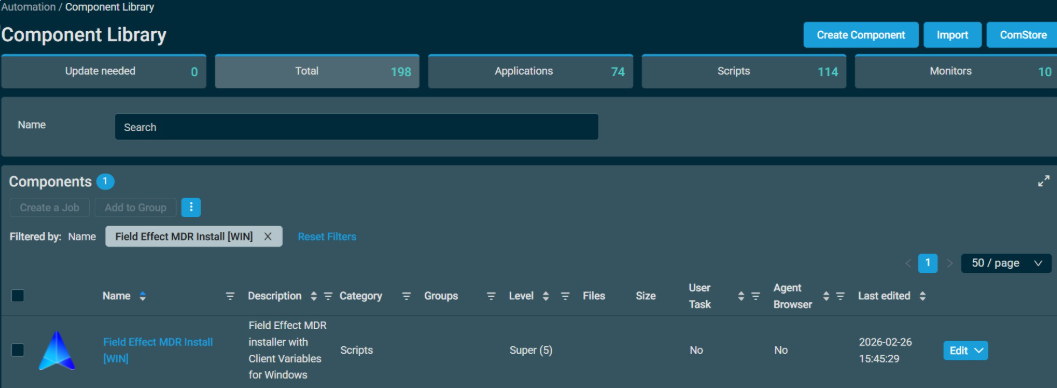
iv) Add the Sites where this script should be available.
2) Create variables for the API token and client names to be used for all client organizations:
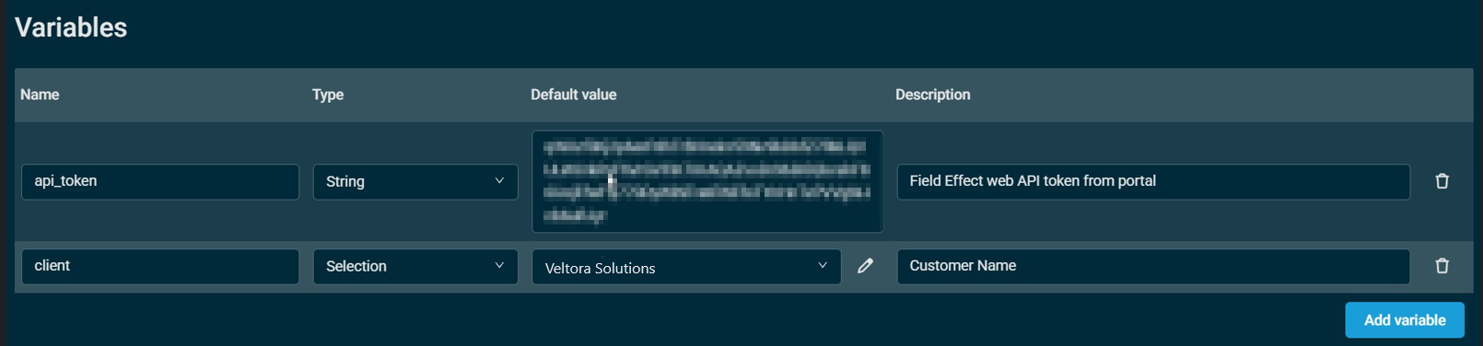
i) Add a variable for api_token:
- Name: api_token
- Type: String
- Default value: (paste your Field Effect portal token here)
ii) Add a variable for client:
- Name: client
- Type: Selection
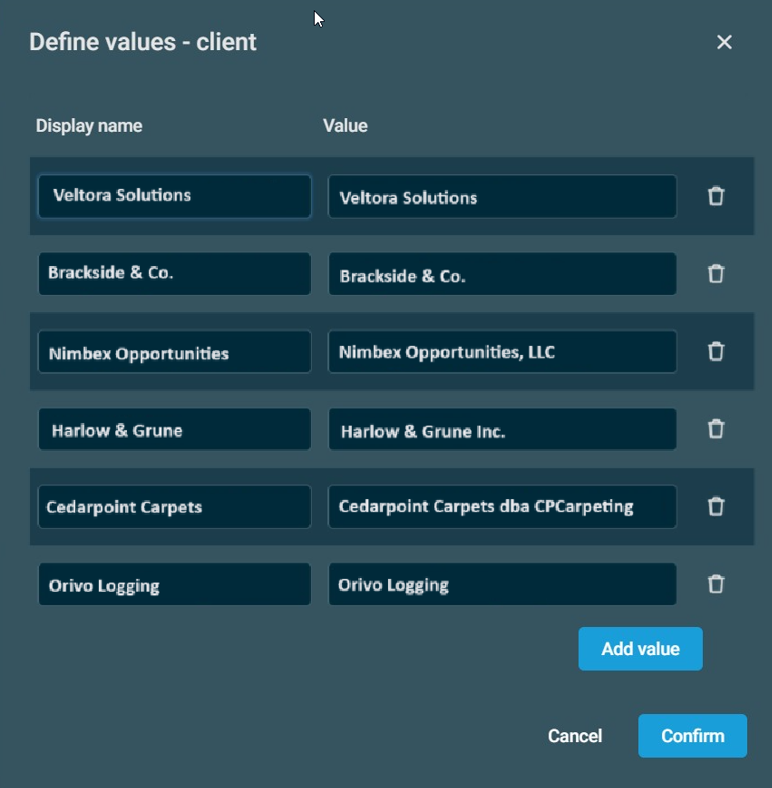
Click Add Values and add entries for Display name and Value for your client organizations. The Value field must match the client organization name in the Field Effect MDR Portal
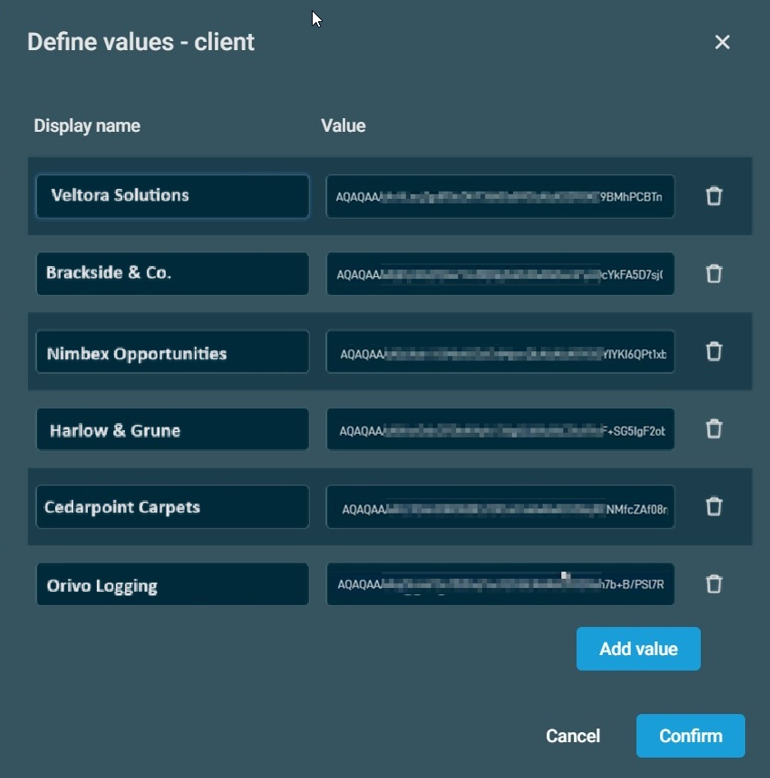
ii)-ALTERNATE/OPTIONAL. Instead of using the client name, you may choose the MDR license key as the unique identifier for each client organization. Add a variable for license_key:
- Name: client
- Type: Selection
Click Add Values and add entries for Display name and Value for your client organizations. The Value field must be the licence.txt string from your downloaded installer bundle via the Field Effect MDR Portal.
3) You may now create a job using the new script component and selecting the client name.
Was this article helpful?
That’s Great!
Thank you for your feedback
Sorry! We couldn't be helpful
Thank you for your feedback
Feedback sent
We appreciate your effort and will try to fix the article