Introduction
On the Field Effect MDR Portal’s Account Settings page (Sign in & Security tab), you can create and manage (rename, disable/enable, and delete) API keys associated with your MDR Portal account. These keys are used to authenticate your scripts and tools to the API.
This article walks through the process of creating an API Key within the Field Effect MDR Portal.
If your API key is intended to be used for scripted agent installations, we strongly recommend following the principle of least privilege by creating a "service account" used for this sole purpose.

Having a dedicated service account allows you to downgrade the permissions of the API key account to only what's required, without impacting your own account's permissions.

Please contact support@fieldeffect.com with the relevant user account details so we can apply the appropriate permission restrictions.
Create an API Key
API keys are generated from the Field Effect MDR Portal's Account Settings page.
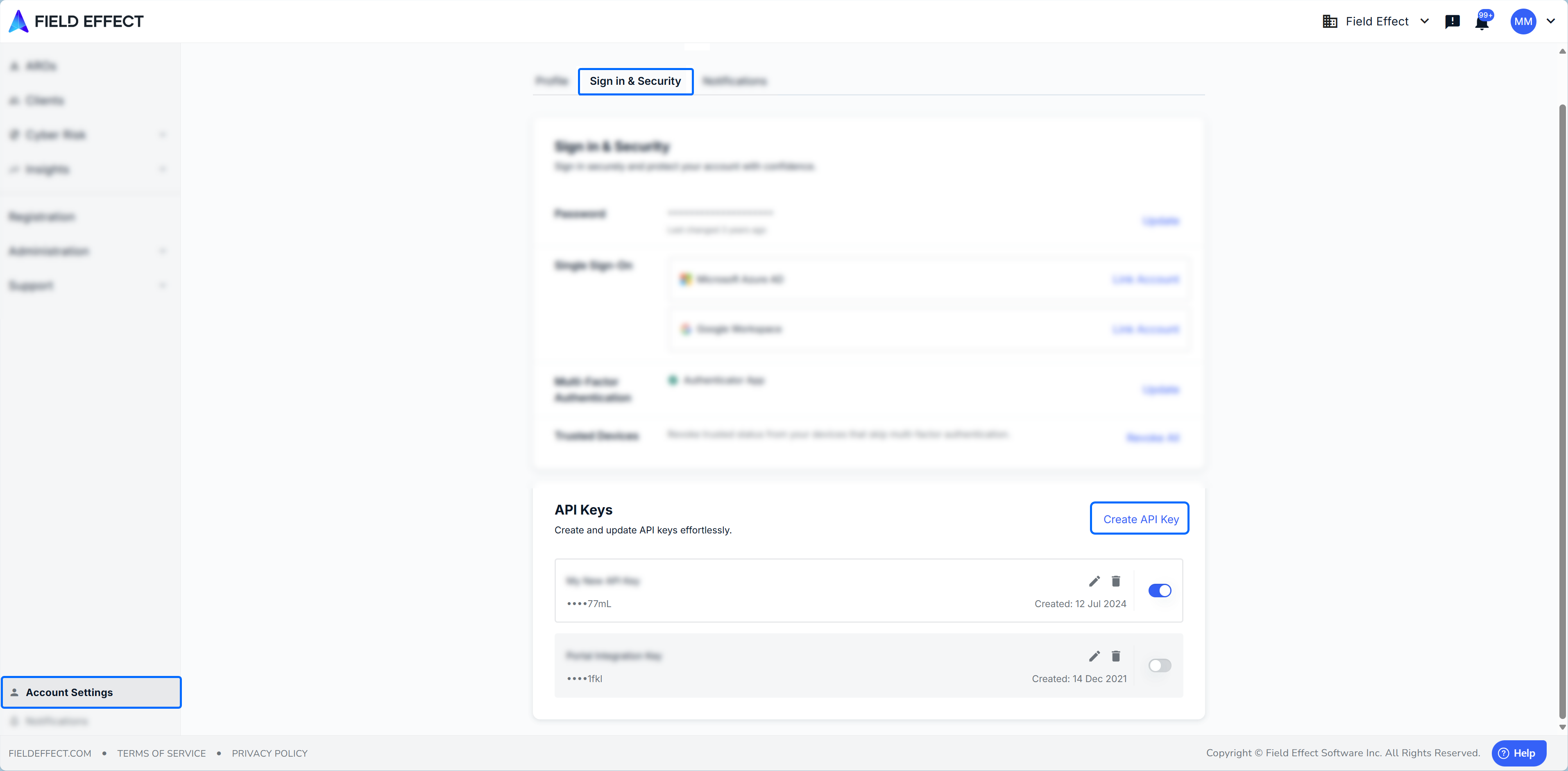
From the Account Settings' Sign in & Security tab, click Create API Key in the API Keys card.
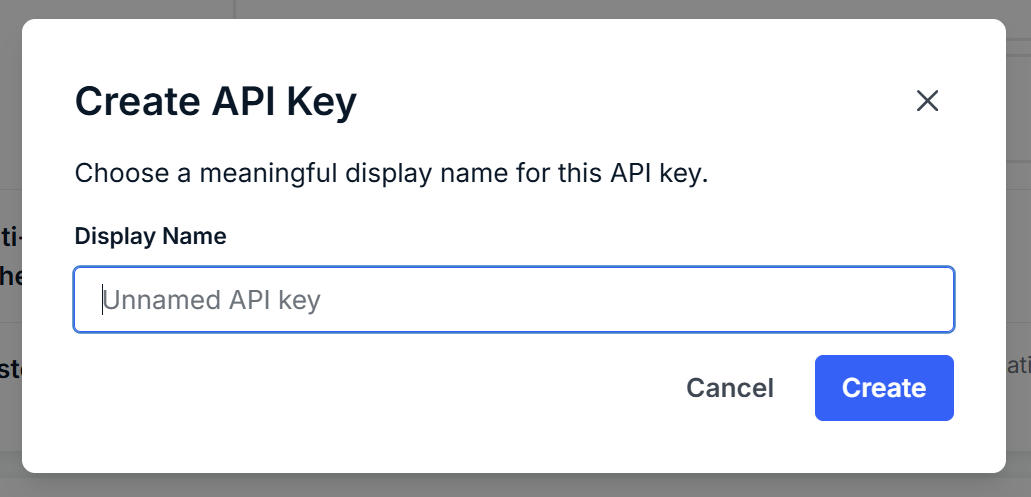
The Create API Key window will open. Give your API key a memorable name and click Create.
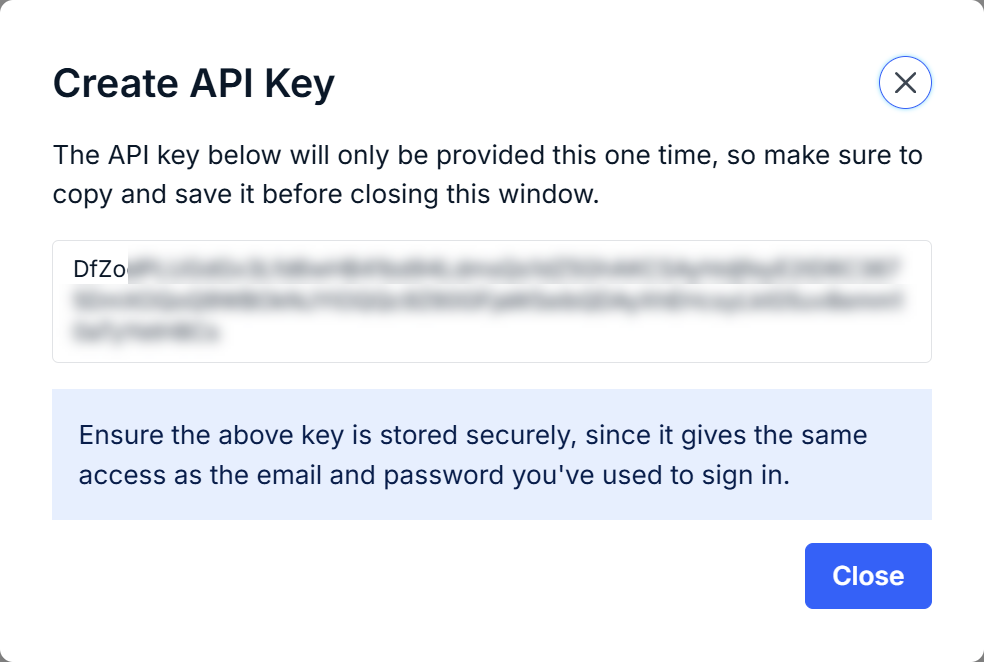
You will then be presented with the API key.
As described on the window, you will only be presented with the full API key at this time. Be sure to copy and store it securely, as you will not be able to refer to it again via the MDR Portal.
Managing API Keys
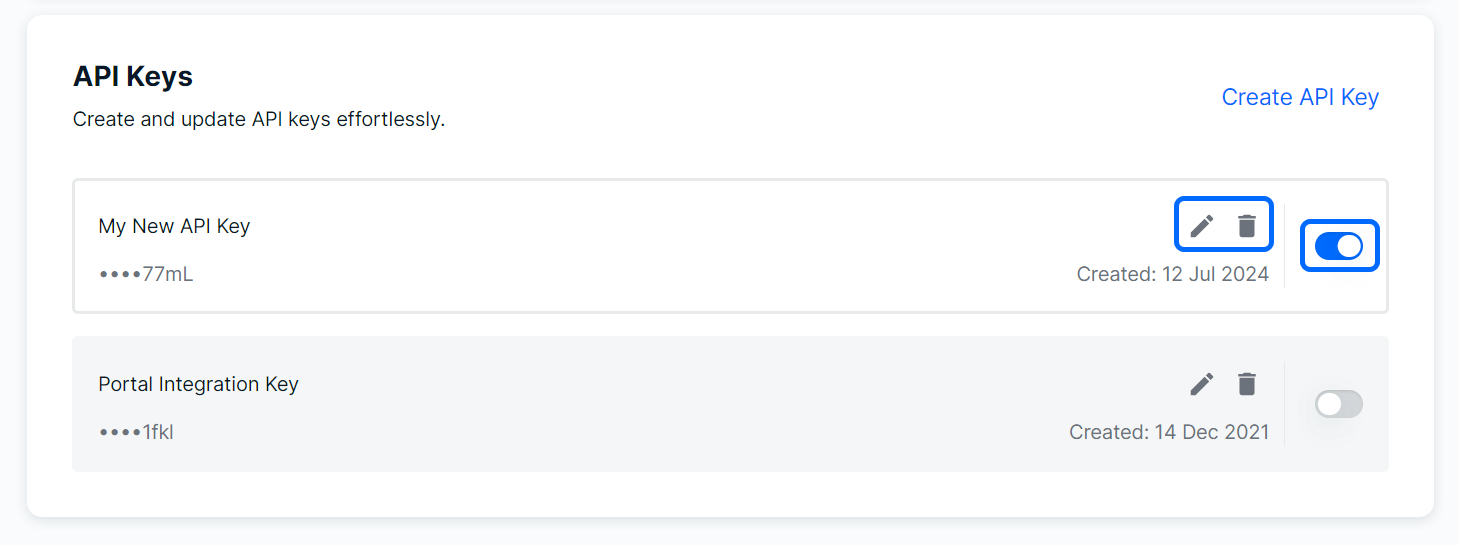
After you have created an API key, the following management options are available:
- Edit (pencil icon): change the key's display name
- Delete (trash icon): remove the API from your organization
- Deactivate (toggle switch): disables the key's functionality but keeps it within associated with your account for future use.
Was this article helpful?
That’s Great!
Thank you for your feedback
Sorry! We couldn't be helpful
Thank you for your feedback
Feedback sent
We appreciate your effort and will try to fix the article