Introduction
Partners: The allowlist is customized on a per-client basis. Ensure that the Organization Selector is set to the appropriate client before continuing.
While the DNS Firewall filters sites that are known to be inappropriate, insecure, or malicious, you may want more granular control over access to specific URLs. Our custom Allowlist can allow you to control access to specific domains and ensure your users can reach it.
The Custom Allow currently supports up to 1000 URLs, and users will have unrestricted access to any domain that is on the Custom Allowlist.
You must configure your DNS Firewall before you can customize the Allow.
Viewing the Allowlist
Navigate to the Administration section's DNS Firewall page and click on the Allowlist.
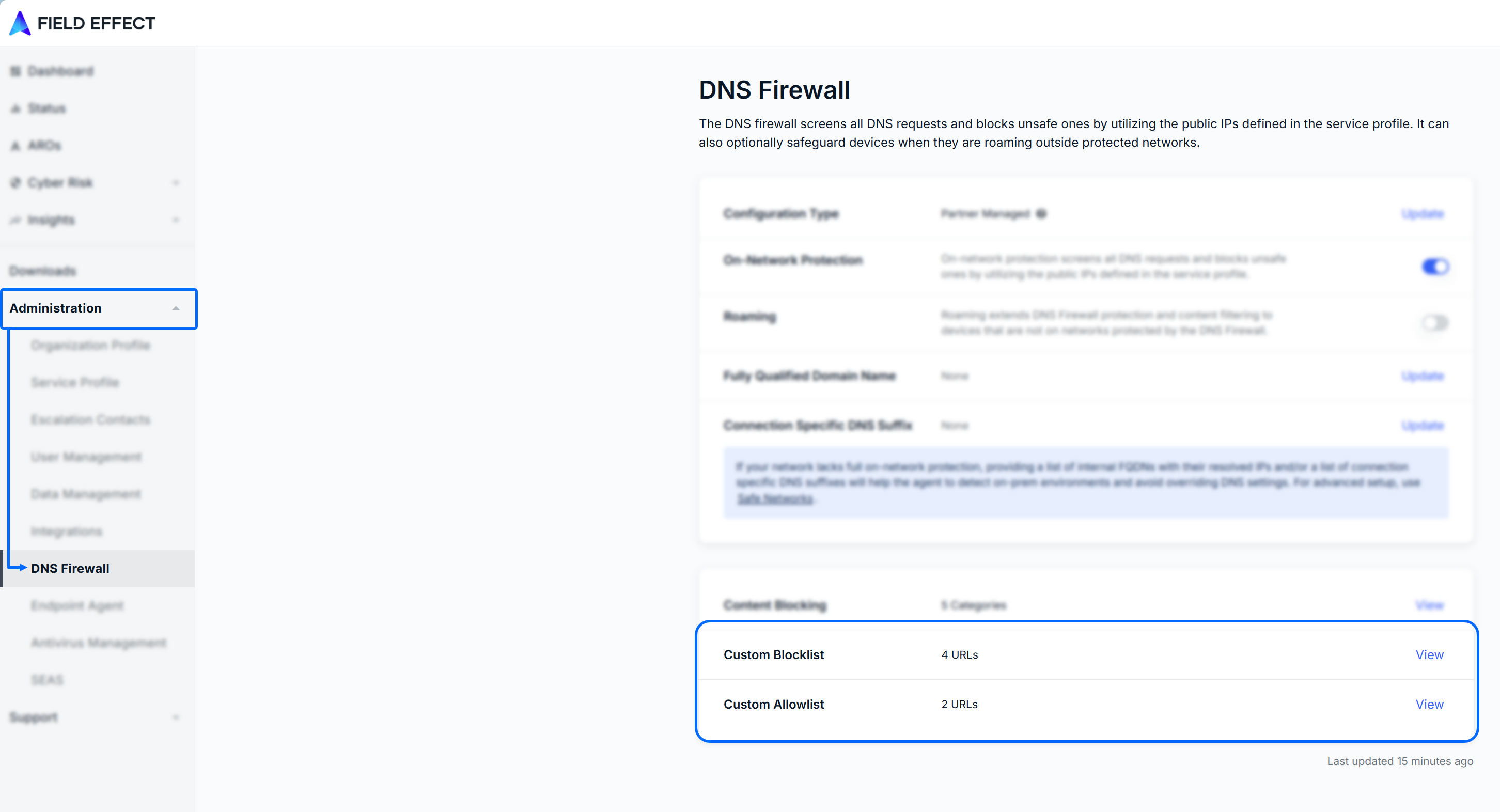
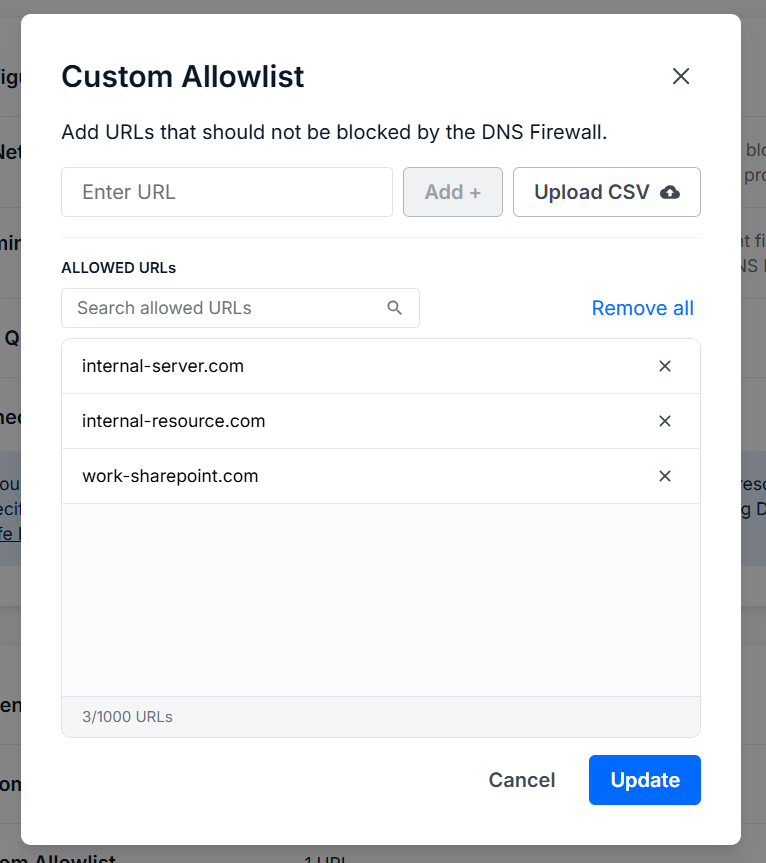
The Custom Allowlist will open in a new window. From here, you can view the current domains on the list and add single or multiple URLs. You can search this list using the search field or clear the list using the Remove All button.
Click the Save button at the bottom of the window to confirm your changes.
Editing the Allowlist
You can add single URLs to the allowlist manually, or you can upload a .csv file containing up to 1000 URLs.
Adding a Single URL
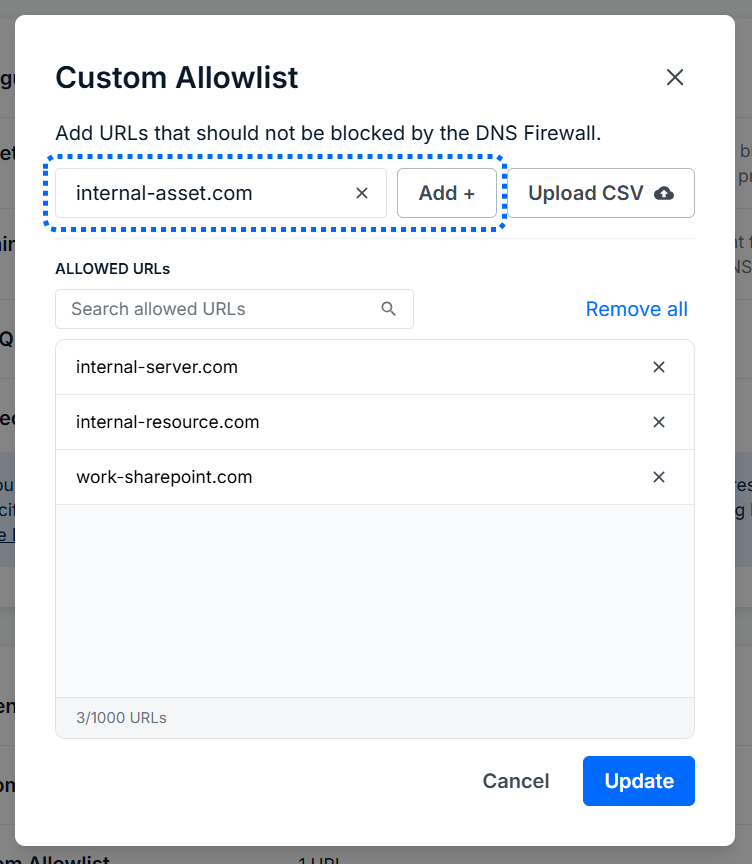
To allow access to a single URL, type it into the text field and click Add +.
After adding all of your URLs, click Update at the bottom of the window to confirm. You’ll be taken back to the DNS Firewall tab, and the number of URLs in the lists section will reflect the update.
Importing Multiple URLs
Create a .csv file
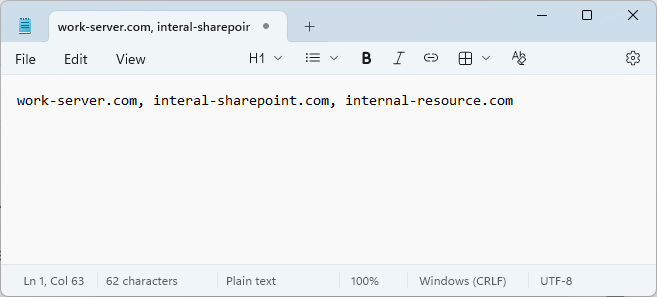
To import multiple URLs, create a .csv file listing all the URLs for the list, separated by commas.
Upload the .csv file
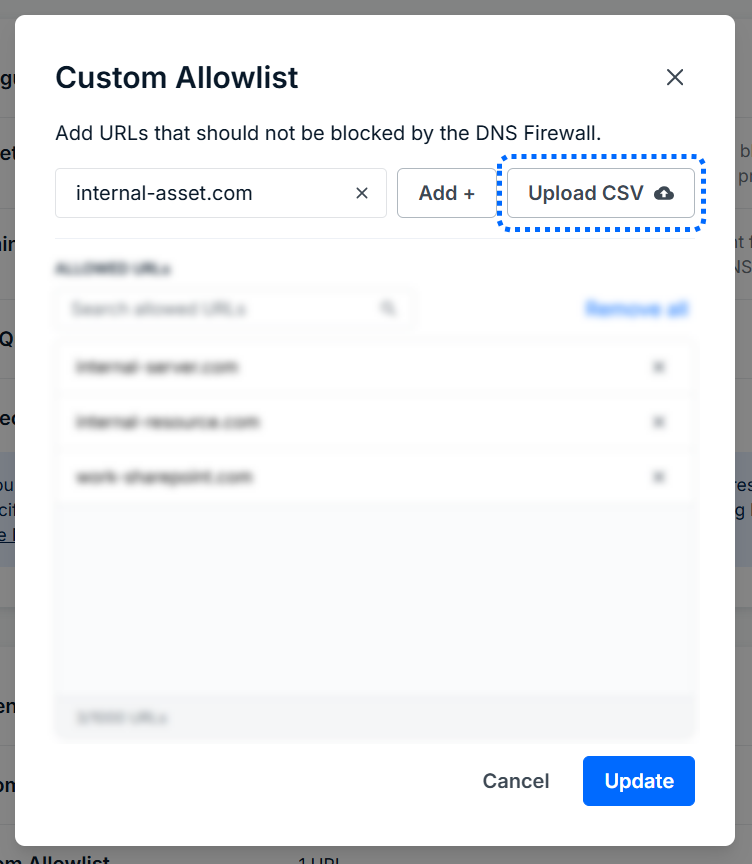
Navigate back to the list pane (see Viewing and Editing above) with your .csv file an click the Upload CSV button.
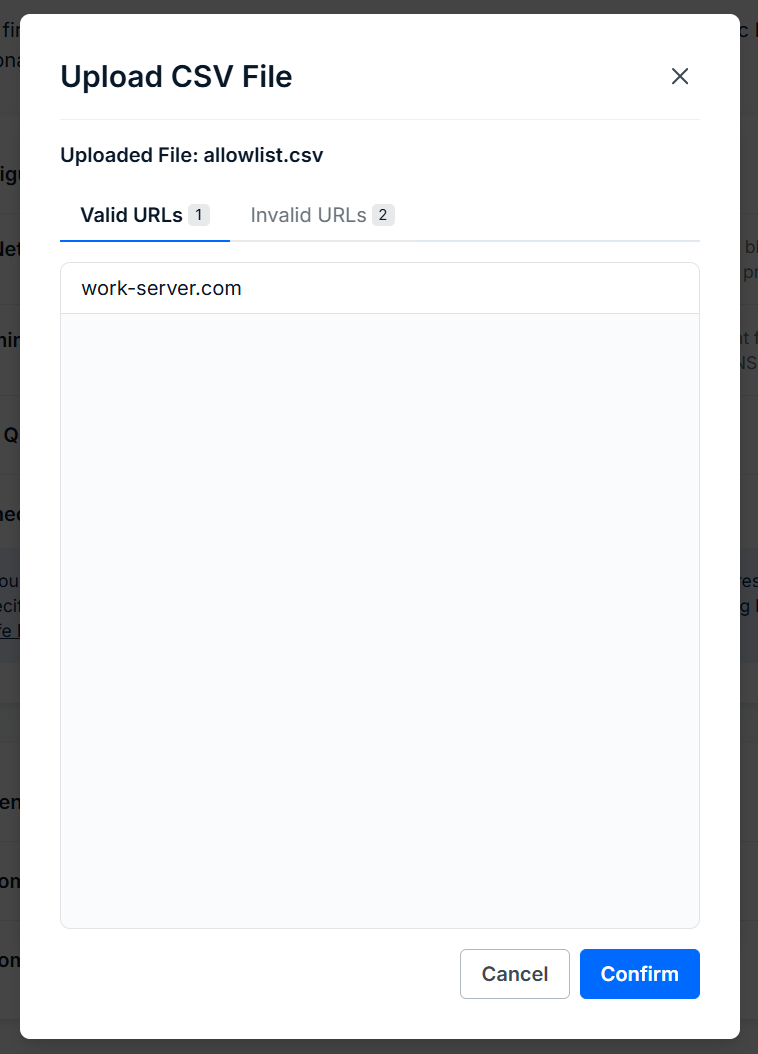
Once the list is uploaded, the upload results will be shown. Hovering over invalid URLs will show reasons it’s invalid (ex: duplicate entry). Once satisfied, click Continue.
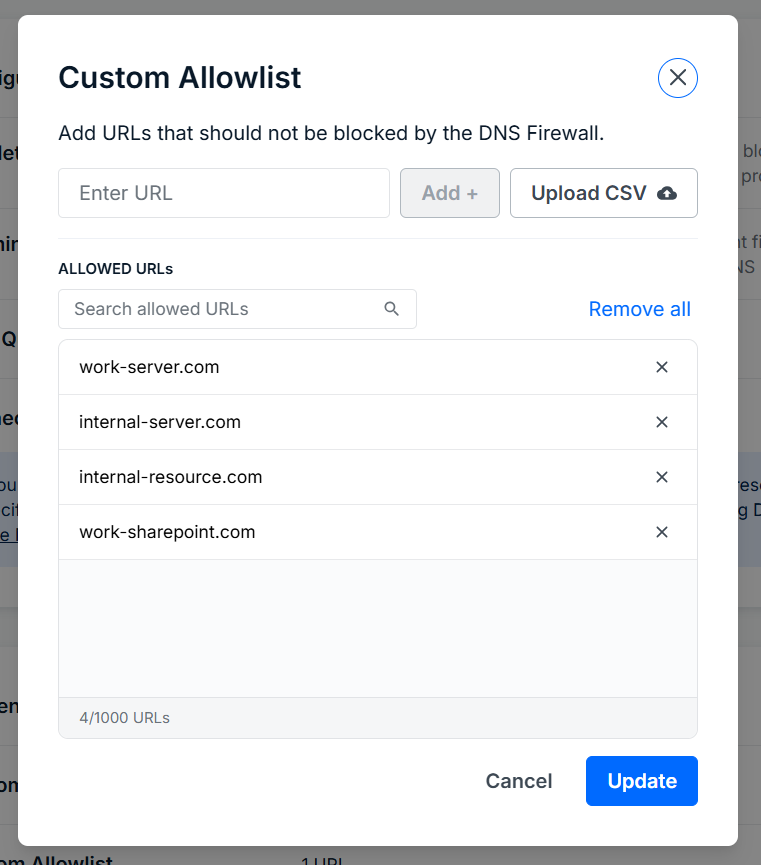
You’ll be taken back to the Allowlist and the URLs from the CSV file will be listed. You can use the search field to view specific URLs in the list. To remove a URL, click the “X” icon for that entry. Once satisfied, click Save.
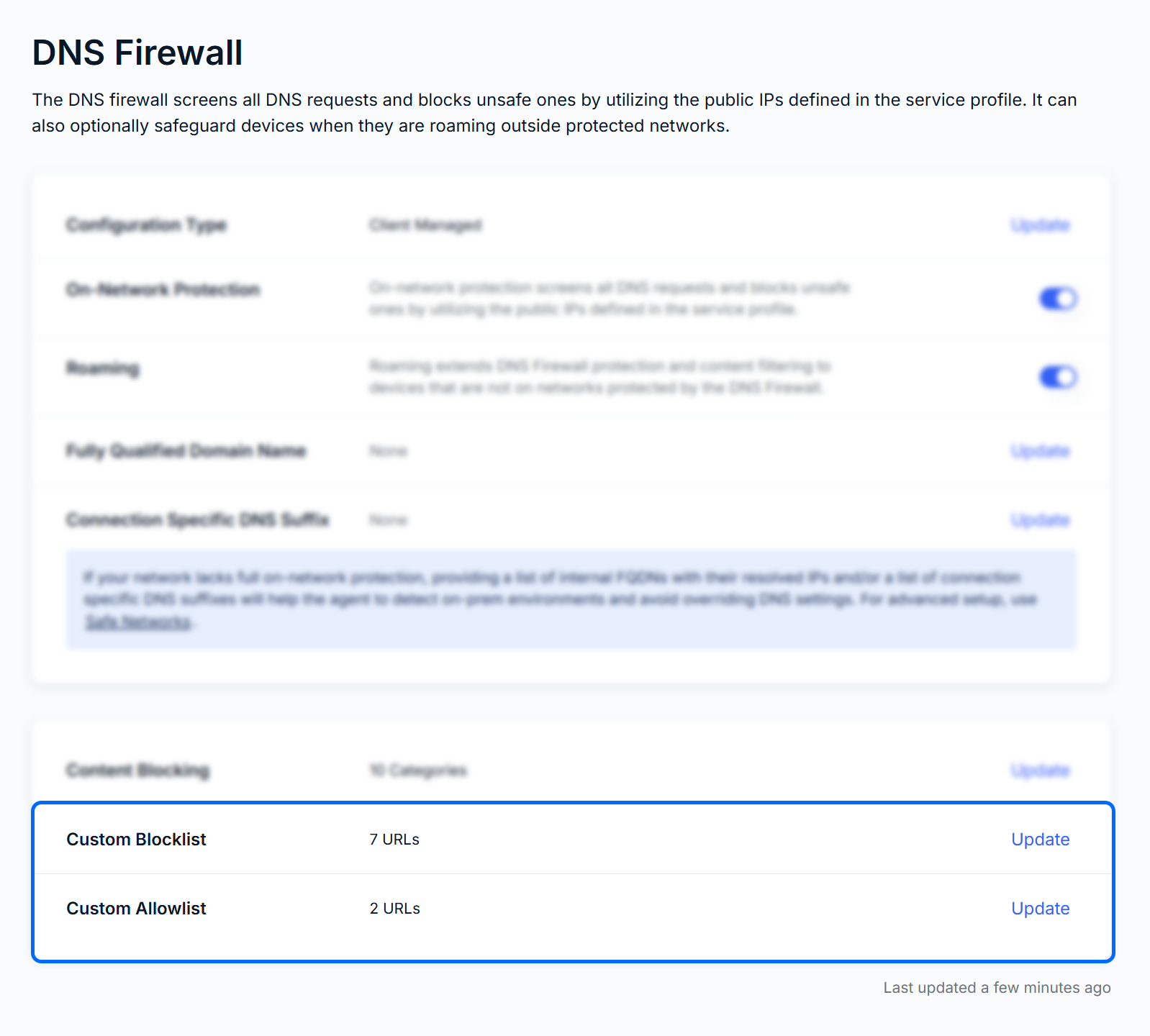
You’ll be taken back to the DNS Firewall tab, and the number of URLS in the Custom Allowlist section will reflect the update.
Was this article helpful?
That’s Great!
Thank you for your feedback
Sorry! We couldn't be helpful
Thank you for your feedback
Feedback sent
We appreciate your effort and will try to fix the article