Configuring Active Response

Introduction

For partners: this procedure is performed on a per-client basis. Ensure that the Organization Selector is set to the appropriate client before continuing.

This article walks through the process of setting up Active Response for the first time, as well how to configure the features of it after it's enabled, and how to disable the feature. 


This article covers the following topics:

<FRESHDESK TOC>


Active Response FAQs

What if my organization has another EDR service or solution with blocking capabilities?

Exclusions to Active Protection can be made via the exclusions field in your organization’s Active Response Policy.

You will also receive an ARO notifying you if multiple EDR solutions are found. You can comment on this ARO to remediate the conflict.


During the rollout of Active Response, our analysts monitor each environment for any possible conflicts. We have also successfully co-existed with other EDR blocking features.  


I am concerned that devices, resources, or networks may be negatively impacted by this. What safeguards are in place? 

This feature is being rolled out to employ only “high confidence” blocking policies.


Will geo-location conditional access policies impact Active Response?

It may, and to ensure it doesn't create negative impacts, please allowlist the range 64.26.180.112/28, as this is the range that Active Response, and cloud monitoring, connect from.


Video - Active Response: Setting a Response Policy


Setup Overview

This feature is enabled globally, so your selected response policy will be applied to all endpoint devices with the agent installed. If you need to disable Active Response for a specific endpoint, or set of endpoints, this can be done using the bulk editing feature found on the MDR Portal's Devices page. Visit our Help Center article to learn more about bulk editing endpoints.


Your network sensor (virtual or physical) is deployed with all of our response actions pre-loaded, and configuring Active Response informs Field Effect on which response actions you would like to enable in your environment.


Once you set and configure a response policy, the system will start a soaking period of 7 days. During this period, your response policy will be in report only mode and not trigger any response actions. It will also be shown as "off" in the MDR Portal.


This approach limits the chance of a response action impacting your operations while we understand your organization's network topology and expected behaviors. If a legitimate threat is discovered during this period, response actions will be triggered manually, once it has been reviewed by an analyst.


This 7-day soak period applies to any new endpoint agent installations. Once installed on the device, the 7-day soak period will begin, and once complete, your response policy will be enabled on the endpoint device.


If you would like to bypass this soaking period, please reach out to support@fieldeffect.com and to make the request.


Configure Your Response Policy

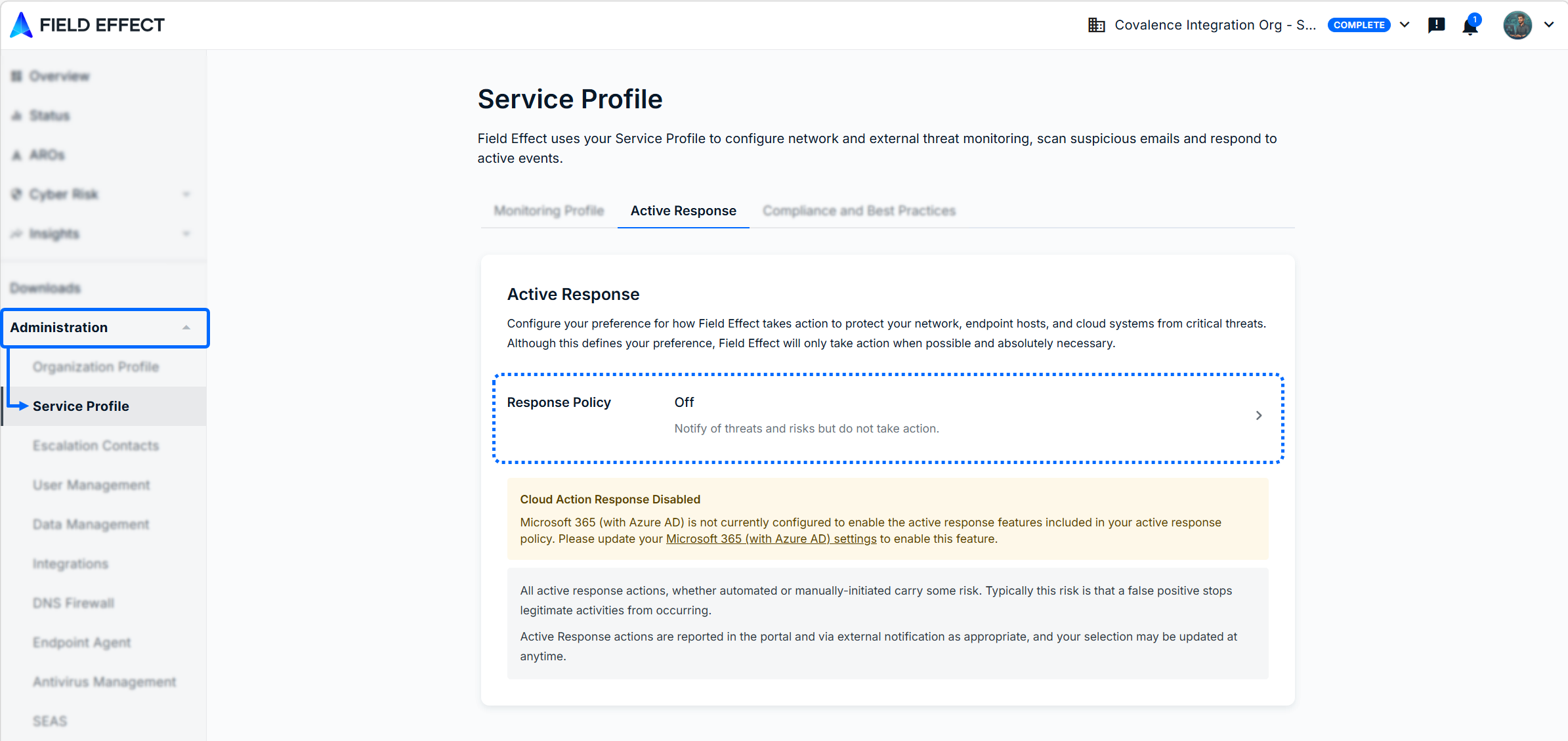
Navigate to the Administration section's Service Profile Page. From the Active Response tab, click on the Response policy area to get started.


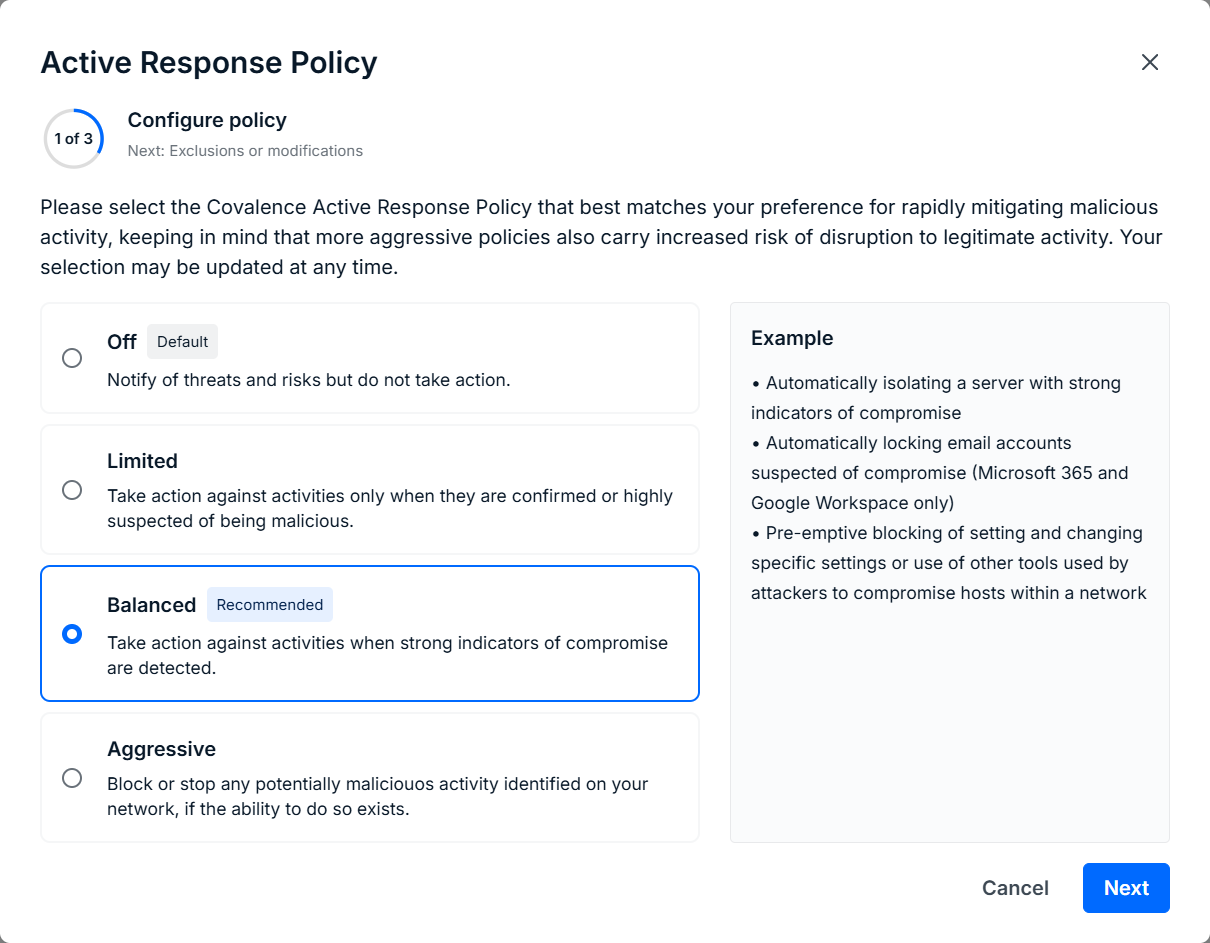
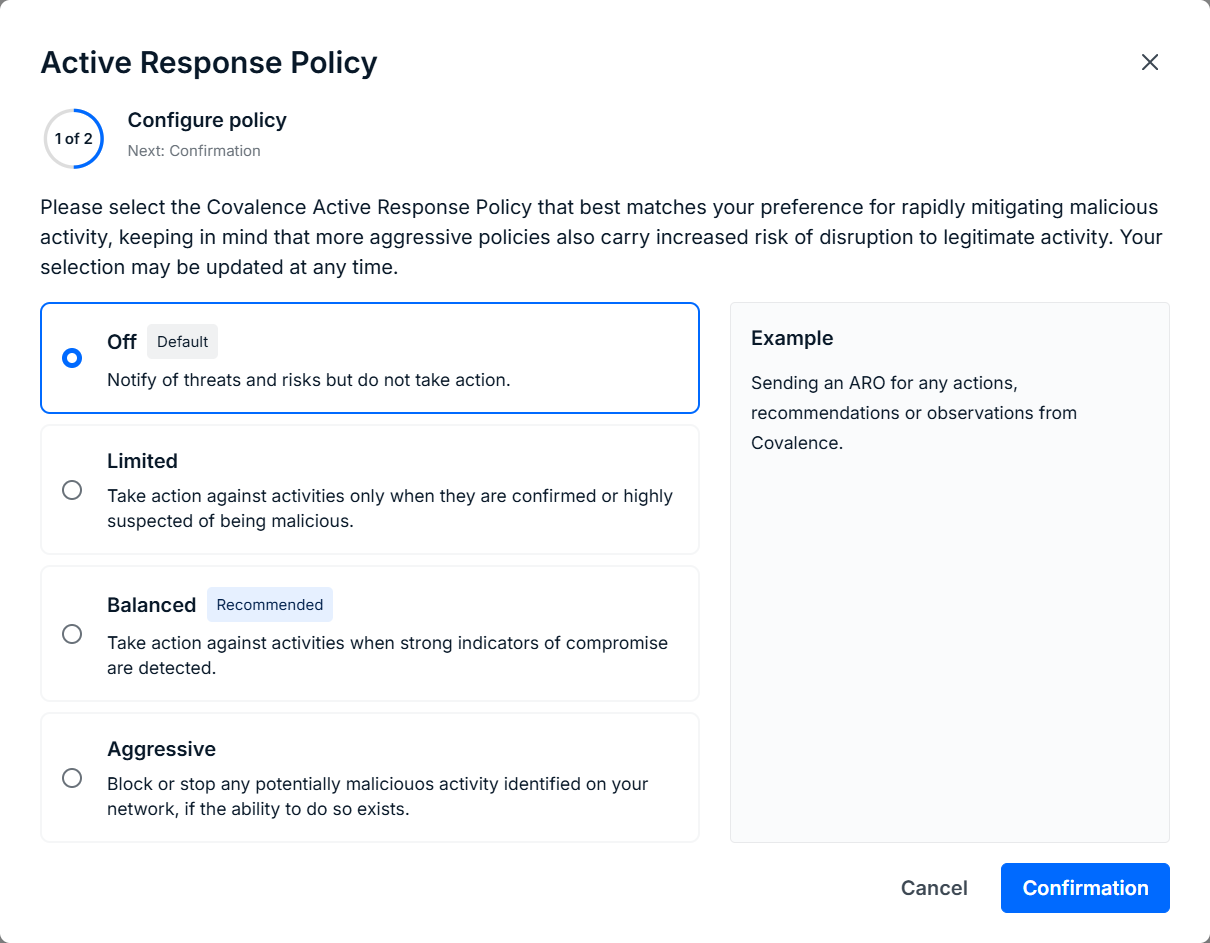
The Active Response Policy will open. Select the policy that best suits your organization and click Next.


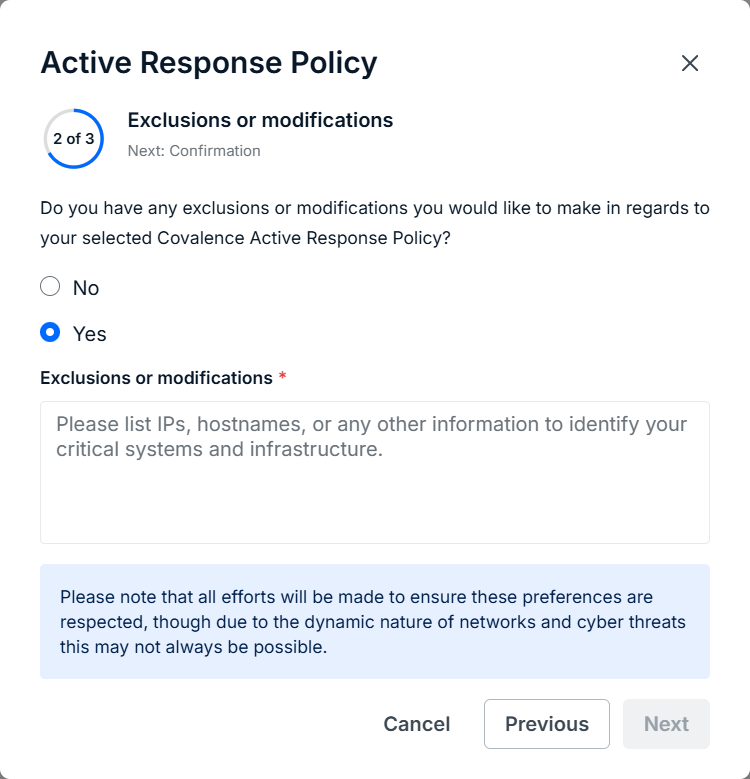
You can add custom exceptions and exclusions to the policy. To do so, select the Yes checkbox and add your requests and comments in the Exclusions or Modifications field. When ready, click Next.


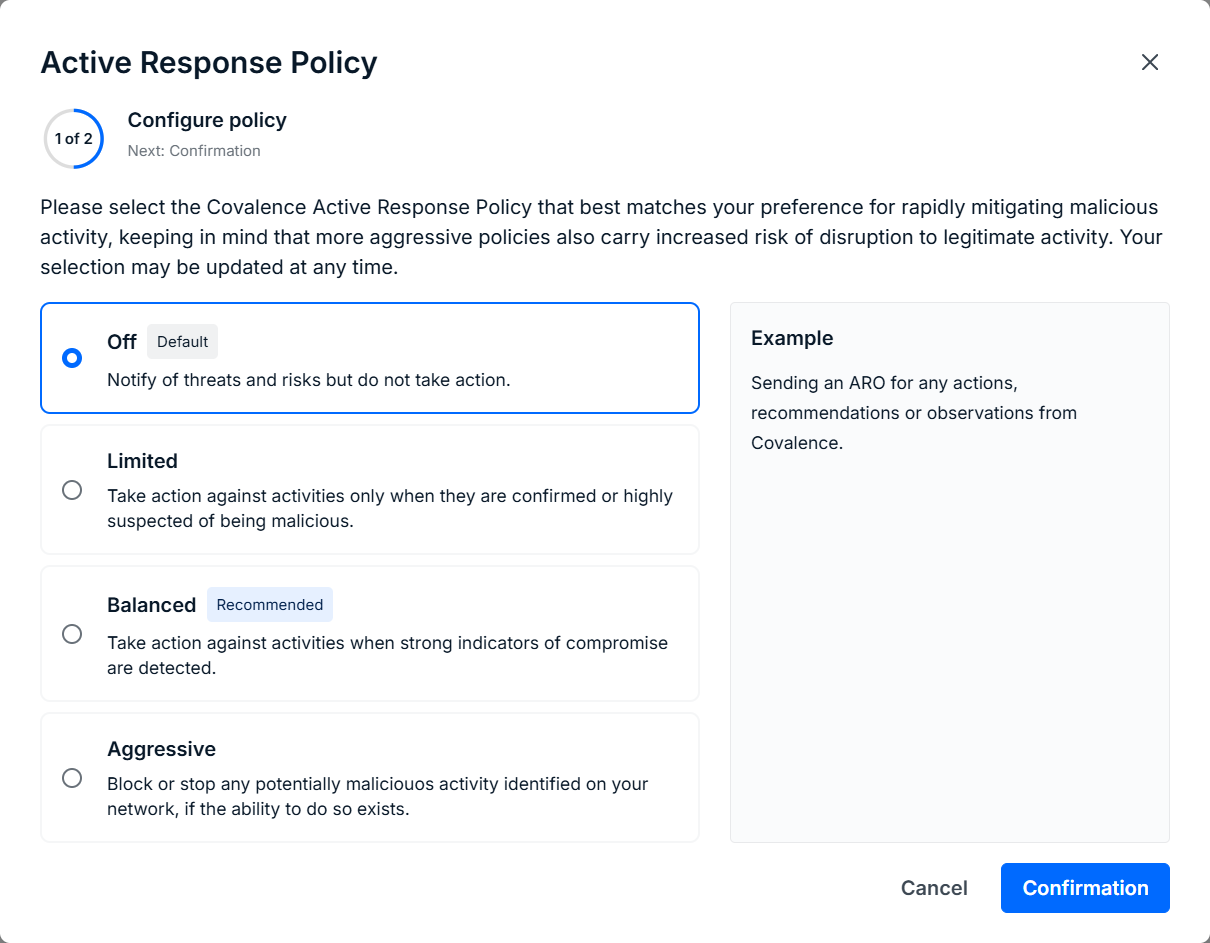
On the final page, review and confirm your policy settings. When ready to publish the response policy and apply any changes, click Submit.


You'll be taken back to the Service Profile page, and your response policy will be listed. If you need to adjust your policy in the future, click on the policy to edit and make changes. 


Enable Active Response for Cloud Services

Once a response policy is set, it can be enabled for supported cloud services, allowing Field Effect MDR to trigger response actions on cloud accounts suspected of being compromised. Field Effect MDR blocks accounts using conditional access policies. So, if an M365 account is locked due to a security threat, the conditional access policy restricts access to any resources from that account, helping contain the compromise.


Active Response supports Microsoft 365 and Google Workspace, and the following prerequisites must be met:

  • A response policy must be configured.

  • The integration must be set up in the MDR Portal.

  • Your cloud subscription must support audit logging, and it must be enabled.


In the example below, Google Workspace has not been set up for cloud monitoring. In this case, click Add to enable cloud monitoring, and you will be prompted to enable Active Response during the process. A new window will appear on your screen. To enable Active Response, select the Standard option and click Continue. 


See our Integrations content for more on enabling Active Response for these services. 


Note: Selecting Standard or Limited in the cloud integration menu will apply to the cloud service. If the Aggressive Active Response policy is set, Standard will apply the Aggressive policy to the cloud service. If an organization uses the Limited Active Response policy, selecting Standard will then apply the Limited Active Response policy to the cloud service.


Enable Active Response for Existing Integrations

Partners: This feature must be enabled on a per-client basis. Ensure that the Organization Selector is set to the appropriate client before continuing.


Once the prerequisites are met (admin credentials available and audit logging enabled), navigate to the Integrations page (Administration Section) to enable Active Response for cloud services that have been enabled already, or when enabling a new integration.


In the example below, cloud monitoring has already been enabled for Microsoft 365, but Active Response was not enabled during the initial setup. Click the Active Response Policy Settings link to enable a response policy.


You'll be taken to the Service Profile's Active Response section. Once a policy is set, Active Response will become enabled for the cloud service.


Troubleshooting Cloud Configurations

In the example below, Active Response has not yet been enabled for your organization. If you receive this error message, configure an Active Response policy before enabling Active Response for a cloud service.


Disabling Active Response

Disable the feature globally

If you decide that you want to disable Active Response globally, then you can do so by opening the Response Policy section and selecting Off instead of the current response policy.


Disable the feature for specific users

If you need to disable Active Response for a device(s) use the Devices page's Bulk Edit functionality.  


With bulk editing, you can disable agent protection for only the devices that need servicing, while keeping the rest of your fleet protected. See our Help Center article on Bulk Editing Endpoints.


Active Response System Notifications

Partners: notifications are enabled and customized on a per-client basis. Ensure that the Organization Selector is set to the appropriate client.


 If Active Response triggers a response action on an endpoint device, a desktop notification will be generated for the end user. These notifications can be customized or disabled.


Notifications are available for the following scenarios:

  • Field Effect detects a threat (ex: malicious software) on an endpoint device.

  • Field Effect performs an action (ex: isolated from the network, rebooted, etc.) on an endpoint device.

  • (Coming soon) A removable drive is detected and blocked on an endpoint device.

  • (Coming soon) Disk scan results.


Notifications can be enabled, disabled, and customized from the Endpoint Agent page’s Agent Preferences section. Below is 0an example notification. This article walks through the process of customizing notifications. 


Notifications support English, French, and Spanish, and the language is determined by the end user’s operating system settings. If the user has their operating system set to a supported language, the notification’s default message content will be translated to their set language.

If you create a custom notification message, however, it will remain in the language it was written in.


Customizing Notification Messages

The System Notifications toggle must be enabled to customize System Notification messages.


Navigate to the Endpoint Agent page (Administration section) and click Customize System Notification Message.


The Customize System Notification Message window will open. From here, you can choose to use the default messaging, custom messaging, or no messaging. The example below shows the messaging options available the messaging location in the notification is highlighted. If you select None, the highlighted area will be left blank. After making your selection, click Save.


Using the Default Message

To use the default message (“an administrator may contact you to investigate the incident”), select Default and click Save. The default messaging will then be displayed in the notification.


Using No Messaging

If you want to remove the message entirely, select None and click Save. No messaging will be shown in the notification.


Using a Custom Message

If you want to create your own notification message, select Custom.


The Custom Message field will appear under the message options. Note that custom messaging has a 350-character limit, and some custom characters are unsupported (see Troubleshooting below).


Type your custom message into the field and click Save. Your message will be applied, and you will be taken back to the Endpoint Agent page. 


Testing and Validating Notifications

If you want to receive a test notification to review and validate, Field Effect supports several workflows for sending test AROs and validating blocking capabilities.


To learn how to send a test notification, visit our Field Effect Endpoint Service Validation article and use the Notification Validation Test.


Troubleshooting Notification Messages

As mentioned previously, custom messaging has a 350-character limit. If you exceed this limit, you will not be able to save the message.


Also, some characters are not supported in the custom message. Using an unsupported character will produce an error and you will not be able to save your message.


Supported special characters include:

  • Alphabetical letters: a-z, A-Z

  • Spanish letters and accents: Á, á, É, é, Í, í, Ó, ó, Ú, ú, Ñ, ñ

  • French letters and accents: Ç, ç, É, é. Â, â, Ê, ê, Î, î, Ô, ô, Û, û, À, à, È, è, Ù, ù. Ë, ë, Ï, ï. Ü, ü

  • Numerical characters: 0-9

  • Special characters: “space”, “+”, “(“, “)”, “,” “,” “:” , “;” , “@”


Was this article helpful?

That’s Great!

Thank you for your feedback

Sorry! We couldn't be helpful

Thank you for your feedback

Let us know how can we improve this article!

Select at least one of the reasons
CAPTCHA verification is required.

Feedback sent

We appreciate your effort and will try to fix the article