If you are not familiar with an ARO yet, please see The Anatomy of an ARO
ARO Workflow Overview
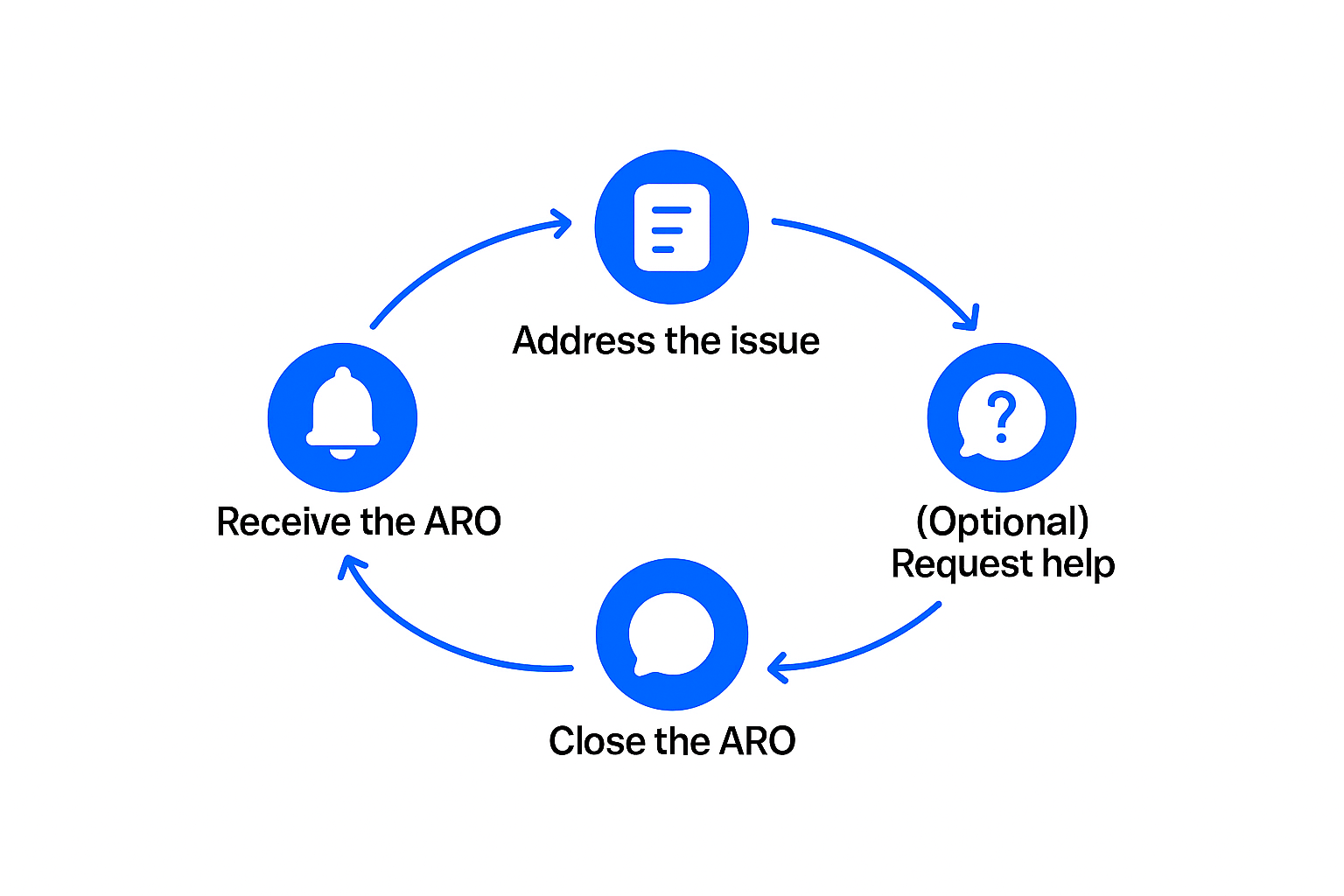
The ARO workflow is as follows:
- Select an ARO to review
- Assess the scope of the issue and take action to fix the root cause
- Request help if you require help from Field Effect analysts
- Close the ARO (Resolve or Dismiss)
Select an ARO to Review
We recommend selecting the highest priority ARO from your list. Basically, this means selecting Actions before Recommendations, and Recommendations before Observations - and picking the with the highest severity within these groups first.
Review the ARO
AROs will appear in the Open status in the MDR Portal, Vision, and/or your PSA tool depending on how your organization uses Field Effect MDR. You should:
- Read the description to understand the issue
- Validate the issue
- Perform the recommendations in the ARO and the suggested mitigation steps
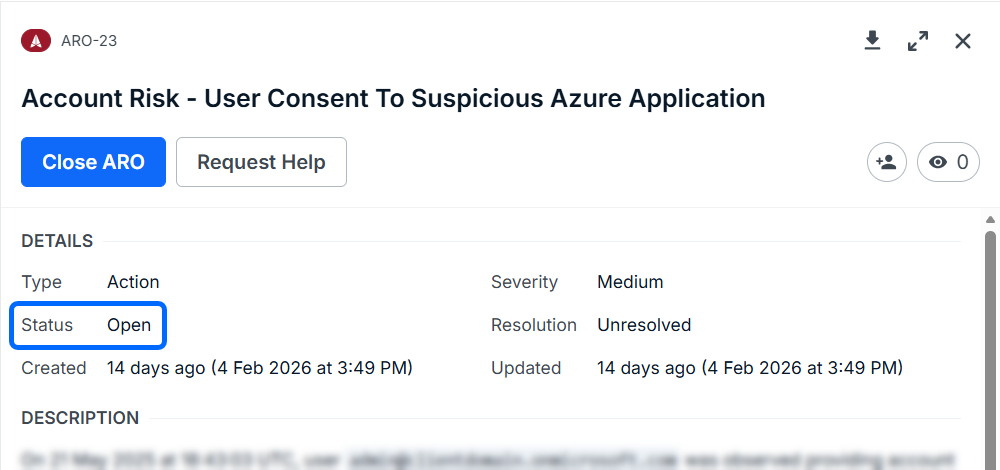
Each ARO includes guidance to help you resolve it. Use this guidance to address the vulnerability or issue the ARO is alerting on.
Examples:
- Enable MFA for a user
- Uninstall malicious software and update out of date software
- Investigate suspicious activity
- Remediate vulnerabilities
- If relevant, build IOCs list for use removing the issue from multiple hosts
- If relevant, search across all hosts for similar issues
For Partners Using Vision
You can take direct action from Vision to accelerate remediation or act quickly across multiple client organizations. You can:
- Isolate or unisolate endpoints
- Run quick scans
- Manage endpoints or accounts
Request Help
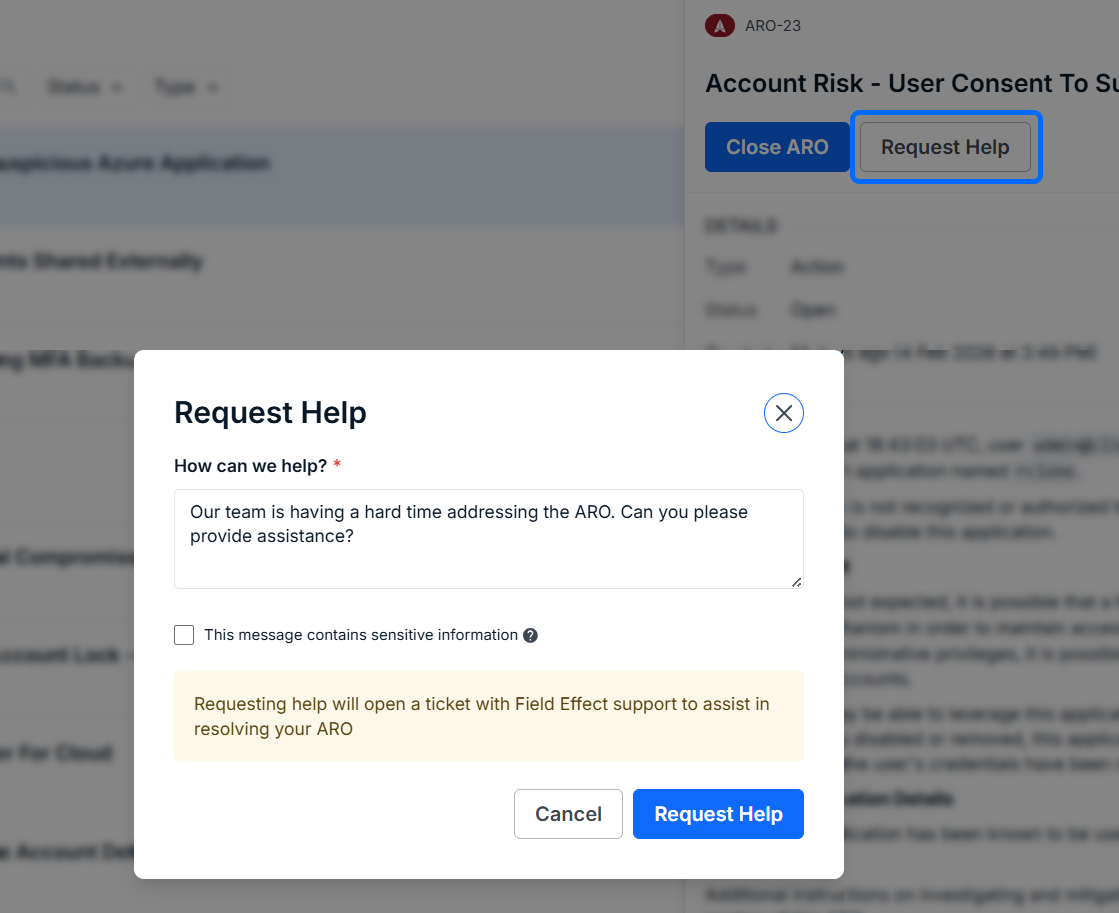
If you need assistance with the ARO from Field Effect analysts:
- Open the challenging ARO
- Click Request Help
- Enter your message or request
- Mark the message as sensitive if necessary
You can ask questions about the ARO, request analyst actions (e.g., isolate an endpoint), provide additional context, or whatever else you need to effectively deal with the issue.
Close the ARO
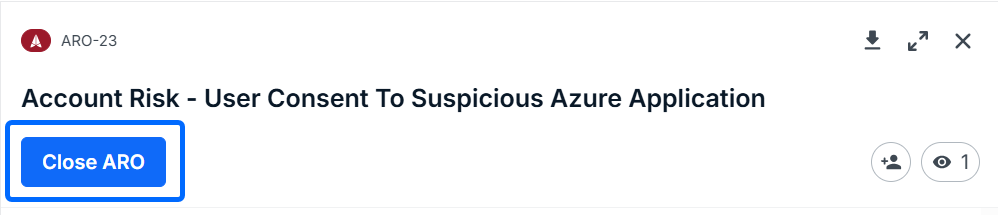
Once you address the issue, select Close ARO so you can either resolve or dismiss it to close the ARO.
The difference between resolving and dismissing AROs is as follows:
- Resolve = "I fixed the problem, but continue monitoring and tell me about it if it recurs"
- Dismiss = "I didn't fix the problem, was a false positive or something that I accept. Don't tell me about it again."
If at any time there is not a suitable Resolve or Dismiss option available, use the Request Help button to tell us what you want to do. This will trigger discussion with our SOC for your custom resolution.
| Option | When to use it | Result |
|---|---|---|
| Resolve | You fixed the issue and want to be alerted if it happens again | Future AROs will still be generated |
| Dismiss | The issue is expected or not relevant | Future AROs may be suppressed based on your selection |
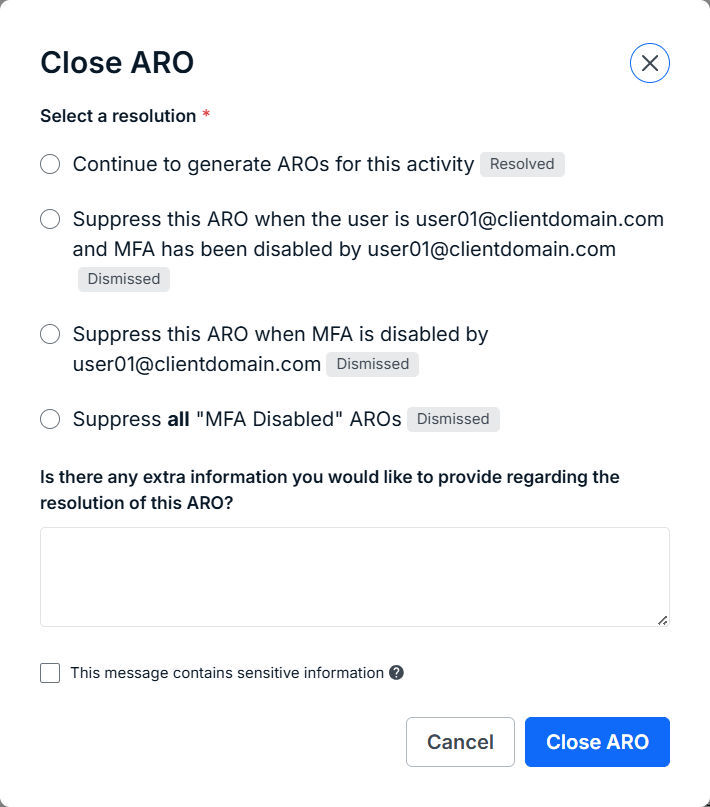
Example: MFA Disabled (ARO-19)
If a user disables MFA:
Resolve: You have re-enabled MFA and want alerts if it happens again.
Dismiss (user-specific): You accept this for one user → future alerts suppressed for that user.
Dismiss (global): You accept this risk → no future MFA alerts.
Closing AROs as a Partner
When managing multiple clients, be cautious with Dismiss options that suppress alerts broadly.
Always confirm whether the dismissal applies:
- To a single user or asset
- To a specific behavior
- Globally across environments
Finding Closed AROs
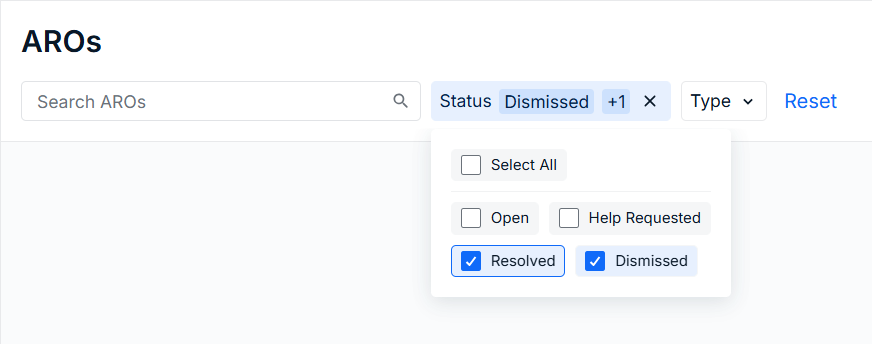
Use the status filter on the AROs page to view resolved or dismissed AROs.
Dealing with False Positives or Custom Dismiss Options
If you notice repeated AROs about a topic that you would like dismissed, please gather these examples and how you would like them handled and submit a ticket to Support via either the Help Center or by emailing support@fieldeffect.com.
New clients often see more AROs that they will want to dismiss than they will see from ongoing service. Please use dismiss options and messages to Support to help us tune our detections to your environment.
Was this article helpful?
That’s Great!
Thank you for your feedback
Sorry! We couldn't be helpful
Thank you for your feedback
Feedback sent
We appreciate your effort and will try to fix the article