Introduction
The MDR Portal's Appliance Assets page is where you add your network sensor to your organization, which links the specific appliance to your organization as a network sensor. Network sensors that are not deployed to an organization are considered appliances.
This article describes the workflows available on this page for network sensors, and covers the following topics:
- Gather Your Hardware ID
- Access the Appliance Assets page
- Add a Network Sensor
- Assigning Sensors
- Unassigning Sensors
- Remove a Sensor
Gather Your Hardware ID
You will need to provide the appliance's Hardware ID when adding it to your organization as a network sensor. There are several ways to obtain it:
- Refer to the device itself (location will vary depending on the appliance type).
- Refer to the packaging the was shipped in.
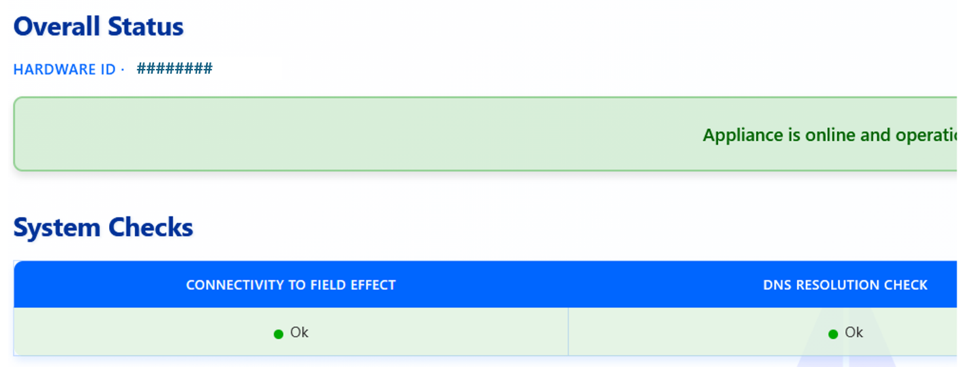
- Access the appliance's Status Page.
- You will need to physically connect the sensor to your network; you can navigate to its IP address to access this page.
The image below shows an example of the Appliance Status Page.
Access the Appliance Assets page
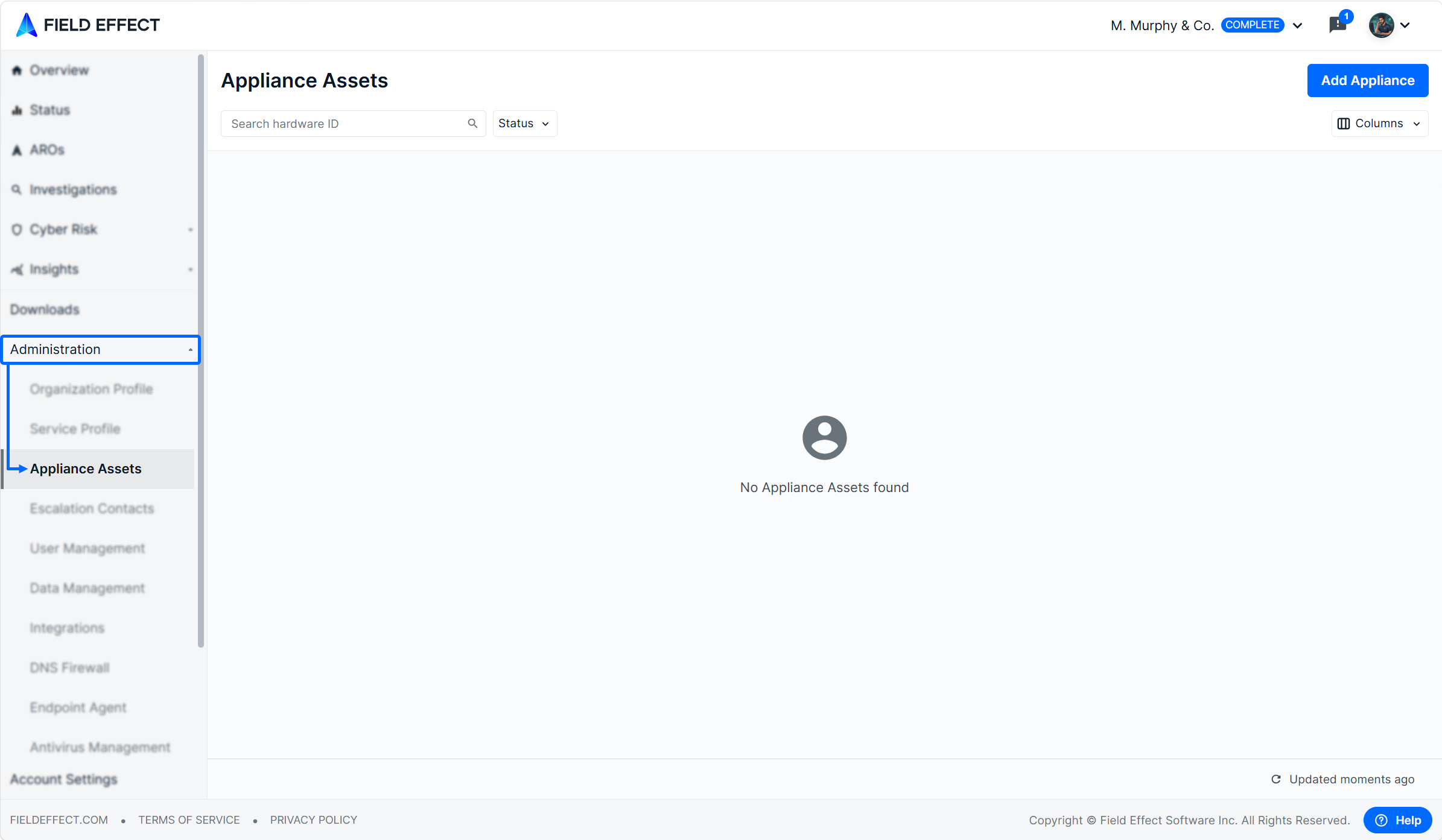
To access this page, log into the MDR Portal and navigate to Administration > Appliance Assets.
Add a Network Sensor
Click Add Appliance above at the top of the page to get started.

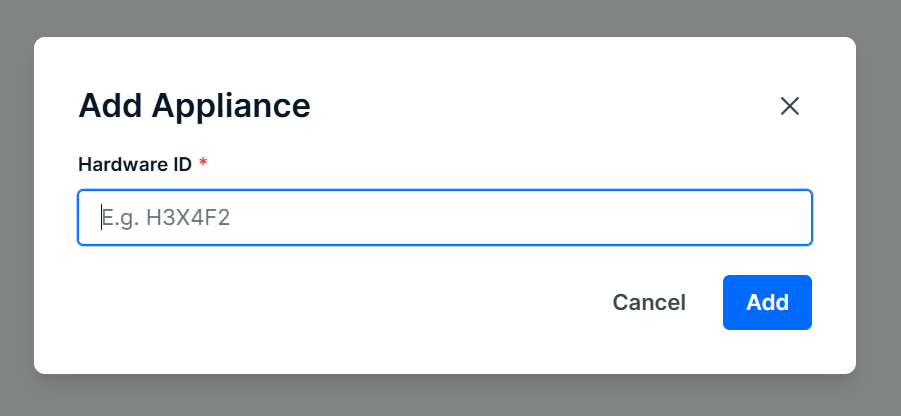
The Add Appliance pane will open. Add the devices hardware ID and click Add. See Gather Your Hardware ID above for more on this.
If your Hardware ID has dashes, do not include them in the text field.
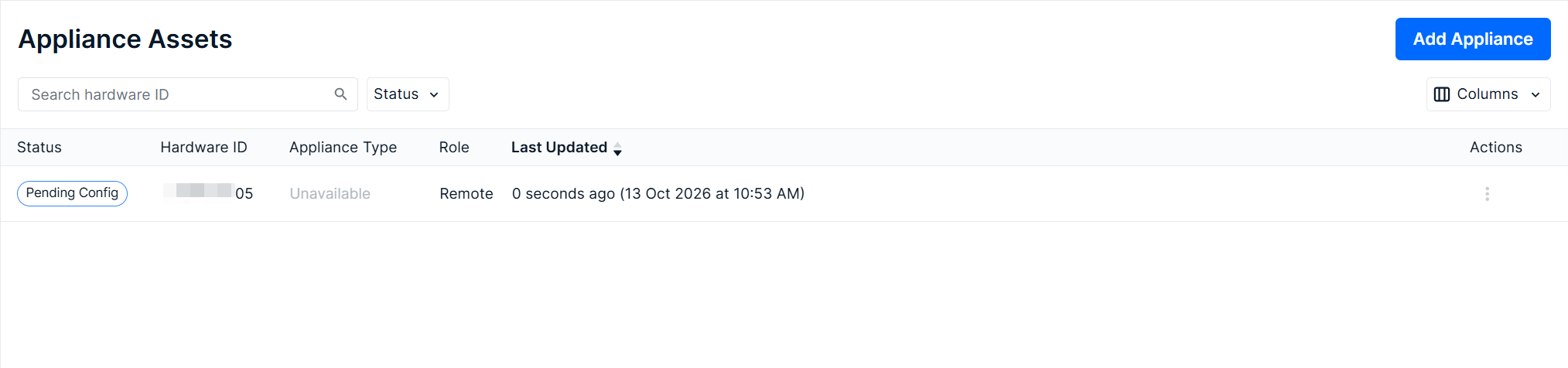
The asset will then be listed on the page with a Pending Config status
Sensor Statuses
As you add, assign, and reassign sensors, they will be given one of the following statuses, depending on their current state:
| Status | Description |
|---|---|
| Pending Config | The sensor needs configuration before deployment to a new client. |
| In Service | The sensor is currently deployed and being used by a client. |
Remove a Sensor
To remove a sensor,
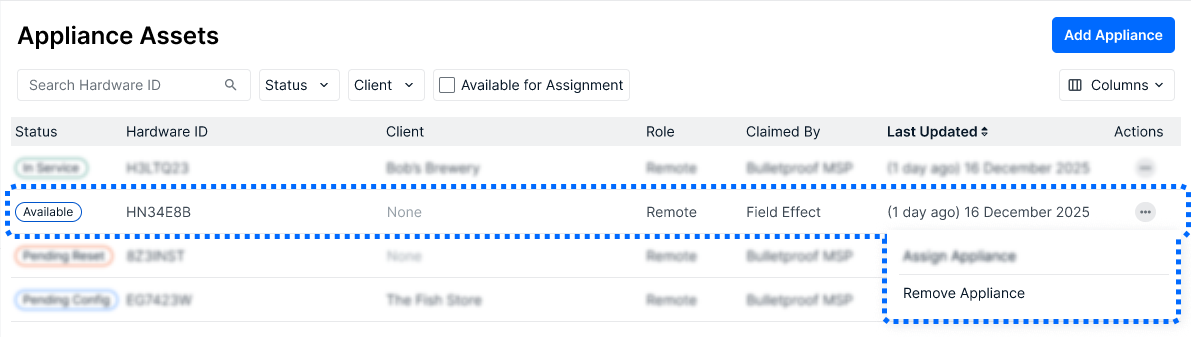
- Locate the sensor in the table view.
- Click the sensor's ellipses and select Remove Appliance. If the appliance is currently in service, this option will be named Reset & Remove Appliance.
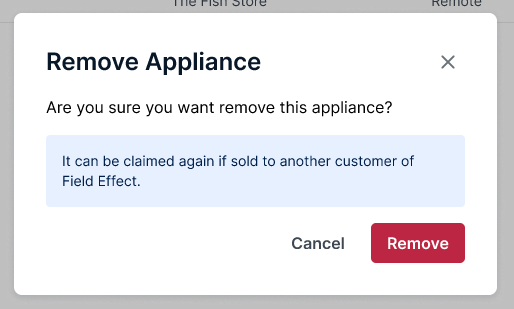
The Remove Appliance window will open. Click Remove to confirm that you would like to remove the sensor from the client.
Validating Device Connectivity
To validate connectivity, use the Sensor Status Page.
- If the sensor can connect to Field Effect infrastructure and observing traffic, the status bar at the top of the page will be green. The sensor may not be fully provisioned yet, but the technician should feel free to leave the site if required.
- If the status is not green, an indication what the problem is will be shown. Visit our Help Center article on the Status Page for more on this.
Was this article helpful?
That’s Great!
Thank you for your feedback
Sorry! We couldn't be helpful
Thank you for your feedback
Feedback sent
We appreciate your effort and will try to fix the article