Introduction
Our Antiviruses Management's File and process exclusions feature allow administrators to block Microsoft Defender from scanning specific files, folders, file types, or processes that are known to be safe or critical to your business operations.
Adding these critical files and/or processes as an Antivirus Management "exclusion" helps reduce false positive detections and prevents security tools or business-critical applications from being disrupted by antivirus scanning.
Visit our Help Center chapter on the feature to learn more about Antivirus Management as a whole.
This article walks through the process of adding a file and/or path exclusion and covers the following topics:
TOC
Exclusion Types
There are 3 exclusion types available:
- Path Exclusions: prevent Microsoft Defender from scanning files located within a folder and their subdirectories (specified by path).
- Common path types include:
- Application data directories
- Backup repositories
- Large database storage locations
- Software that requires specific folders to be excluded from antivirus scanning
- Common path types include:
- Extension Exclusions: prevent Microsoft Defender from scanning files with specific file extensions. Examples include .vhd, .mdf, ,ldf.
- Process Name Exclusions: prevent Microsoft Defender from triggering detections while specified processes are running.
- Common use cases include:
- Database services
- Backup applications
- Specialized line-of-business software
- Common use cases include:
Exclusion Handling
Once exclusions are added, they can be handled in one of two ways: merge or strict.
Merge
When Merge is selected:
- Existing device exclusions are preserved.
- Exclusions configured in the MDR Portal are added to the device.
- Field Effect MDR audits devices to ensure the portal-defined exclusions are present.
This option is recommended when devices may require additional local exclusions that are managed outside of the MDR Portal.
Strict
When Strict is selected:
- Devices must exactly match the exclusions configured in the MDR Portal.
- Field Effect MDR can enforce compliance by replacing existing exclusions with the configured list.
- Any exclusions not defined in the MDR Portal may be removed.
This option is recommended when organizations want centralized control and consistent exclusion policies across all managed devices.
Before you Begin
You must have appropriate administrative permissions in the MDR Portal to modify Antivirus Management settings.
Access Antivirus Management Exclusions
Partners: This is a client-level, so the organization selector must be set to a specific client view to access this page.
- Sign in to the MDR Portal.
- Navigate to Administration > Antivirus Management in the sidebar.
- Scroll to locate the File and Process Exclusions section.
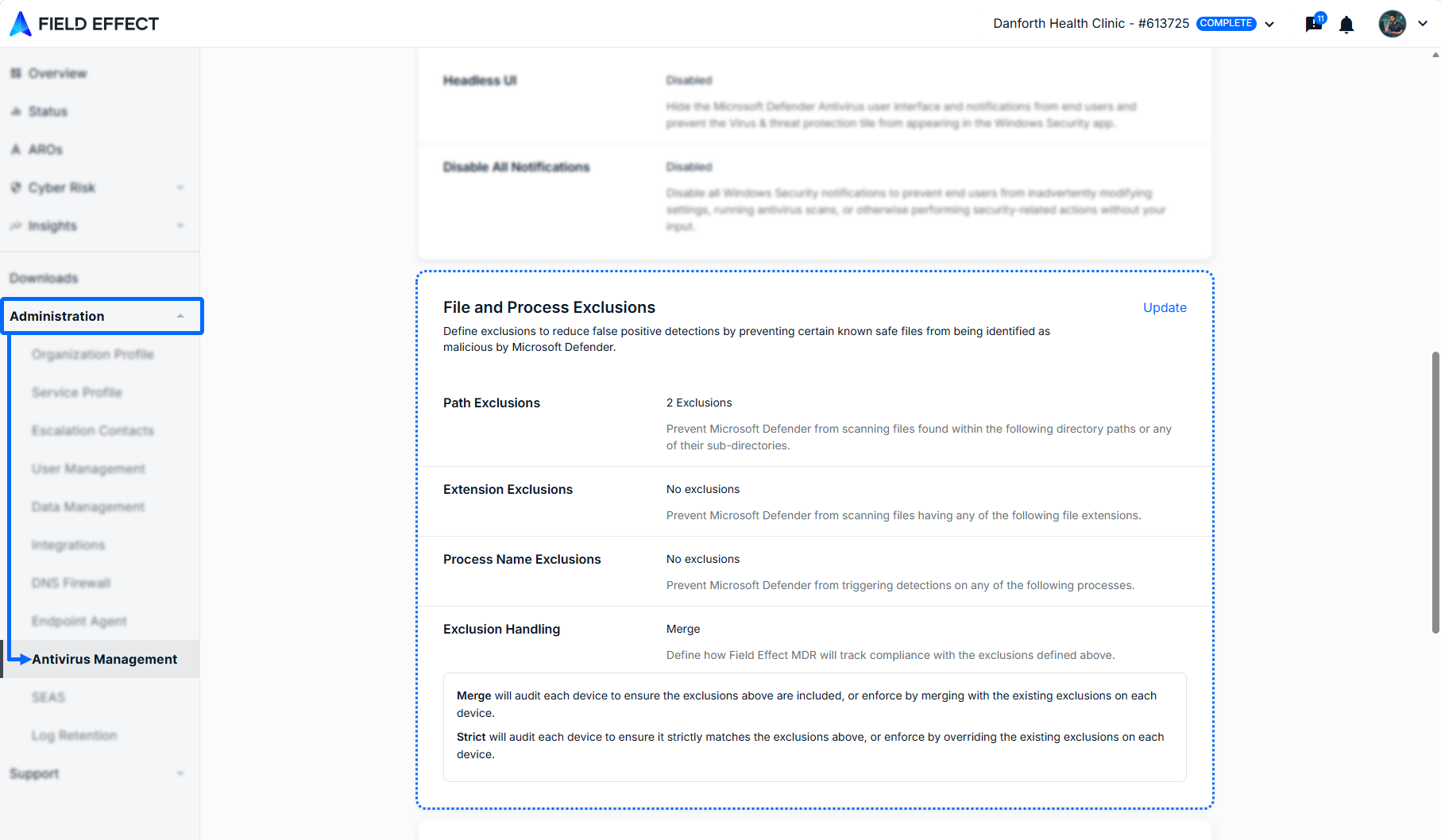
Add or Update Exclusions
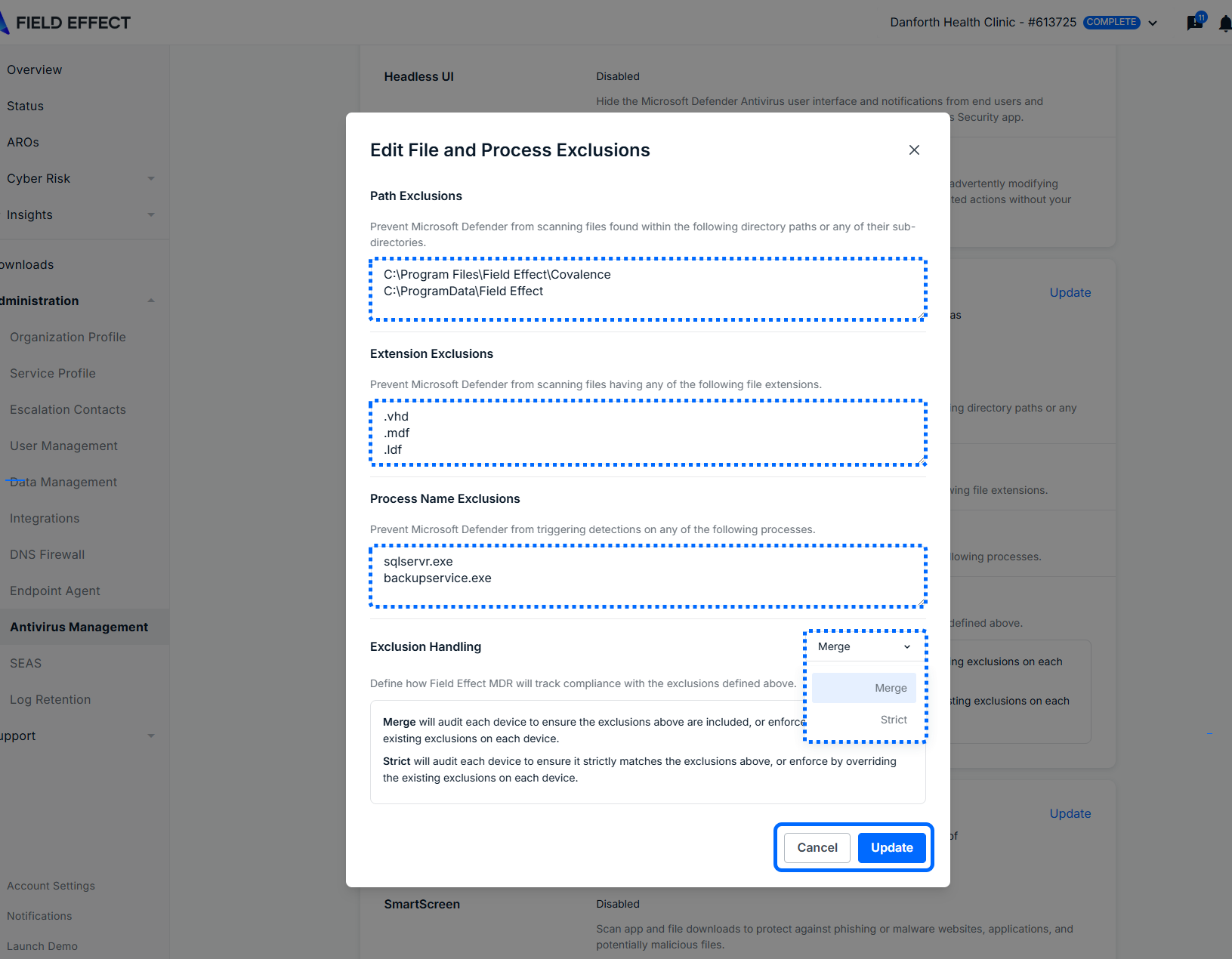
- Navigate to Administration > Antivirus Management.
- In the File and Process Exclusions section, click the Update button.
- Add, modify, or remove:
- Path exclusions
- Extension exclusions
- Process exclusions
- Select the desired Exclusion Handling mode.
- Save your changes.
Best Practices
When managing antivirus exclusions:
- Use the smallest, most specific exclusion possible.
- Exclude individual files or folders instead of broad directory structures whenever possible.
- Review exclusions regularly to ensure they are still required.
- Remove outdated or unused exclusions promptly.
- Validate all exclusion requests with application vendors or internal security teams.
- Avoid excluding entire drives or large directory trees unless absolutely necessary.
Was this article helpful?
That’s Great!
Thank you for your feedback
Sorry! We couldn't be helpful
Thank you for your feedback
Feedback sent
We appreciate your effort and will try to fix the article