Introduction
This page shows controls for M365 cloud tenants using the Standard integration. See our Microsoft 365 integration article to learn more.
The Cloud Tenant view gives you a centralized way to monitor and improve the security posture of your connected Microsoft 365 tenants. The goal of this view is to help administrators:
Understand their overall cloud security posture
Identify the highest-risk configuration issues
Review recommended security configurations
Monitor tenant risk trends over time
Investigate specific security controls and remediation recommendations
Unlike our existing Cyber Risk views (Devices and Accounts), the Cloud Tenant view displays all security controls, including controls that are properly configured ("Normal"), to provide a complete picture of your security posture across your tenant(s).
This article covers the following topics:
- How Risks Are Determined
- Access the Cloud Tenant View
- Dashboard View
- Tenant Grid
- Tenant Details View
- Alternate Mitigations
How are risks determined, and how frequently?
Cloud Tenant security controls are based on established security frameworks, including, CIS Controls, Azure Security Benchmarks, and other industry best practices. There are constraints that are unique to each cloud service, and may impact refreshed times, but risk is typically refreshed within a 6-hour window.
The system continuously evaluates each tenant's Recommended Configuration vs. Observed Configuration. The difference between those values creates the risk finding shown to the user.
The focus is configuration security posture management, not just vulnerabilities or malware detection. Many cloud security incidents result from insecure or suboptimal configurations rather than active threats.
Field Effect Tenant Risk Score:
Higher score = higher risk
Uses Field Effect weighting and risk models
Critical findings have greater impact on scoring
Microsoft Secure Score
Higher percentage = better security posture
Calculated directly by Microsoft
Based on Microsoft's control framework
The two scores are not expected to match because:
They measure different controls
They use different scoring methodologies
Field Effect applies weighted scoring and critical-risk floors
A tenant with a single critical issue may maintain a higher-than-expected Field Effect risk score until that issue is addressed.
What Controls are Evaluated?
Field Effect measures security controls that are known to align to m365 best practices, leading regulatory frameworks and Field Effect protocols that are known to advert typical tradecraft behavior. In the following categories:
| Multi-Factor Authentication & Sign-In Security | Ensures stolen passwords alone can't get an attacker in, covering MFA for admins, all users, risky sign-ins, admin portals, and device registration. |
| Privileged, Administrative & Tenant Governance | Keeps the most powerful accounts few, separated, and tightly controlled, from limiting Global Admins to isolating admin activity and sessions |
| Adaptive Access & Conditional Access Policy | Makes access respond to risk in real time, challenging sign-ins based on location, device, and suspicious sign-in methods. |
| External Sharing & Data Protection | Controls how SharePoint and OneDrive content is shared outside the organization, so data doesn't leave through open links or unauthorized re-sharing. |
| Guest & External Collaboration Governance | Governs who can invite and access as a guest, so external collaboration doesn't turn into an ungoverned backdoor into the tenant. |
| Application & Consent Governance | Stops third-party apps from gaining access to company data without oversight, and ensures app credentials don't stay valid indefinitely. |
| Password & Account Protection | Reinforces baseline password hygiene and account lockout, closing off the basics attackers still rely on. |
| Meeting & Teams Collaboration Security | Keeps unknown or anonymous participants from joining, starting, or disrupting meetings. |
Access the Cloud Tenant View
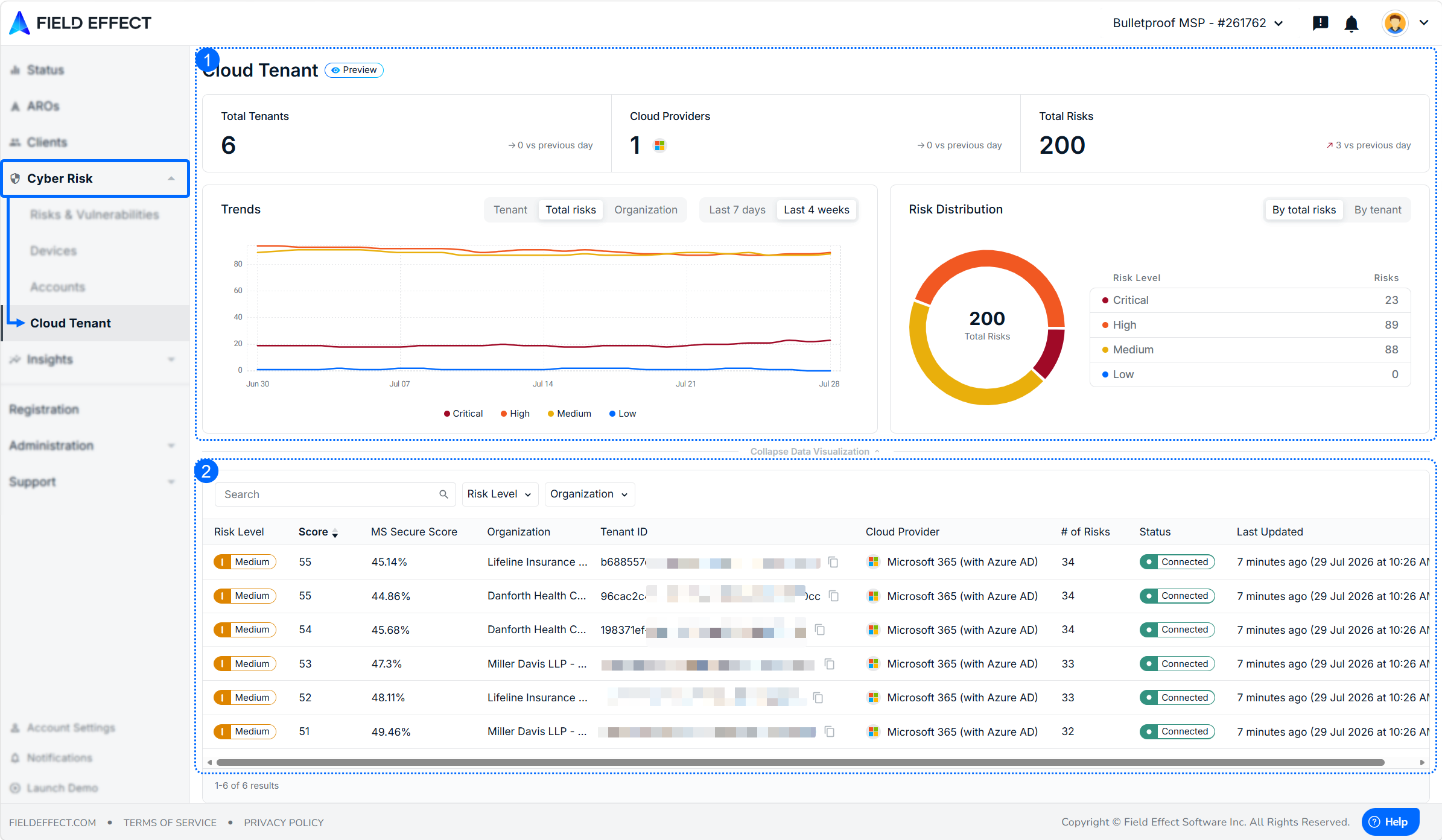
The Cloud Tenant view is available from the MDR Portal's Cyber Risk section.
This page is made up of 2 sections:
Cloud Tenant Dashboard
Cloud Tenant List
Partner Navigation
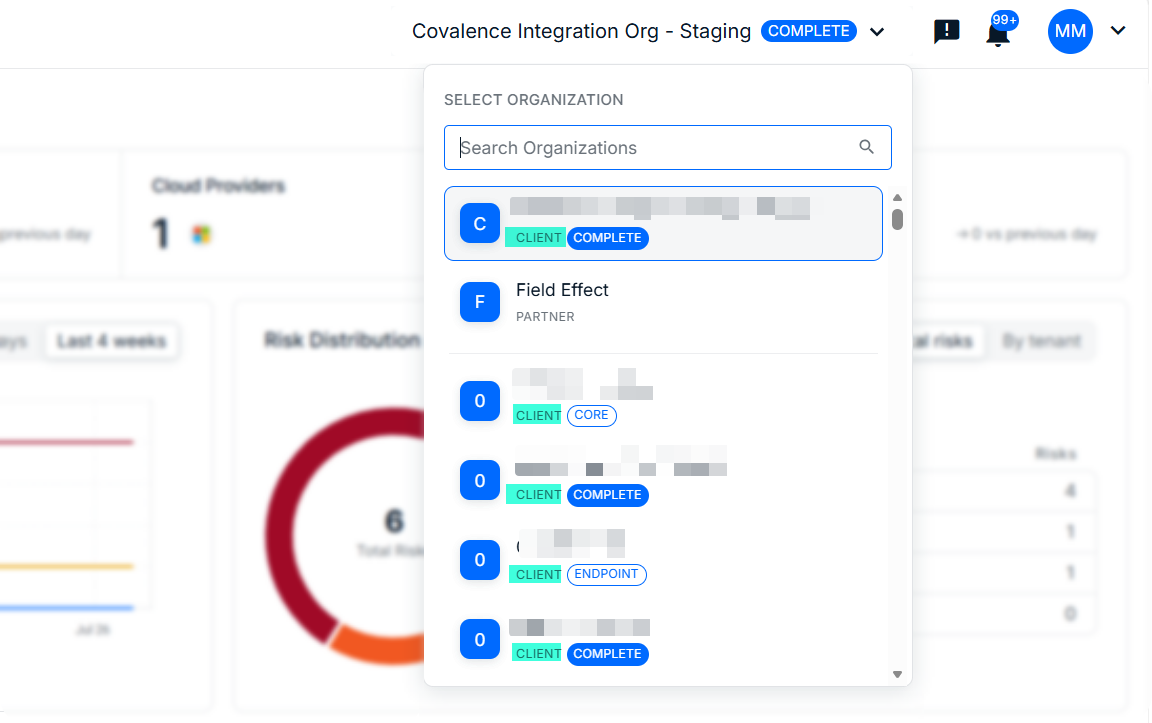
Partners can view this page at both the partner and client views. Use the organization selector to switch between:
Client Views: see cloud tenant info for a specific client you manage.
Partner View: See all of you clients' cloud tenants simultaneously.
There is an additional "organization" column for sorting and filtering.
Dashboard View
The Dashboard provides a high-level summary and data visualizations.
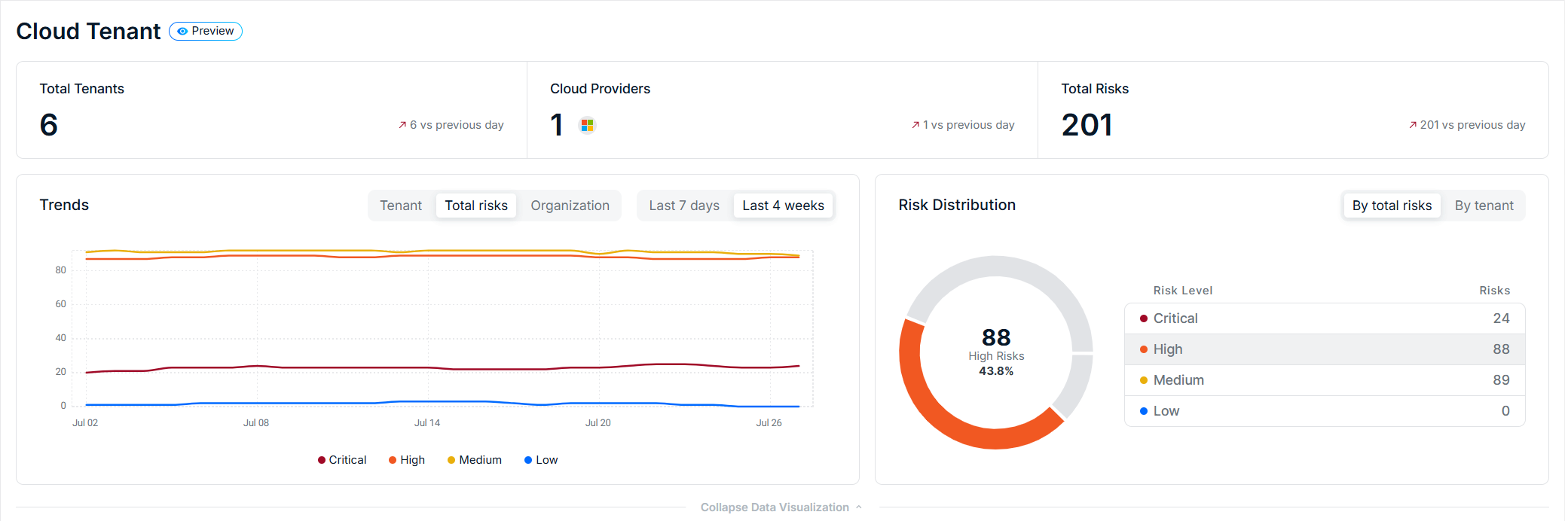
The summary includes the following metrics, along with a comparison of the previous day's metrics for general trending:
Total Tenants: number of connected Microsoft 365 tenants being monitored
Cloud Providers: only Microsoft 365 is currently supported
Total Risks: total number of identified cloud configuration risks across all connected tenants. It compares this number against the previous day for high-level tracking.

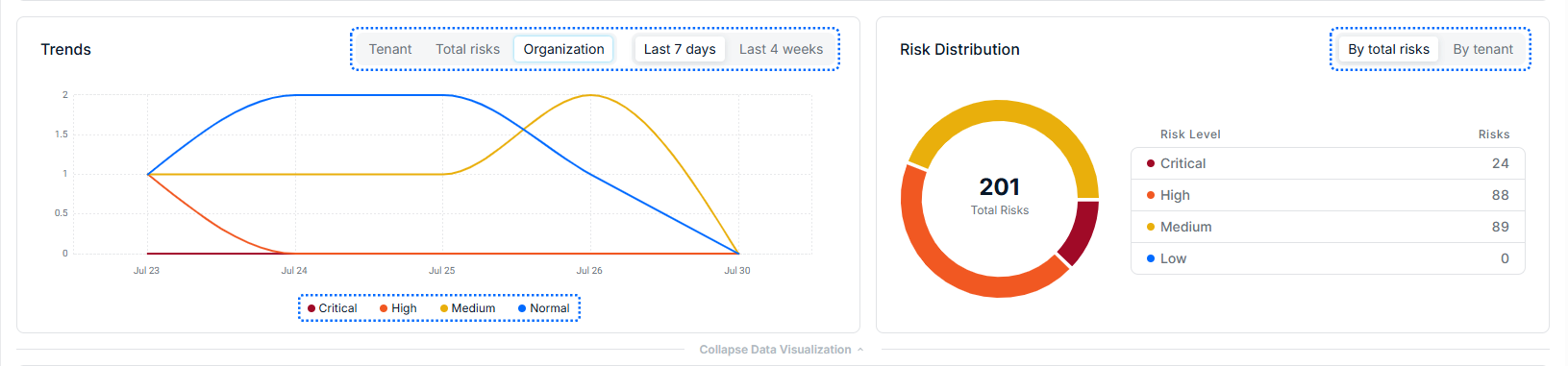
Use the Trends and Risk Distribution visualizations to understand how your cloud risk is changing over time. From here, you can:
Trends: watch how risk levels (Critical, High, Medium, Normal) change over time.
Available visualizations
Tenants by risk level over time
Risks by risk level over time
Overall tenant risk score over time
View data for last 7 days or last 4 weeks
Tenant Grid
The tenant grid shows each connected cloud tenant as an individual row. Click the copy icon to copy the tenant ID directly from the grid.
Use the controls above the table to quickly locate specific tenants:
Search by tenant ID
Filter tenants by Risk level
(Partners): filter tenants by organization
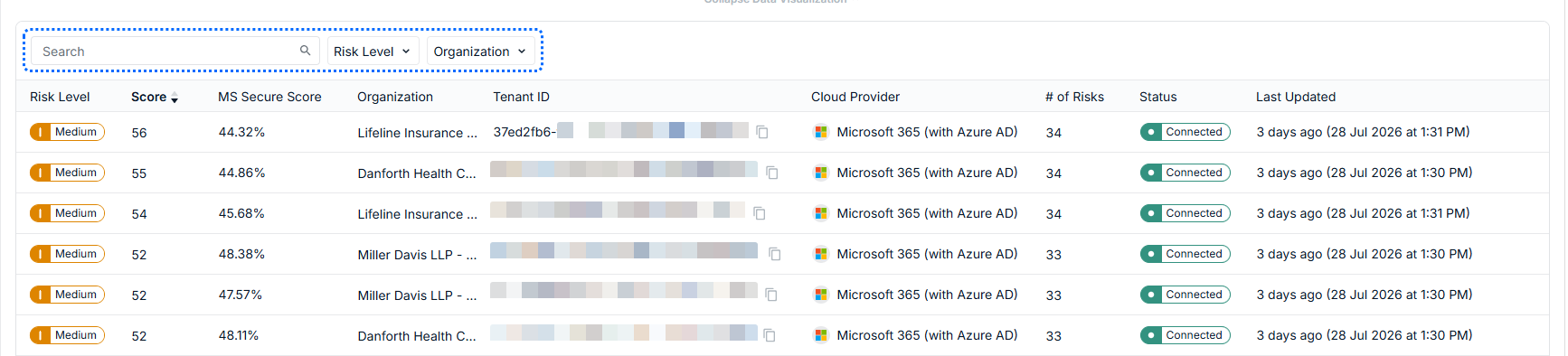
The following columns are available in this list:
| Field | Description |
|---|---|
Risk Level | Overall severity classification for the tenant |
Score | Numeric representation of the tenant’s risk |
Tenant ID | Unique identifier for the cloud tenant |
Cloud Provider | The platform associated with the tenant |
# of Risks | Number of identified risks for that tenant |
| Status | Integration state: Connected – actively monitored Integration Setup – requires configuration |
Last Updated | When the tenant data was last refreshed |
Tenant Details View
Click a tenant in the grid to open the Details view, which is a full-page view with summary information and a comprehensive list of cloud tenant security controls.
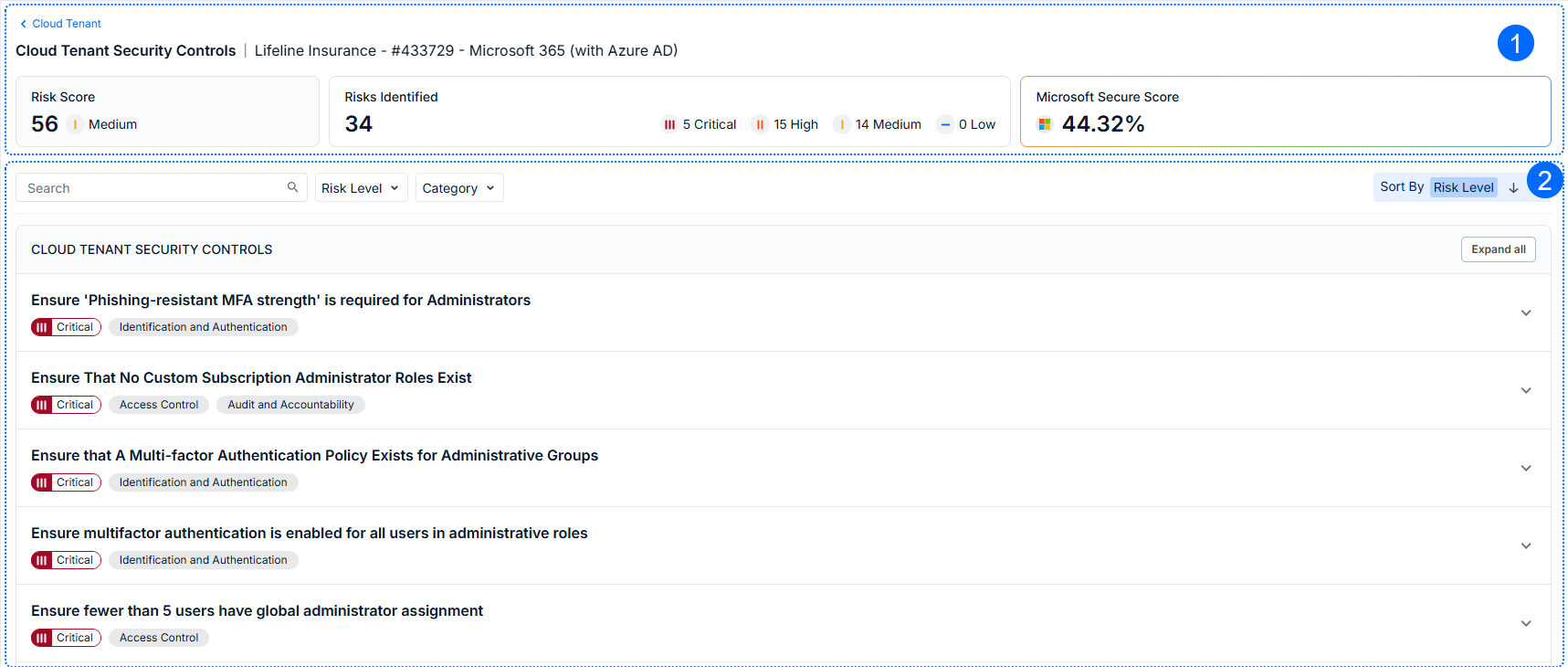
Summary information
The tenant summary includes:
Tenant Risk Score
Number of Identified Risks
Risk breakdown by severity
Microsoft Secure Score
Click Cloud Tenant to return to the main view.

Security Controls
This section lists all cloud tenant security controls for Microsoft 365. From here you can:
Search controls
Filter controls by risk level or category
Sort by risk level
Review individual configuration controls
The possible risk levels include Critical, High, Medium, Low, and Normal. Normal indicates the control meets the recommended configuration.
Controls are organized into security-related categories such as Identity Protection. Data Protection, and other framework-based categories. A single control may belong to multiple categories.
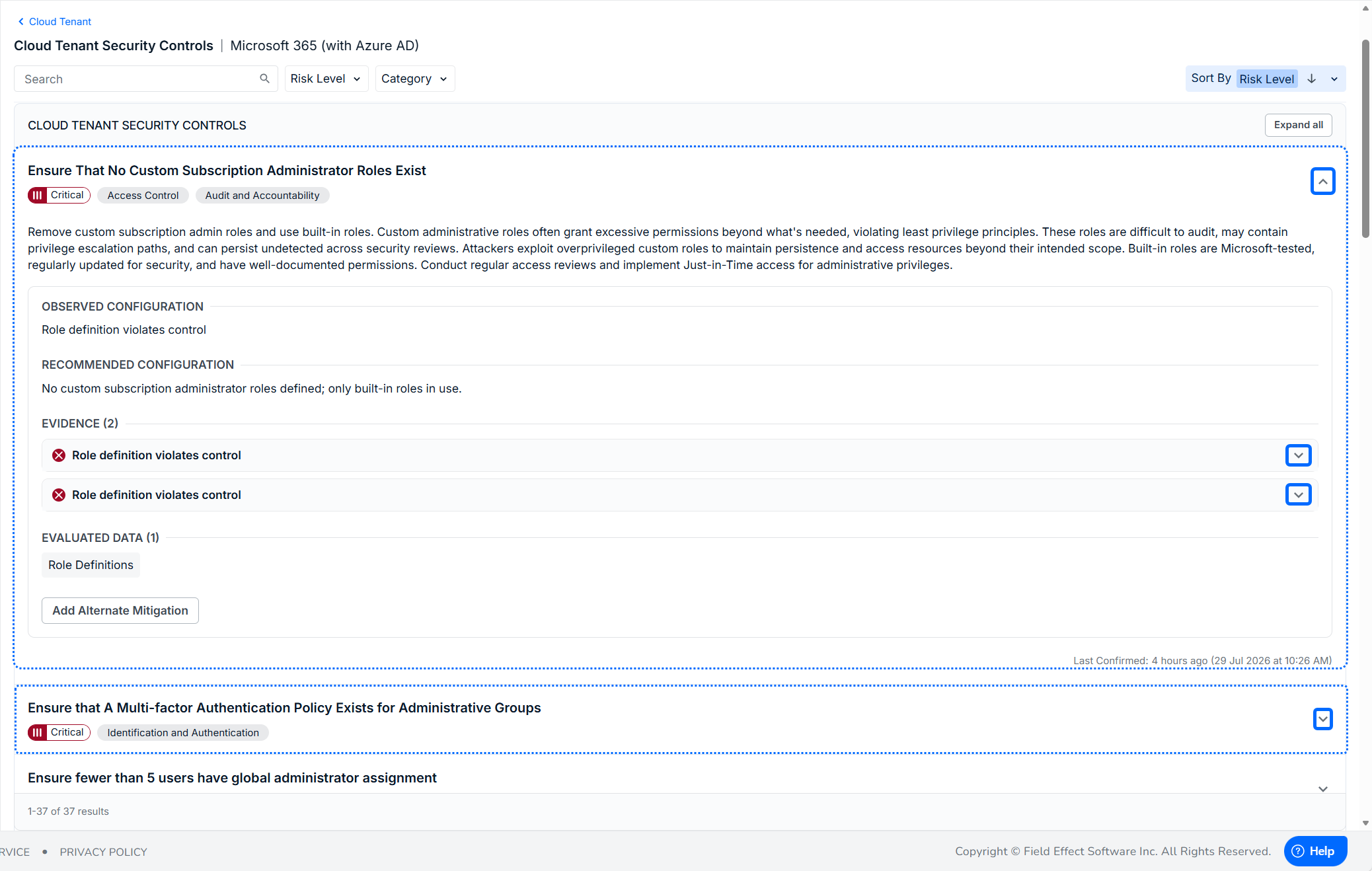
Use the expand arrows to open controls and see more detail.
Security Control Details
Each control includes the following:
Description: what the control evaluates, why it matters, and what action may be required.
Observed Configuration: current tenant configuration discovered during evaluation.
Recommended Configuration: configuration(s) required to achieve a normal state.
Evidence: specific supporting information collected during evaluation, mean to help you understand why a control received its risk rating.
Alternate Mitigations
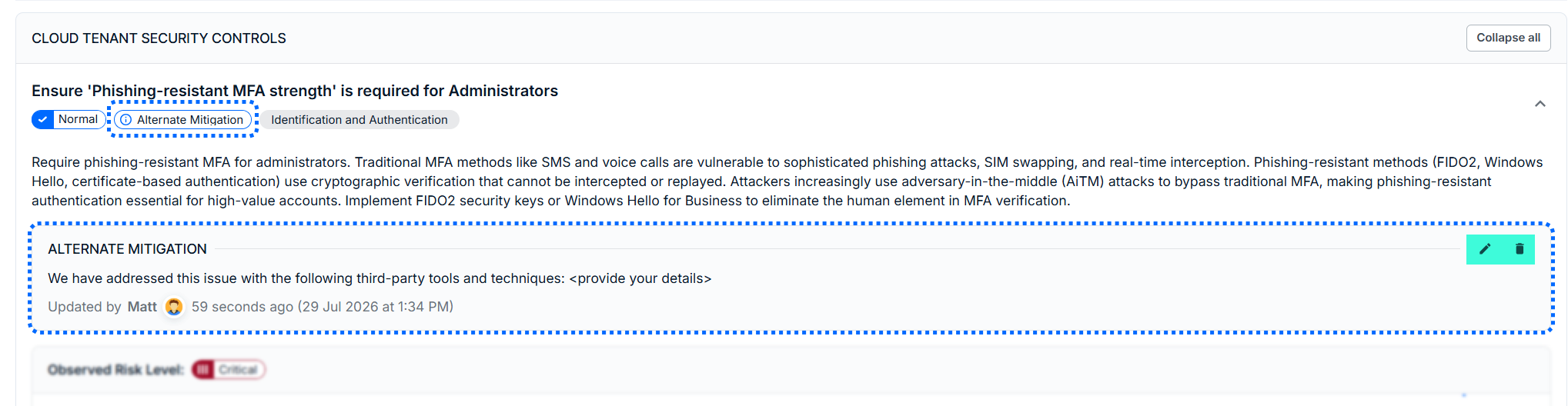
When you completed mitigation using a tool or technique that cannot be detected by Field Effect MDR, add an alternative mitigation.
Example: Field Effect may detect MFA as missing because it cannot see a third-party MFA solution. In this case, users can add an alternative mitigation
Add an Alternative Mitigation
To add an alternate mitigation:
Navigate to Cyber Risk > Cloud Tenant and select a tenant from the list
Locate the control you have mitigated
Expand the control
Click Add Alternative Mitigation
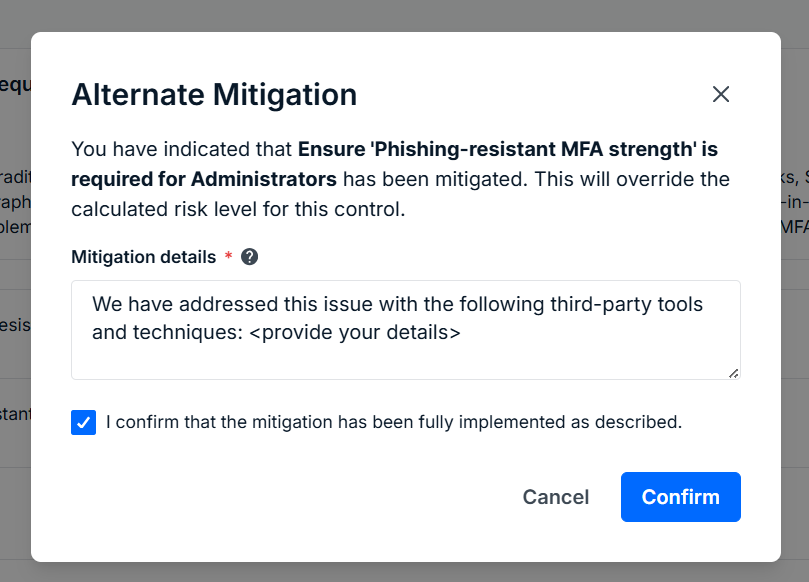
The Alternate Mitigation form will open. Provide details on how you mitigated the issue, check the confirmation box, and click Confirm.
After saving:
The control becomes Normal
Risk counts are updated
Tenant score is recalculated
Microsoft Secure Score is recalculated
An Alternative Mitigation badge appears on the control
The platform also records the mitigation details (creator, last update timestamp) and it can be updated in the future.
Exclusions
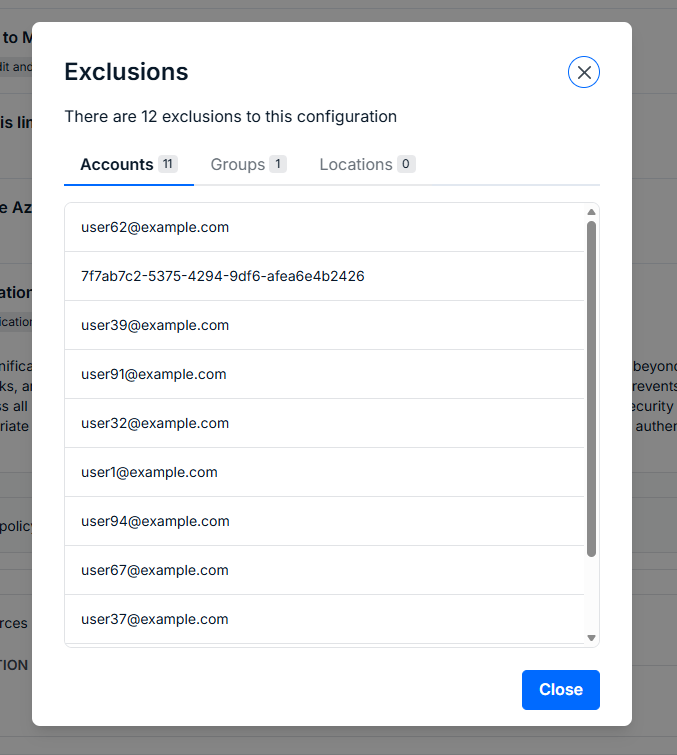
Some controls may contain Microsoft-managed exclusions, which can only be edited through your Microsoft tenant.
Examples include:
User exclusions
Group exclusions
Location exclusions
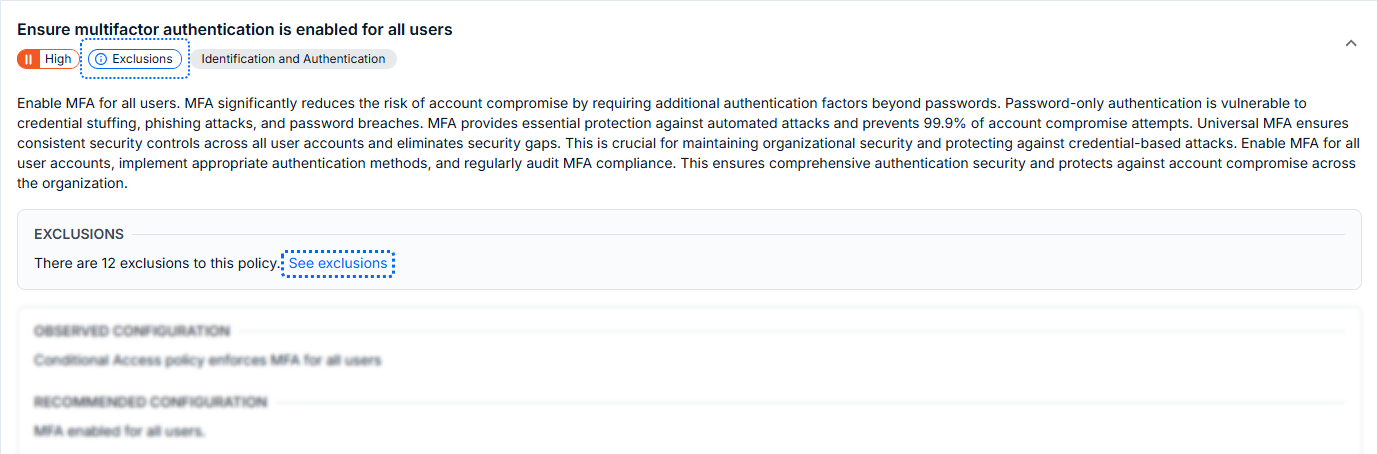
When exclusions exist:
An Exclusions badge is displayed
Users can view details about the excluded objects
This is especially useful for controls such as MFA or Conditional Access policies.
Was this article helpful?
That’s Great!
Thank you for your feedback
Sorry! We couldn't be helpful
Thank you for your feedback
Feedback sent
We appreciate your effort and will try to fix the article