Introduction
Active Response enables Field Effect MDR to automatically take action when a threat or vulnerability is detected.
The Active Response view in the MDR Portal and Mobile app provides a centralized record of all response actions that were triggered for your organization. Use this view to monitor actions, investigate details, and validate remediation outcomes.
To learn more about response policies and available actions, visit the Active Response Help Center chapter.
Access the Active Response View
The following sections explain how to access the Active Response view using either the MDR Portal or the Mobile App.
MDR Portal
Log into the MDR Portal
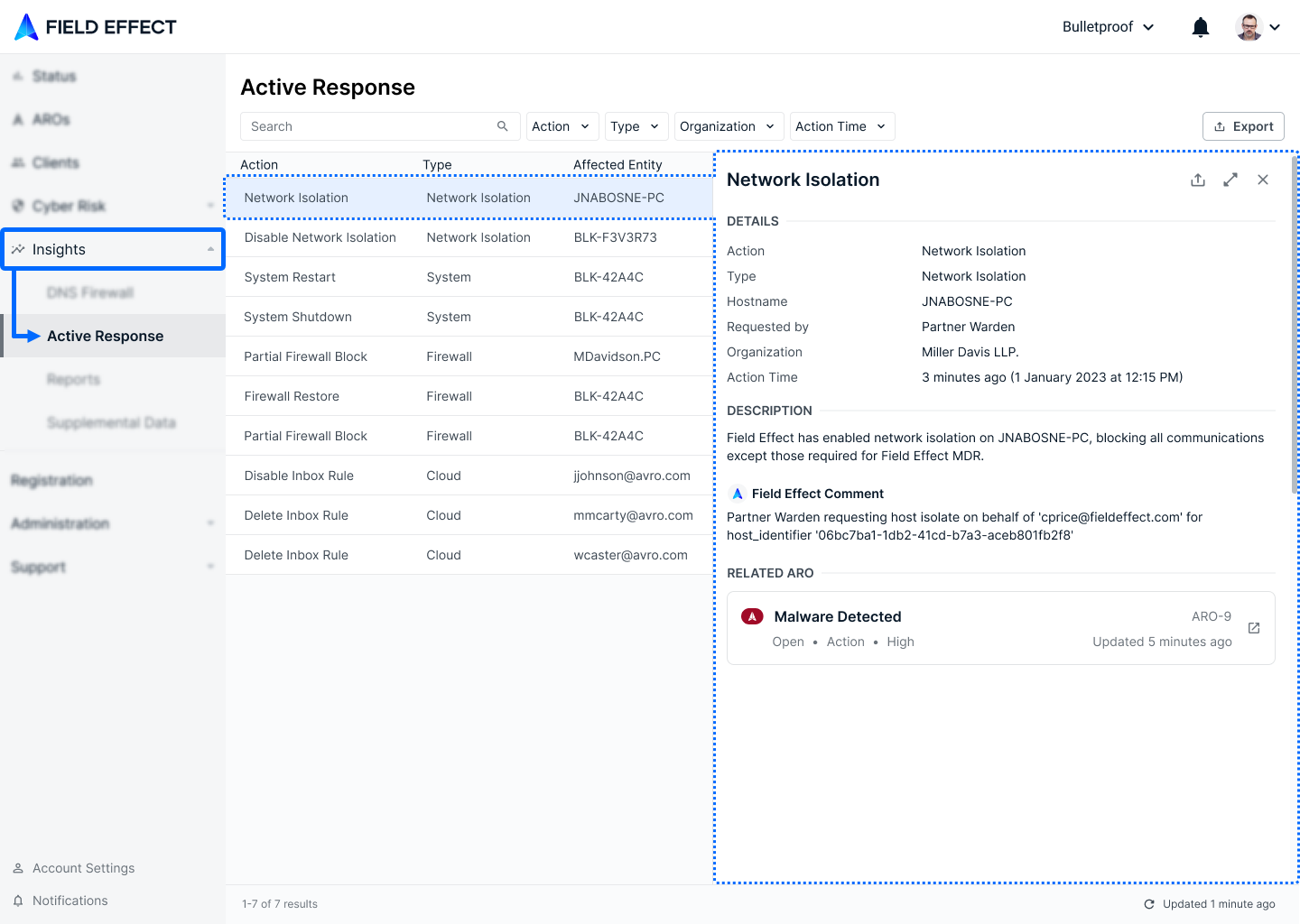
Navigate to Insights > Active Response in the sidebar.
This view lists all Active Response activity performed by Field Effect MDR for your organization.
Partners
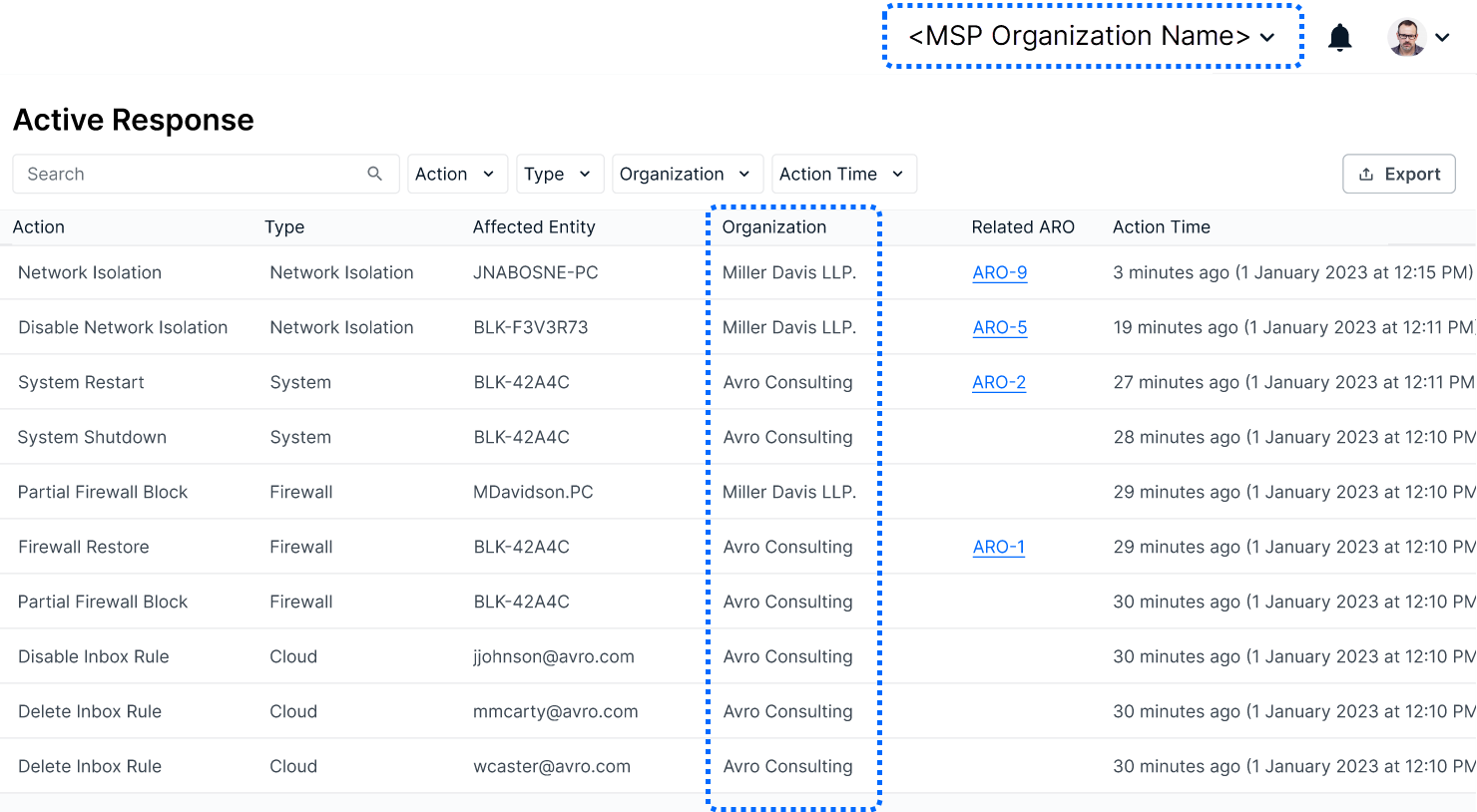
Use the organization selector to choose a specific customer, or your partner view. See The Organization Selector to learn more
Customer View: only see Active Response records for that client
Partner View: see Active Response records for all end client organizations you manage.
Navigate to Insights → Active Response
Mobile App
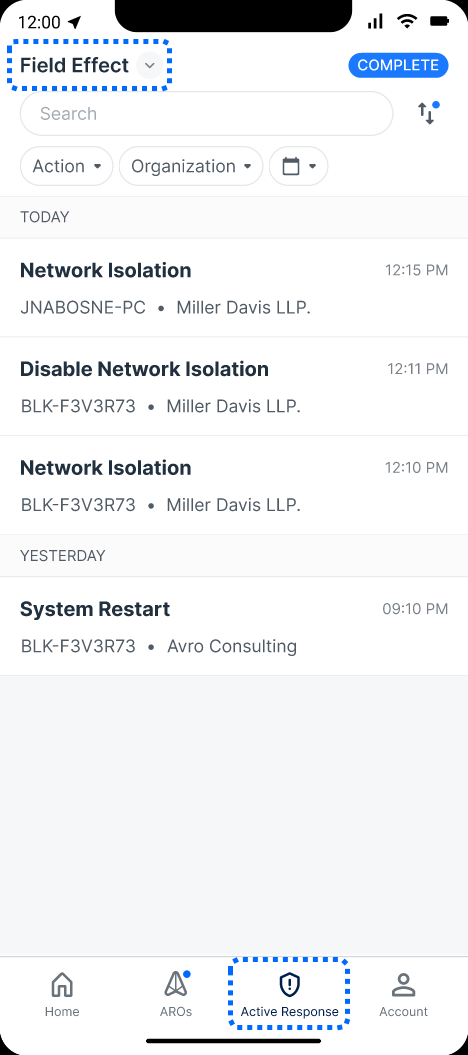
Tap the Active Response tab at the bottom of the app.
(Partners) Use the organization selector at the top of the app to switch between the partner and client views.
View Active Response Records
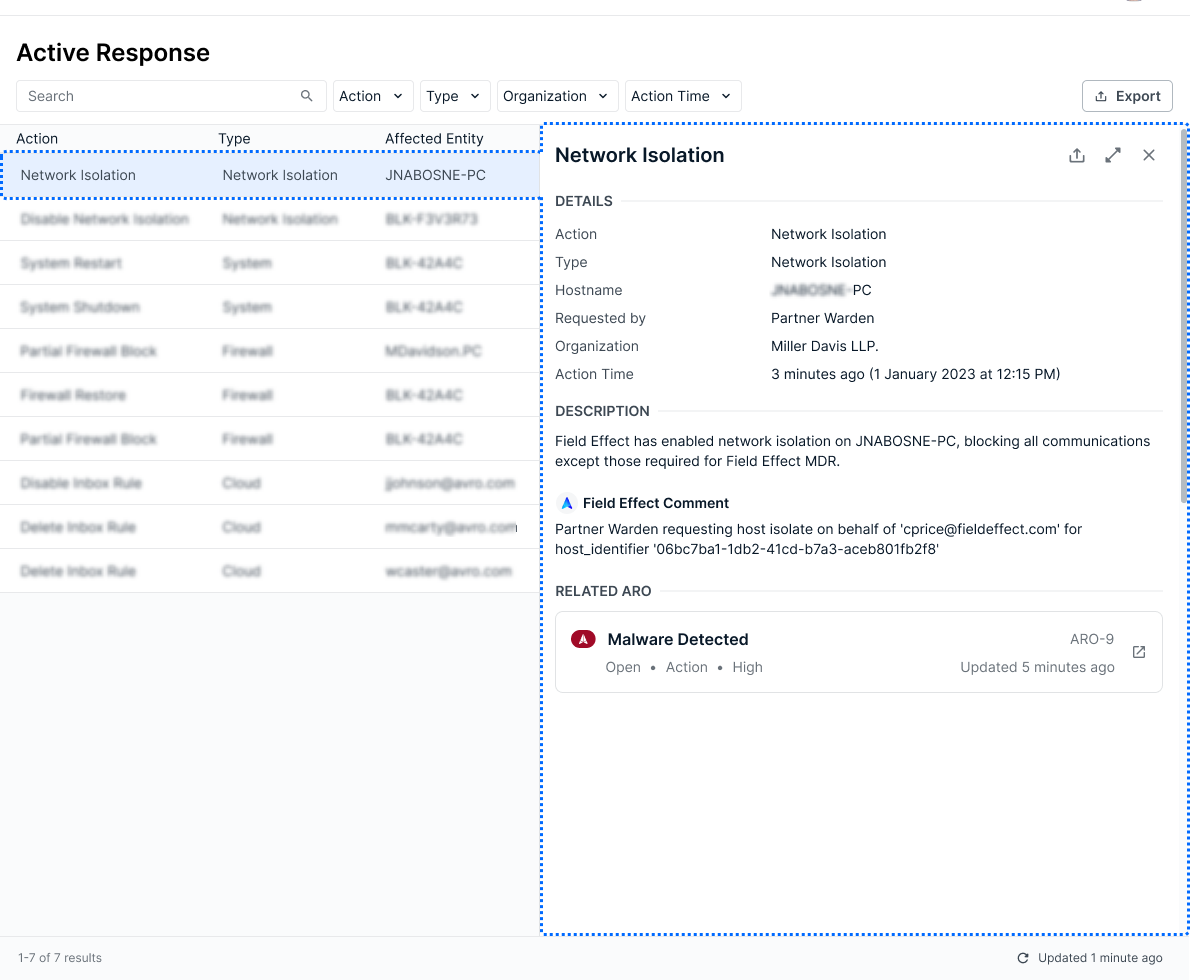
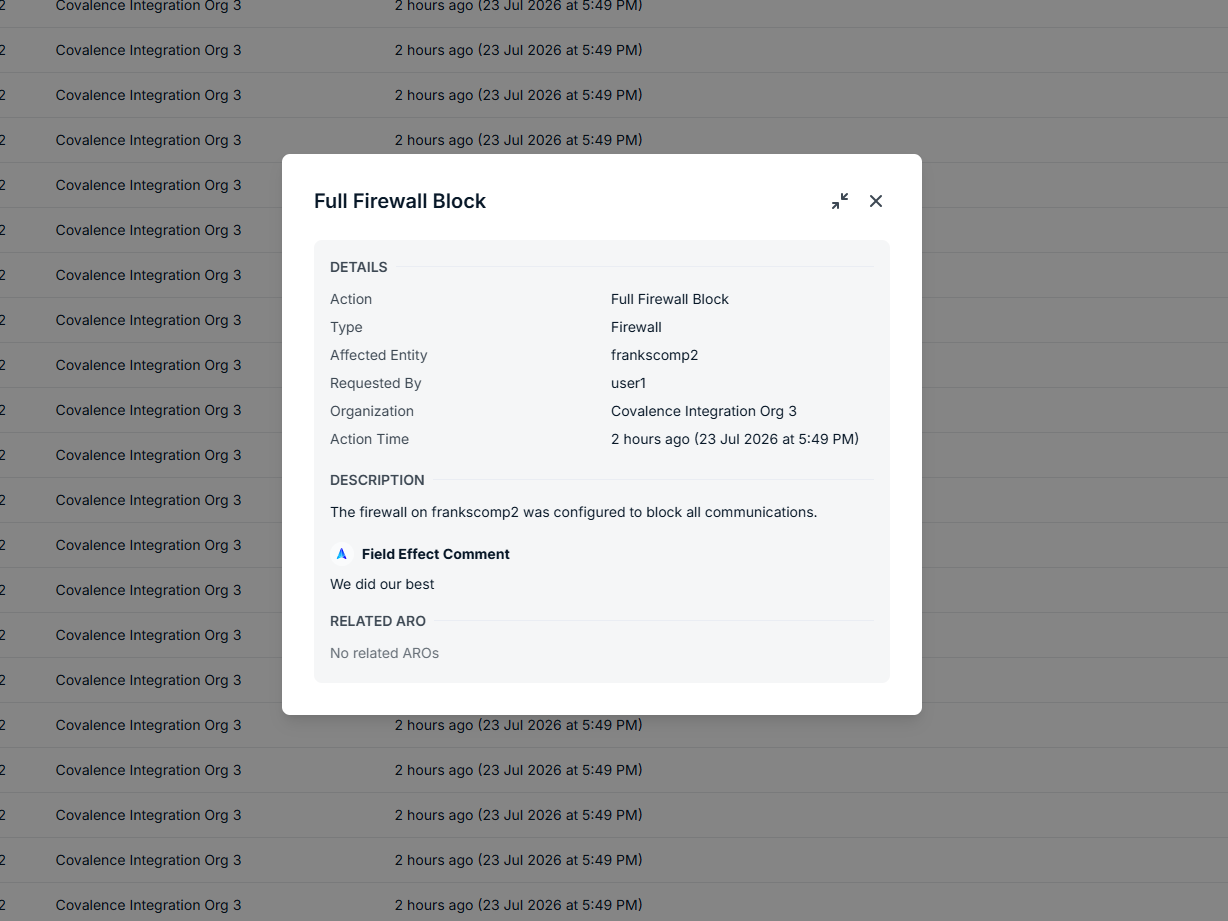
This view lists all Active Response activity performed by Field Effect MDR for your organization. Click on a record to open the details pane for that record.
The details pane includes:
Details: Summary of the action
Related AROs: Associated risks or observations
Click on that ARO to view it on the AROs page.
Description: What happened and why
Response log: Step-by-step execution history
The following columns are available in the table view, and details pane.
| Column | Description | Example |
|---|---|---|
| State | The current state of the action. Once the underlying issue is revolved, the action can be reversed, restoring the affected entity. | Active, Restored |
| Action | The name of the action. | Network Isolation, System Restart, Firewall Restore |
| Hostname | The name of the device that the action was performed on. | <Device-1>, Hostname-Laptop, Server-1 |
| Organization | This is only available for partners. | Miller Davis LLP, Anderson Ave. Realtors. |
| Action Time | The time that Field Effect MDR Triggered the response action | 2 hours ago (23 Jul 2026 at %;00 AM) |
Click the Expand Icon to view the details pane in a new window.
Work with Active Response Records
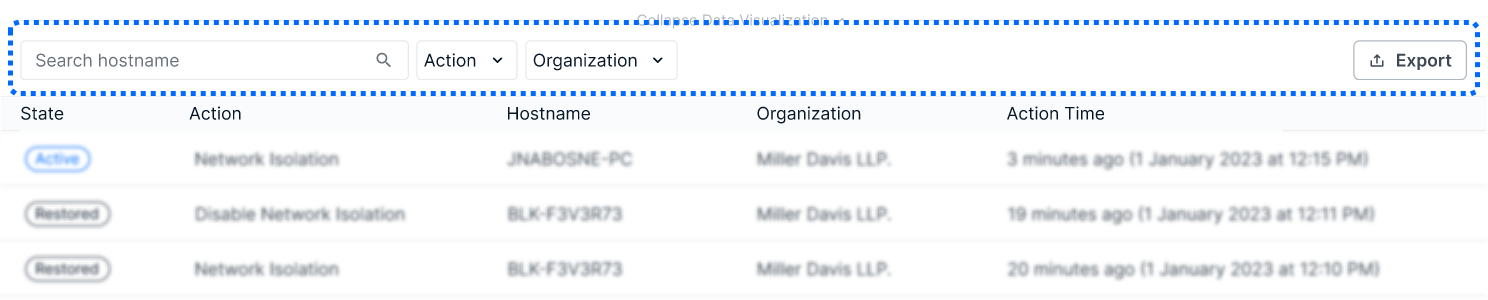
Use the search bar to find actions by hostname
Apply filters for action type or organization
The organization filter is only available for partners.
Click column headers to sort results
Use Export to download results
Mobile Experience
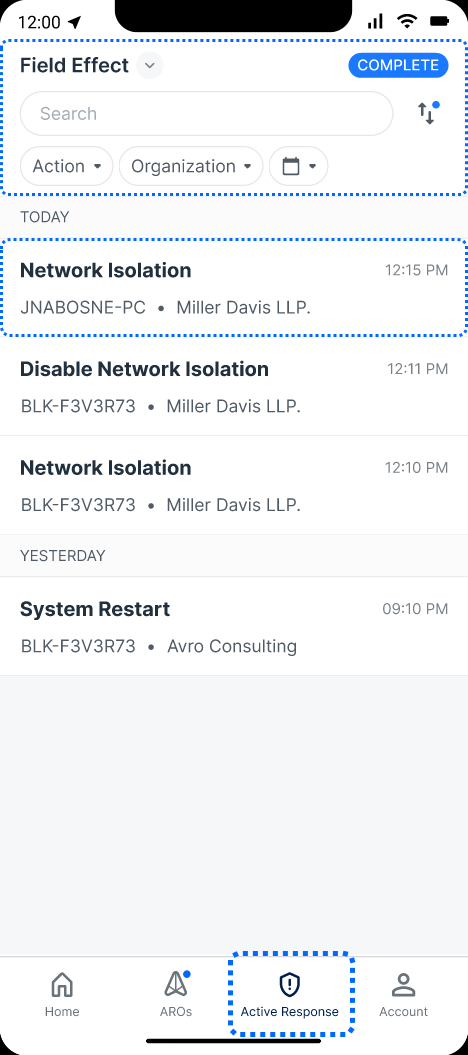
In the mobile app, the Active Response view is presented as a list, and accessible from the bottom tab row.
Use search and filters at the top of the screen
Tap a response action to view detailed information
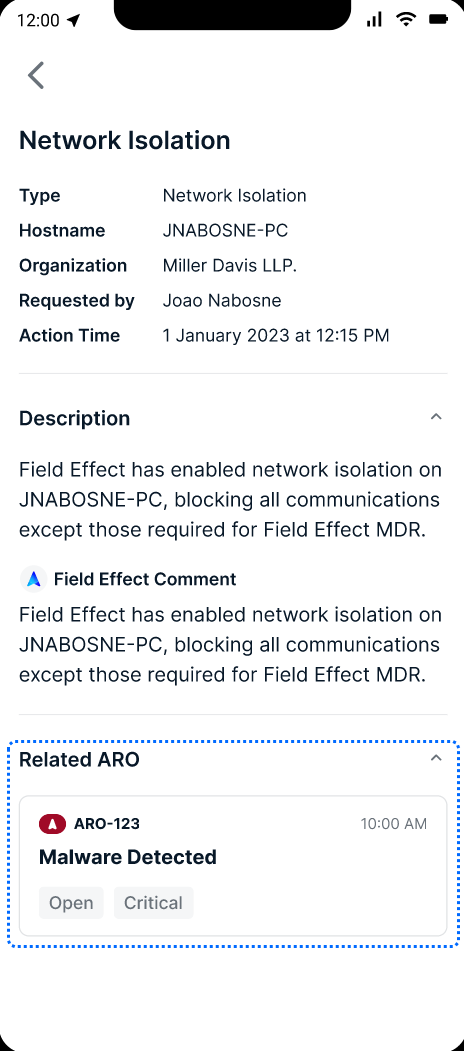
When drilled into a response action, you can access the same details as the MDR Portal. Click on a related ARO to view it in the mobile app.
Was this article helpful?
That’s Great!
Thank you for your feedback
Sorry! We couldn't be helpful
Thank you for your feedback
Feedback sent
We appreciate your effort and will try to fix the article