Introduction
Note: To manage users in the LMP, your LMP account must have the Partner Administrator permission level
Use the License Management Portal (LMP) to manage who can access your organization's licensing information and administrative functions. From the Partner > Manage Access page, you can:
- Invite new users
- Assign permission levels
- Update user details
- Resend invitation emails
- Report duplicate contacts
- Remove access for former employees
Keeping user access up to date helps ensure the right people have access to the tools and information they need while maintaining security and administrative control.
Invite a New User
To invite a new user to the License Management Portal:
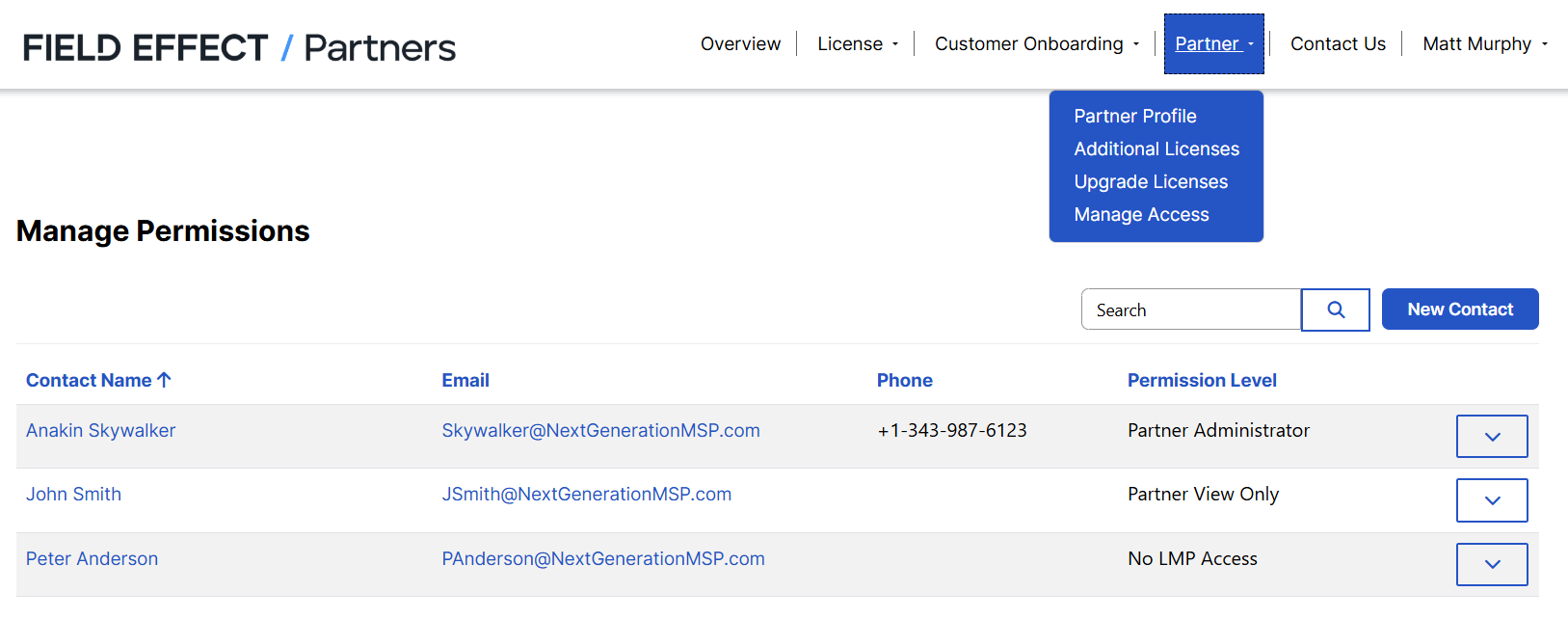
- Navigate to Partner > Manage Access and click the New Contact icon.
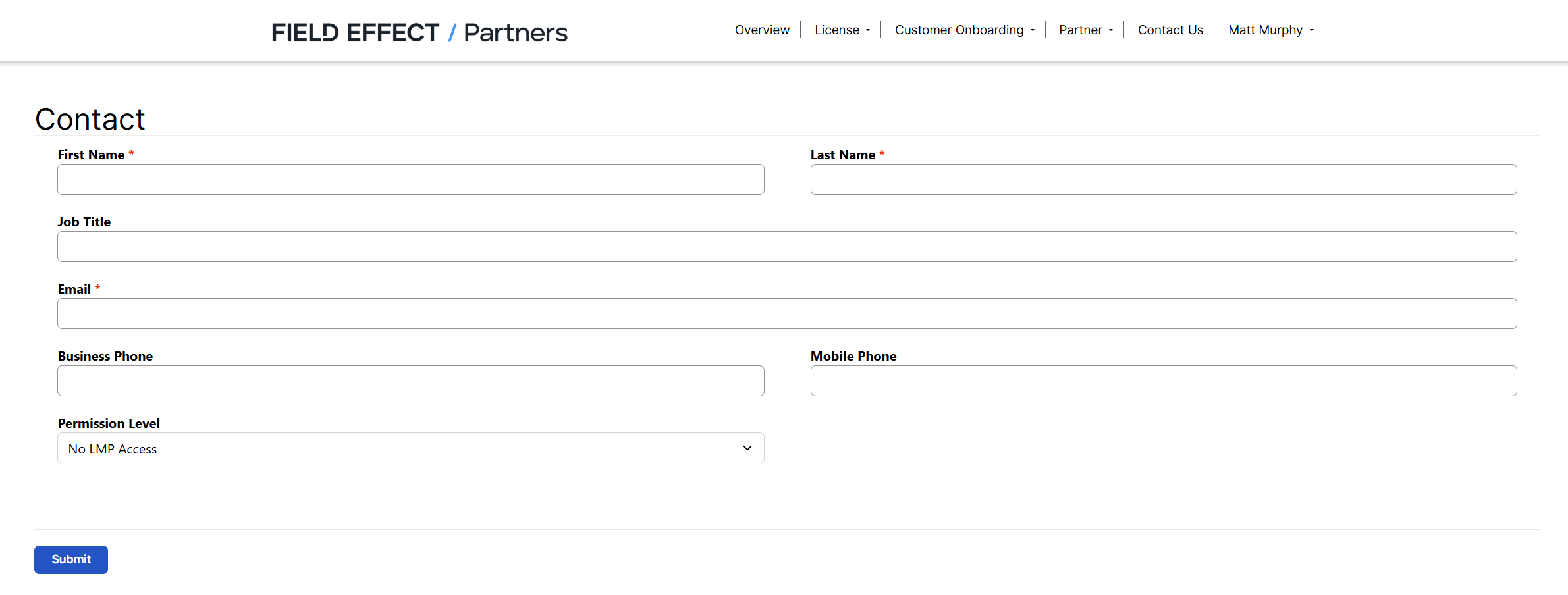
- Enter the user's information, select the appropriate Permission Level, and click Submit.
The new contact appears in the contact list, and an invitation email is sent automatically to the email address provided.
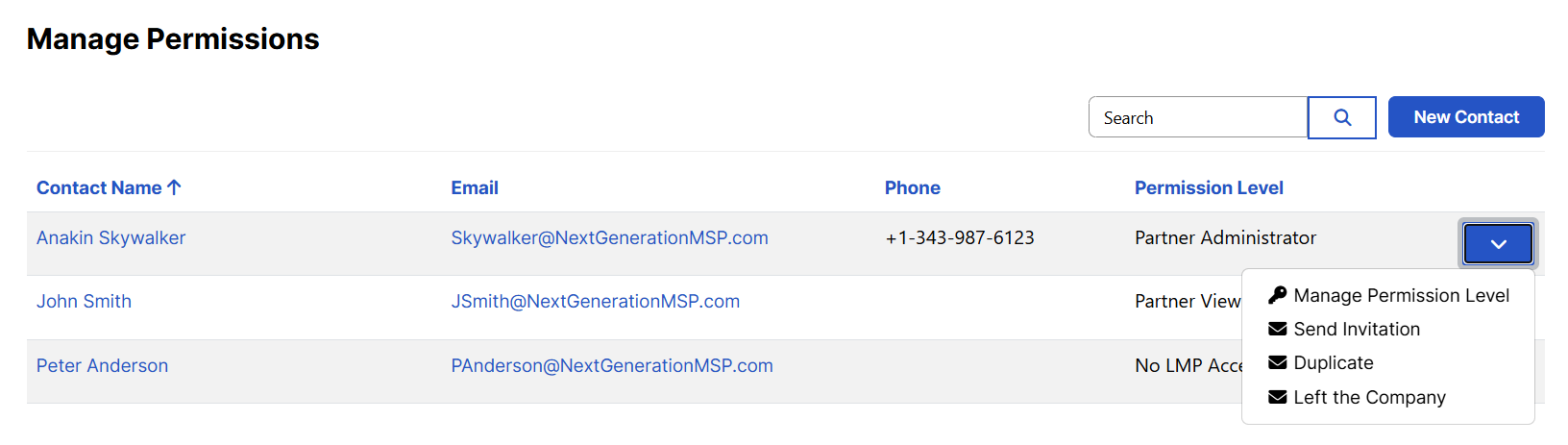
If the user does not receive the invitation email, you can resend it from the user's action menu on the Contacts page.
Permission Levels
Select the permission level that best matches the user's responsibilities.
| Permission Level | Access |
|---|---|
| Partner Administrator | Full administrative access. Can manage customers, modify the partner profile, update shipping addresses, and purchase additional MDR Core, Cloud, or Complete licenses. |
| Allocator | Can create and manage customers, assign and move licenses, and manage customer licensing activities. Can view, but not modify, the partner profile and shipping address information. |
| Partner View Only | Read-only access to the License Management Portal. |
| Bank Details Only | Can view portal information and update payment method details. |
| No LMP Access | Access to the License Management Portal is blocked. |
Manage Existing Users
Use the action menu beside a user in the Contacts list to manage their account.
Change a User's Permission Level
To update a user's access level:
- Navigate to Partner > Manage Access.

- Locate the user in the Contacts list and select Manage Permission Level in their actions menu.
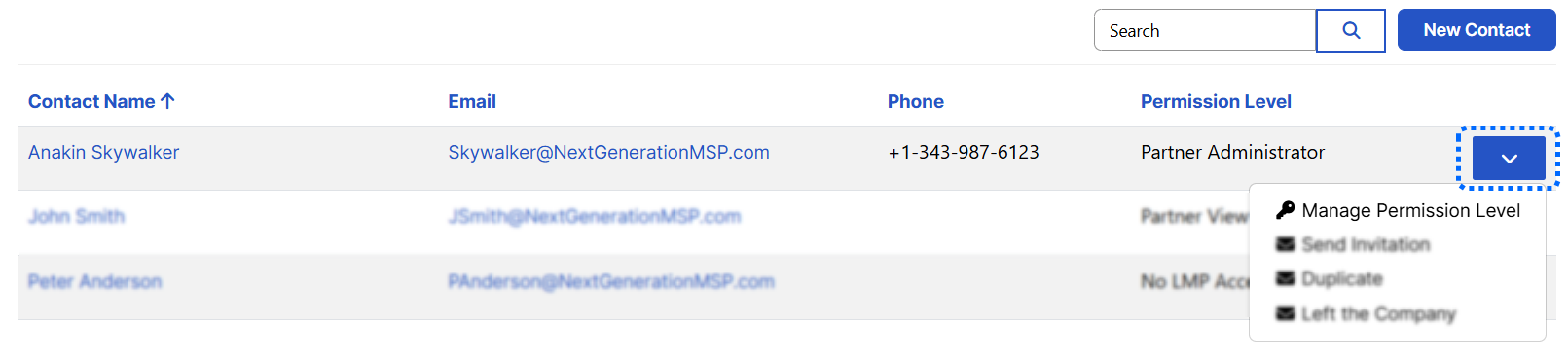
- The Manage Permission Level form Change the Click Submit.
The changes take effect immediately.
Resend an Invitation
If a user has not accepted their invitation:
- Locate the user in the Contacts list.
- Open the user's action menu.
- Select the option to resend the invitation email.
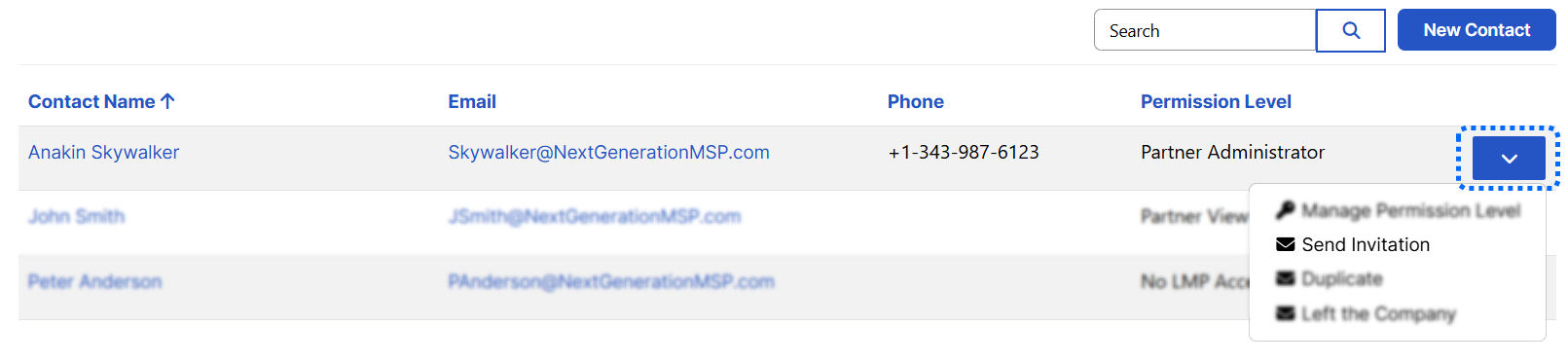
A new invitation email is sent to the user's registered email address.
Report Duplicate Contacts
If the same person appears more than once in the Contacts list:
- Locate the duplicate contact.
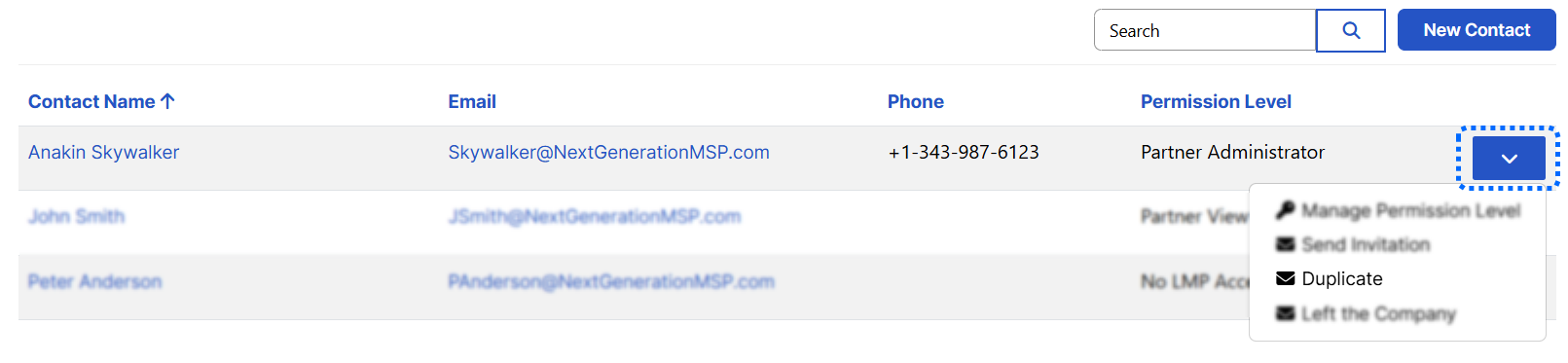
- Open the user's action menu.
- Select Duplicate.
This notifies the Field Effect support team, who will review and merge the duplicate records as needed.
Remove Access for a Former Employee
If a user has left your organization:
- Locate the user in the Contacts list.
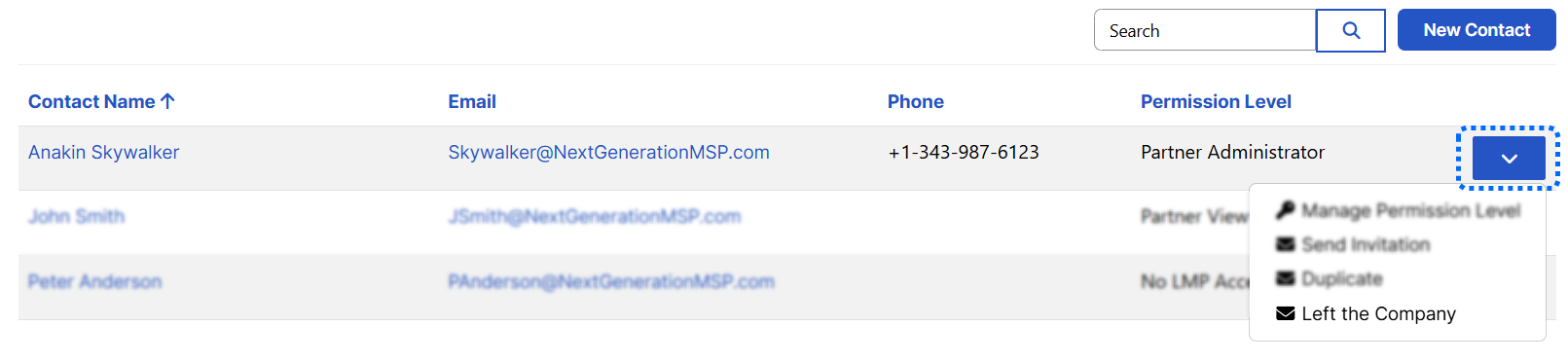
- Open the user's action menu.
- Select Left Company.
The user's permission level is automatically changed to No LMP Access, preventing future access to the License Management Portal.
Was this article helpful?
That’s Great!
Thank you for your feedback
Sorry! We couldn't be helpful
Thank you for your feedback
Feedback sent
We appreciate your effort and will try to fix the article