Introduction
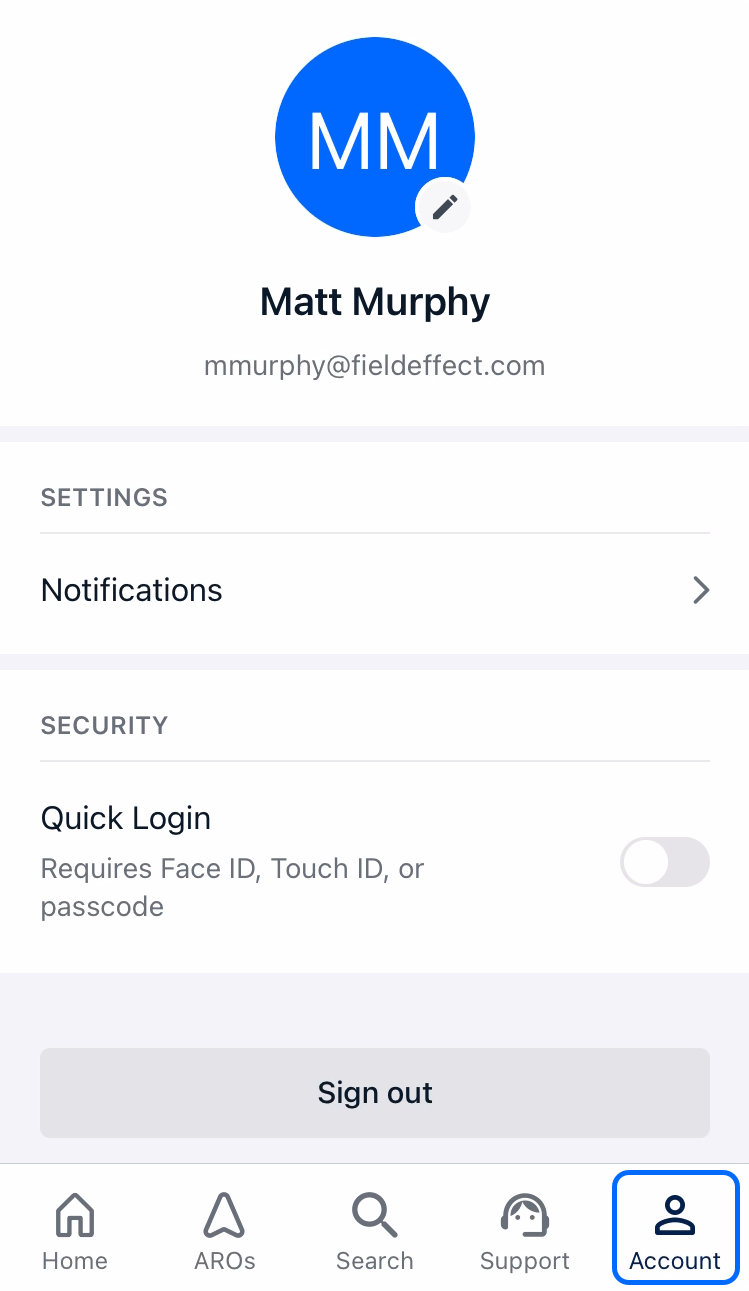
From the Profile tab, you can adjust the app’s notification settings and enable Quick Login, which allows you to unlock the app using your biometrics (face or fingerprint). For more on logging into the app, see Signing into the Mobile App.
Updating your User Avatar
Note: you can also perform this procedure in the MDR Portal via the browser. If you have added an avatar in the portal already, changing it in the mobile app will change your avatar for both the app and the portal in the browser.
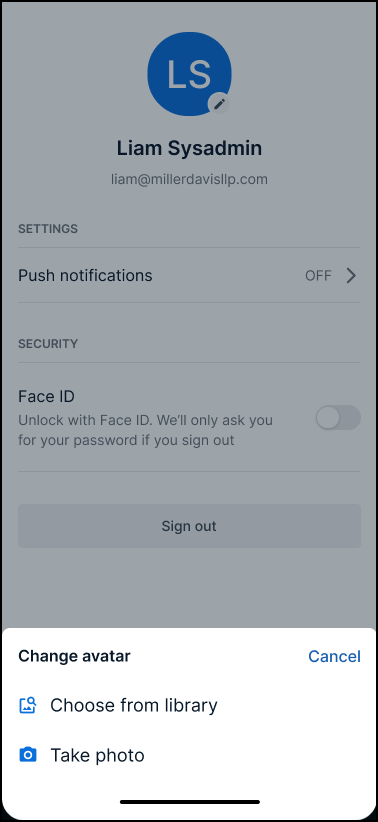
If you would like to add a custom image to your profile, navigate to the Profile tab and click the pencil icon in the avatar at the top of this tab. If you don’t have an avatar set up, this will show your initials.

The Change avatar menu will appear on your screen and gives you the option to browse for a photo or take a new one. Select the option that you would like to use.
After you choose or take a photo, the app updates your avatar image to use it.
Adjusting App Notifications
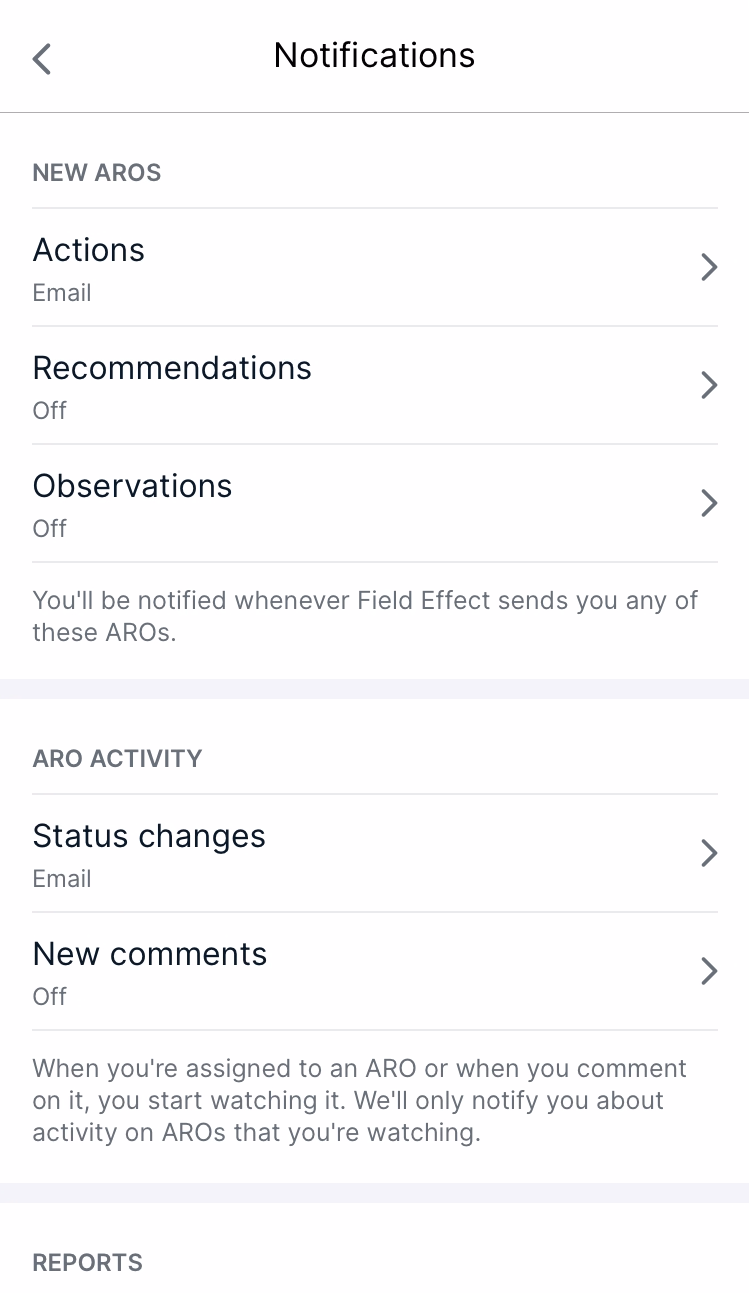
Tapping Push Notifications from the Support tab (shown above) will take to you the app’s notification setting. After enabling notifications, you can toggle the types of notifications you want to receive.
Setting up Quick Login
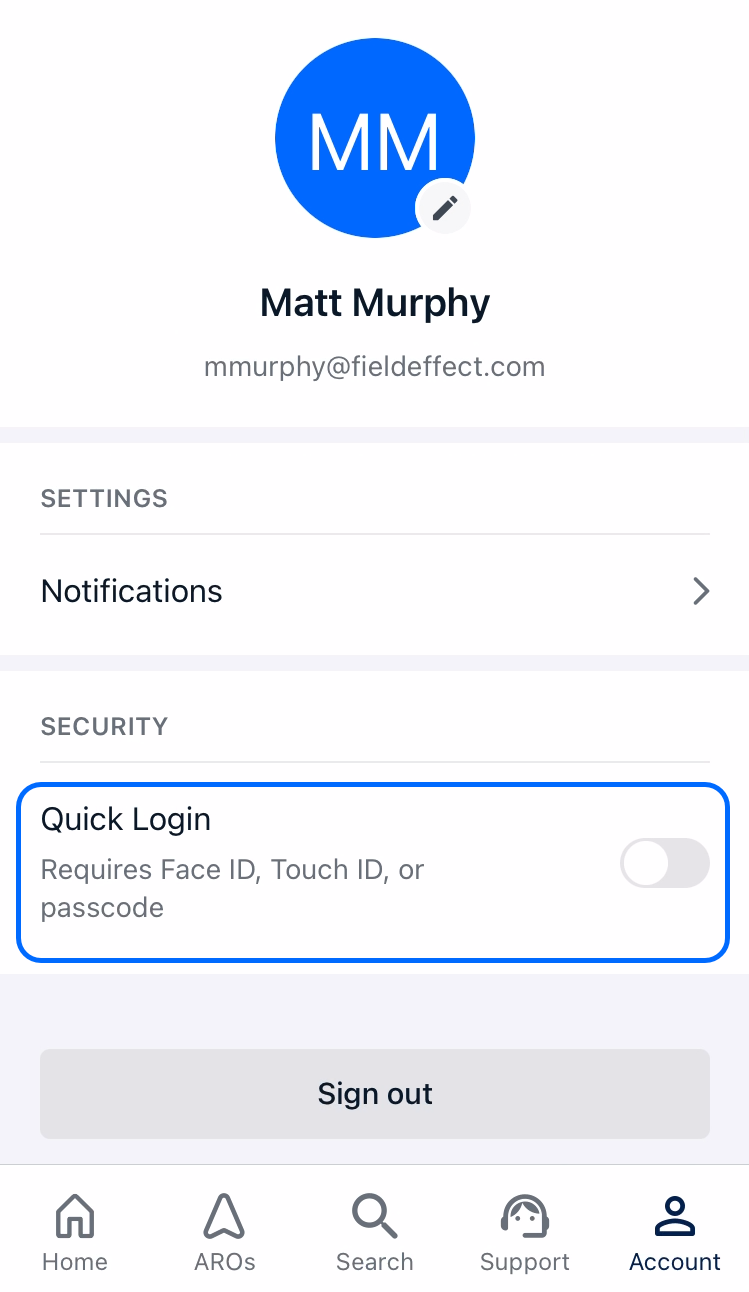
To enable Quick Login, which allows you to log in via your biometrics (face or fingerprint), navigate to the Profile tab and tap Quick Login. The app asks you to provide your fingerprint.
After providing your fingerprint, the toggle will become active, and you will be able to log into the app using your fingerprint.
Was this article helpful?
That’s Great!
Thank you for your feedback
Sorry! We couldn't be helpful
Thank you for your feedback
Feedback sent
We appreciate your effort and will try to fix the article