Introduction
From within the Field Effect MDR Portal, you can add a custom avatar to your profile. By default, the user avatar displays your profile name's initials, but you can upload any image to use as your avatar.
This article walks through the process of uploading a custom avatar to your profile in the MDR Portal.
Procedure
Begin by navigating to the Profile Settings page, which is accessible at the bottom of the sidebar or in the upper right hard drop down.

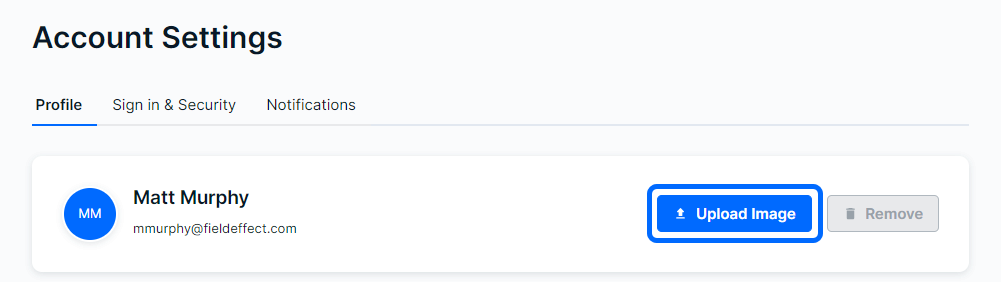
From the Profile tab's top section, click Upload Image next to your current avatar. If you have not used an avatar before, it will be the initials of your profile’s name.
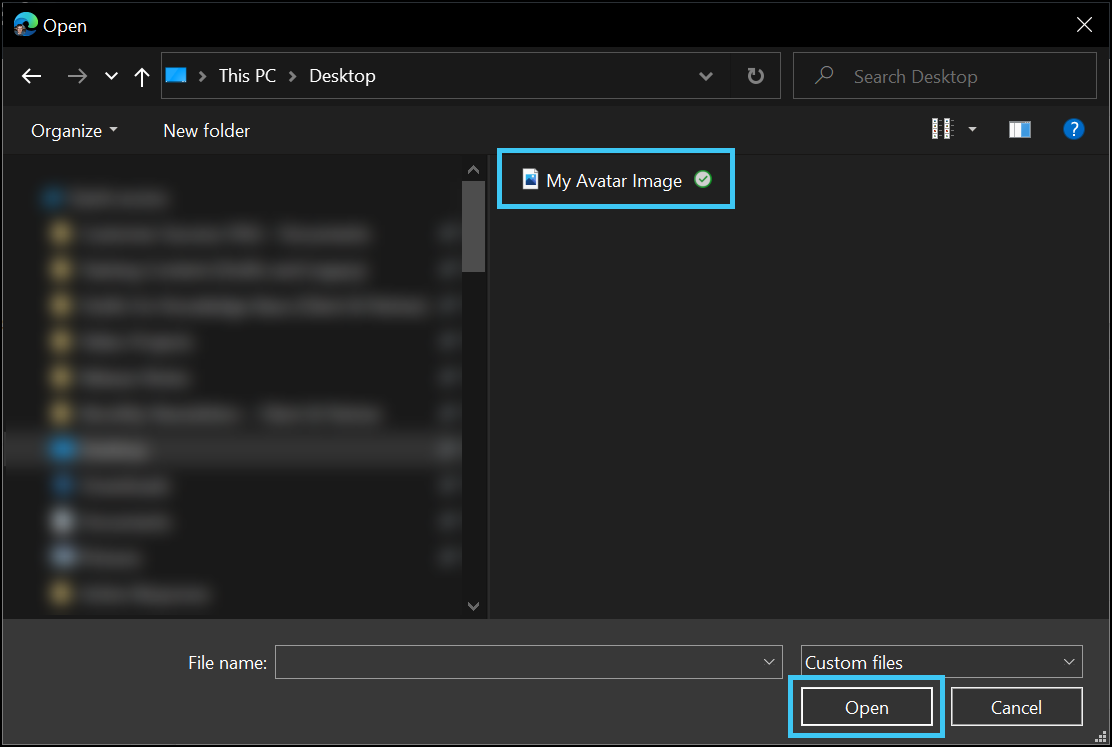
A file explorer window will appear on your screen. Navigate to the image you want to use an avatar and click Open.
Note: JPG, PNG, and GIF are the only supported file types for avatars. Files also must be larger than 4 KB.
The MDR Portal uploads your avatar and displays it wherever your user avatar appears.

It also appears when someone assigns you to an ARO.

Was this article helpful?
That’s Great!
Thank you for your feedback
Sorry! We couldn't be helpful
Thank you for your feedback
Feedback sent
We appreciate your effort and will try to fix the article