Introduction
The Weekly Report (published Saturday) provides a high-level summary of your organization's security posture over the previous week. It combines metrics collected across monitored networks, cloud services, endpoints, email security, and DNS activity to help you identify emerging risks, monitor trends, and track improvements over time. Reports can be viewed or downloaded from the Field Effect MDR Portal (Insights > Reports).
Use this report to:
- Monitor changes in your security posture week over week
- Identify unusual activity that may require investigation
- Review unresolved Action AROs and other security concerns
- Track improvements resulting from remediation efforts
This article covers the following top
How to Use this Report
The Weekly Report is designed to help administrators quickly identify areas that may require attention.
When reviewing the report:
- Start with the Overall Status section to identify outstanding Action AROs and security concerns.
- Review weekly trends across cloud services, endpoints, email security, DNS Firewall activity, and network traffic.
- Investigate significant changes, unusual spikes, or unexpected activity.
- Use linked areas within the MDR portal when deeper analysis is required.
- Compare reports week over week to understand whether your security posture is improving, remaining stable, or deteriorating.
Overall Status
The Overall Status section provides a snapshot of your organization's current security posture. Any outstanding Action AROs are highlighted to help ensure security issues are addressed promptly.
Use this section to:
- Check for any outstanding AROs.
- Prioritize any Action AROs listed in this section. These items typically represent issues that require investigation or remediation and should be reviewed before examining the rest of the report.
- Identify issues that require remediation or follow-up
- Compare your current status with previous reports to identify trends
This section should typically be your first stop when reviewing the report.
Cloud Monitoring
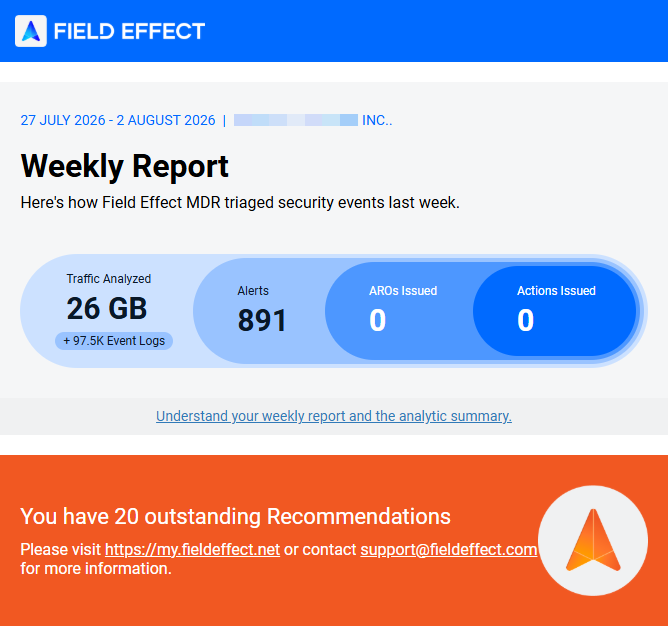
The Cloud Monitoring section summarizes activity across monitored cloud services, including newly created accounts and the number of users being monitored for suspicious activity.
You can use this section to:
- Review newly created accounts
- Monitor changes in user activity
- Understand how many users are being monitored for suspicious behavior
Unexpected increases in new accounts or changes in activity patterns may warrant further investigation.
Endpoint Monitoring
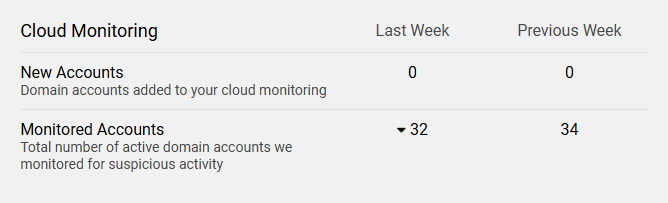
The Endpoint Monitoring section shows the number of newly discovered and active endpoints on your network.
When reviewing endpoint data:
- Look for unexpected increases in endpoint counts
- Verify that newly discovered devices are authorized
- Monitor trends over time to identify unusual changes within your environment
Email Security
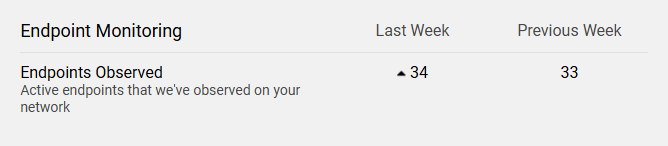
The Email Security section highlights the email accounts that experienced the highest number of unsuccessful authorization attempts during the reporting period. This information can help you identify accounts that may be targeted by password-spraying, credential-stuffing, or other unauthorized access attempts.
For each account, the report displays:
- The number of unsuccessful authorization attempts.
- The percentage of total unsuccessful authorization attempts attributed to that account.
- The geographic locations from which the attempts originated.
When reviewing this section, pay particular attention to accounts with unusually high numbers of failed sign-in attempts or login activity originating from unexpected locations.
SEAS Activity
If your organization has SEAS enabled and is actively submitting emails for analysis, this section also includes a high-level summary of email security activity for the reporting period. This includes:
- The number of emails submitted for analysis.
- Week-over-week submission trends.
- The number of emails classified as suspicious or malicious.
Use this information to monitor potentially harmful email activity and track changes in user-
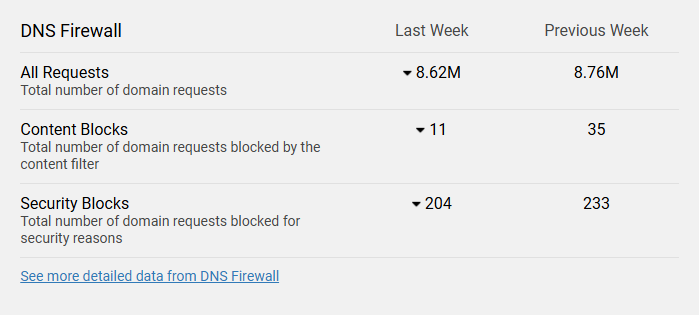
DNS Firewall
The DNS Firewall section summarizes DNS requests and blocked activity, including week-over-week comparisons.
When reviewing this section:
- Look for increases in blocked requests
- Investigate unusual activity patterns
- Use the detailed DNS Firewall view in Field Effect MDR for deeper analysis when required
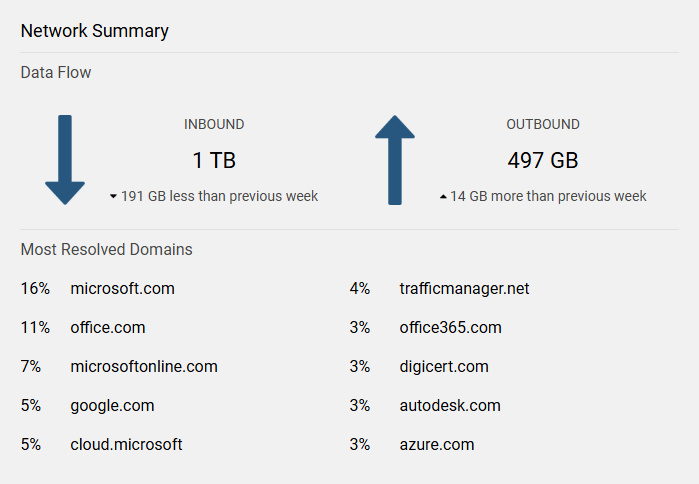
Network Summary
The Network Summary section provides visibility into inbound and outbound network traffic during the reporting period.
Use this section to:
- Review overall traffic patterns
- Identify domains receiving the most DNS resolutions
- Detect unexpected changes in network activity
Sudden changes from historical trends may indicate new services, configuration changes, or activity that requires investigation.
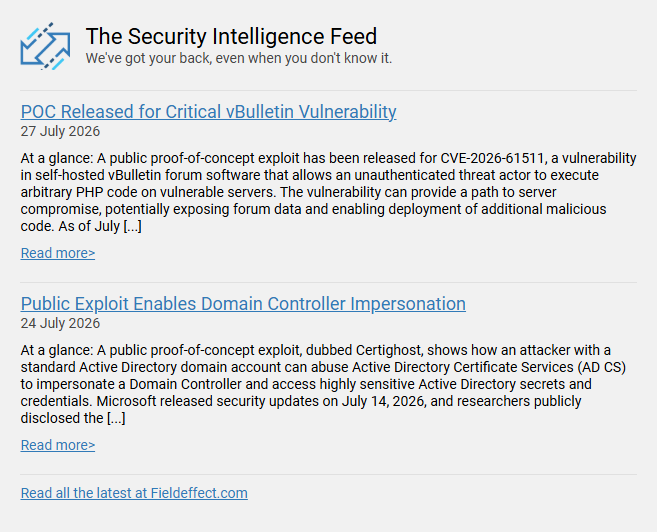
Security Intelligence Feed
To provide additional context and cybersecurity insights, the Weekly Report includes access to Field Effect's Security Intelligence Feed. This resource contains analysis, commentary, and best practices related to current cybersecurity trends and threats.
Use the Security Intelligence Feed to:
- Better understand emerging threats.
- Gain context for activity observed within your Weekly Report.
- Learn recommended security practices.
- Stay informed about cybersecurity developments that may affect your organization.
Was this article helpful?
That’s Great!
Thank you for your feedback
Sorry! We couldn't be helpful
Thank you for your feedback
Feedback sent
We appreciate your effort and will try to fix the article