Introduction
From Vision's Account Settings page (Sign in & Security tab), you can create and manage (rename, disable/enable, and delete) API keys associated with your Field Effect MDR account. These keys are used to authenticate our Swagger API Interface. To learn more about our API and how to use it, see our APIs Overview.
This article walks through how to create an API key and manage them within Vision.
Create an API Key
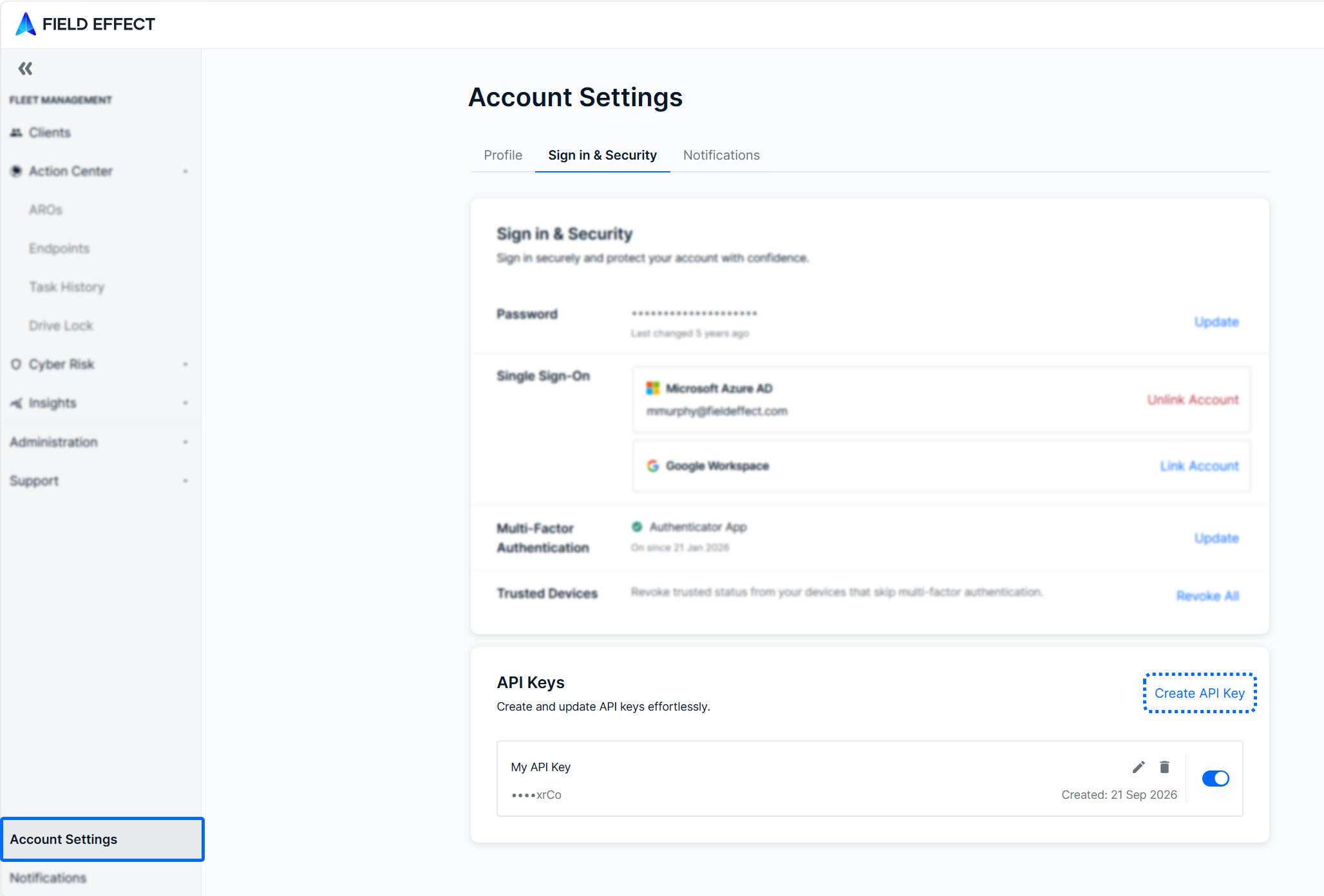
- Log into Vision and navigate to Account Settings in the sidebar
- In the API Keys section, click Generate API Key.
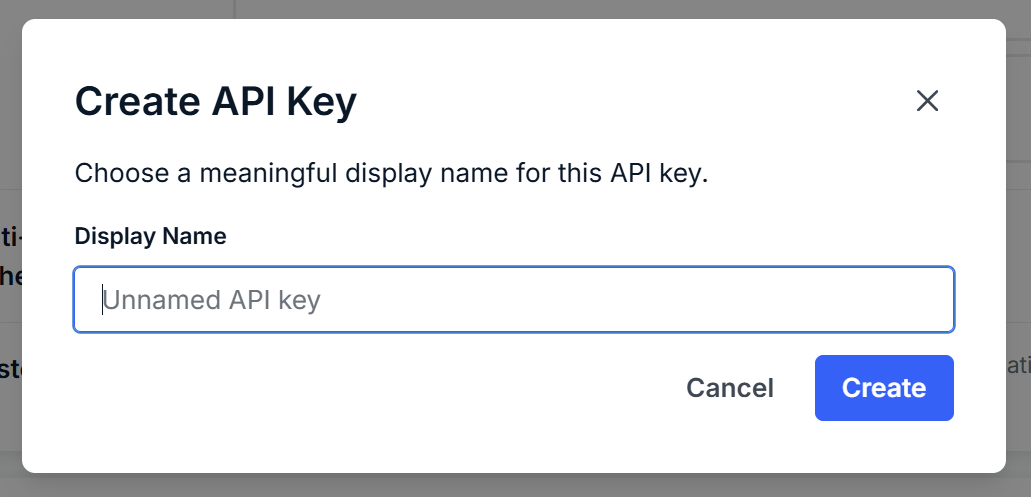
- The Create API Key window will open. Give your API key a memorable name and click Create.
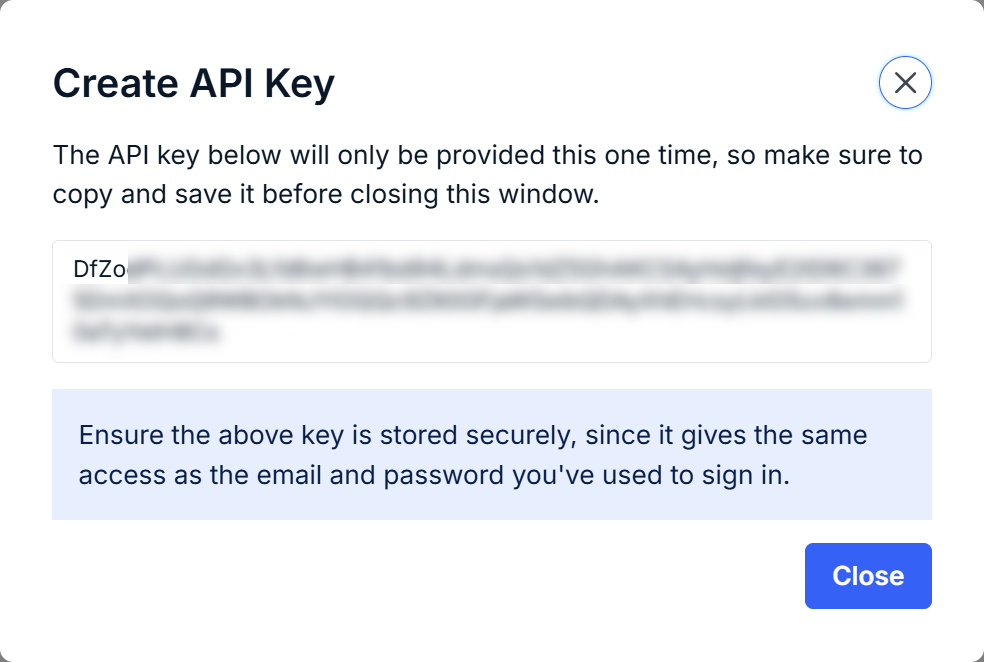
You will be presented with the API key. As described on the window, you will only be presented with the full API key only at this time. Be sure to copy and store it securely, as you will not be able to refer to it again.
Manage API Keys
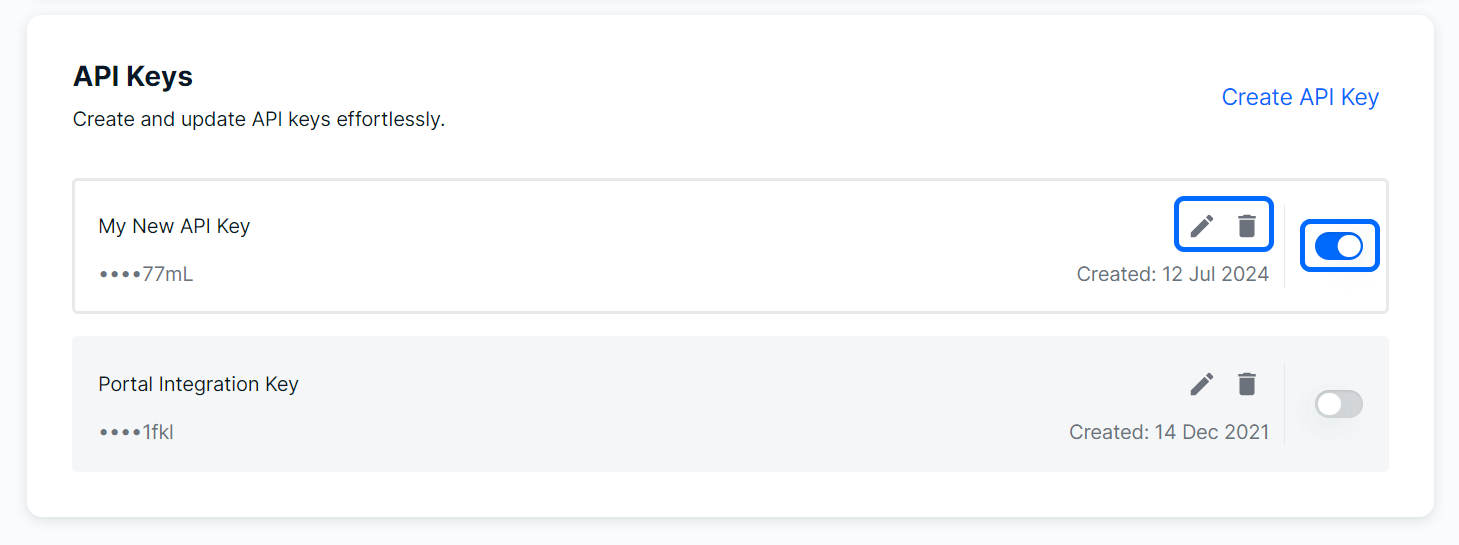
After you have created an API key, the following management options are available:
- Edit (pencil icon): change the key's display name
- Delete (trash icon): remove the API from your organization
- Deactivate (toggle switch): disables the key's functionality but keeps it within associated with your account for future use.
Was this article helpful?
That’s Great!
Thank you for your feedback
Sorry! We couldn't be helpful
Thank you for your feedback
Feedback sent
We appreciate your effort and will try to fix the article