Introduction
If users within your organization (or end-client organization) are travelling to locations that are a-typical to their routine behavior, Field Effect MDR may generate an ARO notifying you that that suspicious activity may be taking place. If there is planned and expected travel taking place, you can create user travel exemptions that alert Field Effect MDR that the travel is expected. When exempted, that user's travel expected travel activity will be factored into their analysis. Exemptions prevent false positive AROs for employees traveling to uncommon, but approved, locations. To learn more about the AROs generated for travel, see What Is an Impossible Travel Scenario?.
This article details the processes available for creating travel exceptions:
Creating Travel Exceptions
Exemptions can be made from within the MDR Portal, but you can also set up an Entra Group within your Microsoft 365 tenant for travel exceptions. These sections describe the different processes.
Create a Travel Exceptions Group (Entra)
If you would manage your travel exceptions internally and independent of the Field Effect MDR Portal, you can do so by managing an Entra Group.
- Create an Entra group for travel exceptions in the Microsoft Entra Admin Center. We recommend giving the group a recognizable name such as "Field Effect Travel Exceptions", "FE - Travel Exceptions", or "Travel Exceptions".
- See Microsoft's documentation on managing Entra groups for more guidance.
- Once your organization (or end-client organization) has created the Entra group, reach out to support@fieldeffect.com and let us know which Entra group should considered their Travel Exemption group.
- We will adjust your service to take the Travel Exception group into consideration.
Once this process is complete, your internal admins can add and remove users to your Travel Exemption group as required.
Any user who is added to this group will not trigger travel-related AROs.
Submit a Travel Exemption (MDR Portal)
Partners: This process is done at the per-client level. Make sure the organization selector is set to the correct client view before you make your submission.
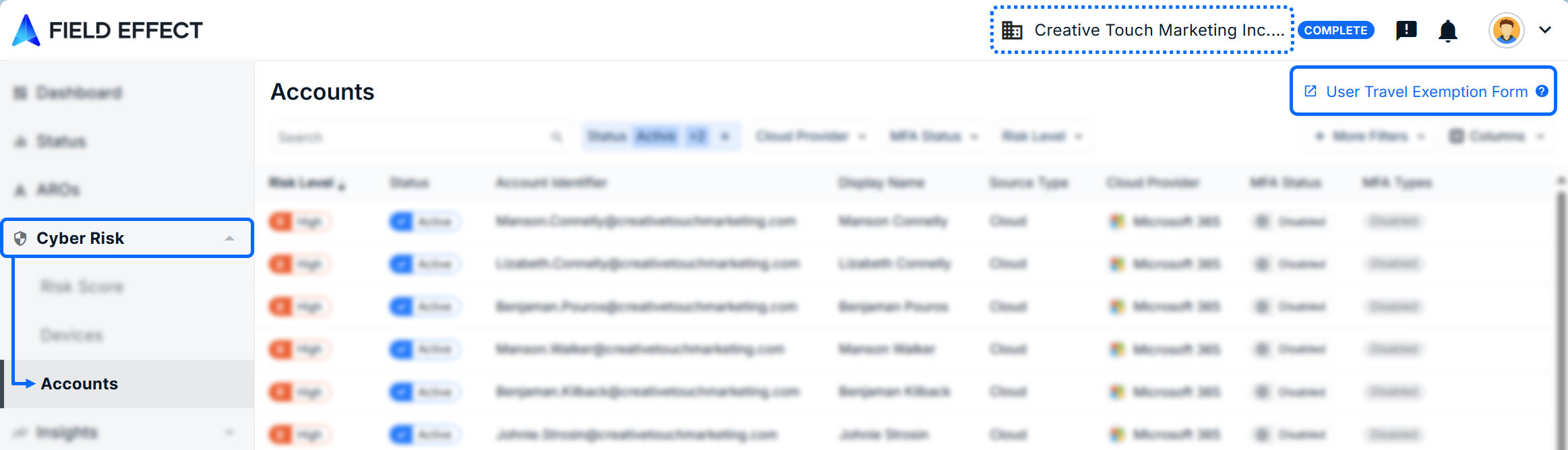
From the MDR Portal's Accounts Page (Cyber Risk section), click the User Travel Exception button in the upper right.
In the example below, the checkered box signifies that the partner is about to make an exception for Creative Touch Marketing. If you are a direct client, you will not see the organization selector, and this button will always apply to your organization.
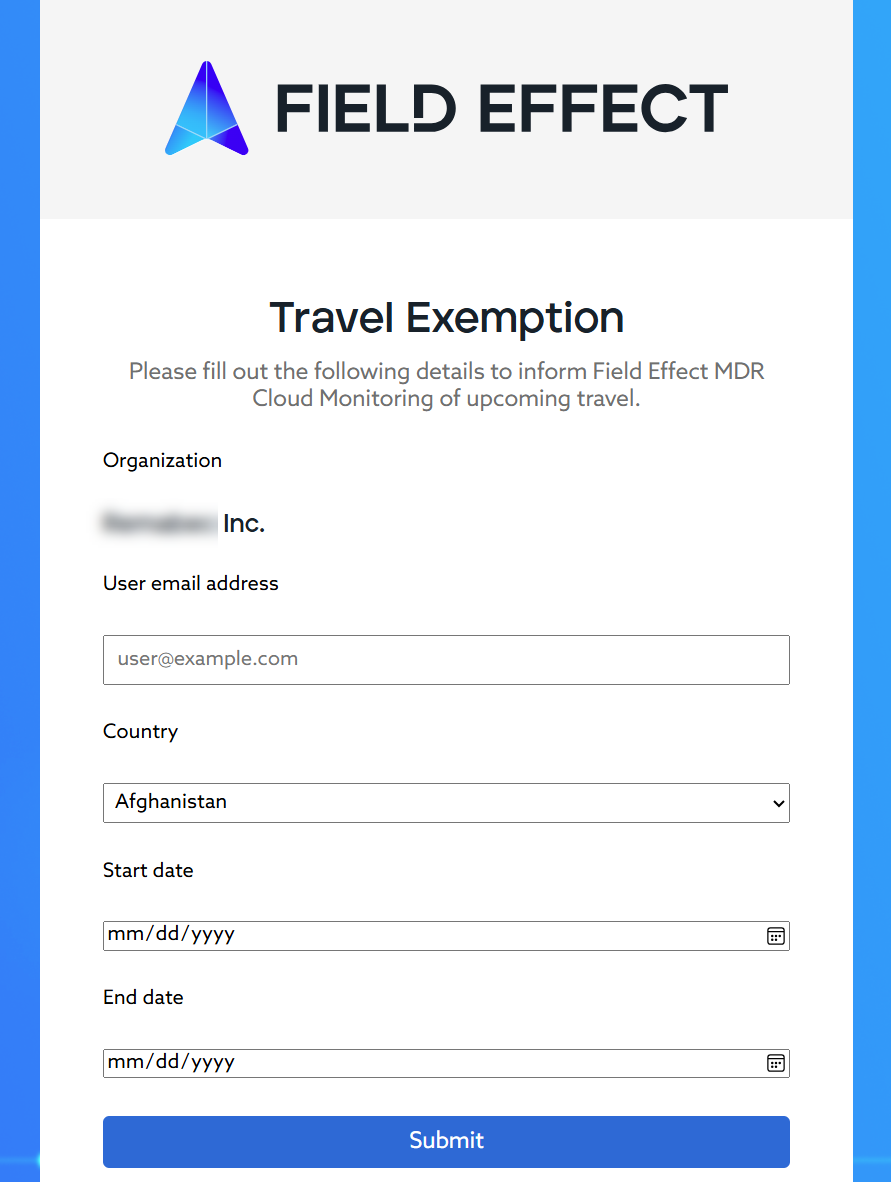
The Travel Exception form will open in a new tab. Fill out the form by including the details surrounding the user that is traveling, where they are traveling, and the timeframe at which they will be traveling.
Once filled out, click Submit. This will be sent to our analysis team, and your travel exception will be taken into consideration while it is valid, as dictated in the submission's start and end dates.
Was this article helpful?
That’s Great!
Thank you for your feedback
Sorry! We couldn't be helpful
Thank you for your feedback
Feedback sent
We appreciate your effort and will try to fix the article