Introduction
If you are a partner user, you can use the steps below using both the client and partner views. To learn more about client view and your partner view, see our help center article on the organization selector.
Some features, specifically Active Response, Agent Protection, and Roaming DNS, apply at a global level. This means that once you enable and configure these features, they apply to every endpoint in your organization.
Overview
While this approach helps ensure that your entire fleet is protected as soon as the feature is enabled, scenarios may arise that require you to disable or modify these features on a specific set of endpoints. This may be an individual endpoint, a small set, or a larger set of devices.
Example scenarios may include:
- Agent Protection:
- You are offboarding legacy equipment and need to uninstall the endpoint the specific device(s).
- Active Response:
- You may want to apply an Aggressive response policy to some endpoints, while applying the Balanced response policy the majority.
- You may want to apply a mixture of the Limited, Balanced, and Aggressive response policies across distinct groups of endpoints.
- Roaming:
- You may want to remove Roaming Protection from a specific endpoint to troubleshoot connectivity issues.
- You may want to exempt from users from using Roaming DNS.
Who can perform bulk edits?
Either a member of your organization or the Field Effect MDR team can initiate a bulk edit.
As we continually deliver the Field Effect MDR service, scenarios may arise that impact one or more of your endpoint devices. If we confidently detect activity that correlates with a compromised device, we may set the response policy to Aggressive and enable Agent Protection to contain the potential compromise. There may also maintenance-related reasons that Field Effect MDR may bulk edit an endpoint device(s), if it is not operating as intended.
You perform bulk edits from the Devices page (Cyber Risk section), and this article walks you through the process.
Bulk editing endpoint devices
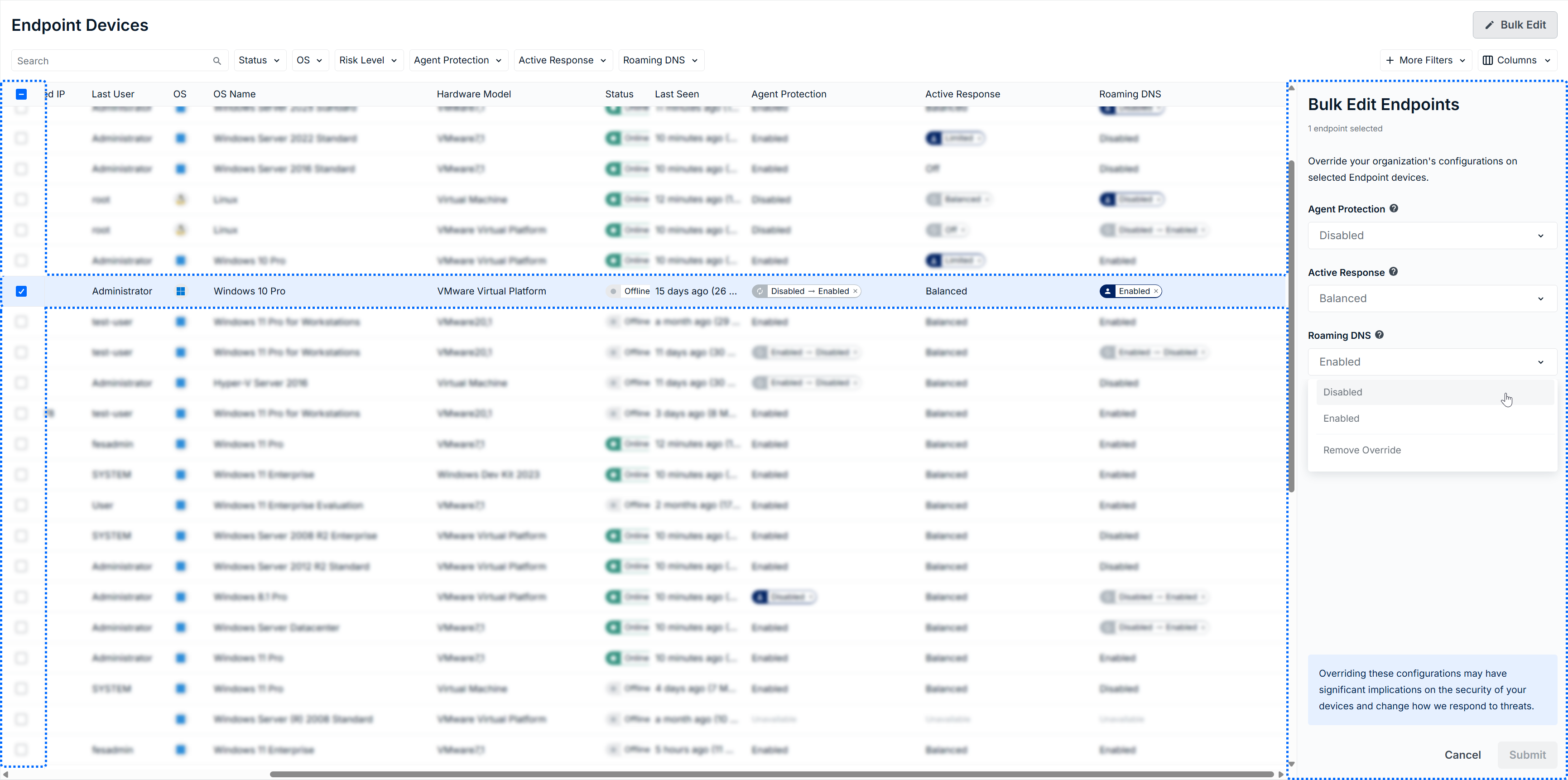
From the Devices page (Cyber Risk section), click Bulk Edit in the upper right.

Checkboxes will appear in the table, and the Bulk Edit Endpoints pane will expand on the right. Use the check boxes to select the endpoints you want to edit. Once selected, make your configuration changes in the Edit pane and click Submit to confirm.
Bulk Edit Statuses
Features that support Bulk Editing (currently Active Response and Agent Protection) leverage visual "pills" that signal whether a bulk edit affects a feature, and whether your organization or Field Effect initiated the edit.
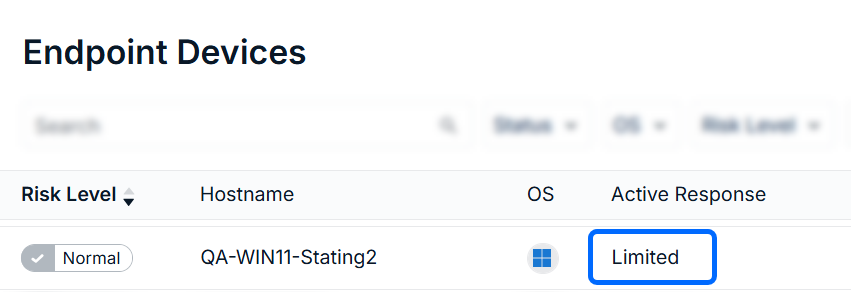
If the endpoint device is using the default configuration as set by your organization, the column will simply show that configuration in plain text. In the example below, the endpoint device is using the organization's default response policy - Limited. So, no pill indicates that a bulk edit affects the feature.
User Edit Statuses
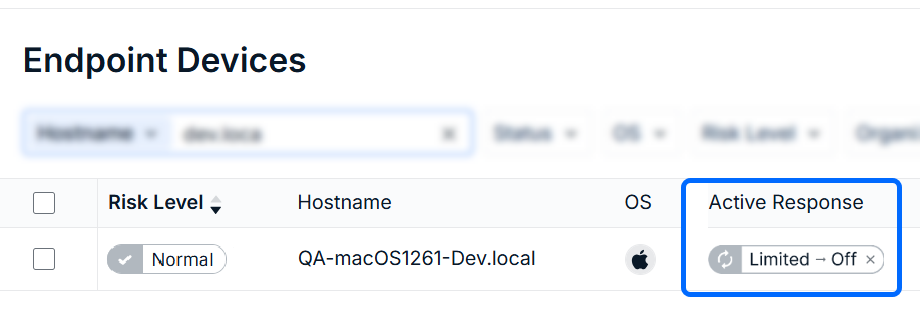
When submitting a bulk edit (see above), the change will take place the next time the endpoint agent refreshes. While the page waits for the refresh, it shows a grey pill to signal that the change is pending.
In the example below, the user has confirmed a bulk edit changing the device's response policy from Limited to Off. The grey pill signifies that the change is pending, while simultaneously showing the pre and post edit states (Limited -> Off).
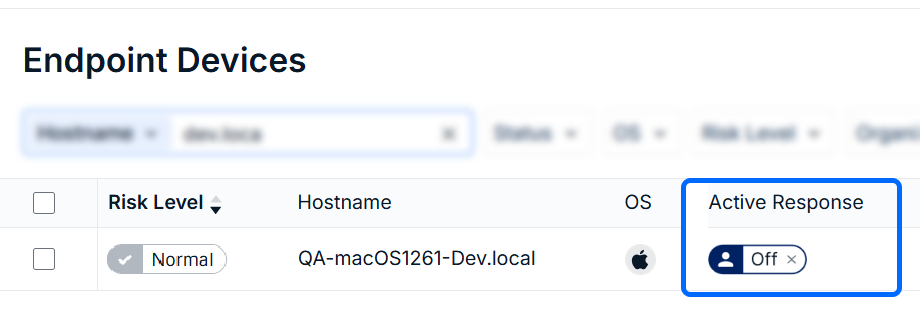
Once the change reaches the endpoint, the page shows the following pill, which signifies that the change has taken place, the feature's current state, and that a user in your organization made the bulk edit.
In the example below, Active Response was bulk edited on this device and set to the Off response policy. The user icon signifies that a user in your organization made the bulk edit.
Field Effect Edits
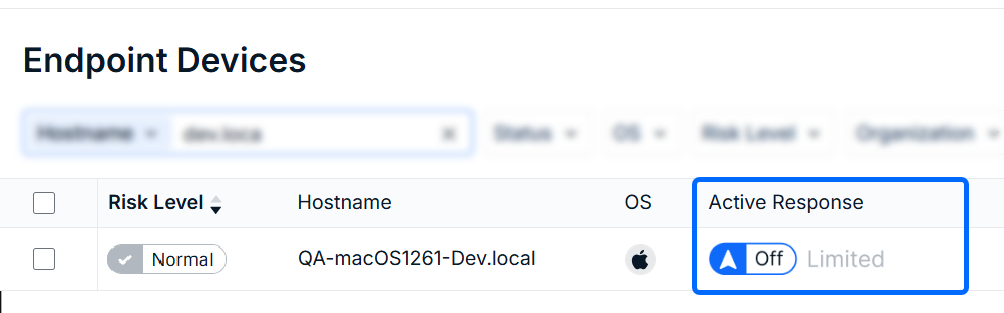
If Field Effect MDR has edited an endpoint device that your organization hasn't edited, you will see the default configuration as set by your organization in plain text, alongside a blue pill signifying that Field Effect MDR edited the endpoint device, and the state that Field Effect MDR set the endpoint to. In the example below, Field Effect changed the response policy on the endpoint device from Limited to Off.
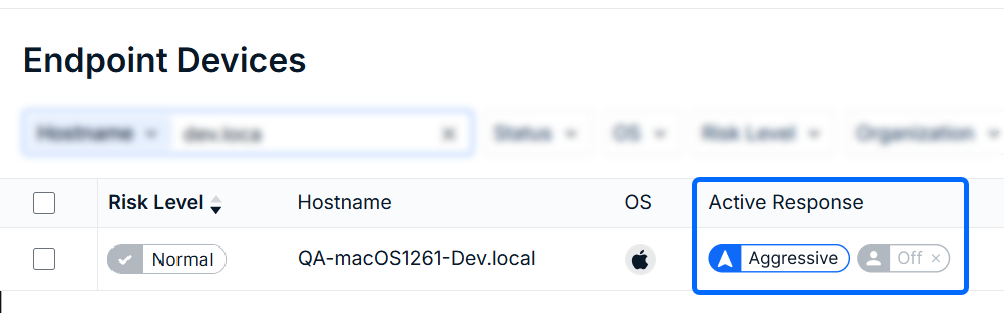
If Field Effect MDR needs to edit a device that your organization has already edited, the user edit pill (shown above) will remain visible but inactive (grey), and the Field Effect MDR edit will be visible alongside it. In the example below, the organization edited this endpoint device to use the Off response policy, but a scenario arose where Field Effect MDR needed to increase the response policy to Aggressive.
Was this article helpful?
That’s Great!
Thank you for your feedback
Sorry! We couldn't be helpful
Thank you for your feedback
Feedback sent
We appreciate your effort and will try to fix the article