Introduction
Partners: This page behaves differently depending on how the Organization Selector is set. If set to the partner view, you can invite users to your MSP organization. To invite a user to a single client organization, set the organization selector to that specific client’s view.
Before a user can create their MDR Portal account, someone must invite them to a client or partner organization. Once invited, they can create a new MDR Portal account using the email address in the invite.
If you are a partner user managing many end client organizations, you do not need to create a new account every time you add an end client organization. As long as you belong to the partner organization in the MDR Portal, you will automatically gain access to any client organizations that belong to the partner organization.
This article walks through the process of inviting a user to an organization in MDR Portal.
Note on Deployments and Administrators
If you're the MDR Portal Administrator setting up the service for the first time, you don't need an invitation, but you still need to create your account.
Once you create your account, you can invite other users to create MDR Portal accounts by following the steps below.
Video - Inviting and Managing Users
Sending the Invite
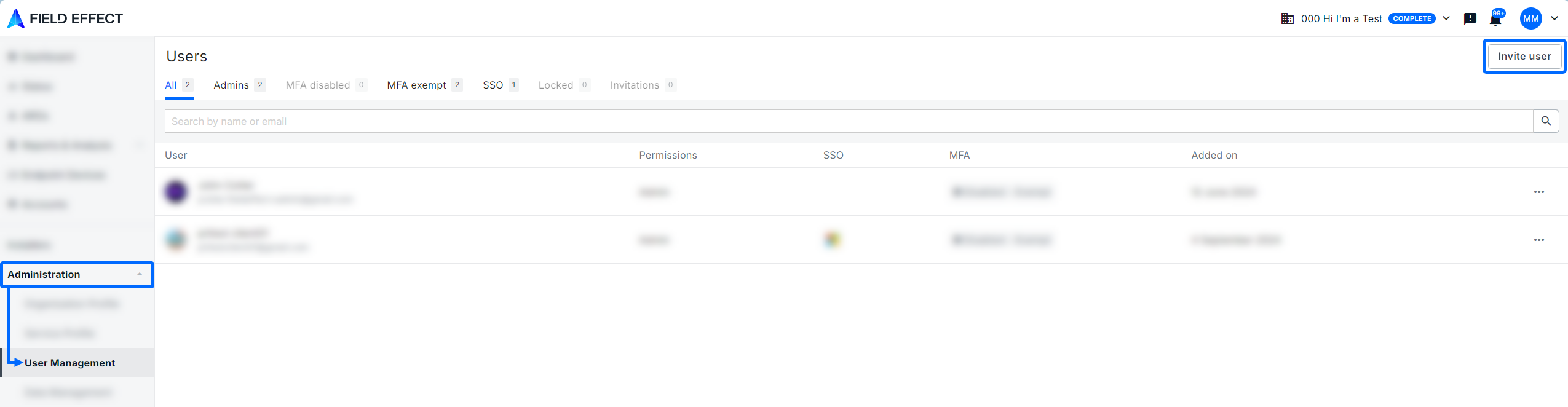
From the User Management page (Administration section), click Invite User in the upper right of the page.
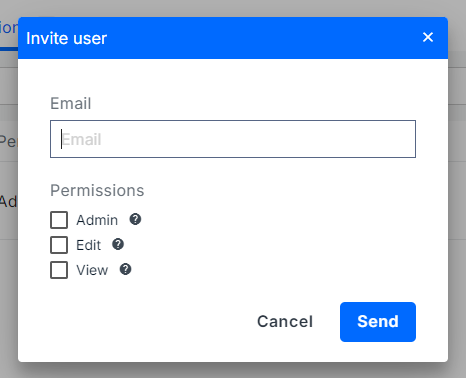
The Invite User form will appear on your screen. Provide the new user’s email, select their permission level. See Editing User Permissions for more. After selecting your invitee’s permission level, click Send.
This email will be the only email address the new user will be allowed to user when creating their account. Ensure that this is an organizational email account.
The MDR Portal returns you to the User Management tab, where the User list shows the invitee and their invitation expiry date.

Accepting the Invite
The following sections describe what happens the first time someone invites a user to an organization, and the workflow for adding an existing user to new organizations.
First Time Invite
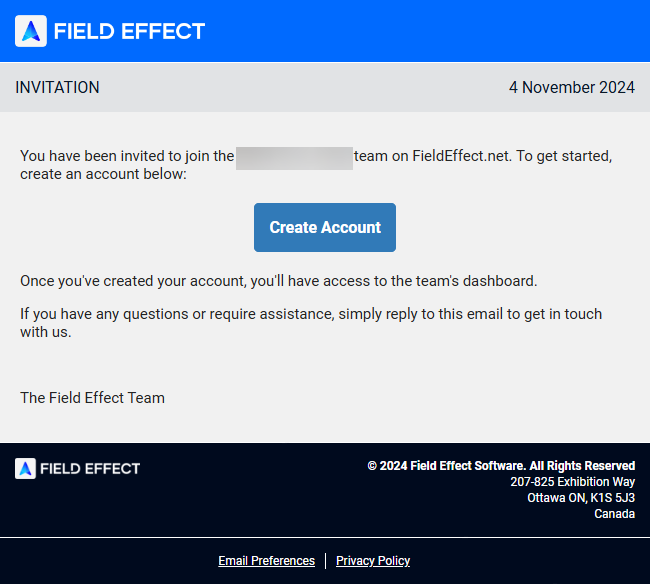
The first time someone invites you to an organization in the MDR Portal, you'll receive an email to create your account.
You may only use the email address that has been invited and sent the email invite when creating your account.
Accepting with an Existing MDR Portal Account
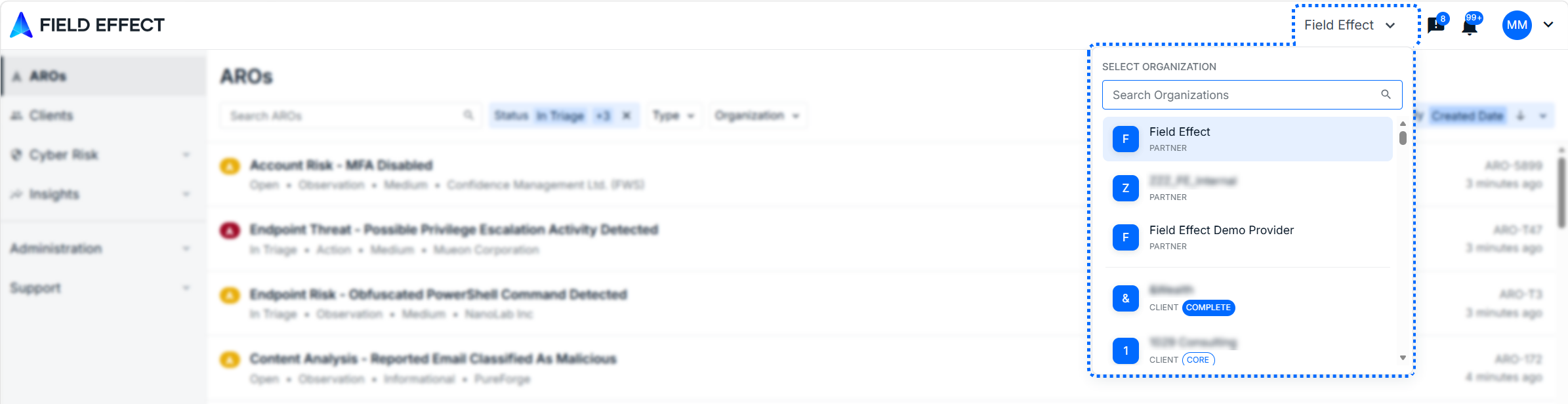
If someone invites you to an organization and you already have an MDR Portal account, you automatically gain access to the organization via the organization selector.
Was this article helpful?
That’s Great!
Thank you for your feedback
Sorry! We couldn't be helpful
Thank you for your feedback
Feedback sent
We appreciate your effort and will try to fix the article