Introduction
If your organization uses a Remote Management Monitoring (RMM) or Mobile Device Management (MDM) tool to manage software installations, we offer two methods for automating the installation of our endpoints agent
Leverage the Automated Script
This approach is recommended for deployments that have endpoints connected to different networks that the endpoint sensor.
If you have endpoint devices that are not connected to the same network as the sensor, we have a PowerShell script that handles agent installations (and uninstallations) for both on-prem and cloud-based deployment tools.
This script leverages our API calls to create a simplified and automated process for users leveraging an automated deployment solution, as well as create the necessary log files our Support team may require for future troubleshooting or investigations.
Visit our Help Center article, PowerShell Script for Agent Installation to get the script and leverage it within you RRM/MDM tool.
Leverage Sensor-Hosted Installer Files
All endpoints must be on the same network as the sensor for this approach.
Our network sensors self-host the most recent version of our installers, and are updated whenever a new version becomes available. This method works for on-prem deployment tools only.
These sensor-hosted installer files:
- Can be accessed without logging into the MDR Portal
- Have no license file associated to them.
- Are updated automatically as new versions of the endpoint agent are released.
The specific steps of this procedure vary depending on your RRM tool.
Typically, you need to provide the installer's license.txt file and installer path into your deployment tool. This allows the tool to authenticate to the sensor and access the most recent installer files.
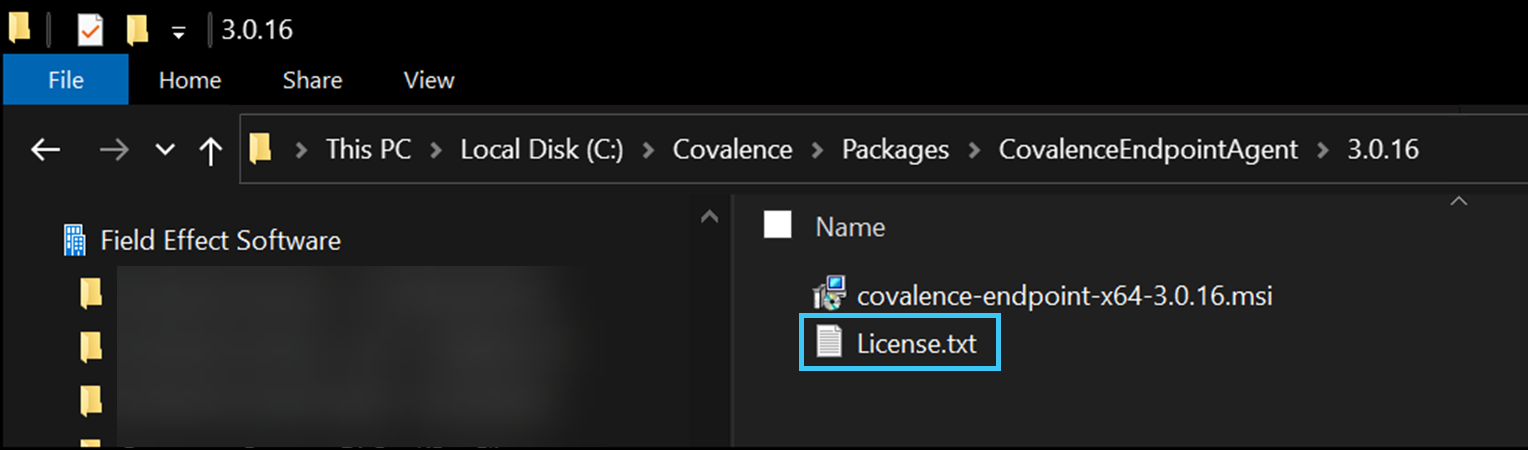
Obtain your License File
To obtain the license file, download the endpoint agent installer package from the MDR Portal.
Sensor-Hosted Installer Paths
You also need to configure your deployment tool to use the correct location paths so it can retrieve the installation files from your network sensor.
You can download the installers from a physical sensor at the following location. Ensure to replace <sensor-ip> in the example below with the actual IP address for your sensor.
https://<sensor-ip>/downloads/installers/
The following list contains every location path for all installer packages on you network sensor. Use these paths in your deployment tool (RMM, MDM) to ensure they reference the most current versions.
https://<sensor-ip>/downloads/installers/covalence-endpoint-x64.msi
https://<sensor-ip>/downloads/installers/covalence-endpoint-arm64.msi
https://<sensor-ip>/downloads/installers/covalence-endpoint-arm64.deb
https://<sensor-ip>/downloads/installers/covalence-endpoint-amd64.deb
https://<sensor-ip>/downloads/installers/covalence-endpoint-i386.deb
https://<sensor-ip>/downloads/installers/covalence-endpoint-i386.msi
https://<sensor-ip>/downloads/installers/covalence-endpoint-i686.rpm
https://<sensor-ip>/downloads/installers/covalence-endpoint.pkg
Navigate to the following location in your browser to learn more about the agent installers currently hosted on your sensor:
https://<sensor-ip>/downloads/installers/version.txt
An important note on legacy installers:

While we have the ability to "force" agent updates, we can only do so if the endpoint agent has come online. So, in scenarios where the endpoint agent was installed that has an expired certificate, we have no way of communicating with these offline agents to force an update, because the expired certificate will not allow it to come online.

Agents installed with an expired installer must be reinstalled manually, unless you used an RMM/MDM/GPO tool with an expired agent. In that case, update the installer packages in your RMM/MDM/GPO tool. It is possible to install a new version of Field Effect MDR over top of these legacy versions.

With v3.2 of the agent or earlier, the installation will still complete, which can cause confusion, since it appears to have installed successfully, but is not online and communicating with our servers. With v3.3 or later, the installation will fail and inform you that it was unsuccessful. So, please remove any legacy installation packages you are using for your deployment tool and use one of the following methods below, which serve two distinct use cases having to do with which networks the appliance and endpoint agents are connected to.
Was this article helpful?
That’s Great!
Thank you for your feedback
Sorry! We couldn't be helpful
Thank you for your feedback
Feedback sent
We appreciate your effort and will try to fix the article