Introduction
Welcome to Field Effect MDR!
This article walks you through the first steps after being invited to an organization in the MDR Portal.
Before You Begin
To access the MDR Portal, you must have been invited to an organization within the MDR Portal. You will not be allowed to create an account until you have been invited.
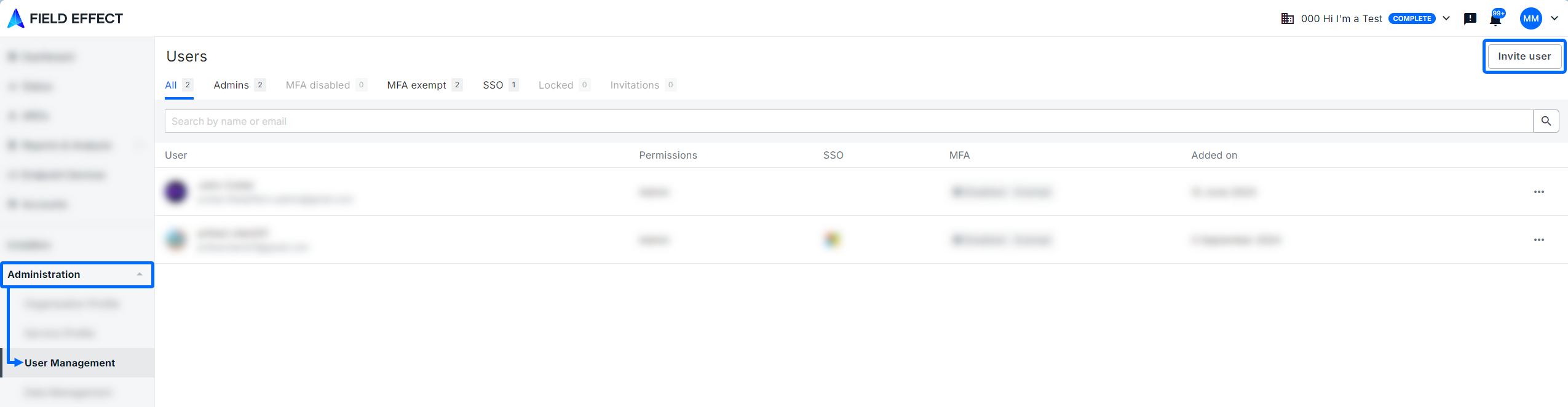
Create an Account and Sign In
By this point, you administrators should have started configuring the service and sending out invitations for end users to create an account and access your organization in the MDR Portal.
When you receive the email invitation, follow the link to the MDR Portal, create your account, and log in.
You cannot create an MDR Portal account until you have been invited into an organization.
Familiarize Yourself with the Homepage & Navigation
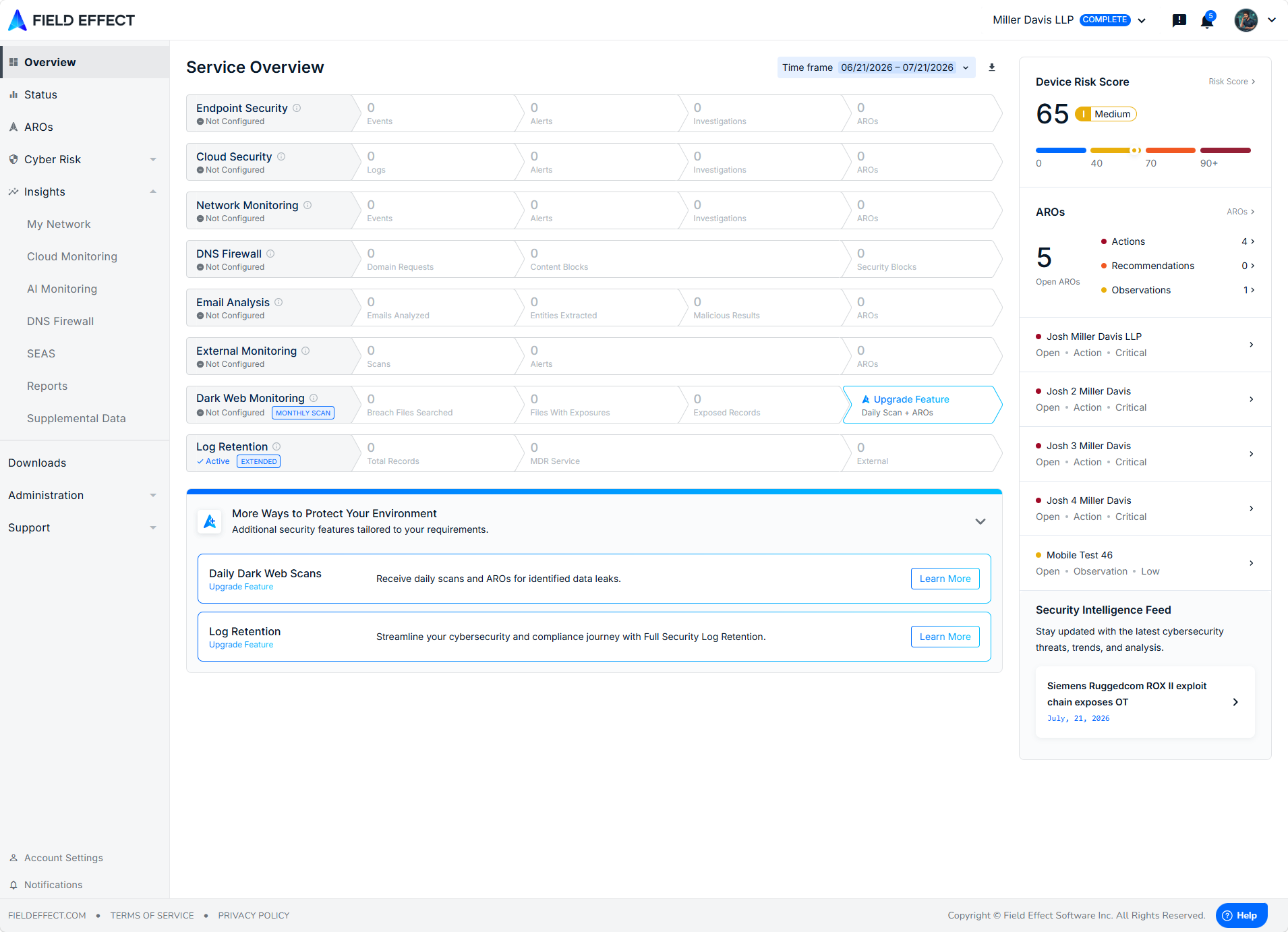
Once logged in, you will be taken to the Service Overview page, the MDR Portal's homepage. The data shown on this dashboard depends on your organization's service tier, and how far along your administrators are in the deployment process.
The sidebar organizes all the dashboards, reporting, and other settings, available in the MDR Portal.
Learn More:
Was this article helpful?
That’s Great!
Thank you for your feedback
Sorry! We couldn't be helpful
Thank you for your feedback
Feedback sent
We appreciate your effort and will try to fix the article