Introduction
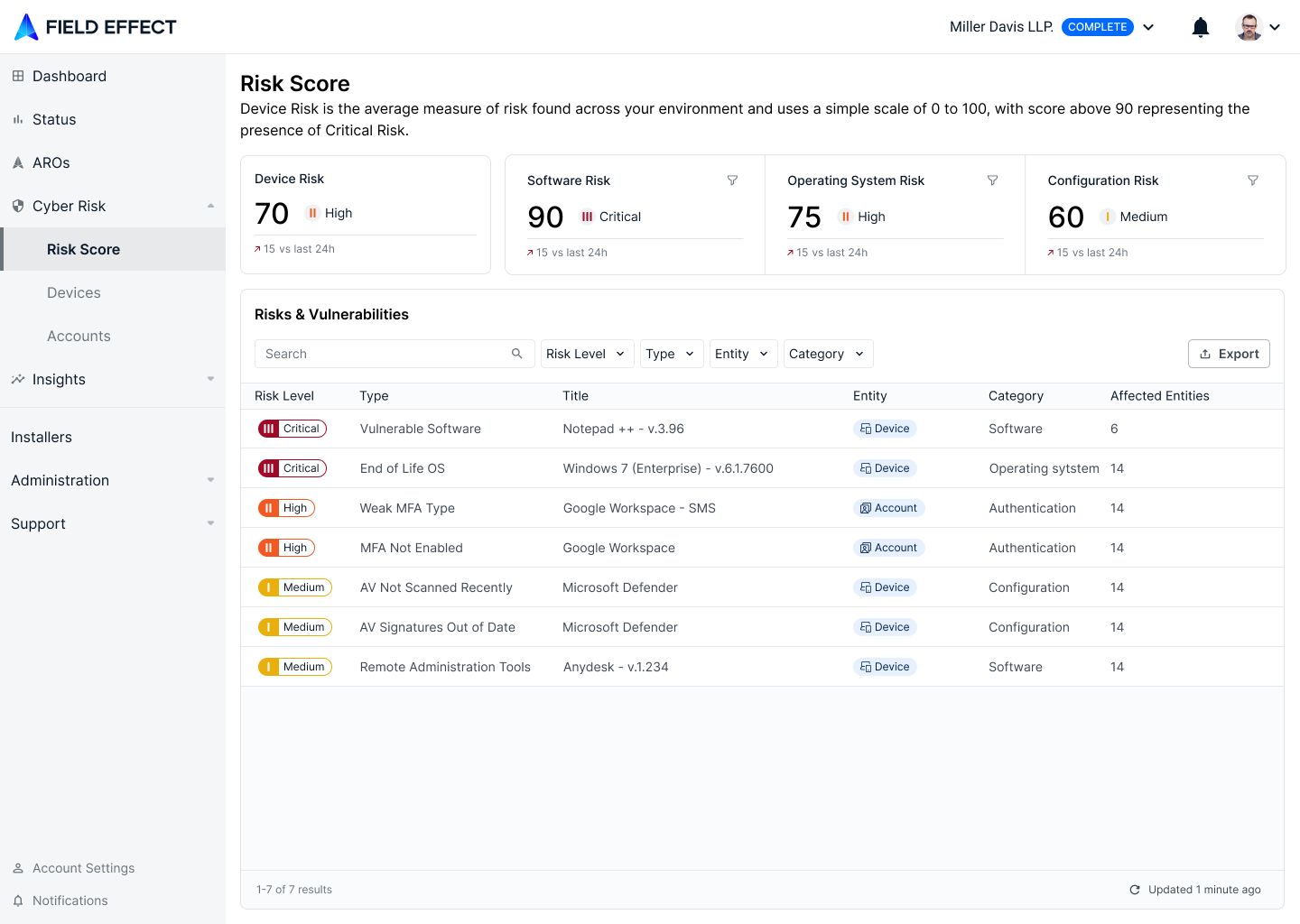
While it's important to analyze risk at the account and device level, there may be times when you need to investigate how a specific risk and vulnerability is affecting your entire organization. To support this, The Risk Score page presents your Risk Score Report findings in a dashboard, alongside a Risks & Vulnerabilities table showing every issue that make up the scores.
This article introduces the page and provides an overview of its functionality.
Video Overview
Risk Score Dashboard
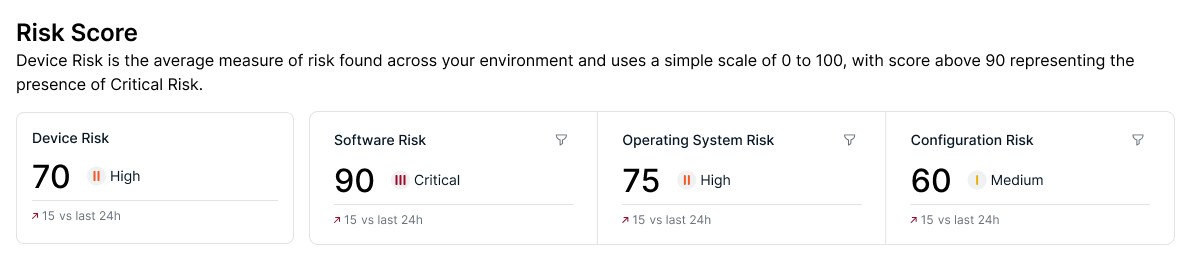
The Risk Score dashboard along the top of this page shows your most recent monthly Risk Score report. Device Risk represents the average measure of risk found across all of your Field Effect-monitored assets on a 0 to 100. Scores above 90 represent the presence of Critical Risk. Some devices will have higher and lower individual scores than your average, and you can learn more about each result within the report.
Field Effect measures device risk using an evolving set of analytics that identify Software, Operating System, and Configuration Risks.
- Software Risk is a measure of a device’s currently installed software. Sub-factors inform it, such as CVE publications, whether software is running, software behavior/permission patterns.
- Operating System Risk is a measure of a device’s operating system and closely related to both Software and Activity Risk - sharing many of the same informing sub-factors. This focuses on OS-specific security controls.
- Configuration Risk is a measure of activity taking place on a device. Sub-factors inform it, such as the use of embedded features and applications, recently installed or uninstalled software, activated or deactivated features/utilities, the type of networks the device connects to (particularly public ones), and more.
Click on one of the risk cards to filter the table below so it only displays risks and vulnerabilities related to that analytic.
Risk & Vulnerabilities Table
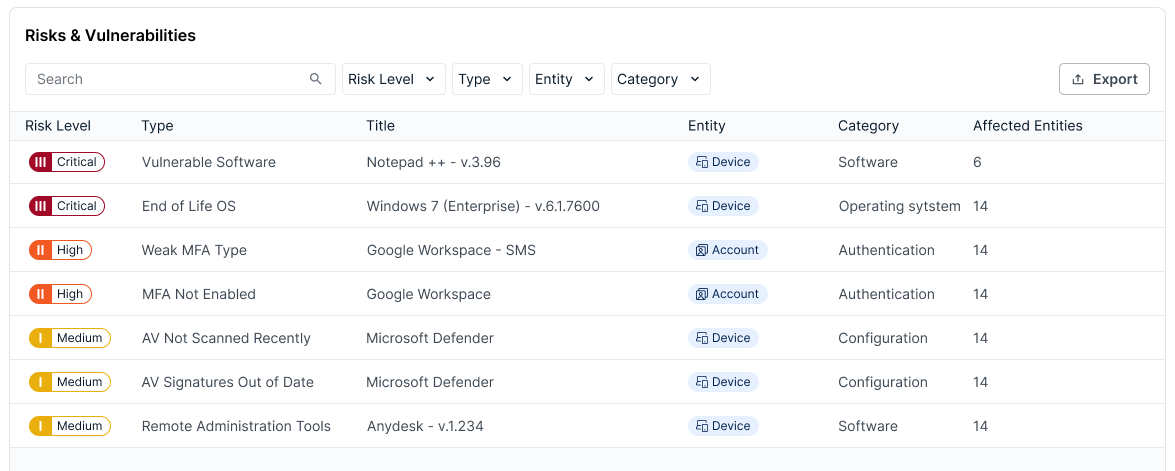
The Risks & Vulnerabilities Table gives you visibility into all risks and vulnerabilities currently present across your organization's accounts and devices.
Available Columns
This page consists mainly of a table that lists all the risks and vulnerabilities currently present in your, or your end clients', organization. The following columns are available, and clicking on a column header will change the table's current sorting to that column.
| Column | Description |
|---|---|
| Risk Level | The risk level Field Effect MDR has placed on the vulnerability |
| Type | The type of risk associated with the issue: Vulnerable Software, End of Life OS, Weak MFA Type, MFA Not Enabled, AV not scanned recently, AV signatures out of Date, Remote Administrative Tools, and more. |
| Title | Usually the name of the service, software, or other entity affected by the issue. For example, a Vulnerable Software issue will usually include the name of the affected software in the title. |
| Entity | Designates what the issue affects: account or device. |
| Category | Another identifier to help define and sort vulnerabilities. Examples include Software, Operating System, Authentication, Configuration. |
| Affected Entities | Lists the number of entities (accounts or devices) that the vulnerability is impacting. If a vulnerability's entity shows "devices" and the Affected Entities column shows 25, that vulnerability affects 25 endpoint devices. |
Searching & Filtering the Table
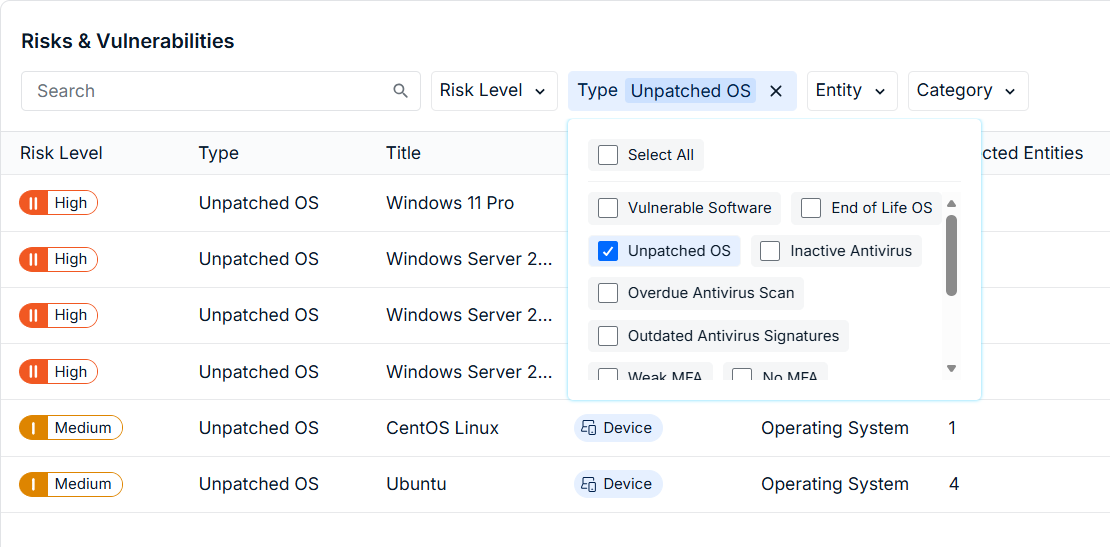
Use the search bar to find issues by keyword and the dropdown menus to filter the results by a certain metric. You can use filters, including several at once, while performing a keyword search. Check the criteria you want to filter by, and the MDR Portal applies them to the results.
The Details Pane
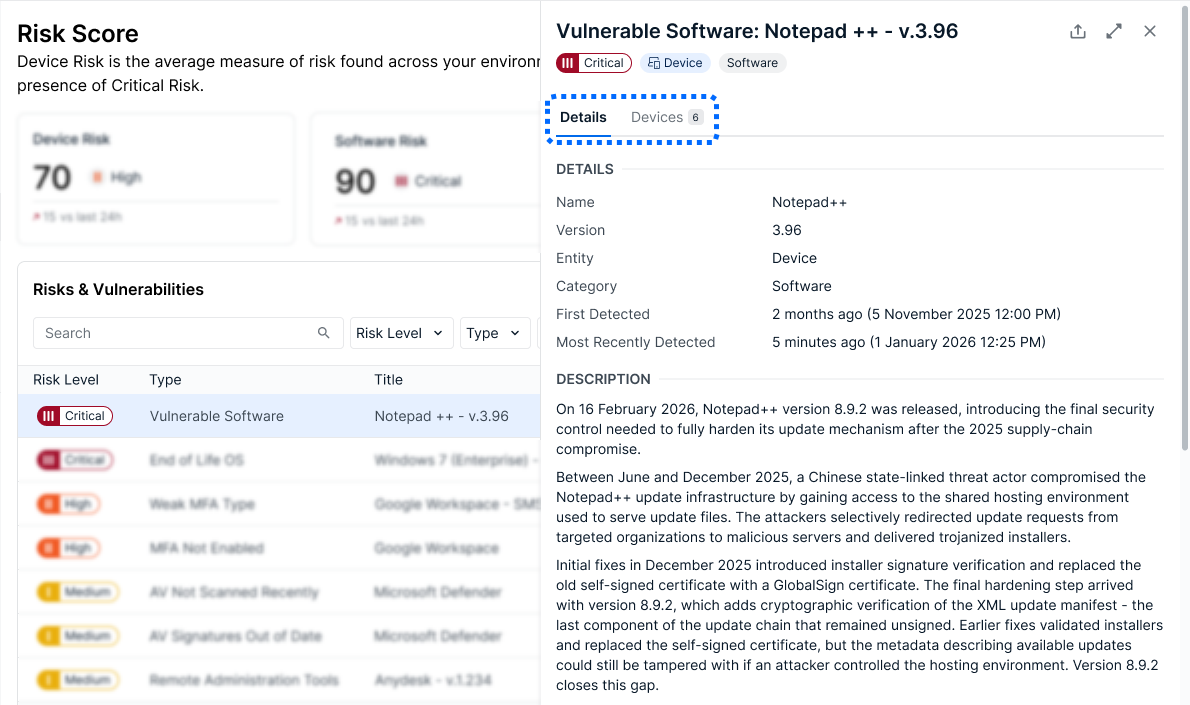
Click on an issue in the table to open the details pane. From here, you can view all the metrics shown on the table, along with up to three tabs - depending on the issue type:
Details: includes a description, metadata, and more to provide context. This tab is visible for all issues.
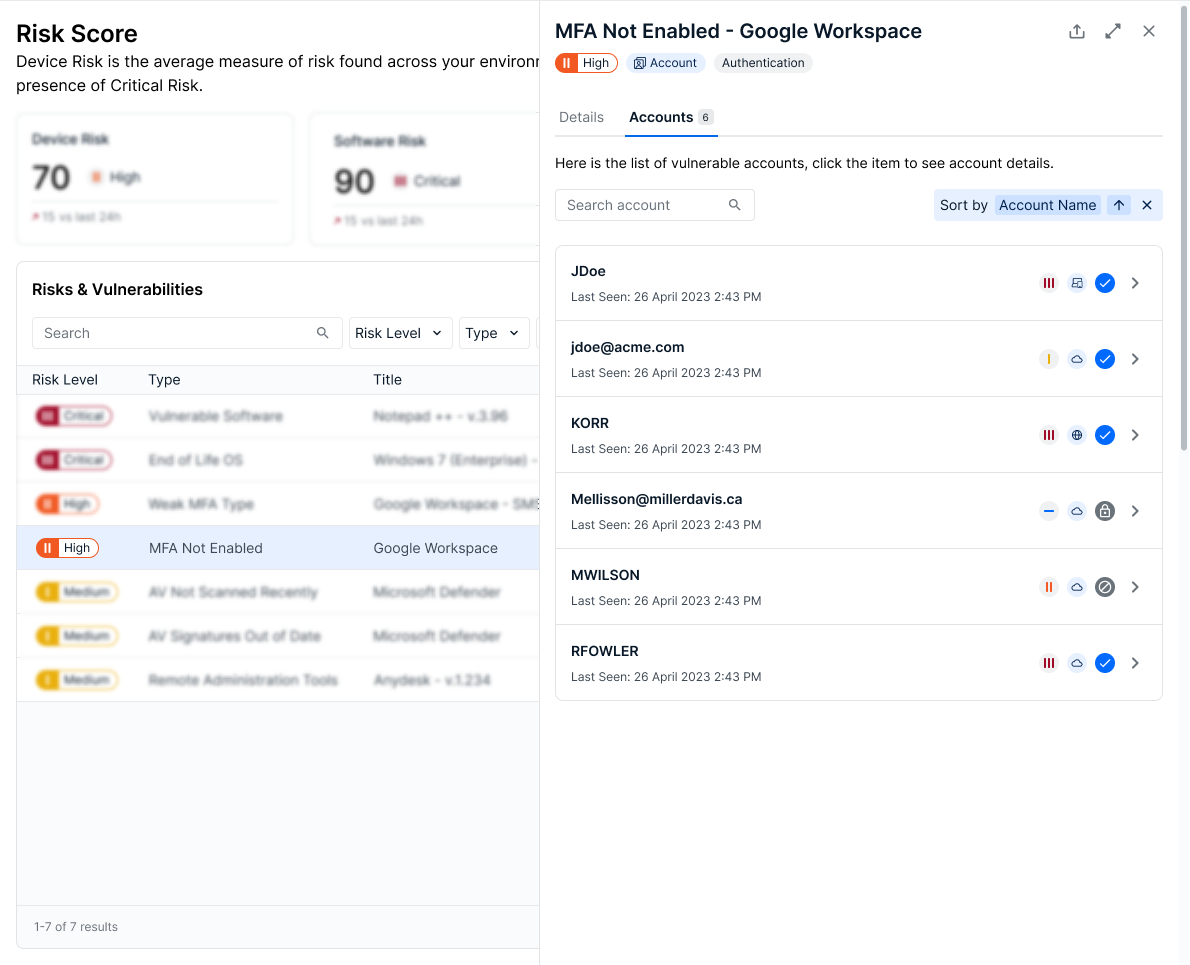
Accounts: lists all of the accounts affected by the issue. This tab is only visible for account type issues.
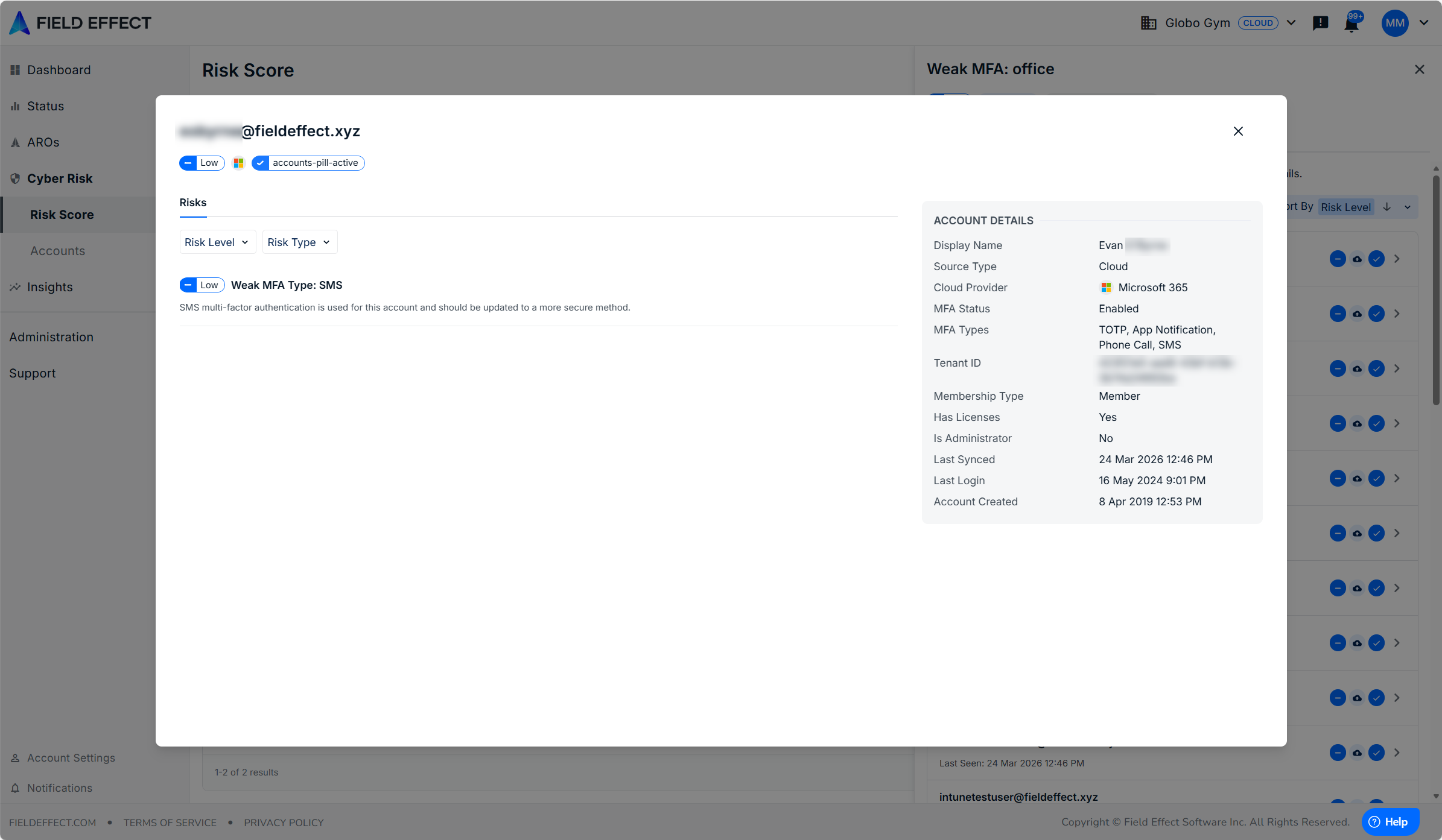
Clicking on an account in this view will drill into further detail, referencing data from the Accounts page.
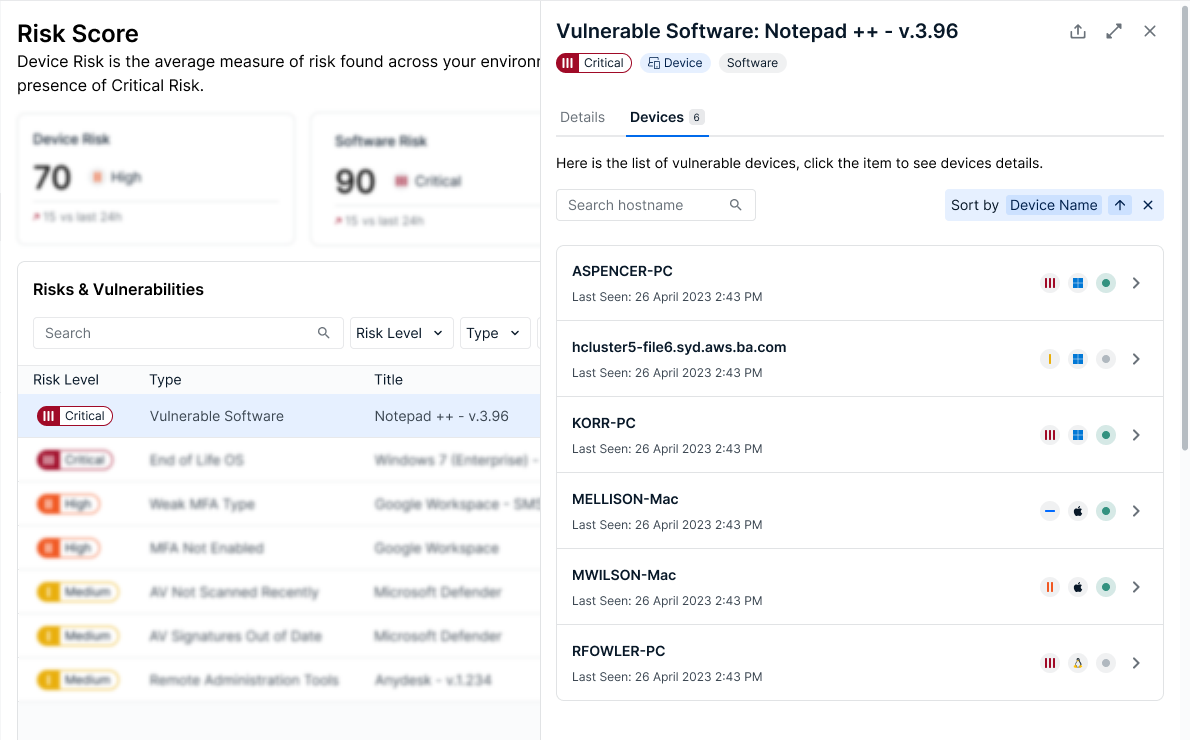
Devices: lists all of the devices affected by the issue. This tab is only visible for device type issues.
Clicking on an account in this view will drill into further detail, referencing data from the Devices page.
Details tab
In the example below, the user has drilled into an account that an MFA issue affects.
Accounts Tab
In the example below, the user has drilled into a device that a software issue affected. In cases where this list is extensive, you can use the search bar and sort dropdown to filter the results.
Click on an impacted account to open a drilled in view showing details from the Accounts page. This includes any other issues associated with the account, and its details. In the example below, the user is drilled into an account that is impacted by an MFA issue.
Devices Tab
In the example below, the user is viewing the Device tab for a software vulnerability impacting 6 devices. In in cases where this list is extensive, you can use the search bar and sort dropdown to filter the results.
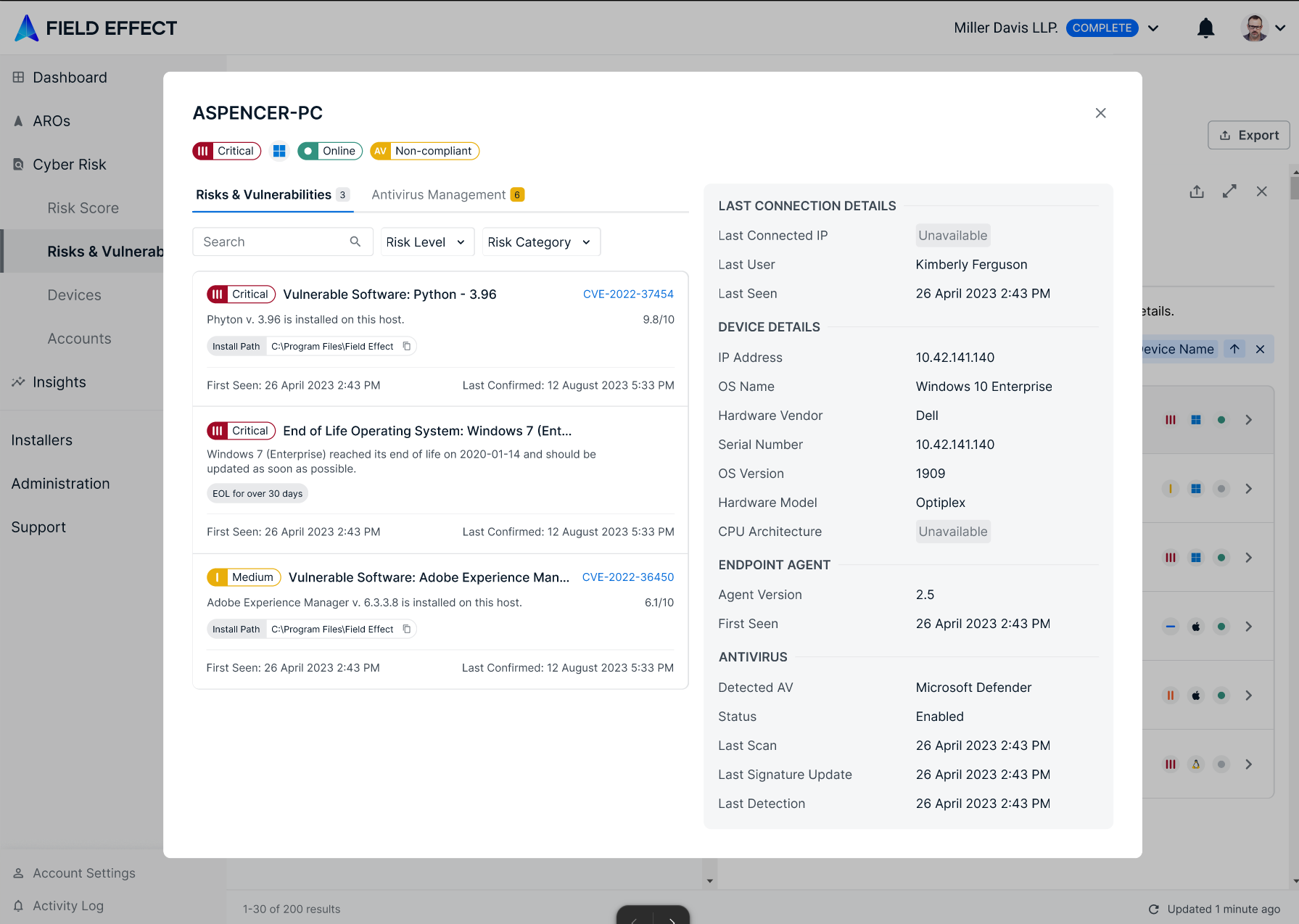
Click on an impacted device to open a drilled in view showing details from the Devices page. This view shows other issues associated with the device, antivirus metrics, and connection details. In the example below, the user is drilled into a device that was impacted by a software issue.
Was this article helpful?
That’s Great!
Thank you for your feedback
Sorry! We couldn't be helpful
Thank you for your feedback
Feedback sent
We appreciate your effort and will try to fix the article