Introduction
The Appliance Management Console allows administrators to manage and troubleshoot their Field Effect network sensor. From the console, you can configure IP addressing, verify connectivity, review network traffic visibility, view system logs, change appliance credentials, and reboot the appliance when required.
This article covers the following topics:
- Access the Appliance Management Console
- Appliance Types and Interfaces
- Main Menu Options
- Configure a Static IP Address
- Check Connectivity Status
- Check Network Traffic Status
- View System Logs
- Change the Password
- Toggling the Appliance's Relay Tunnel
- Reboot the Appliance
Access the Appliance Management Console
You can access the Appliance Management Console either locally or remotely.
The credentials will vary depending on your network sensor. See Finding Your Sensor's Service Tags and MAC Addresses to learn more.
From the Same Network
- Determine the local IP address of your network sensor.
- Open a web browser.
- Navigate to:
- https://<sensor-ip-address>/appliance_status/status
Using SSH
- Determine the local IP address of your network sensor.
- Connect to the appliance using an SSH client such as PuTTY or WinSCP on port 22.
- Sign in using the credentials assigned to your appliance.
If you are using a physical sensor, you can also connect directly using a monitor and keyboard.
Appliance Types and Interfaces
The interfaces available in the Appliance Management Console depend on your appliance model. The console can be used to assign a static IP address when DHCP is unavailable or when alternate addressing is required.
Business and Enterprise Appliances
These appliances include:
- Green management port (DHCP)
- Red management port (static addressing)
Oskar Appliances
These appliances include:
- Green management port (DHCP)
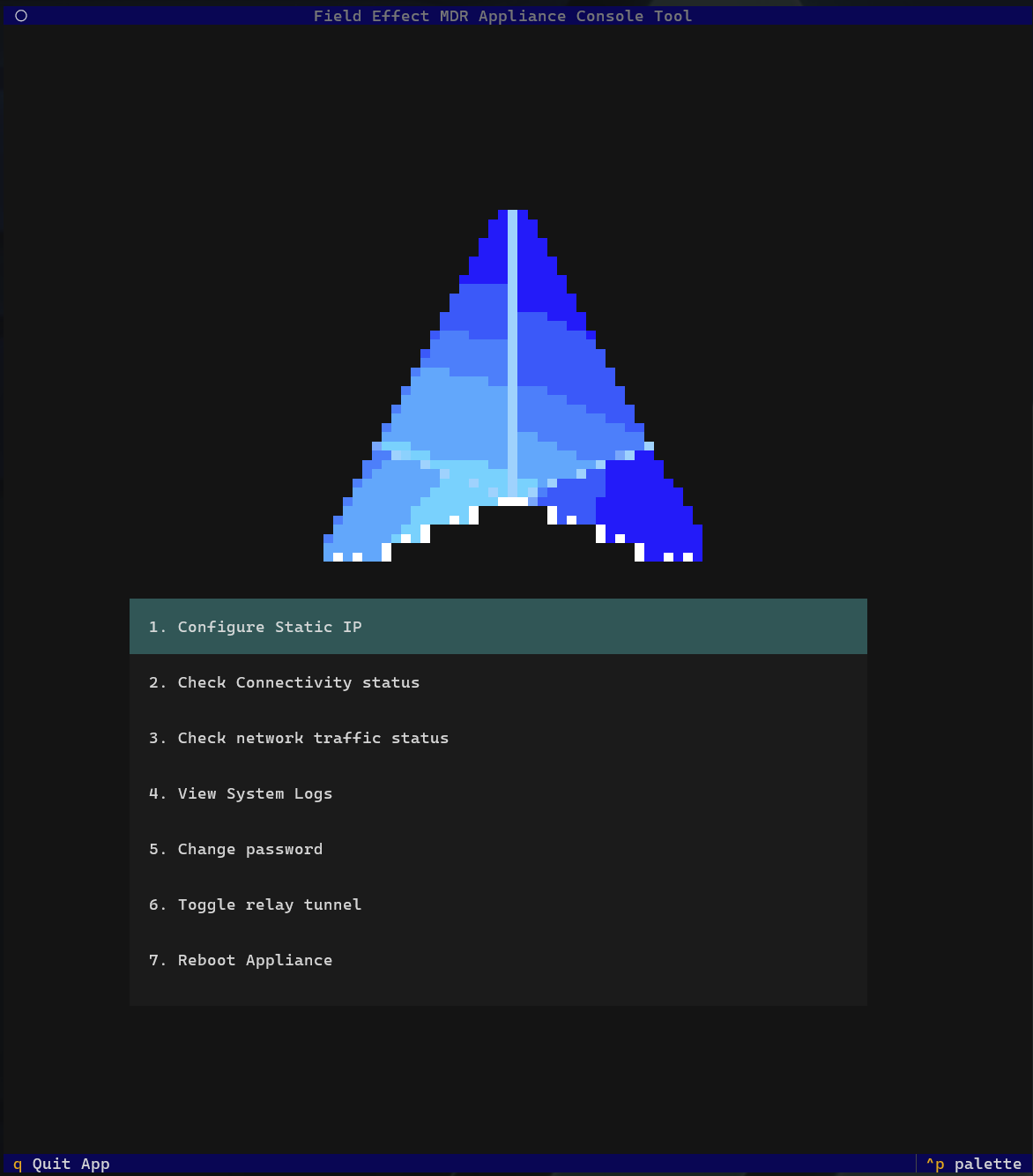
Main Menu Options
The following options are available after you have logged into your sensor:
| Option | Description |
|---|---|
| Configure Static IP | Configure or remove static IP settings |
| Connectivity Status | Verify communication with Field Effect services |
| Network Traffic Status | Confirm the appliance is receiving useful network traffic |
| System Logs | View diagnostic and troubleshooting information |
| Change Password | Update appliance login credentials |
| Reboot Appliance | Restart the appliance |
Configure a Static IP Address
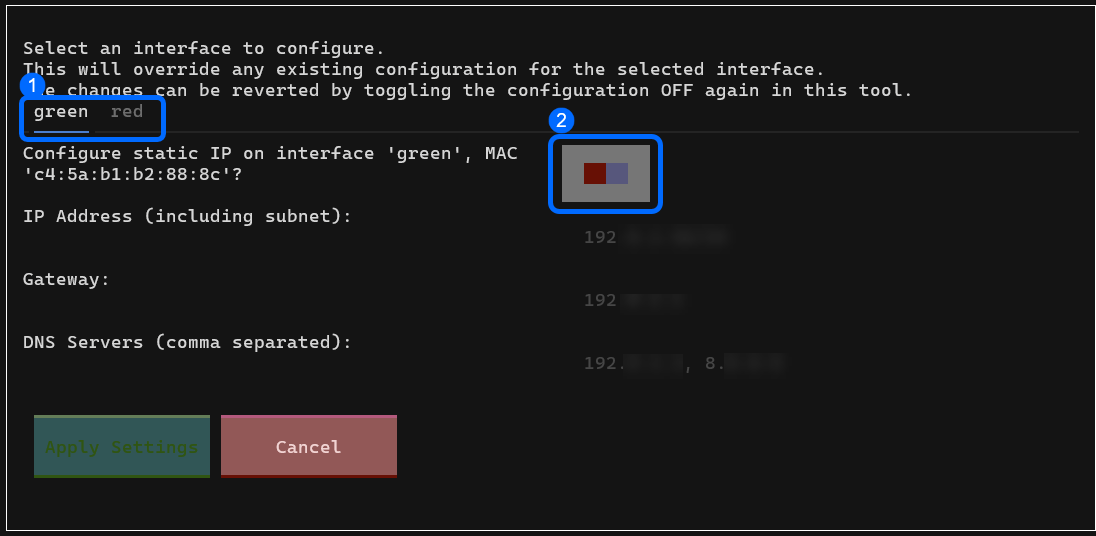
To configure a static IP address:
- Select 1. Configure Static IP in the main menu.
- Choose the interface you want to configure (red, green, etc.)
- available interfaces depend on your sensor model.
- Enable Edit Mode (callout 2 in the fiure below).
- Enter the required network settings.
- Include CIDR notation in the IP address field (for example, /24).
- Select Apply Settings.
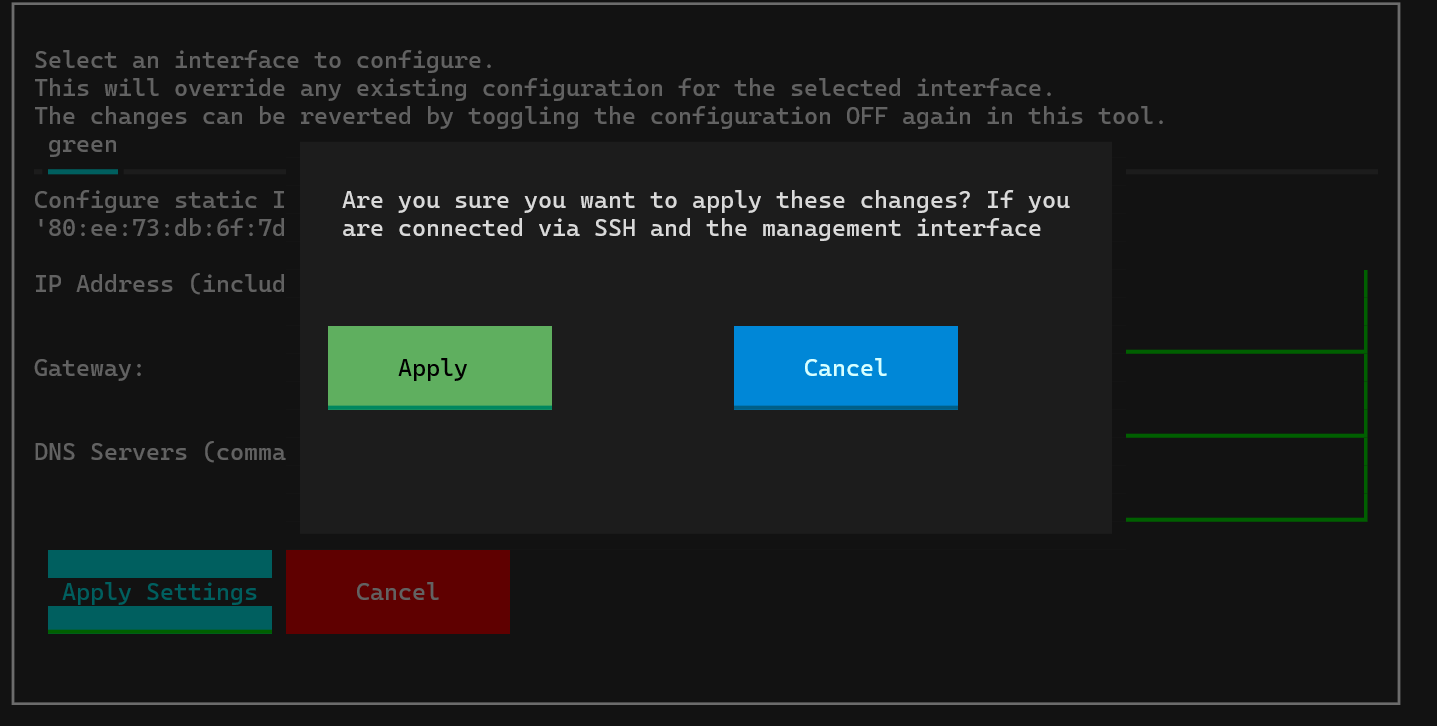
- Confirm the changes when prompted.
Important: If you connected through SSH using the interface being modified, your session may disconnect and require reconnection.
Remove Static IP Settings
To remove a static IP configuration:
- Select 1. Configure Static IP in the main menu.
- Select the configured interface.
- Disable Edit Mode.
- Select Apply Settings.
The interface returns to its previous configuration.
Check Connectivity Status
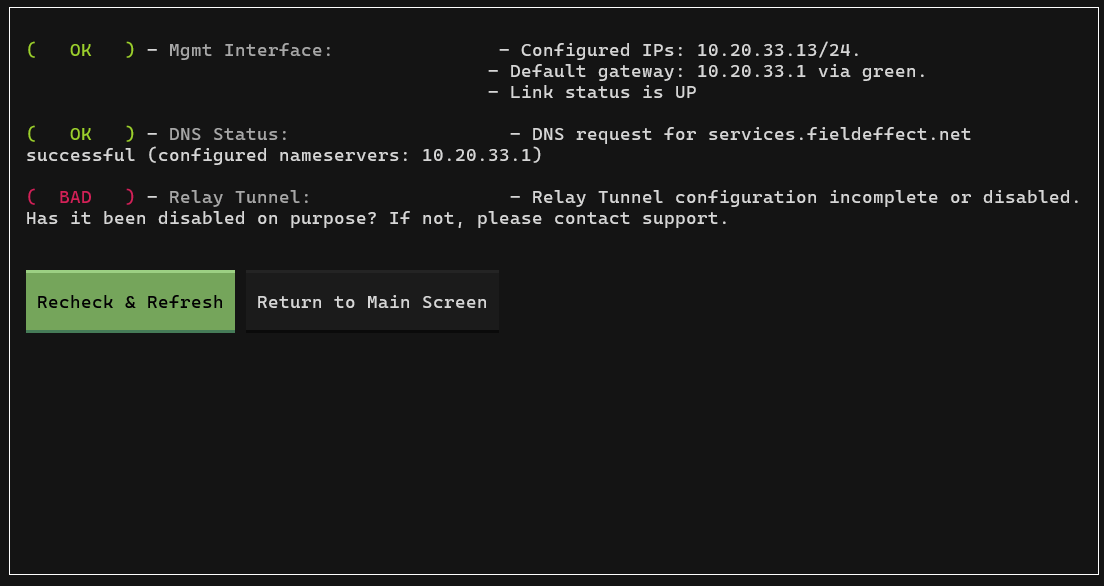
Use Connectivity Status to verify that the appliance can communicate with Field Effect services.
- Select 2. Check Connectivity Status in the main menu.
- Review the displayed results.
- Select Recheck & Rerun to perform a new test.
If connectivity problems continue after rerunning the test, contact Field Effect Support and provide the results shown in the Connectivity Status screen.
Check Network Traffic Status
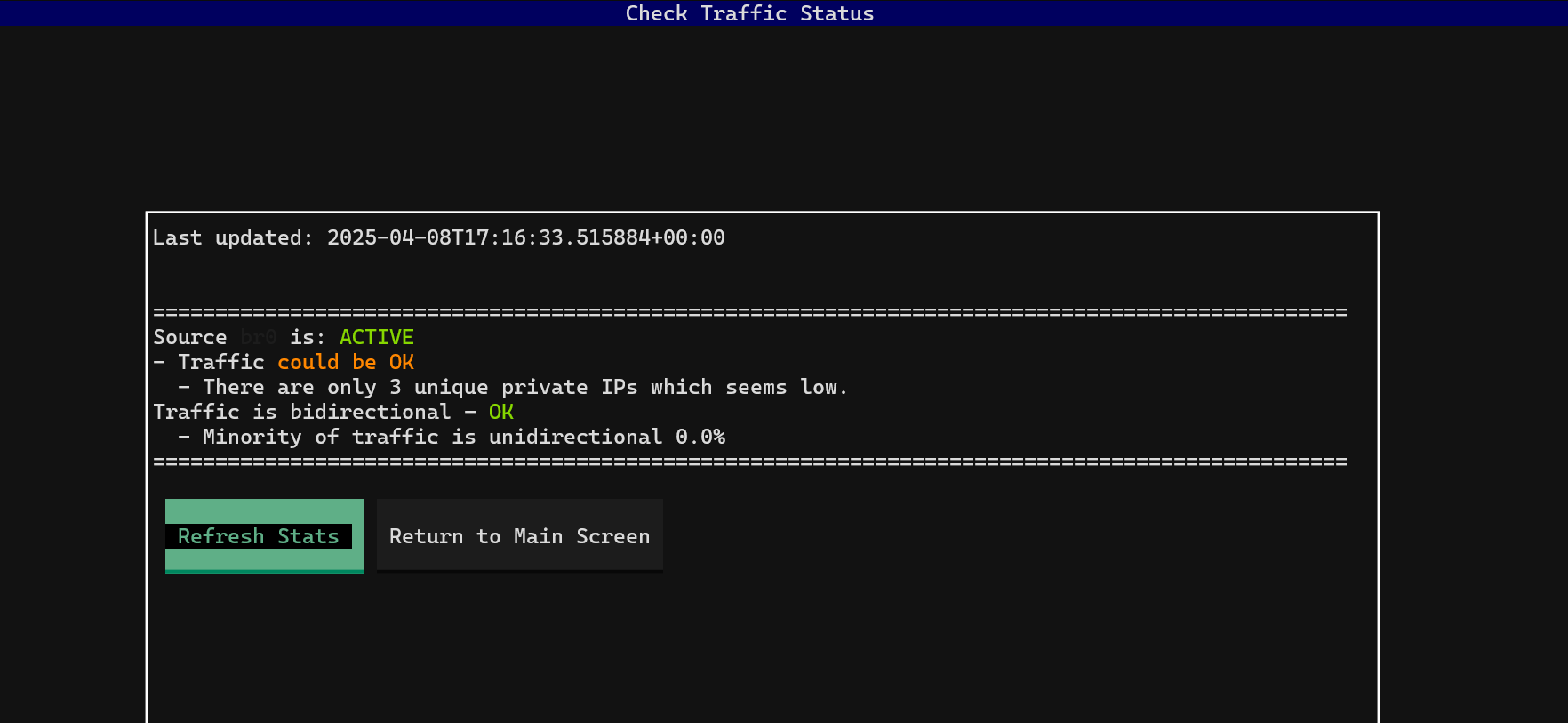
Use Network Traffic Status to verify that the appliance is receiving and analyzing useful network traffic.
- Select 3. Check Network Traffic Status in the main menu.
- Review the traffic analysis results.
The appliance may report issues when:
- No internal hosts are communicating with public IP addresses.
- Most observed traffic is external-only traffic.
- Traffic is detected from five or fewer internal devices.
These conditions can indicate low visibility or an incorrect network traffic source.
View System Logs
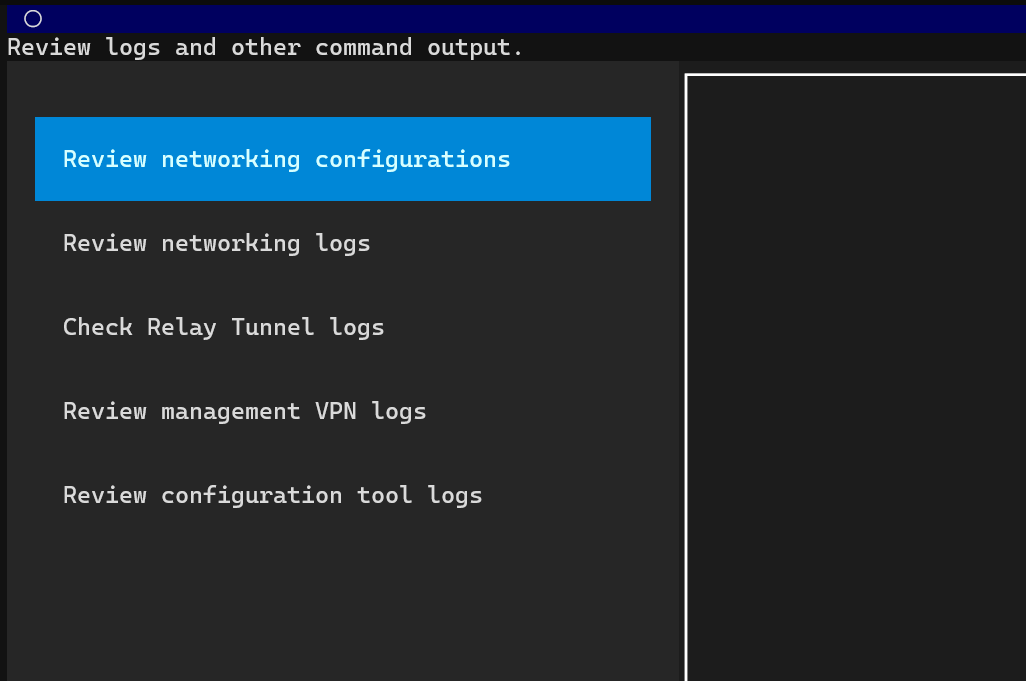
System Logs provide diagnostic information that can help troubleshoot connectivity or deployment issues.
- Select 3. View System Logs from the main menu.
- Select a log category using the keyboard controls.
- Review the information requested by Field Effect Support.
You may be asked to provide log output or screenshots during troubleshooting.
Change the Password
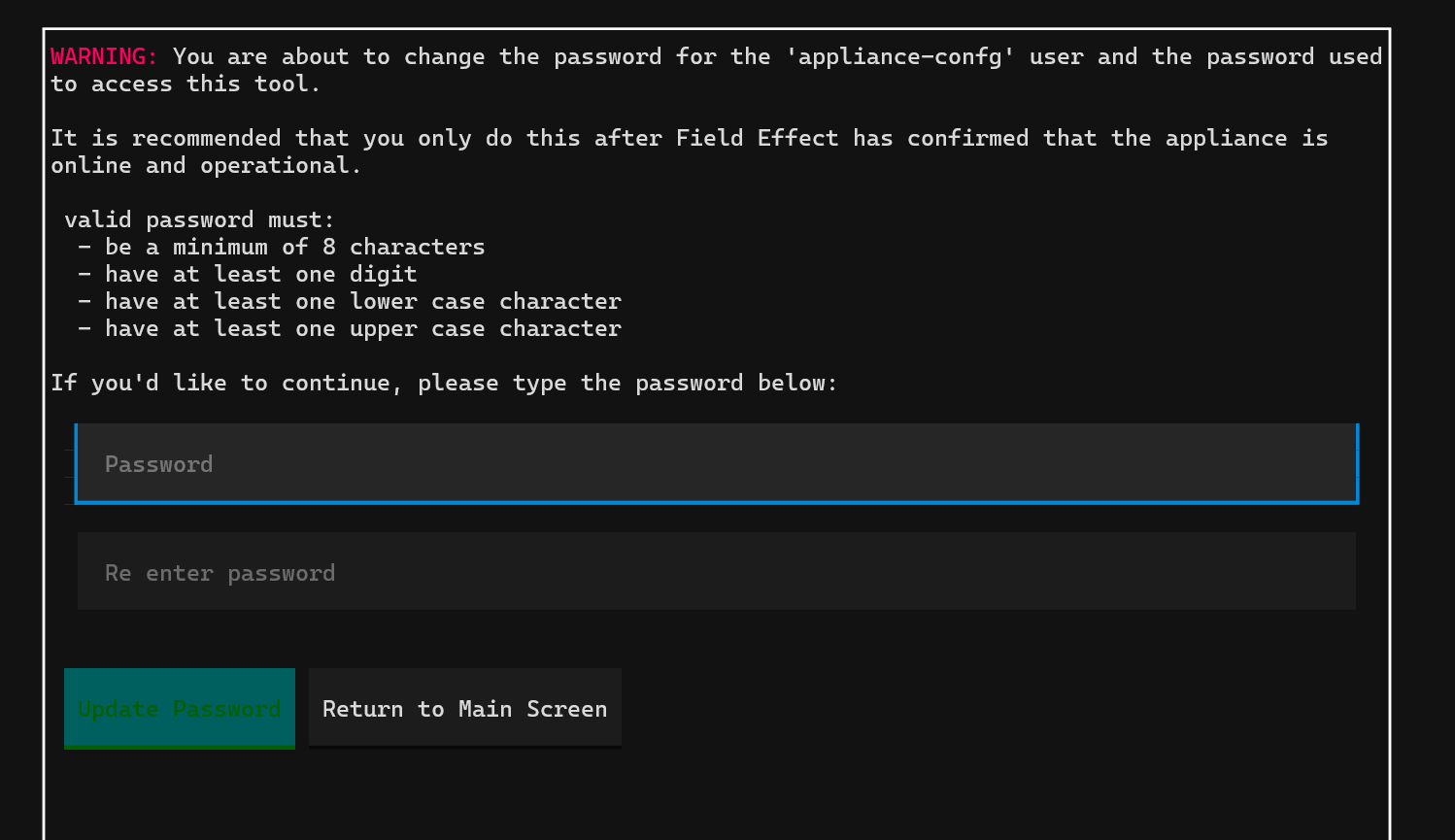
To change the sensor's password:
- Select 5. Change Password in the main menu.
- Enter the new password.
- Re-enter the password to confirm.
- Select Update Password.
Important: Store the new password securely. Future console access will require the updated credentials.
Toggling the Appliance's Relay Tunnel
This feature exists for troubleshooting purposes, and should only be used with Field Effect's recommendation. Disabling this tunnel without notifying Field Effect will most likely result in an interruption of service.
Reboot the Appliance
You can remotely restart the appliance when troubleshooting or maintenance requires it.
- Select 7. Reboot Appliance in the main menu.
- Confirm the reboot when prompted.
Rebooting the appliance temporarily interrupts monitoring while the system restarts.
Was this article helpful?
That’s Great!
Thank you for your feedback
Sorry! We couldn't be helpful
Thank you for your feedback
Feedback sent
We appreciate your effort and will try to fix the article