Introduction
Identifying malicious emails can be a challenge, especially as threat actors continuously change and evolve their tactics. Be it a social engineering campaign or malicious attachment, email inboxes are a prime attack surface.
SEAS is a service that allows users to submit any email they find suspicious for analysis. Once enabled, any user can send a suspicious email to SEAS through their Outlook or Google email client. Furthermore, SEAS is supported on Outlook for Android and iOS, so users can submit suspicious emails directly from their mobile device.
Once you submit an email to SEAS, our technology analyzes its metadata, content, attachments, and more for indicators of malicious intent. When merited, our analysts may also conduct a manual analysis of the email submission to verify, augment, or improve the accuracy of the analysis.
Video Overview - SEAS
What does SEAS look for?
SEAS is more than a traditional spam filter. The same technology powering Field Effect powers the service, resulting in a sophisticated inspection that considers the context of your business. While SEAS analyzes the email for technical indicators, it also inspects for social engineering and other techniques that may evade traditional spam filters.
Once you submit an email, SEAS begins analyzing it. Due to the nature of investigations, the approach may vary from submission to submission. But, some common analysis points include:
- Email headers
- Email body
- Attachments
- Links
- Blacklist checks against selectors, domains, and IP addresses.
In addition to the points above, our human analysts provide a level of intervention that looks for signs of any tactic that is characteristic of deception, social engineering, phishing, or delivering malicious code and files via email.
Setting up SEAS
Please ensure you have added your organization's Email Domains to your monitoring profile. SEAS uses these domains to organize and associate SEAS submissions.
To learn more on deploying SEAS read our guides on:
- Installing the Extensions:
- Using the Extensions::
- Viewing SEAS Reports in the Field Effect MDR Portal
Enabling SEAS Submission Notifications
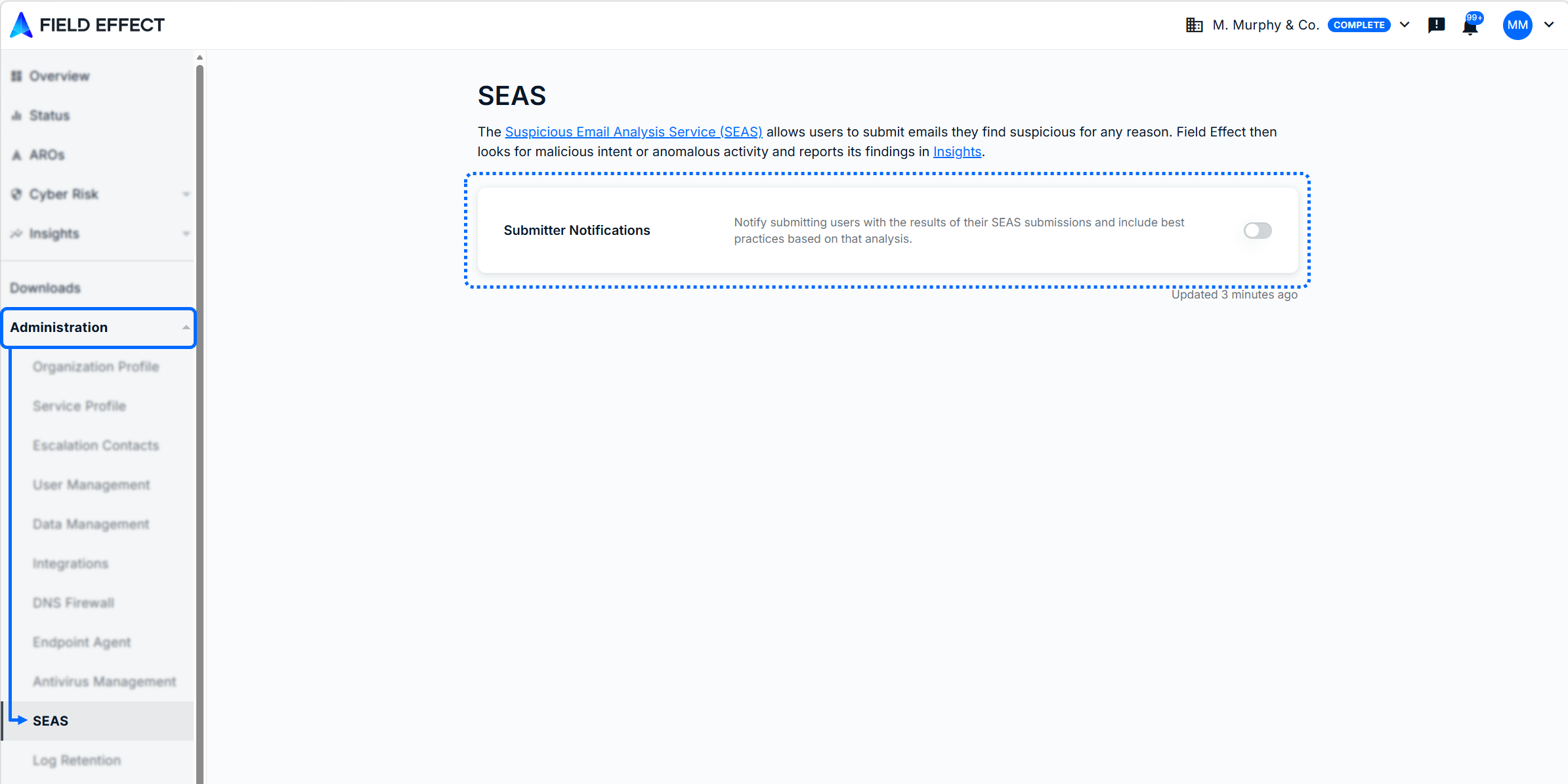
While users can always generate SEAS submissions once deployed, admins can choose whether or not they would like submitters to receive updates about their submissions.
Navigate to the SEAS page in the Administration section to toggle submitter notifications.
When should an email be submitted?
Any email that a user finds suspicious may be worth submitting - If in doubt, submit it to SEAS.
Examples include:
- Emails claiming to be from within your organization that have the incorrect domain name.
- Example: “fieldefect.com” instead of “fieldeffect.com”
- Emails claiming to come from within your organization that ask you to transfer funds.
- Example: CEO asking you purchase gift cards or send money to a non-organizational email.
- Emails claiming to be from a well-known company asking you to move money, click a link, or take a survey.
How can users submit emails to SEAS?
If your organization is unable to utilize one of our plugins, submissions can be sent for analysis by forwarding the suspicious email as an attachment to seas@protect.fieldeffect.net.

Forwarding as an attachment will ensure the email and its headers remain intact as these are a critical element for the analysis.
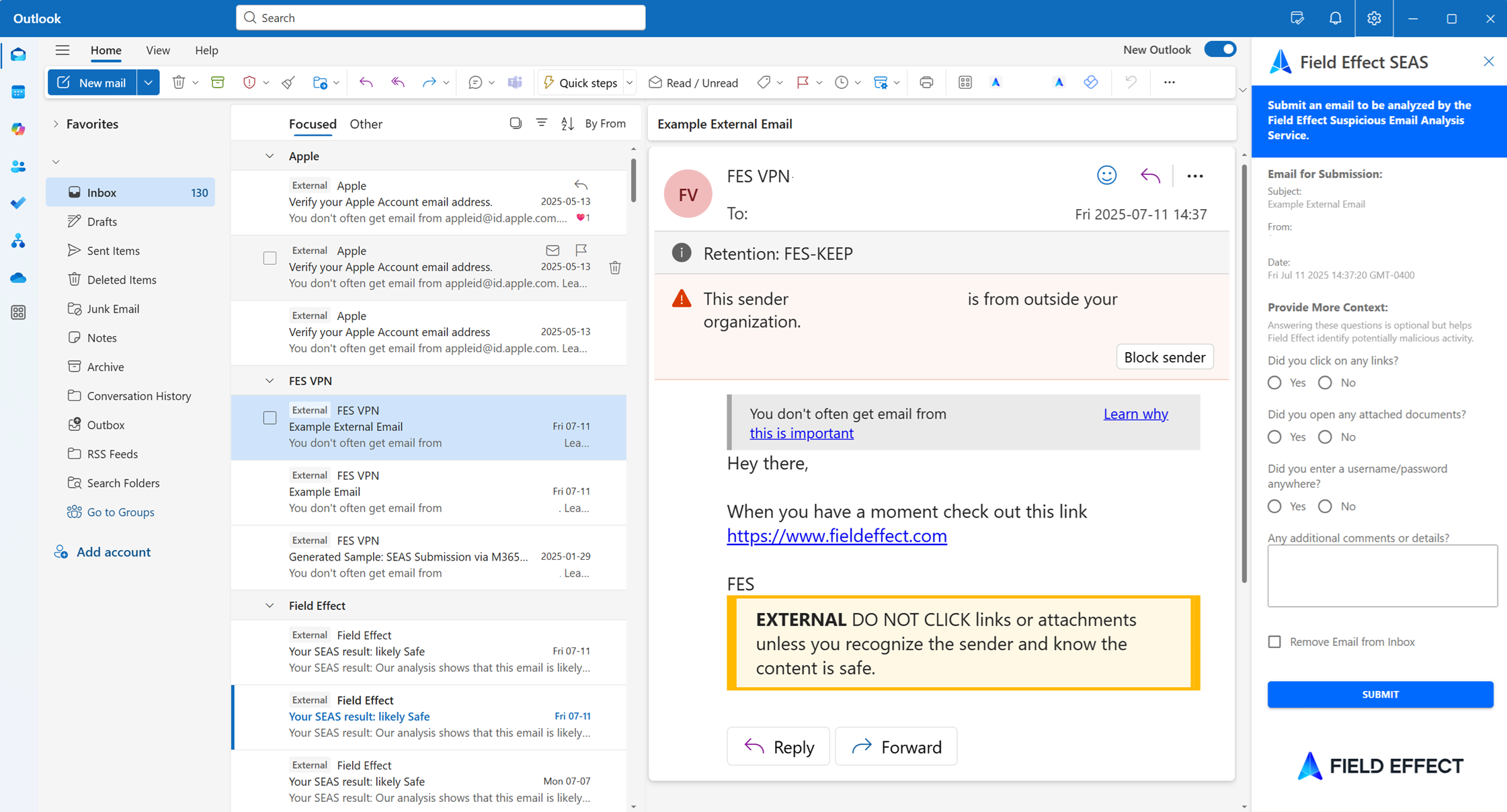
You can submit emails through the Google Workspace or Microsoft 365 add-ins. If you’re an admin or a partner, you will need to install these plugins within Google Workspace and/or Microsoft 365. Once installed, users can create SEAS submissions from their email client.
The example below shows the SEAS submission form open in Outlook. Clicking Report Email in Outlook’s Home tab will open the form, where the submitter can provide context as to email and why they find it suspicious.
How do submitters view the results?
Partners: if you have a co-branding theme enabled, the notification described in this section will adhere to your theme’s settings.
If you are submitting an email to SEAS, and you do not have an MDR Portal account, you will be able to view the results via email.
After the analysis is complete, you will receive an email notification containing all the baseline information about your submission, as well as next steps for dealing with the email.
The example below shows an email notification for a submission that SEAS found to be malicious.

How do administrators view the results?
Partners: SEAS submissions are organized by client. Use the Organization Selector to view SEAS submissions for each client you manage separately.

To view submissions made by your team, set the Organization Selector to the Partner view.
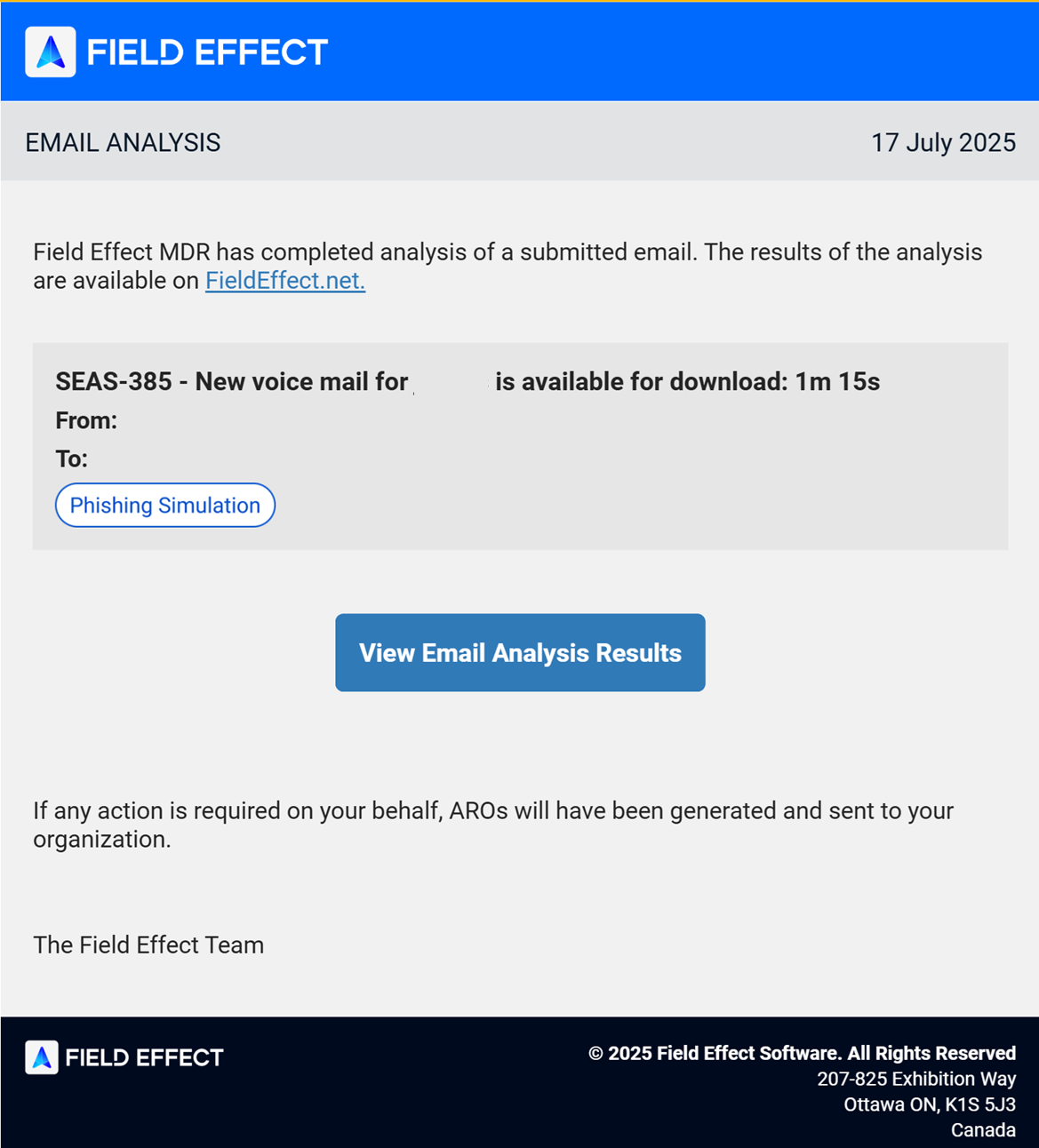
Administrators (and partners managing deployments) receive a notification for every SEAS submission, as long as they've enabled SEAS report notifications.
Once enabled Administrators will receive the following email:
Viewing submissions in the MDR Portal
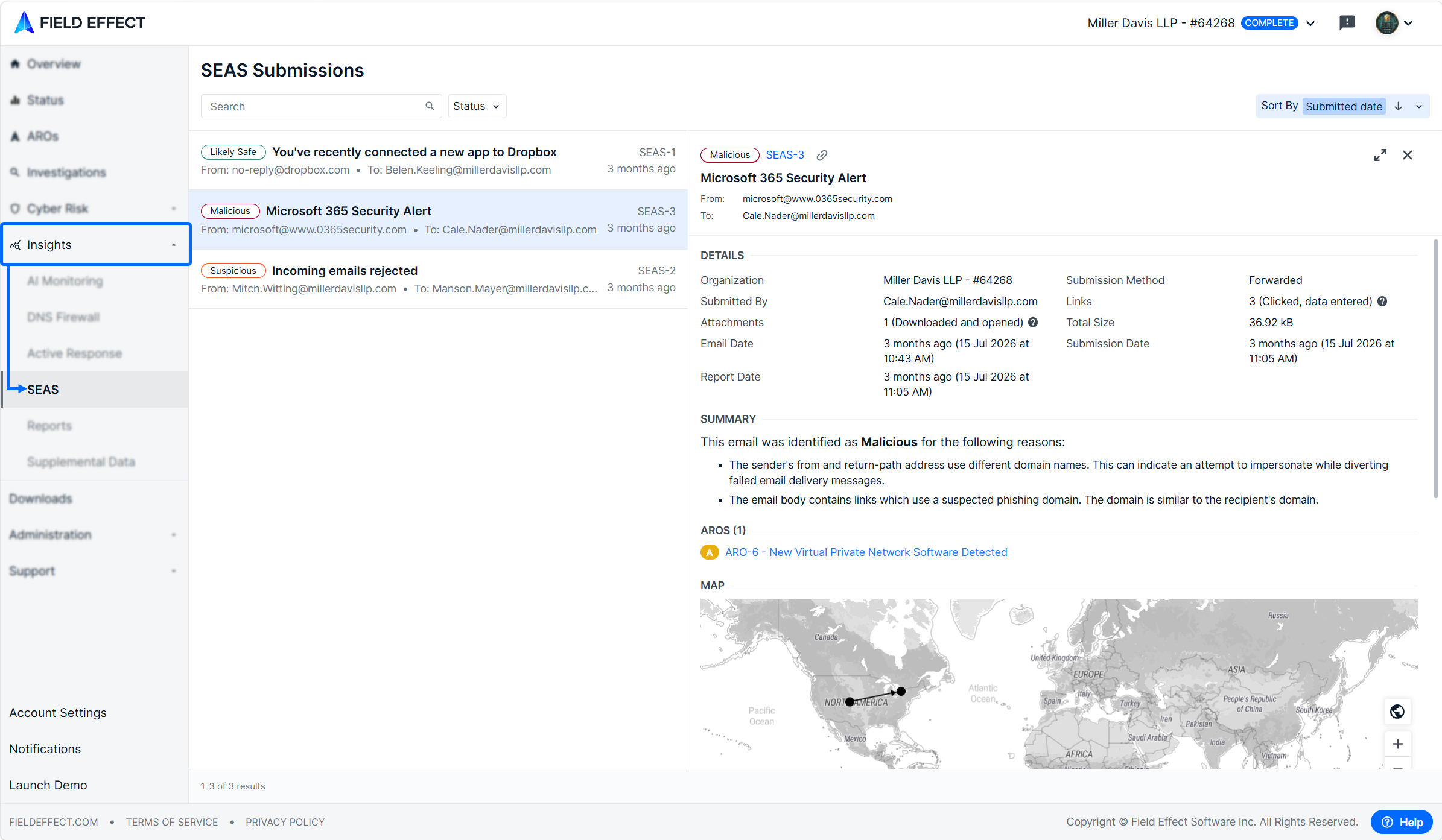
You can view all SEAS submissions on the MDR Portal's SEAS page, in the sidebar's Insights section.
The page works like a traditional email client: the left panel lists submissions, and a central pane shows the selected submission.
From the SEAS page you can view:
- Details about the email (sender, date, report date, etc.).
- A summary explaining why SEAS rated the submission Likely Safe, Suspicious, or Malicious.
- Links to any ARO related to, or the result of, the submission.
- Geographic details about the submitted email’s origin/destination.
- Details about the sender (email, display name, IP address, mail service, etc.).
SEAS statuses
Once SEAS analyzes an email, it assigns one of the following statuses:
- Pending: the state the submission will take before the SEAS analysis begins.
- Delayed: if the analysis will take more than five minutes, it will have a delayed status until finished.
- Likely Safe: SEAS determined the email is likely safe.
- Suspicious: SEAS determined the email is a potential security concern.
- Malicious: SEAS determined the email is a security threat.
- Phishing Simulation: SEAS determined the email is part of a phishing simulation.
- Spam: SEAS determined the email is spam.
- Inconclusive: the submission had insufficient indicators to conclusively identify the email as being safe or malicious.
Was this article helpful?
That’s Great!
Thank you for your feedback
Sorry! We couldn't be helpful
Thank you for your feedback
Feedback sent
We appreciate your effort and will try to fix the article