Introduction
This article walks through the process of manually uninstalling the endpoint agent on macOS.
If you are a partner with access to Field Effect Vision, you can use the uninstall actions to schedule, or immediately, uninstall an endpoint agent from a device. See our Action Center article to learn more.
Part 1 (Optional) - Agent Protection Considerations
We recommend disabling Endpoint Protection just on the device(s) you want to uninstall. It can take up to 30 minutes for endpoint protection to become disabled on the device.
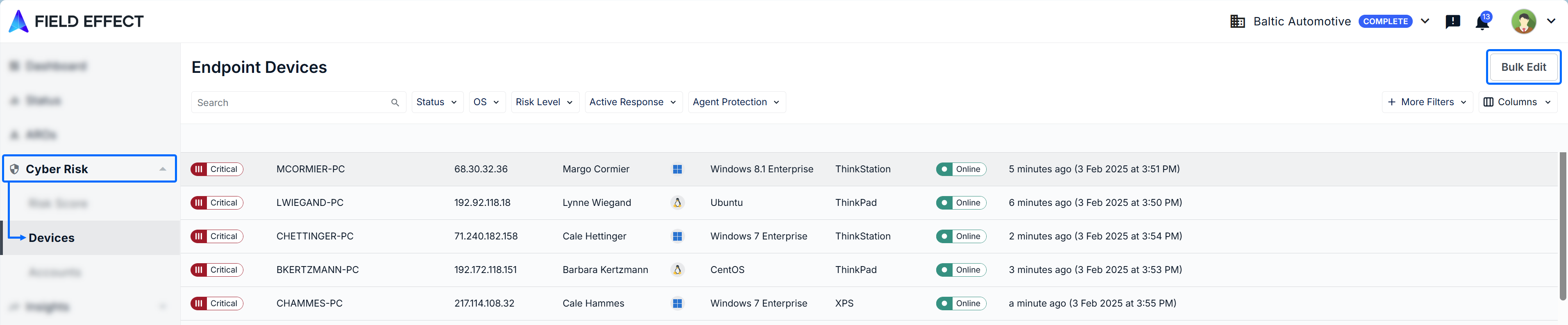
Agent Protection prevents the agent from being uninstalled on a device manually, including administrator accounts. If your organization uses this feature, you will need to disable it for the device you want to uninstall the endpoint agent from. See our Help Center article on bulk editing to learn more about disabling agent protection for specific devices.
Part 2 - Uninstall the Agent
Use Launchpad to open Terminal and Run the following uninstall script:
/Applications/Covalence.app/Contents/scripts/uninstall.sh


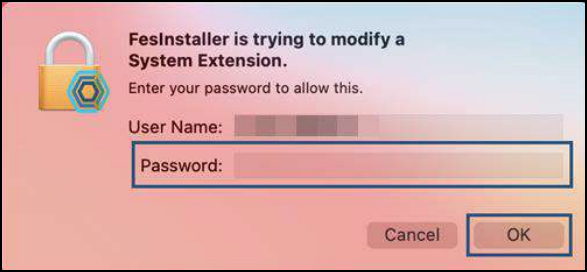
Next, you’ll be presented with a dialogue to enter your administrator password a second time. This is required to remove the System Extension(s). Enter your administrator password and click 'Ok' to continue.
Once the script has completed, you will be returned to the command prompt and you may close the Terminal application.

Was this article helpful?
That’s Great!
Thank you for your feedback
Sorry! We couldn't be helpful
Thank you for your feedback
Feedback sent
We appreciate your effort and will try to fix the article