Introduction
This article specifically covers how to uninstall the Field Effect Endpoint Agent from a Windows 11 device.
Uninstallation of the Endpoint Agent will result in the device no longer being monitored by Field Effect.
Should the device continue to be used withing your network without the Endpoint agent running, the device will be flagged by an appropriate ARO informing you that "A host has been observed to be running without the Endpoint agent installed."
The Uninstallation of the Endpoint Agent may be required when you are decommissioning a PC or Server and do not want for it to appear in the MDR Portal. The steps below will help you to remove the agent using the Windows UI.
If you are a partner with access to Field Effect Vision, you can use the uninstall actions to schedule, or immediately, uninstall an endpoint agent from a device. See our Action Center article to learn more.
Scope
This article requires access to the Windows 11 device where you will use the Windows 11 UI to perform the uninstallation.
Should the Windows 11 device be rebuilt, recycled or lost prior to its uninstallation, the device will continue to appear on the Endpoint Devices page and you will not be able to uninstall the Endpoint Agent.
After 60 days of inactivity, the Windows 11 device will naturally disappear from the MDR Portal.
Alternatively you can contact support@fieldeffect.com to have the device manually removed. Please include the name of the Endpoint and the client (where relevant).
Table of contents
- Step 1 - Disable Agent Protection
- Step 2 - Login
- Step 3 - Navigate
- Step 4 - Locate app
- Step 5 - Reveal uninstall option
- Step 6 - Uninstall
- Step 7 - Confirm
Uninstall steps
Step 1 - Disable Agent Protection
Agent Protection prevents the agent from being uninstalled, even by an Administrator.
From the Devices page's within the Field Effect MDR us the Bulk Edit feature to disable Agent Protection for the device(s) you are uninstalling.
We do not recommend disabling Endpoint Protection globally.  Protect your fleet and disable Agent Protection just on the device(s) you want to uninstall.

It can take up to 30 minutes for the Endpoint to be disabled.
Step 2 - Login
After waiting 30 minutes for Agent Protection to be disabled, log into the Windows 11 device.
Step 3 - Navigate
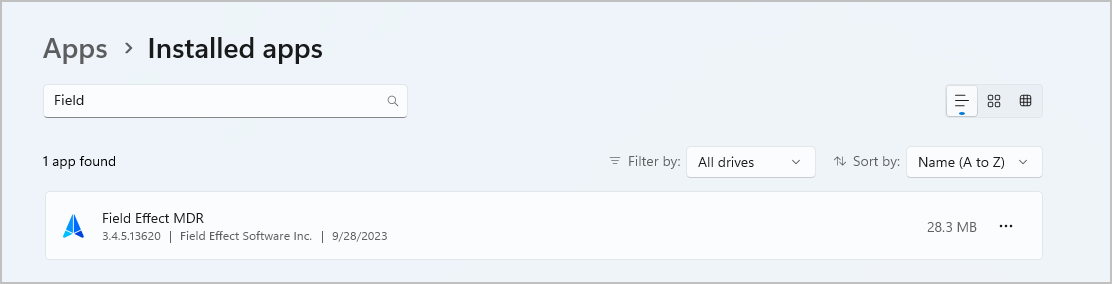
Select Start > Settings > Apps > Installed apps
Step 4 - Locate app
Locate "Field Effect MDR"
Step 5 - Reveal uninstall option
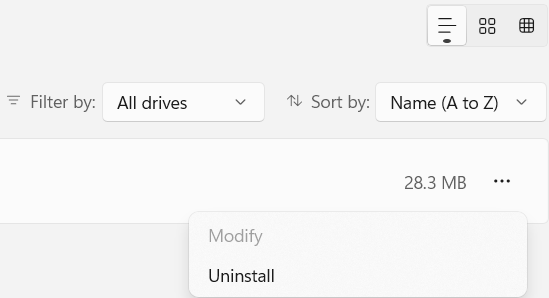
Click the 3 dots to reveal the Uninstall option
Step 6 - Uninstall
Select Uninstall
Step 7 - Confirm
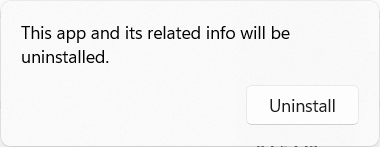
Confirm you want to perform the Uninstall
Was this article helpful?
That’s Great!
Thank you for your feedback
Sorry! We couldn't be helpful
Thank you for your feedback
Feedback sent
We appreciate your effort and will try to fix the article